Articles in this section
Server Scripts & Jobs Overview
Feature Availability
Vtiger Editions: One Growth | One Professional | One Enterprise | One AI
Introduction
In Vtiger CRM, there are scenarios where standard workflows and automation rules are not sufficient to handle complex business requirements. In such cases, Server Scripts and Server Jobs enable you to perform custom processing on the server.
This feature allows you to:
- Execute custom logic when a record is saved, approved, or rejected
- Run scheduled background jobs at fixed intervals
Using Server Scripts and Jobs, you can extend CRM functionality, integrate external systems, and automate advanced business processes efficiently.
Server Scripts
Server Scripts are executed when a specific record-related action occurs in the CRM. These actions include record creation, update, approval, or rejection.
They are configured within workflows, processes, or approval flows and are triggered as part of these automations.
Server Scripts receive the current record data and user information. Any changes made to the record data within the script are saved back to the CRM when the script execution is completed.
Since these scripts run immediately during record actions, they should be used for lightweight operations such as:
- Updating field values based on business logic
- Validating data
- Creating or updating related records
- Calling external services for quick processing
Server Jobs
Server Jobs are background tasks that are executed at scheduled intervals, such as hourly, daily, or weekly.
They are created and managed from the Server Jobs module and are triggered based on the configured schedule.
Server Jobs do not receive record or user data directly. Instead, they fetch and process data as defined in the script.
These jobs run independently in the background and do not affect user operations in the CRM. They are suitable for heavy and time-consuming tasks such as:
- Importing data from external systems
- Exporting CRM data to external applications
- Performing bulk data processing
- Generating periodic reports
Use Cases
You can use Server Scripts and Jobs in the following scenarios:
- Update record values using external data (e.g., credit score)
- Fetch data from external sources and create CRM records
- Import leads periodically from files or APIs
- Send CRM data to data warehouses
- Synchronize inventory or stock data with external systems
- Apply SLA policies based on conditions (e.g., weekends)
- Perform validations and enrich data automatically
Key Differences between Server Scripts and Server Jobs
|
|
|
|
|
|
|
|
|
|
|
|
|
|
|
|
|
|
|
|
|
|
|
|
|
|
|
|
|
|
|
|
Daily Execution Limits
|
|
|
|
|
|
|
|
|
|
|
|
|
|
|
|
|
|
|
|
Benefits
The benefits of Server Scripts and Server Jobs are:
- Enables advanced automation beyond workflows
- Allows seamless integration with external applications
- Reduces manual effort through automation
- Supports both real-time and scheduled processing
- Improves data accuracy and consistency
- Handles complex business logic efficiently
In this article, you will learn about:
- Installing Server Scripts & Jobs
- Creating a Server Job
- Writing Code for Server Scripts and Jobs
- Helper methods for Server Scripts and Jobs
- Deleting a Server Job
Key Terminology
|
|
|
|
|
|
|
|
|
|
|
|
|
|
|
|
|
|
|
|
|
Installing Server Script & Jobs Add-on
Install the Server Scripts & Jobs Add-on to create custom server-side scripts and run scheduled background tasks in Vtiger CRM.
Follow these steps to install the Server Script & jobs add-on:
- Log in to the CRM.
- Click the main Menu.
- Click Add-ons. The Add-ons page opens.
- Search Server Script & Jobs.
- Click Install. A confirmation window appears.
- Click Yes.
Once installed, the Server Script & Jobs will be available under Platforms > Designer.
Creating a Server Job
Follow these steps to create a Server Job:
- Log in to the CRM .
- Click the main Menu.
- Click Platform.
- Select Server Jobs. The Server Jobs List View opens.
- Click Add Server Job. The Add Server Job window opens.
- Enter or select the following information:
- Job Name - A unique name used to identify the server job.
- Assigned To - The CRM user who owns and executes the job.
- Frequency - Defines how often the job runs (hourly, daily, weekly, or monthly).
- Click Save. The Editor window opens.
- Add your code in the script editor.
- Click Execute and Verify to test the code.
- Set Status to Active.
Writing Code for Server Scripts and Jobs
Server Scripts and Server Jobs in Vtiger CRM are written using JavaScript (ES5). These scripts define the logic that is executed either during record actions (Server Scripts) or at scheduled intervals (Server Jobs).
All scripts must follow a predefined structure to ensure proper execution within the CRM environment.
Script Structure
Every script must be written inside the main() function. This function acts as the entry point for execution and is automatically invoked by the system.
| async function main(record, user) { // Your logic here return record; } |
Understanding Parameters
- record: Represents the CRM record data that is being processed. It includes the record ID, module name, and all field values.
- user: Represents the current CRM user’s data, including user ID, role, timezone, and other details.
Note: The record and user parameters are available only in Server Scripts. Server Jobs do not receive these parameters.
Key Guidelines
- All code must be written inside the main() function.
- The main() function is executed automatically; manual invocation is not required.
- Use the record object to read or modify field values.
- Return the updated record object to persist changes in the CRM.
Helper Methods for Server Scripts and Jobs
To simplify development, Vtiger CRM provides built-in helper methods. These methods allow you to debug scripts, communicate with external systems, and perform CRM operations efficiently.
Debugging Method
The log() method is used to print values during script execution. It is helpful for validating logic and inspecting data.
- Supports logging of strings, numbers, arrays, and objects
- Logs are available in the execution results and logs section
You can also use standard JavaScript console methods such as:
- console.log()
- console.error()
- console.debug()
HTTP Request Methods (vtap.macro.http)
These methods are used to send HTTP requests to external systems.
Supported Methods
- GET
- POST
- PUT
- PATCH
- DELETE
Usage
Each method accepts:
- URL (mandatory)
- Options (optional) → headers, query parameters, body, etc.
Note
- Only HTTPS URLs with valid SSL certificates are allowed
- Requests to localhost, direct IPs, or restricted domains are not allowed
- All methods are asynchronous and must be used with await
- Use try-catch blocks to handle errors
Vtiger REST API Methods (vtap.macro.ws)
These methods allow interaction with CRM data directly.
Common Operations
- Create records
- Retrieve records
- Update records
- Delete records
- Query records
Deleting a Server Job
You can delete a Server Script in the following ways:
- List View
- Summary View
List View
Follow these steps to delete a Server Job from List View:
- Log in to the CRM.
- Click the main Menu.
- Click Platform.
- Select Server Jobs. The Server Jobs List View opens.
- Hover over the Server Job record that you want to delete.
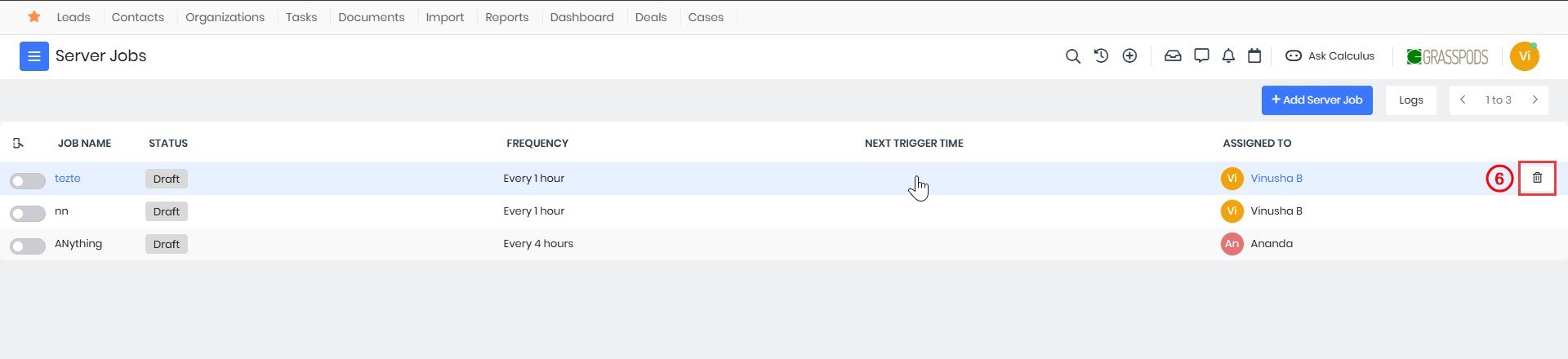
- Click Delete.
- A confirmation window appears.
- Click Yes to confirm deletion
Summary View
Follow these steps to delete a Server Job from List View:
- Log in to the CRM.
- Click the main Menu.
- Click Platform.
- Select Server Jobs. The Server Jobs List View opens.
- Click and open the Server Job record that you want to delete.
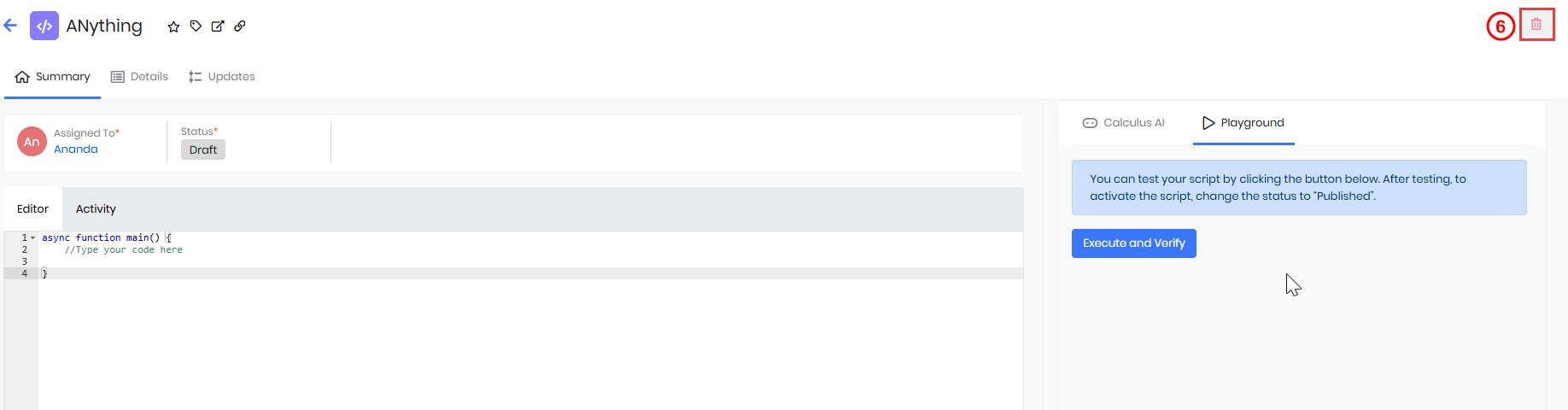
- Click Delete.
- A confirmation window appears.
- Click Yes to confirm deletion
Reference
- Helper Method for Server Scripts and Jobs - Debugging
- Helper Method for Server Scripts and Jobs - HTTP Request
- Helper Methods for Server Scripts and Jobs - Vtiger REST API
- Running Custom Background Tasks with Vtiger Server Jobs
- Server Jobs Example - Importing Daily Leads from a File
- Server Jobs Example - Update Stocks Weekly in Warehouse System
- Server Scripts Example - Calculate Organization Outstanding Invoice Amount
- Server Scripts Example - Contact Email Validation and Data Enrichment
- Server Scripts Example - Set Case SLA by Created Day
- Server Side Scripts & Jobs User Guide
- Using Custom Server Scripts in Processes, Workflows, and Approvals
- Writing Code for Server Scripts and Jobs