Articles in this section
Marketing and Sales - Profile Scoring
Feature Availability
Vtiger Editions: One Pilot | One Growth | One Professional | One Enterprise | One AI
Introduction
Profile Scoring helps you identify potential customers who best match your ideal customer profile. You can:
- Assign scores based on customer attributes that indicate their potential value.
- Use these scores to evaluate, compare, and prioritize potential customers effectively.
- Focus your time on customers with higher potential.
It also helps you make informed decisions when evaluating customer profiles. The Profile Scoring feature is supported only for Contacts and Organizations modules.
Benefits
The benefits of the Profile Scoring feature are:
- Identifying higher-quality prospects for improving sales opportunities.
- Shortening sales cycles by prioritizing customers with higher potential.
- Improving productivity by focusing efforts on relevant customers.
- Simplifying customer evaluation by using consistent scoring criteria.
- Saving time by focusing resources on high-value customers.
In this article, you will learn about:
- Profile Scoring
- Configuring Profile Scoring
- Configuring Profile Rating
- Workflows for the Profile Scores
Key Terminology
|
|
|
|
|
|
|
|
|
|
|
|
|
|
|
|
|
|
|
|
|
|
|
|
Note: Profile Scoring is different from engagement scoring (lead scoring).
Deciding Profile Scores
Profile Scoring involves more than adding numbers and assigning ratings to the contacts. Before configuring Profile Scores, you must identify the factors that define customer importance.
Identifying the Importance of a Contact
First, identify the factors that determine the importance of a contact to your business. You can use these factors to define your target customer profile.
For example, suppose you provide services to businesses of different sizes.
You might prefer serving small and medium-sized businesses (SMBs) over larger businesses.
You can identify SMBs using attributes such as employee count or annual revenue. And then, determine how each attribute contributes to the customer’s Profile Score.
Ranking Attribute Values
After identifying the relevant attributes(fields), list their possible values systematically.
Arrange these values according to their importance to your target contact profile.
For example, you can rank different employee-count ranges based on customer preferences.
You can assign higher importance to ranges representing your preferred customer segment.
Assigning Scores to Attribute Values
After ranking attribute values, assign scores or weights according to their relative importance.
These weights determine how strongly each value contributes to the Profile Score.
You can assign higher weights to values representing your most preferred potential customers. And, assign lower weights to values representing less preferred customer profiles.
Calculating the Maximum Score
The maximum score represents the highest possible score for a potential customer profile.
You can use this score as a reference when evaluating individual profiles.
Calculate the maximum score by adding the highest weight from each attribute.
This score represents the ideal customer profile based on your selected attributes.
Calculating the Customer Profile Score
After assigning scores, calculate each customer’s Profile Score using attribute values and their assigned scores.
The resulting total represents the customer’s Profile Score in Vtiger CRM.
You can compare this score with the maximum score to determine customer priority and rate this profile using Profile Rating.
Assigning a Profile Rating
You can assign ratings to Profile Scores for easier customer evaluation.
Ratings help you understand customer priority without reviewing individual score values.
For example, you can assign a five-star rating to customers reaching 90 percent of the maximum score calculated from all the attributes.
The rating indicates potential customers whose Profile Scores closely match your ideal profile based on your set preferences.
Note:
- Give greater weight to attributes that significantly influence customer importance.
- Add individual weights when customers have multiple values under one attribute.
Profile Scoring for Contacts
Profile Scoring for Contacts helps you evaluate the importance of individual contacts. You can use it to assess contacts influencing purchasing decisions and customer relationships.
Contacts can influence decisions during different stages of the customer lifecycle.
For business-to-business (B2B) customers, contacts can act as influencers or decision-makers. You can evaluate contacts using attributes that indicate their business importance.
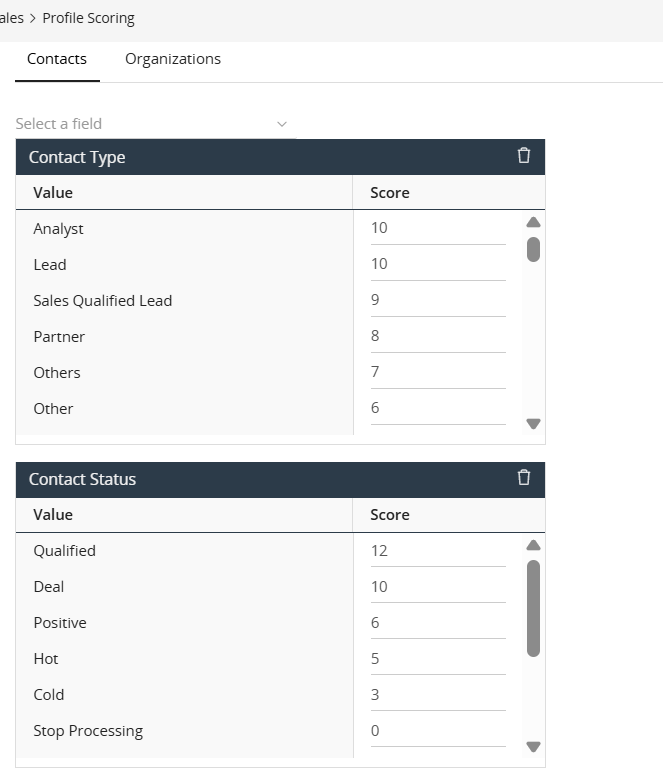
These attributes can include their role, position, and tenure at the organization.
Profile Scoring for Organizations
Profile Scoring for Organizations helps you evaluate a customer’s attractiveness to your business.
You can use it to identify organizations that match your ideal customer profile. You can evaluate organizations using attributes that indicate their business value.
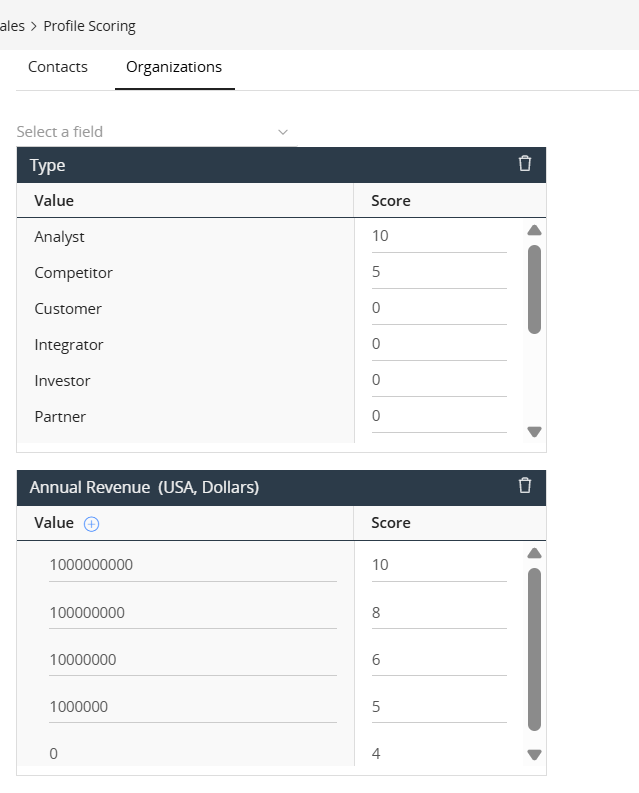
These attributes can include business size, location, revenue, industry, and brand value. You can assign different scores based on the importance of each attribute.
The cumulative score represents how closely an organization matches your ideal customer profile.
Configuring Profile Scores
After defining the scoring criteria, you can configure Profile Scores in Vtiger CRM.
Follow these steps to configure Profile Scores:
- Log in to the CRM.
- Click the User Menu icon in the top-right corner.
- Click Settings. The Settings page opens.
- Locate the Marketing & Sales section.
- Click Profile Scoring. The Profile Scoring page opens.
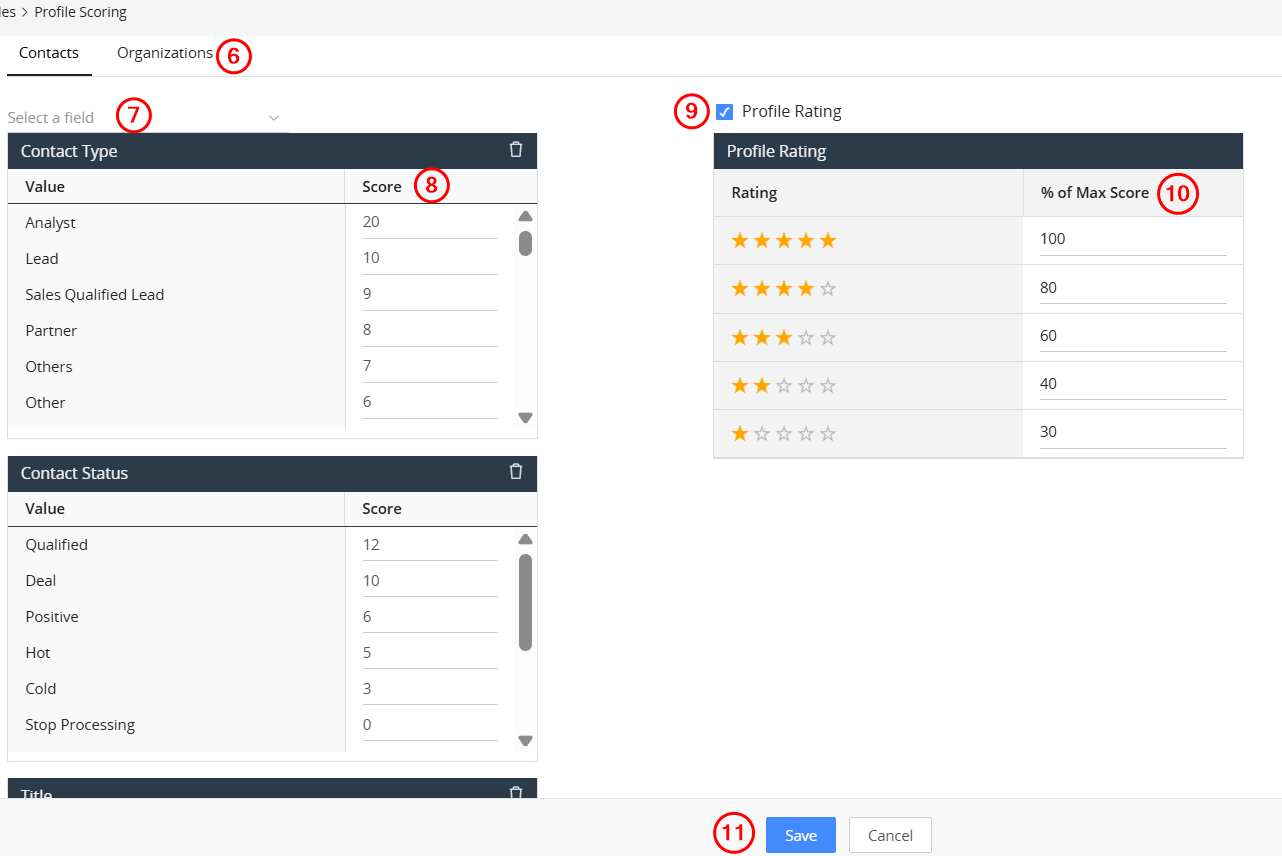
- Select Contacts or Organizations.
- Click the Select a Field drop-down and select an attribute. The selected field and its predefined values appear in a box.
- Enter a Score for each field value under the selected attribute.
- Enable Profile Rating.
- Assign the % of Max Score for the ratings.
- Click Save.
- Click Yes to confirm your configuration.
The Profile Scoring field is available in the Contacts and Organizations modules.
Note: There is no limit for assigning the score, but you cannot assign a negative value.
Configuring Profile Rating
After configuring Profile Scores, you must assign ratings to represent customer priority.
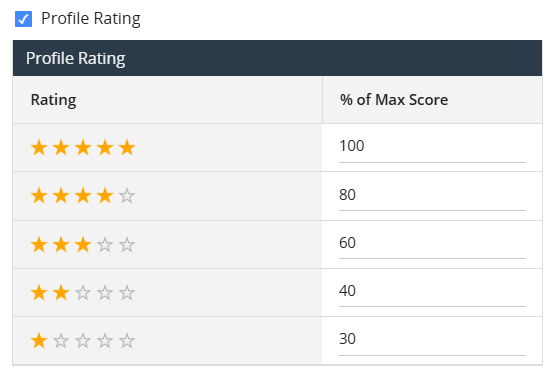
Vtiger CRM uses stars to represent Profile Ratings based on the calculated score.
A higher number of stars represents a higher percentage of the maximum Profile Score.
For example, Vtiger CRM can assign five stars when the score reaches 90 percent.
Follow these steps to configure Profile Ratings:
- Log in to the CRM.
- Click the User Menu icon in the top-right corner.
- Click Settings. The Settings page opens.
- Locate the Marketing & Sales section.
- Click Profile Scoring. The Profile Scoring page opens.
- Select Contacts or Organizations.
- Enable the Profile Rating checkbox.
- Define the rating thresholds using the available stars and assign the % of Max Score.
- Click Save.
- Click Yes to confirm your configuration.
The Profile Rating is enabled, and you can see the Profile Rating field in the Contacts and Organizations modules.
Note:
- Vtiger CRM automatically assigns Profile Ratings based on the configured thresholds.
- A background process automatically compares each Profile Score with the maximum score.
- The process then assigns the corresponding Profile Rating to each customer.
- You can add, delete, or modify the default attributes and values.
- You can assign any positive score value, but negative values are not supported.
- Vtiger CRM automatically recalculates the total Profile Score when individual scores change.
- Profile Rating is enabled by default in Vtiger CRM.
- You can disable Profile Rating by clearing the Profile Rating checkbox.
Deleting an Attribute
You can delete an entire attribute from Profile Scoring. Follow the steps below to delete an attribute:
- Log in to the CRM.
- Click the User Menu icon in the top-right corner.
- Click Settings. The Settings page opens.
- Locate the Marketing & Sales section.
- Click Profile Scoring. The Profile Scoring page opens.
- Select Contacts or Organizations.
- Locate the attribute you want to delete.
- Click the Delete icon corresponding to that attribute. The Are you sure that you want to delete? warning pops up.
- Click Yes to confirm.
The attribute is deleted from the Profile Scoring. The Profile Rating is automatically calculated based on the available attributes and their values.
Note: For Organizations, you can add or delete numeric values within attributes.
Workflows for Profile Scores
Workflows in Vtiger CRM help you automate actions based on Profile Scores and Ratings.
You can configure workflows to respond when high-priority customers perform specific actions.
For example, you can configure a workflow to notify your sales reps about critical issues. The workflow can trigger notifications when four- or five-star customers report these issues.
Using workflows helps you respond quickly to high-priority customers and improve customer satisfaction.
Click here to learn more about Workflows.