Articles in this section
Vmeet Add-on
Feature Availability
Vtiger Editions: One Pilot | One Growth | One Professional | One Enterprise | One AI
Introduction
Vmeet is Vtiger's built-in online meeting application that enables you to hold video calls and conferences with your teams, customers and partners. You can create an event with the Activity Type Vmeet and schedule, host, and manage your meetings directly from the CRM.
With Vmeet, you can:
- Collaborate in real time via video, audio, chat, and screen sharing.
- Create meeting records in the Events module for every Vmeet event.
- Automatically link recordings, transcripts, captions, and action items to the Event record in the CRM.
Vmeet also supports real-time AI assistance, multi-speaker transcription, in-meeting collaboration features, and enterprise-grade security and compliance.
Note: Vmeet is available as a paid add-on for $25/month across all Vtiger editions.
Key Features
The key features of the Vmeet add-on are:
- Schedule meetings directly from the Events module and related modules, including Deals, Contacts, Cases, Tasks, and Projects.
- Accessibility: Access Vmeet on all major desktop and mobile browsers and experience reliable performance at any scale.
- Store meeting recordings and transcripts securely in Vtiger Documents for easy access and reference.
- Encryption: Use end-to-end encryption for non-recorded meetings. (Recorded meetings are not supported with encryption.)
- Use APIs to schedule meetings, embed meeting experiences, and retrieve recordings programmatically.
- Event module fields for Vmeet Activity Type: The following are the fields in the Events module for Vmeet events:
- Vmeet link expiry: Enter the number of hours the link will remain valid after the meeting ends. For example, if you select 3h, the link will expire 3h after the meeting ends.
- Activity Type: Select Vmeet.
- Vmeet AI Analysis: Enable the checkbox to receive an AI-generated transcript summary of the meeting.
- Vmeet recording: Select the type of recording - Audio or Video.
Benefits
The benefits of the Vmeet Add-on are:
- Get end-to-end encrypted meetings with Vmeet.
- Enable real-time video, chat, screen sharing, polls, whiteboards, and breakout rooms to make meetings more productive.
- Get automatic summaries, action items, sentiment insights, and engagement analysis without manual effort.
- Protect meetings with encryption, access controls, consent prompts, and policy-driven retention.
- Eliminate external tools with a browser-based, plug-in-free solution that scales for teams and webinars.
In this article, you will learn about:
- Vmeet feature
- Installing Vmeet Add-on
- Creating a Vmeet Event
- Start a meeting
- Host and manage a meeting
- Record and transcribe a meeting
- Review meeting artifacts
- Leverage AI insights
- Manage settings
Key Terminology
|
|
|
|
|
|
|
|
|
|
|
|
|
|
|
|
|
|
|
|
|
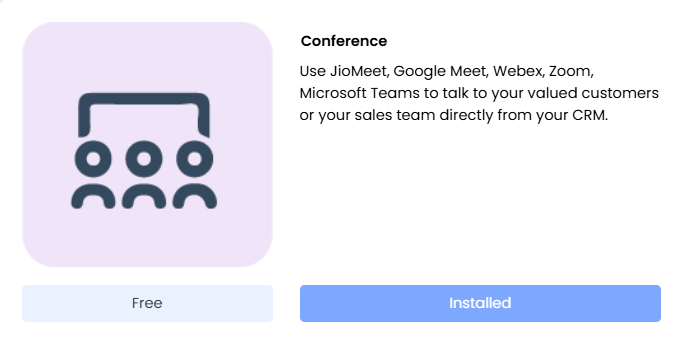
Installing Conference Add-on
To use Vmeet, you need to install the Conference Add-on from the Add-ons page. It is a built-in meeting feature that lets you schedule and manage meetings directly from various CRM modules, enhancing collaboration and productivity.
Follow the steps below to install the Conference Add-on:
- Log in to the CRM.
- Go to the main Menu.
- Click Add-ons. The list of Add-ons page opens.
- Search for Conference.
- Click Install. The confirmation pop-up window opens.
- Click Yes to confirm the installation.
The Conference add-on has been successfully installed in your CRM. You can create Event records with various Activity Types, such as Vmeet, Zoom Meet, and Google Meet.
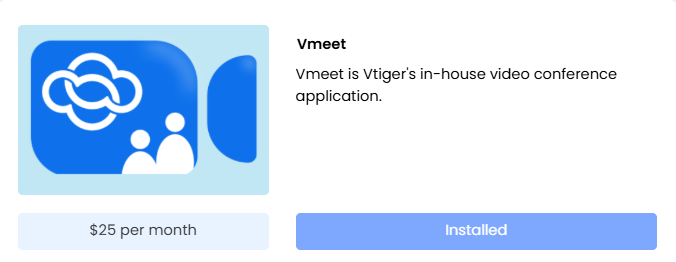
Vmeet Add-on
Follow the steps below to install the Vmeet Add-on:
- Log in to the CRM.
- Go to the main Menu.
- Click Add-ons. The list of Add-ons page opens.
- Search for Vmeet.
- Click Try for 7 days or click $25 per month to purchase the add-on. The confirmation pop-up window opens.
- Click Yes to confirm. The installation success message appears.
You can create Event records with the Activity Type set to Vmeet.
Creating a Vmeet Event
You can schedule a Vmeet from the Events, Deals, Contacts, Cases, Projects, and Tasks modules.
Follow the steps below:
- Log in to the CRM.
- Go to the main Menu.
- Select Events. The Events module List View opens.
- Click +Add Event. The Add Event window opens.
- Enter or select the information for the following sections:
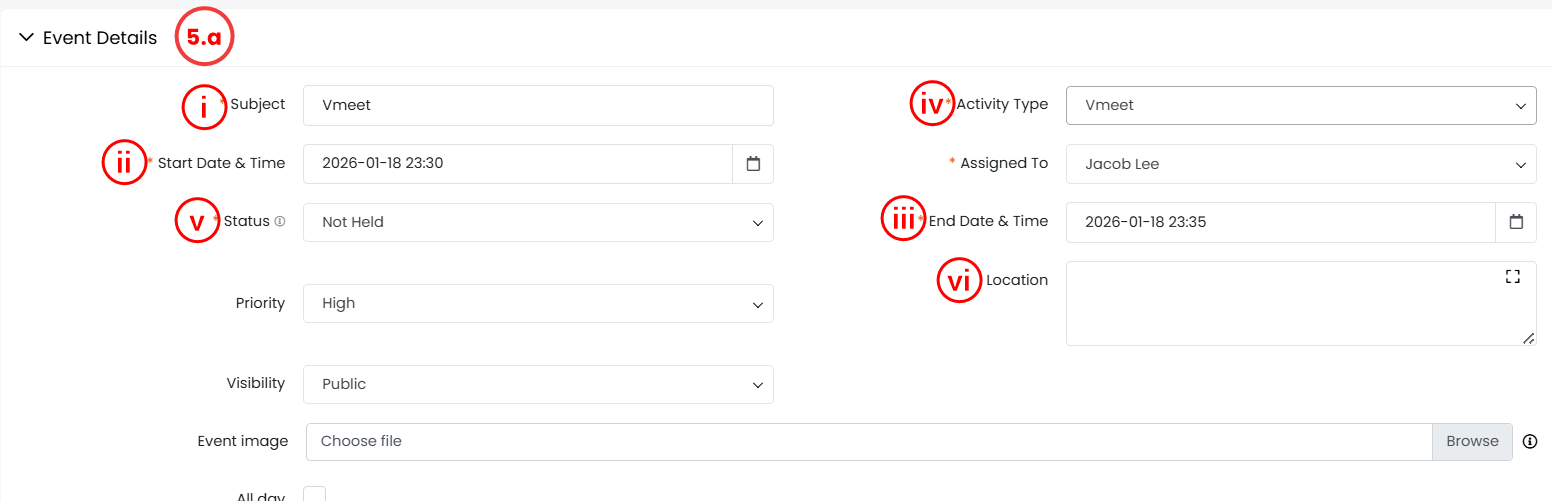
- Event Details:
- Subject: Enter the name of the event.
- Start Date & Time: Select the event's start date and time.
- End Date & Time: Select the event's end date and time.
- Activity Type: Select Vmeet.
- Assigned to: The crm user meeting is assigned to.
- Status: Select the event status. For example, planned and held.
- Location: Select the location of the meeting.
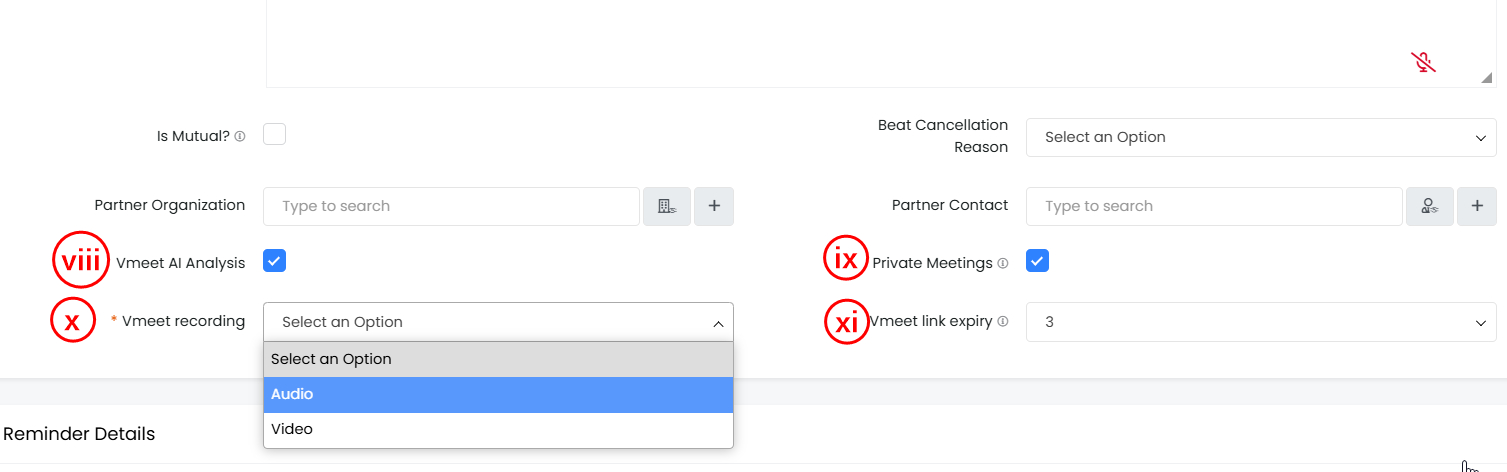
- Vmeet AI Analysis: Enable the checkbox to receive an AI-generated transcript summary of the meeting.
- Private Meetings: Enable the checkbox to allow only participants to attend.
- Vmeet recording: Select Audio or Video from the drop-down. The recording will include video, audio, and screen sharing of the meeting.
- Vmeet link expiry: Enter the number of hours the link will remain valid after the meeting ends. For example, if you select 3h, the link will expire 3h after the meeting ends.
- Reminder Details: Enable the checkbox to send email reminders and specify the time.
- Recurrence Details: Switch on the toggle to make the event recurring, then enter the repeat details.
- Related To: Enter the Contact, the Organization name, and other related module details.
- Invitees: Enter the participant details.
- Click Save. A pop-up window appears on the screen with the message: Do you want to send an invite email to all invitees?
- Click Yes.
Starting or Joining a Meeting
You can join through the CRM Calendar, the record detail view, or the meeting link from your browser.
Note: You need to enter your name and address, then click join to enter the meeting.
Hosting and Managing a Meeting
Note: The meeting host is the CRM user assigned to the Vmeet event.
As a meeting host, you can:
- Admit participants from the lobby
- Mute one or all participants
- Turn off a participant's video
- Share screen or files
- Stop screen sharing if any participants are sharing the screen
- Launch polls
- Use chat and a whiteboard
- End the meeting for all participants
Recording and Transcribing Meetings
- The recording automatically starts when the first participant joins the call and stops when the last participant leaves.
- The transcription and meeting analytics are available in the event record after the meeting, once the event record with the Vmeet Activity type is marked as Held.
Reviewing Recording and AI Analysis
You can:
- Access recordings, transcripts, meeting notes, and attendance logs.
- View timeline and speaker-only transcript modes.
- Read AI summaries and suggested action items.
- We have objective scoring and analysis.
- Auto-link decisions to CRM modules from the Actions block.
Review the meeting recording and the AI analytics from the Summary View of the Vmeet event record.
Follow the steps below to view the recording and the AI analytics of a Vmeet event:
- Log in to the CRM.
- Go to the main Menu.
- Click Events under the Essentials tab. The List View opens.
- Open a Vmeet event record with Held status. The Summary View opens.
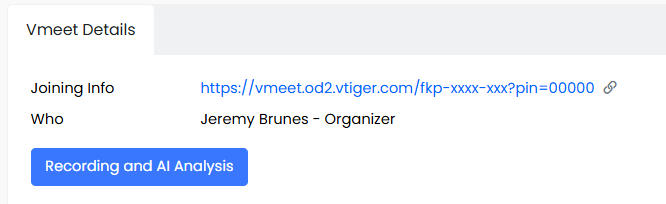
- Click Recording and AI Analysis in the Vmeet Details section. The Recording and AI Analysis window opens.
Recording and AI Analysis Window
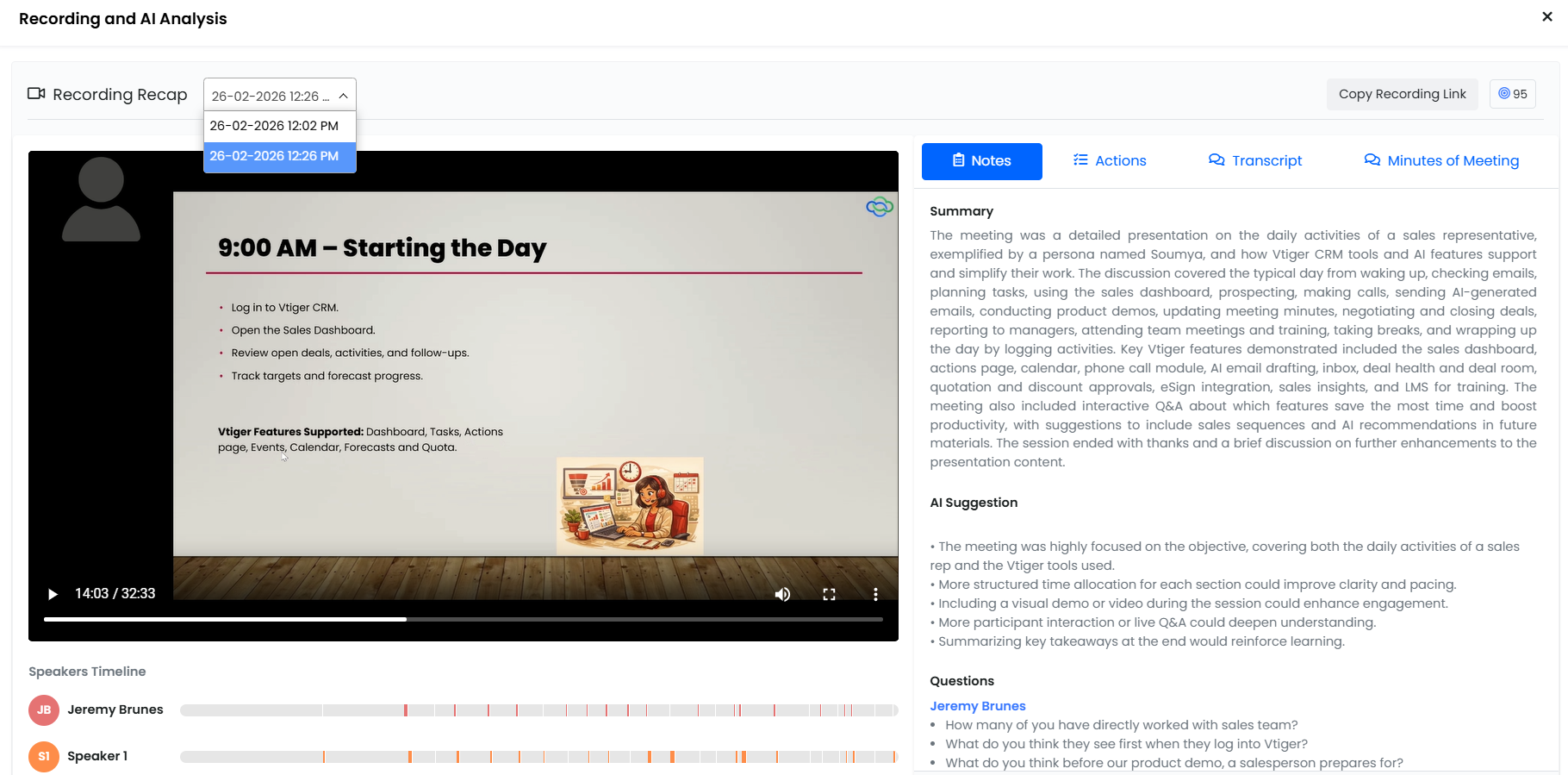
The following are the data you can view in the Recording and AI Analysis window:
- Recording Recap: Displays the video and audio recording of the meeting.
- You can mute, open the video recording in full screen, adjust the playback speed, download the video, and play it in picture-in-picture mode.
- Note: If the event has multiple recordings, they are displayed in the drop-down menu by date and time.
- Copy Recording Link: Click to copy the meeting recording and share it with your teams or customers.
- Objective Score: Displays an objective score that meets the event description or agenda based on AI analysis.
- Speakers Timeline: Displays the host and other speakers' data with timestamps.
- Notes: Displays the meeting summary, AI suggestions, questions asked during the meeting, along with the questioner's name.
- Actions: Displays the next action items discussed during the meeting. You can create Tasks and Events for the particular action item and link them to the Vmeet event record.
- Transcript: Displays the transcripts of the meeting with the speaker's name.
- Minutes of the Meeting: Displays the topic, participants, duration, discussion summary, and action items.
Limits
|
|
|
|
|
|
|
|
|
|
|
|
|
|
|