Articles in this section
The Deal Room
Feature Availability
Vtiger Editions: One Professional | One Enterprise | One AI
Introduction
Sales teams often work with customers across different locations and communication channels. This can make deal discussions, document sharing, and task coordination difficult to manage. Stakeholders may also struggle to access the latest deal information consistently.
Vtiger Deal Room addresses these challenges through a centralized collaborative workspace. It brings sales teams, customers, and other deal stakeholders together. Contributors can discuss deals, share information, ask questions, and coordinate activities. They can also track deal progression, tasks, events, documents, and important updates.
Deal Room is available for individual records within the Deals module. It provides a shared environment for managing collaboration throughout the deal lifecycle. This helps contributors stay aligned without depending on separate communication channels.
Note:
- The Deal Room language is displayed based on the contributor's language preferences configured in My Preferences in the CRM.
- For Users and Contacts, the Deal Room is displayed in the language selected in their CRM preferences.
- If a Contact has not selected a language, the Deal Room uses the language selected by the Deal's assigned User.
- If the Deal is assigned to a Group and the Contact has not selected a language, the Deal Room is displayed in English (US) by default.
User Access and Contact Access
There are two ways to access a Deal Room:
- User Access
- Contact Access
User Access
Users associated with the Deal can access the Deal Room directly from the deal record.
This includes:
- The user assigned to the deal.
- Co-Owners of the deal.
- The manager of the assigned user, where applicable.
Contact Access
Contacts associated with a Deal access the Deal Room through a Deal Room Invite.
The invite contains a link that allows the Contact to access the Deal Room. Contacts authenticate using an OTP sent to their registered email address.
Note: A person who is not associated with the Deal cannot access the Deal Room simply by having the Deal Room link. The email address must be associated with an approved Contact for the deal.
Key Features
The key features of Deal Room are:
- Centralized Deal Workspace: Bring customers, sales teams, and stakeholders together within one dedicated Deal Room.
- Deal Progression Bar: Display sales stages and Playbook Tasks through a visual progression bar.
- Next Actions: Create and track tasks, events, meetings, and upcoming activities for deal participants.
- Questions and Discussions: Allow customers and users to ask questions and provide responses directly.
- Document Sharing: Share important deal documents with authorized participants through one centralized location.
- Timeline: Provide a chronological view of important activities and updates associated with the deal.
- Team Management: View participating members and manage Contact roles within the Deal Room.
- Multilingual Access: Allow contributors to access the Deal Room using their preferred language.
Use Case
Acme Technologies, a software provider selling an enterprise platform. Sarah, an Acme sales representative, manages a large deal involving several customer stakeholders. The customer's procurement manager, IT lead, finance representative, and business sponsor all participate. Instead of exchanging separate email threads, Sarah creates a Deal Room for the opportunity.
Sarah uses Next Actions to coordinate meetings, tasks, and upcoming activities with the customer. The IT team uses Questions to clarify technical requirements and receive responses from Acme. Sarah also shares proposals, product documents, and other relevant files through the Documents area. Both sides can follow important updates through the Timeline and monitor deal progress.
As the Deal moves through different sales stages, the Deal Progression Bar reflects the current progression. This gives everyone participating in the purchase a common view of the deal.
Benefits of the Deal Room
The benefits of using Deal Room are:
- Reduced Communication Gaps: Keep deal-related conversations, updates, documents, and activities connected in one place.
- Faster Stakeholder Alignment: Help every participant understand current responsibilities, pending activities, and deal requirements.
- Improved Deal Visibility: Give customers and internal teams clearer visibility into ongoing deal progress.
- Better Customer Collaboration: Create a structured environment where customers actively participate throughout the buying process.
- Simplified Information Access: Make relevant deal information easier for authorized participants to find and review.
- More Organized Follow-Ups: Help sales teams and customers stay aware of upcoming actions and commitments.
- Greater Transparency: Keep participants informed about changes, activities, documents, and discussions throughout the deal.
- Consistent Buying Experience: Provide customers with a dedicated space for interacting with sales teams.
In this article, you will learn about:
- Installing the Deal Room
- Accessing the Deal Room
- Using Deal Room
- Sending the Deal Room invite to a Contact
- Contacts using the Deal Room
- Disabling a Deal Room
- Enabling the disabled Deal Room
Key Terminology
|
|
|
|
|
|
|
|
|
|
|
|
|
|
|
|
|
|
|
|
|
|
|
|
Installing the Deal Room
Before you can use the Deal Room, install the Deal Room Add-on if it is not already available in your CRM.
Follow these steps to install the Deal Room:
- Log in to the CRM.
- Click the main Menu.
- Go to Add-ons. The Add-ons page opens.
- Search for the Deal Room extension.
- Click Install. A confirmation window opens.
- Click Yes.
After installation, the Deal Room module is available under Settings > Modules. Enable the module to make the Deal Room available for Deals. Once the module is enabled, the Deal Room button appears in the header of Deal records. To learn more about Modules, click here.
Accessing the Deal Room
You can access the Deal Room from a deal record.
Follow these steps to access the Deal Room:
- Log in to the CRM.
- Click the main Menu.
- Go to Sales.
- Click Deals. The Deals List View opens.
- Open the required Deal. The Deals Summary View opens.
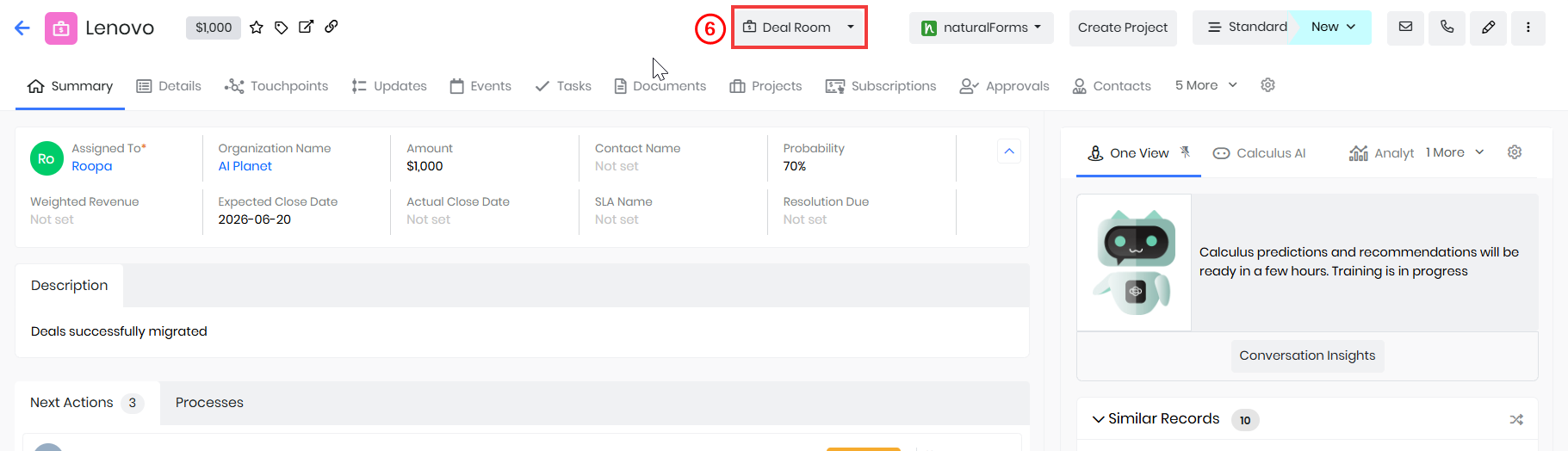
- Click Deal Room. The Deal Room opens.
The Deal Room opens for the selected Deal. The Deal Room opens with the same information and collaboration experience that is available to the contacts associated with the Deal.
Using a Deal Room
Follow these steps to use the Deal Room:
- Log in to the CRM.
- Click the main Menu.
- Go to Sales.
- Click Deals. The Deals List View opens.
- Open the required Deal. The Deal Summary View opens.
- Click Deal Room. The Deal Room opens.
- Enter or view the following information:
- Deal Name - Displays the name of the Deal record.
- Created By - Displays the name and profile picture of the created user.
- Note: Users assigned to the Deal, Co-Owners, and Users in the Reports To relationship can access the Deal Room based on their CRM access and permissions. Contacts can access the Deal Room through the Deal Room invitation sent to their registered email address.
- Project Goal - Displays the project goal. You can view the Project Goal field in the Detail View of the Deal record.
- Project Objective - Displays the project objective. You can view the Project Objective field in the Detail View of the Deal record.
- Go Live Date - Displays the Go Live Date of the project. You can view the Go Live Date field in the Detail View of the Deal record.
- Assigned To Details - Displays the details of the User or Group assigned to the Deal.
- Schedule Meeting is displayed when an Appointment Page (Meet Me Page) is available for the assigned User.
- Contributors - Displays the members of the Deal Room:
- Contacts - Contacts added or linked to the Deal in CRM.
- User - User assigned to the Deal.
- Co-Owners - Users who also own the Deal in CRM.
- Reports To - Manager of the assigned User in CRM.
- Note: Contacts can access the Deal Room after receiving a Deal Room invitation and completing the required OTP-based login using their registered email address.
- Deal Progression Bar - Displays the Sales Stages and Journey/Playbook Tasks associated with the Deal.
- Color Codes for Sales Stages:
- Green - Completed
- Red - Skipped
- Yellow - Current
- Gray - Pending
- Color Codes for Playbook Tasks:
- Dark Green - Completed
- Red - Skipped
- Light Green - Pending
- Click the navigation icons on either side of the Deal Progression Bar to move between the Sales Stages and their associated Tasks.
- When all applicable Journey/Playbook Tasks for a Sales Stage are completed, the Deal automatically progresses to the next Sales Stage.
- Note: Completing a Playbook Task updates its status in the Deal Progression Bar and updates the related Deal record.
- Color Codes for Sales Stages:
- Next Actions - Displays pending Mutual Tasks, Events, and Playbook Tasks that require action.
- Mutual Task/Event - an activity in which both the customer and User are involved.
- A Task or Event becomes Mutual when the Is Mutual checkbox is enabled in the Task Details or Event Details.
- Only pending Mutual Playbook Tasks for the current Sales Stage and other pending Mutual Tasks and Events related to the Deal are displayed.
- Contributors can mark a displayed Task as completed by selecting the checkbox beside the Task.
- When a Journey/Playbook Task is completed, its status is updated in the Deal Progression Bar and the related Deal record.
- Note: Completing an Other Task updates the related Sales Stage.
- Mutual Task/Event - an activity in which both the customer and User are involved.
- Questions - Displays questions posted by Contributors and public comments from the Deal's Activity section.
- Asking a Question
- Click Ask Question.
- Enter your question.
- Click Post.
- Replying to a Question
- Select the question you want to reply to.
- Click Reply.
- Enter your reply.
- Click Post.
- Editing a Question or Reply
- Select the question or reply you want to edit.
- Click Edit.
- Edit the content.
- Click Post.
- Note: You can edit only questions or replies posted by you.
- Marking a Question as Resolved
- Select the question you want to mark as resolved.
- Click Mark as Resolved.
- The question is displayed with the Resolved label.
- Questions that are not resolved are displayed with the Open label.
- Posting a Public Comment from CRM
- Go to the Activity section of the Deal record.
- Type your comment.
- Click Post a comment and mention.
- Enter your comment.
- Click the down arrow on the Comment button.
- Select Post and publish to portal.
- The comment is displayed in the Deal Room under Questions.
- Note:
- Only comments published using Post and publish to portal are displayed in the Deal Room.
- Questions posted by Contributors in the Deal Room are added as Comments in the Deal's Activity section along with the Contributor's name.
- Private CRM comments are not displayed in the Deal Room. Only public comments are displayed.
- Note:
- Asking a Question
- Files - Displays documents associated with the Deal.
- Click Upload Document.
- Click Browse.
- Select the required document.
- Click Save.
- Note:
- Documents uploaded by Contacts in the Deal Room are displayed here.
- Public documents linked to the Deal in CRM are displayed here.
- Only Contacts can upload documents.
- Contributors can download documents.
- Documents uploaded by Contacts are linked to the Deal record in CRM, and their document records are created in the Documents module.
- Documents of all formats can be uploaded. File upload limits depend on the subscribed CRM edition, and uploaded documents cannot be deleted from the Deal Room.
- Note:
- Timeline - Displays timestamps for activities and updates related to the Deal, such as:
- Document uploads
- Mutual Task status changes
- Mutual Event status changes
- Team - Displays Contacts associated with the Deal and their Contact Roles.
- Select or update the role of a Contact from the Deal Room.
- Note: Roles updated for Contacts by Contributors in the Deal Room are also updated for the respective Contact in the Deal record in CRM.
Note:
- The Deal Room is displayed according to the language selected by the Contributor in My Preferences.
- If a Contact has not selected a language, the Deal Room is displayed in the language selected by the Deal's assigned User.
- If the Deal is assigned to a Group and the Contributor has not selected a language, the Deal Room is displayed in English (US) by default.
Sending the Deal Room Invite to a Contact
You can invite Contacts to collaborate in the Deal Room by sharing the Deal Room link through email.
Follow these steps to send the Deal Room Invite:
- Log in to the CRM.
- Click the main Menu.
- Go to Sales.
- Click Deals. The Deals List View opens.
- Open the required Deal. The Deals Summary View opens.
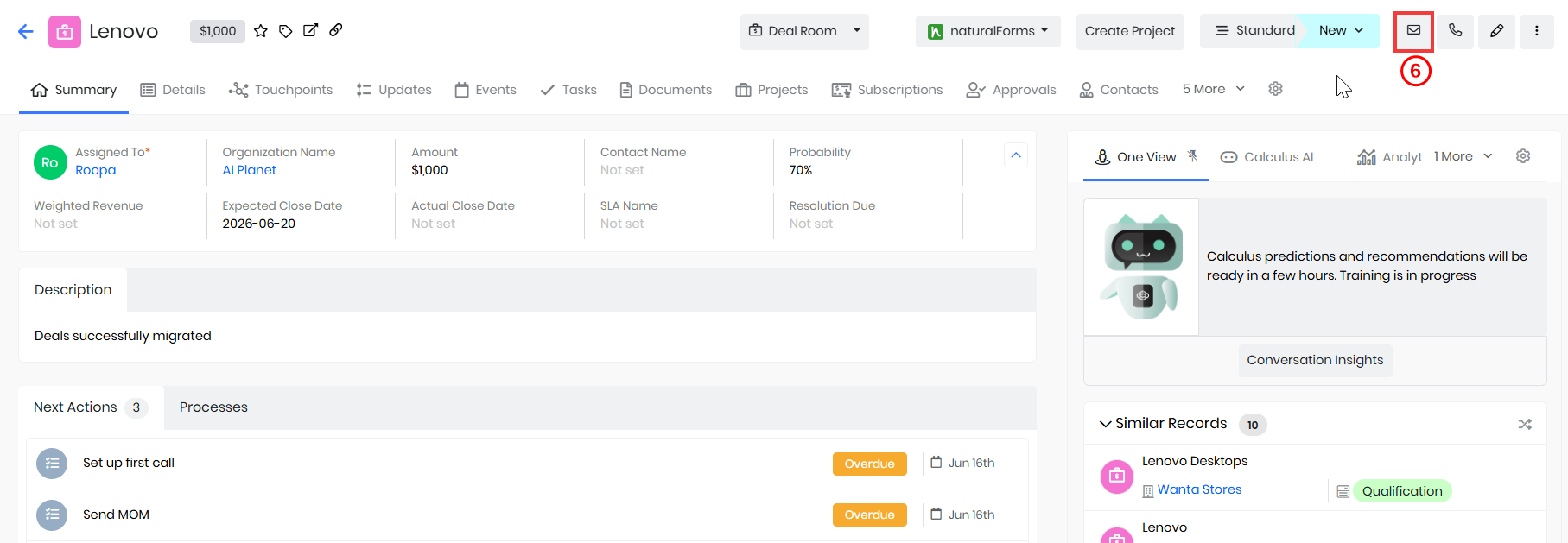
- Click Email in the top right corner of the screen. The Compose Email window opens.
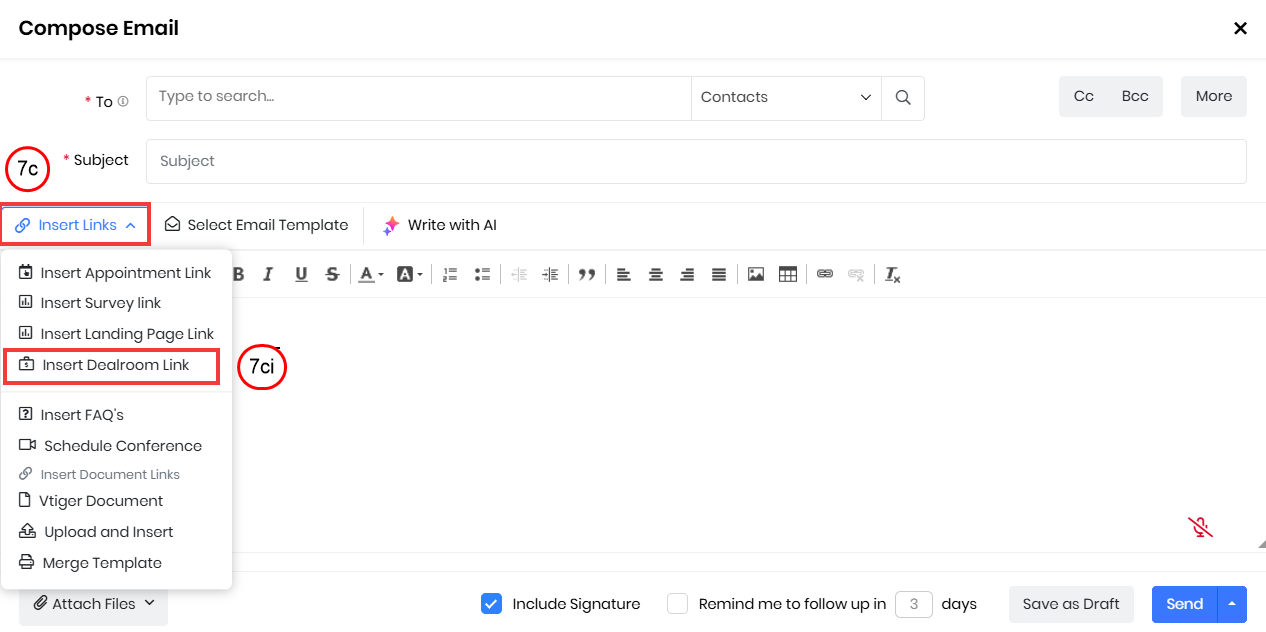
- Enter or select the following information:
- To – Select the email address of the Contact you want to invite to the Deal Room.
- Subject – Enter the subject of the email.
- Insert Links – Click and a drop-down list opens.
- Insert Deal Room Link - Click to add the Deal Room link to the email.
- Text Box – Enter the message you want to send to the Contact along with the Deal Room link.
- Click Send.
The Deal Room Invite is sent to the selected Contact with the Deal Room link.
Contacts Using the Deal Room
Your Contacts can access a Deal Room using the Deal Room Invite you sent to their registered email address. They can log in using a one-time password (OTP) and log out from the Deal Room when required.
Note: If the Deal is deleted and a Contact uses the old invitation link, This deal doesn't exist is displayed.
Logging in to the Deal Room as a Contact
Follow these steps to log in to the Deal Room as a contact:
- Open the Deal Room Invite received in your registered email address.
- Click the Deal Room link in the email.
- The Deal Room login window opens.
- Enter your registered email address.
- Click Send OTP.
- The OTP is sent to your registered email address, and the message OTP sent successfully is displayed.
- Enter the OTP in the OTP field.
- Click Join.
Your contact is logged in and can access the Deal Room.
Note:
- The OTP is valid for one hour.
- You can use the Resend OTP option a maximum of five times.
- OTPs are sent only to the registered email addresses of approved Contacts associated with the Deal Room.
- Users cannot log in to the Deal Room using their CRM email address and password.
Logging out of the Deal Room as a Contact
Follow these steps to log out of the Deal Room:
- Click your Profile in the top-right corner of the Deal Room.
- Click Logout.
Your Contact is logged out of the Deal Room.
Disabling a Deal Room
You can disable the Deal Room when you no longer want Contacts to access the Deal Room for a particular deal. Only CRM Users can disable the Deal Room for a deal.
Follow these steps to disable the Deal Room for a deal:
- Log in to the CRM.
- Click the main Menu.
- Go to Sales.
- Click Deals. The Deals List View opens.
- Open the required Deal. The Deals Summary View opens.
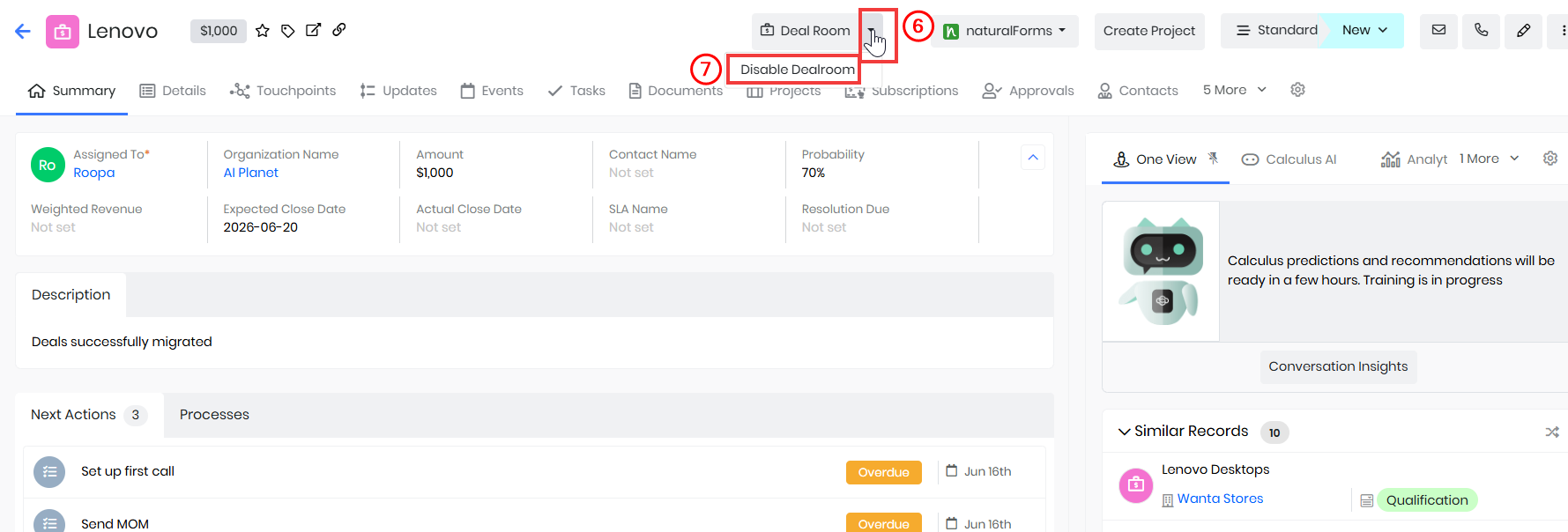
- Click the down arrow on the Deal Room button.
- Click Disable Deal Room. A confirmation pop-up is displayed with the message, Are you sure you want to disable Deal Room access for this deal?
- Click OK.
Once the Deal Room is disabled, the Deal Room button changes to Enable Deal Room, and the Deal Room cannot be accessed until it is enabled again. When the Deal Room is disabled, the Deal Room Restricted field under Deal record > Details View > Deal Details is checked by default.
Enabling a Disabled Deal Room
If the Deal Room was previously disabled for a deal, you can enable it again to restore access for the Deal Room contributors.
Follow these steps to enable a disabled Deal Room:
- Log in to the CRM.
- Click the main Menu.
- Go to Sales.
- Click Deals. The Deals List View opens.
- Open the required Deal. The Deals Summary View opens.
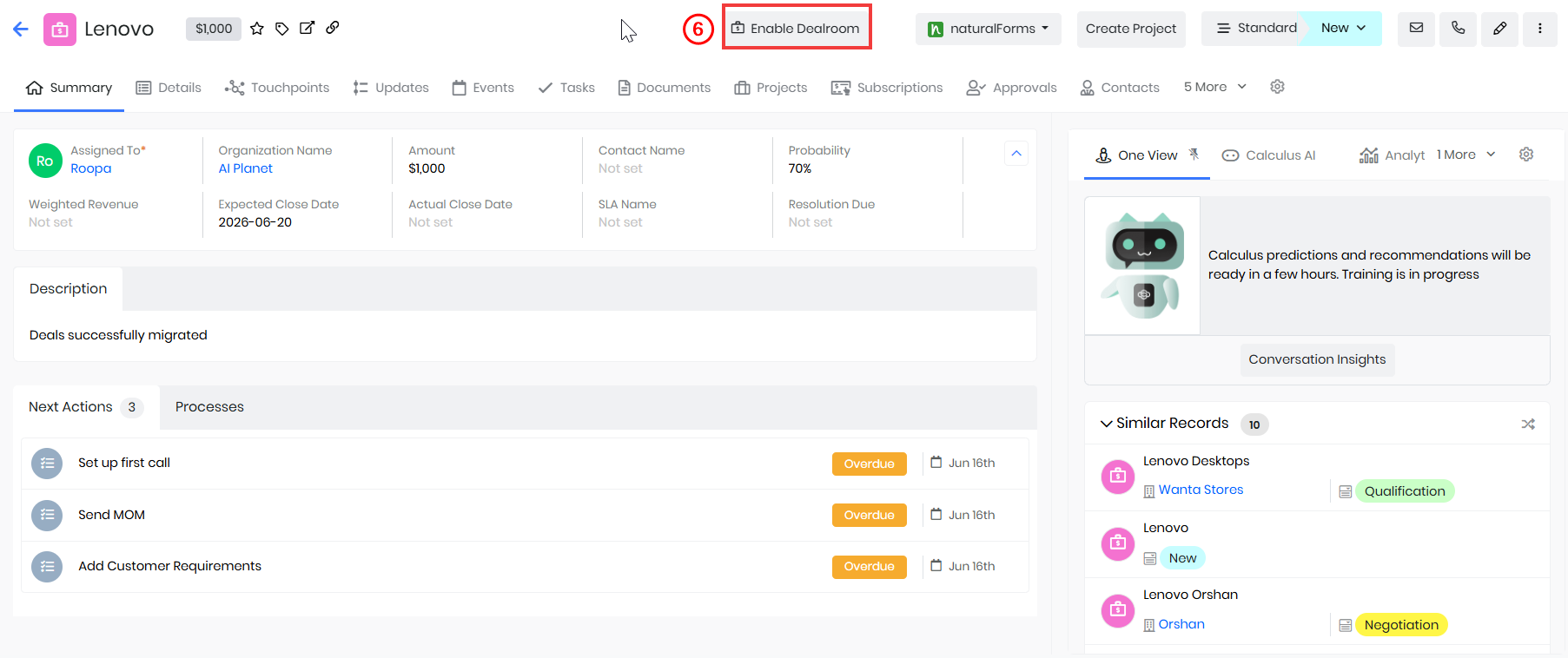
- Click Enable Deal Room.
- A confirmation pop-up is displayed with the message, Are you sure you want to enable Deal Room access for this deal?
- Click OK.
Once the Deal Room is enabled, the Enable Deal Room button changes to Deal Room, and contributors can access the Deal Room again.
Note: CRM Users cannot delete a Deal Room.