Articles in this section
Pipelines & Stages
Feature Availability
Vtiger Editions: One Pilot | One Growth | One Professional | One Enterprise | One AI
Introduction
Managing deals can become challenging when different products, services, or customer segments follow different sales processes. Using the same stages for every deal can make it difficult to track progress and determine the appropriate next steps.
To manage your deals better, you can create a structured sales pipeline with a sequence of sales stages a deal moves through, from initiation to close.
Vtiger CRM’s Pipelines and Sales Stages feature provides a structured way to manage these different sales processes. You can also configure multiple pipelines to represent different product lines or customer sizes.
Example Pipeline Stages: 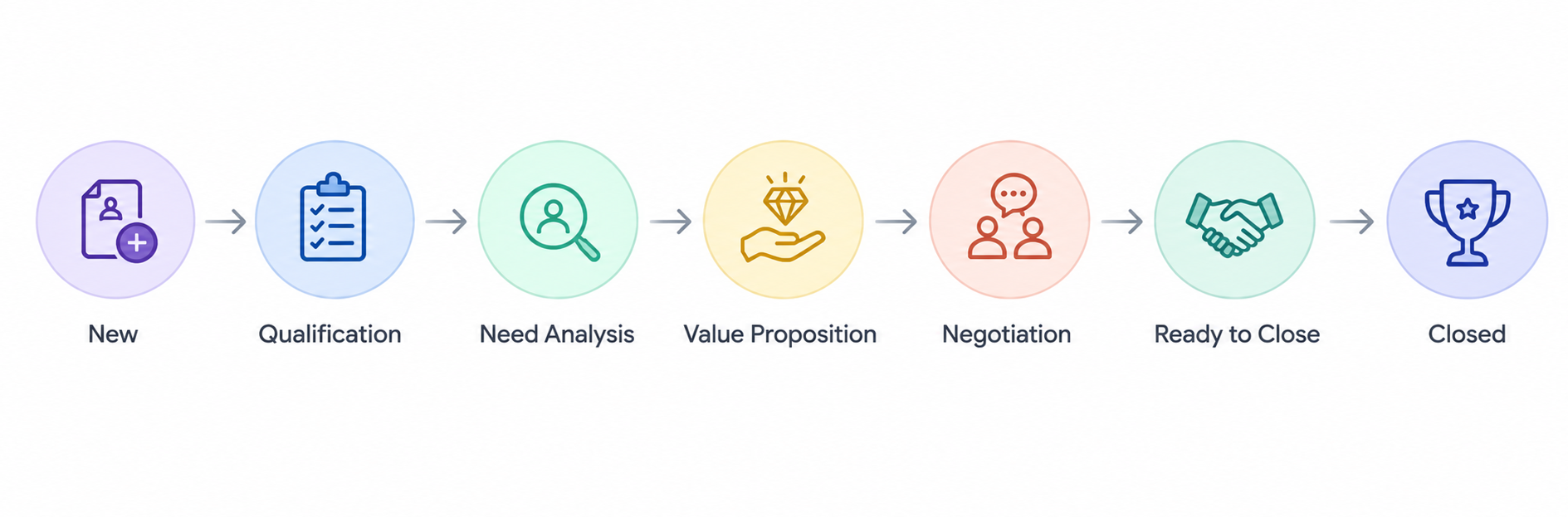
Since different products, deal sizes, or customer types follow distinct selling journeys, Vtiger CRM lets you create multiple customized pipelines. For example, you can create separate pipelines for:
- Different product lines, such as headphones and home theater systems.
- Different customer types, such as large and small customers.
- Different deal sizes that follow different sales processes.
Key Features
The key features of sales pipelines are:
- Custom Configurations: Tailor each pipeline with specific stages, win probabilities, assignment rules, and stage ordering (e.g., separate pipelines for B2B vs. B2C sales or distinct product lines).
- Flexible Tracking: Adapt the sales process to fit small vs. large deals or different customer segments.
What pipelines enable you to do
Pipelines help you:
- Track: Monitor a deal's progress step-by-step through its lifecycle.
- Analyze: Gain insights into sales performance across different processes and stages.
- Transition: Smoothly move deals between different sales pipelines when requirements shift.
Vtiger’s Standard Pipeline and Sales Stages
Vtiger CRM provides a default standard pipeline with predefined sales stages and probabilities. You can customize the standard pipeline by adding or deleting sales stages according to your sales process. You cannot delete the standard pipeline since Vtiger CRM requires at least one pipeline for a sales process.
The default sales stages and probabilities are:
|
|
|
|
|
|
|
|
|
|
|
|
|
|
|
|
|
|
|
|
|
|
|
|
Note:
- Probability represents the progress of a deal through the sales process.
- You cannot remove the default closed states, Closed Won and Closed Lost, from a pipeline.
- Every pipeline must have at least one non-closed state.
Use Case
Neha is a Sales Manager at BrightWave Electronics, a company that sells headphones and home theater systems. Her sales team follows different processes depending on the product being sold. For example, Rahul, a sales representative, receives inquiries for different products. Here are a few examples.
Inquiry 1: Rahul, a sales representative, receives a new headphone inquiry from Arjun. The deal can move through a simple process:
New → Qualification → Negotiation → Ready to Close → Closed Won
Inquiry 1: When Rahul receives a home theater inquiry from Priya. They need to create a sales process that is more detailed because the team needs to understand the customer's requirements, recommend the right solution, and prepare a proposal:
New → Qualification → Need Analysis → Value Proposition → Negotiation → Ready to Close → Closed Won
To manage these different processes, Neha creates two Pipelines in Vtiger CRM: Headphones Sales and Home Theater Sales. She configures the appropriate Sales Stages and probabilities for each Pipeline. Rahul assigns Arjun's Deal to the Headphones Sales Pipeline and Priya's Deal to the Home Theater Sales Pipeline. As the Deals progress, Rahul updates their Sales Stages. He also uses the Kanban View to see where each Deal is in the sales process and move Deals from one stage to another. This allows BrightWave Electronics to manage different sales processes while giving the sales team a clear view of each Deal's progress.
Benefits
The benefits of using Sales Pipelines and Sales Stages are:
- Tailor-made sales processes: Create custom sales cycles for different products, customer types, or deal sizes.
- Customized sales activities: Define sales stages and activities based on the type of sales process.
- Organized sales teams: Assign pipelines to appropriate sales teams and structure incentives based on the sales process.
- Organized deals: Help sales teams view and manage deals according to the pipeline they follow.
In this article, you will learn about:
- Creating a Pipeline
- Assigning a Pipeline to a Deal record
- Changing a Deal’s Pipeline
- Editing a Pipeline
- Using Deal’s Kanban View to manage Sales Stages
- Deleting a Pipeline
Creating a Pipeline
Follow these steps to create a Sales Pipeline:
- Log in to the CRM.
- Click the User Menu in the top-right corner of the screen.
- Click Settings. The Settings page opens.
- Go to the Marketing & Sales section.
- Select Pipeline & Stages. The Pipeline & Stages page opens.
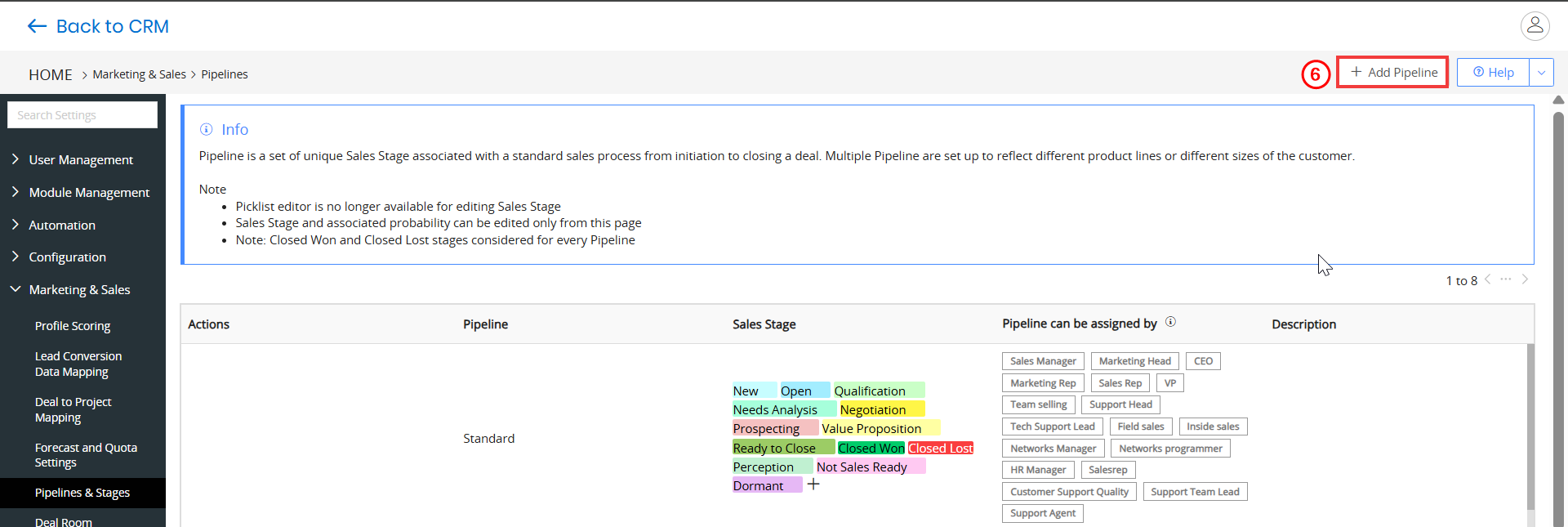
- Click +Add Pipeline. The Add Pipeline page opens.
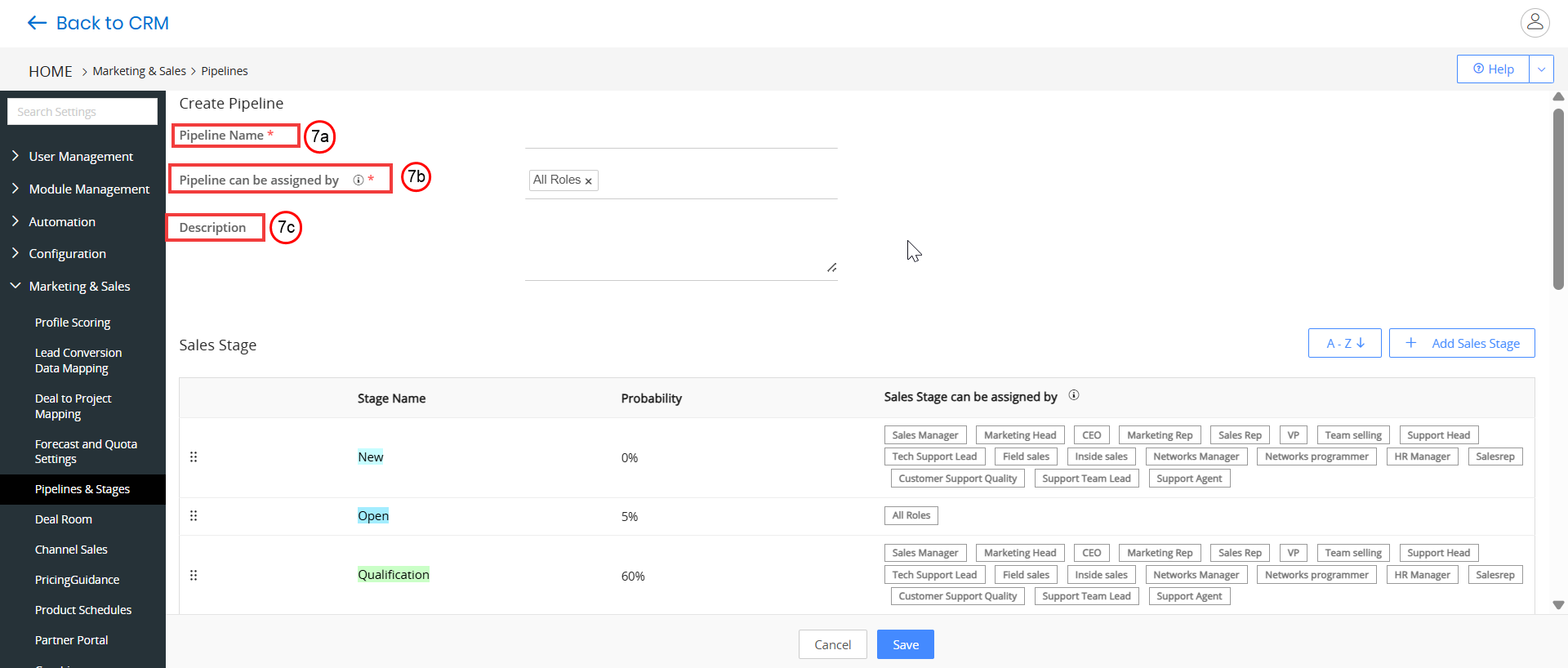
- Enter or select the following information:
- Pipeline Name - Enter the name of the pipeline.
- Pipeline can be assigned by - Select the roles that can assign the pipeline.
- Description - Enter a brief description of the pipeline.
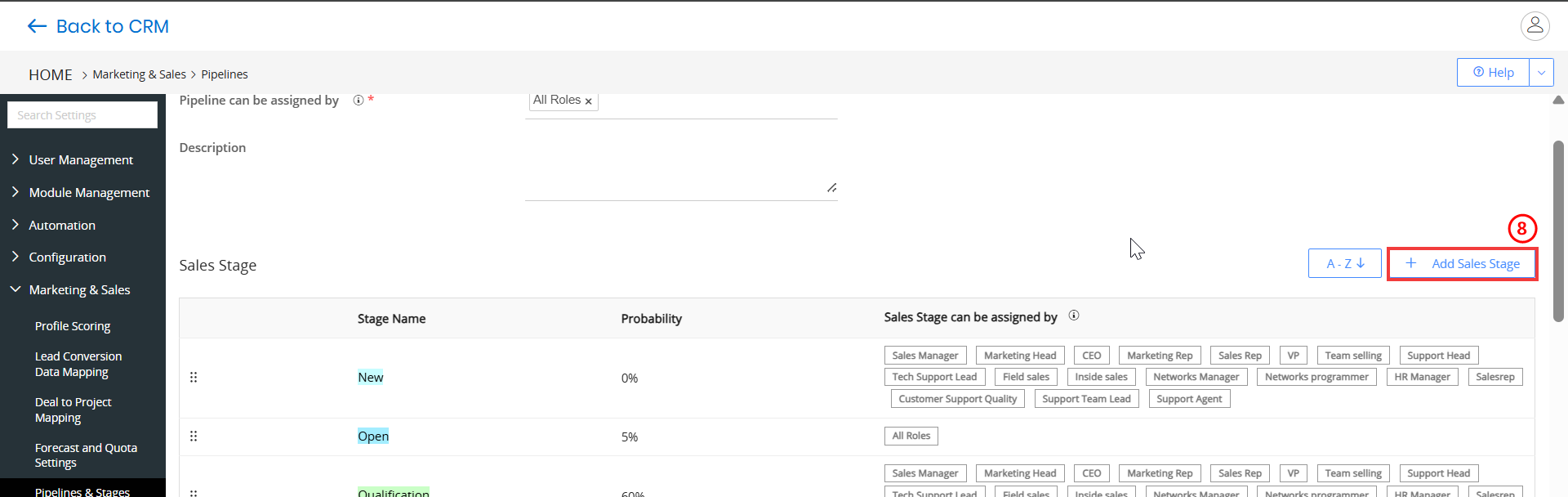
- Click +Add Sales Stage in the Sales Stage block. The Add Sales Stage page opens.
- Enter or select the following Information:
- Sales Stage - Enter the name of the sales stage.
- Probability - Enter the probability percentage for the sales stage.
- Sales stage can be assigned by - Select the roles that can assign the sales stage.
- Select Color - Select a color to highlight the sales stage.
- Click Save to add the sales stage.
- Drag and drop the sales stages to arrange them according to your sales process.
- Click Save.
You can view the newly added Pipeline and its Stages in the Pipelines Settings page.
Note:
- Every pipeline must have at least one non-closed state.
- Only custom closed states can be removed from a pipeline.
- Default closed states cannot be removed from a pipeline.
Assigning a Pipeline to a Deal
You can assign a sales pipeline while creating a Deal record. To learn about Deals, click here.
Follow these steps to assign a Pipeline to a Deal:
- Log in to the CRM.
- Click the main Menu.
- Go to Sales.
- Click Deals. The Deals page opens.
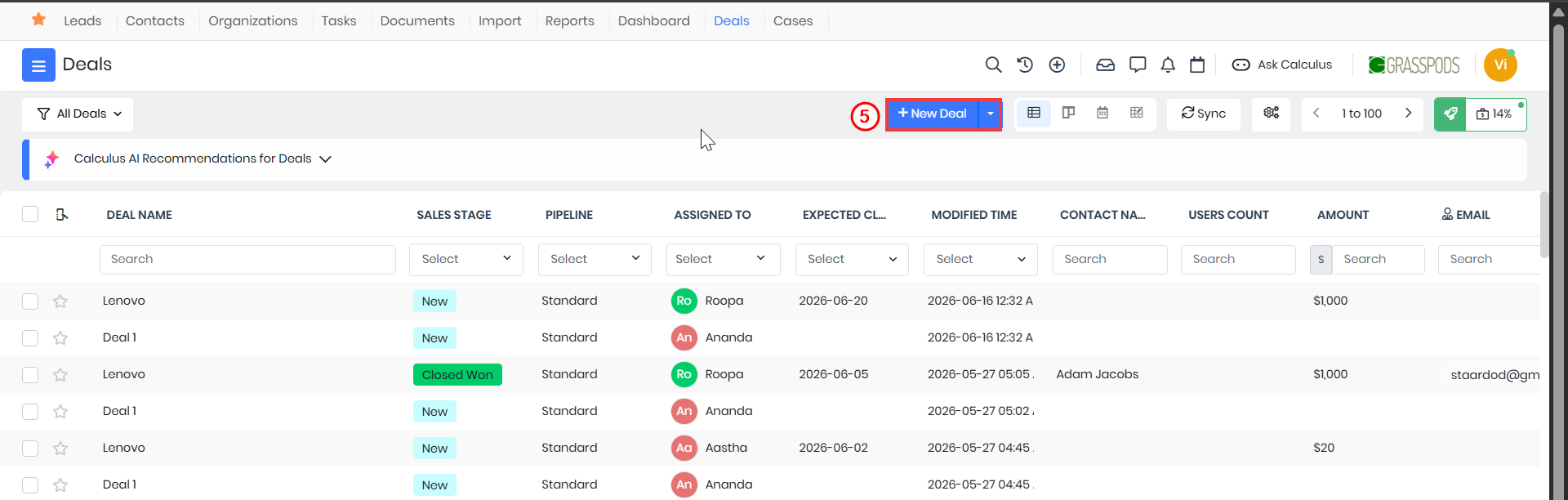
- Click Add Deals. The Add Deals page opens.
- Enter or select the following information:
- Deal Name – Enter the name of the deal.
- Organization Name – Select the organization associated with the deal.
- Sales Stage – Select the current sales stage of the deal.
- Amount – Enter the estimated or actual deal amount.
- Contact Name – Select the contact associated with the deal.
- Assigned To – Select the user or team responsible for the deal.
- Lead Source – Select the source from which the lead or deal originated.
- Type – Select the appropriate deal type.
- Probability – Enter or select the probability of closing the deal.
- Expected Close Date – Select the expected date on which the deal will be closed.
- Pipeline – Select the sales pipeline to which the deal should be assigned.
- Go Live Date – Select the expected go-live date for the project or deal.
- Project Goal – Enter the primary goal of the project.
- Project Objective – Enter the specific objectives that need to be achieved.
- Click Save.
The deal is created and assigned to the selected pipeline. The newly created deal record is displayed in the Deals List View. You can also view the Deals record based on the Pipelines in the Kanban View.
Using Pipelines and Sales Stages
You can also use pipeline information in Playbooks, Sales Insights, Workflows, and the mobile app.
- Using Pipelines in Playbooks - You can use pipeline and sales stage values while configuring Playbooks for your sales processes. To learn more about Playbooks, click here.
- Using Pipelines in Workflows - You can use Pipeline and Sales Stage in workflow entry criteria and supported workflow actions. Supported actions include Send Mail, Update Fields, Create Record, and SMS Task. To learn more about Workflows, click here.
- Using Pipelines in the Mobile App - You can access pipeline and sales stage information while managing deals in the Vtiger CRM mobile app. To learn more about the Mobile App, click here.
Changing a Deal’s Pipeline
You might need to move a deal to another pipeline when the deal needs to follow a different sales process. You can change a Deal’s Pipeline in two ways:
- From the Summary View
- From the List View
From the List View
Follow these steps to change a Deal’s Pipeline from the List View:
- Log in to the CRM.
- Click the main Menu.
- Go to Sales.
- Click Deals. The Deals List View opens.
- Hover over the Deal record you want to change the Pipeline.
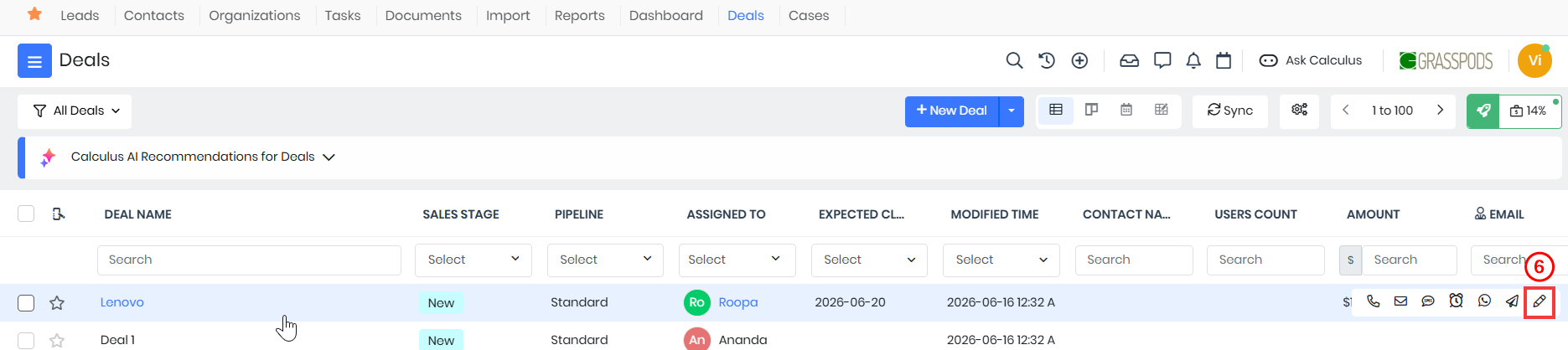
- Click Edit. The Edit Deal page opens.
- Look for the Pipeline field.
- Select a pipeline from the drop-down.
- Look for the Sales Stage field.
- Select a Sales Stage from the picklist.
- Click Save.
The Deal record is updated with the new Pipeline field value.
From the Summary View
Follow these steps to change a Deal’s Pipeline from the Summary View:
- Log in to the CRM.
- Click the main Menu.
- Go to Sales.
- Click Deals. The Deals list View opens.
- Open the Deal you want to change the pipeline for. The Summary View opens.
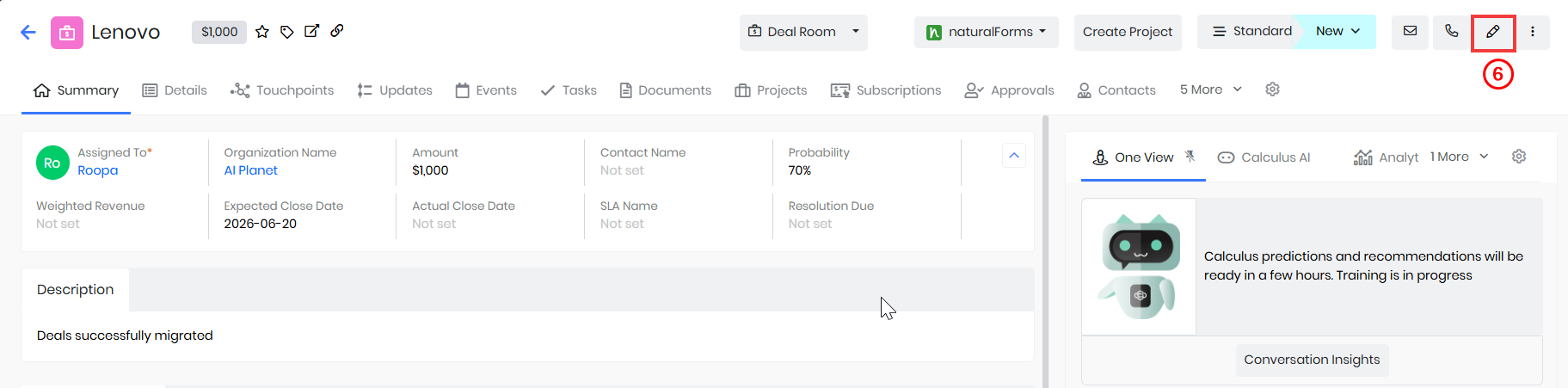
- Click Edit. The Edit Deal page opens.
- Look for the Pipeline field.
- Select a pipeline from the drop-down.
- Look for the Sales Stage field
- Select a sales stage from the picklist.
- Click Save.
The Deal record is updated with the new Pipeline field value.
Editing a Pipeline and Stages
Edit an existing Pipeline when your sales process changes, such as when you need to add, remove, rename, or reorder stages.
Follow these steps to edit a Sales Pipeline:
- Log in to the CRM.
- Click the User Menu in the top-right corner of the screen.
- Click Settings. The Settings page opens.
- Go to the Marketing & Sales section.
- Select Pipeline & Stages. The Pipeline & Stages page opens.
- Hover over the required pipeline.
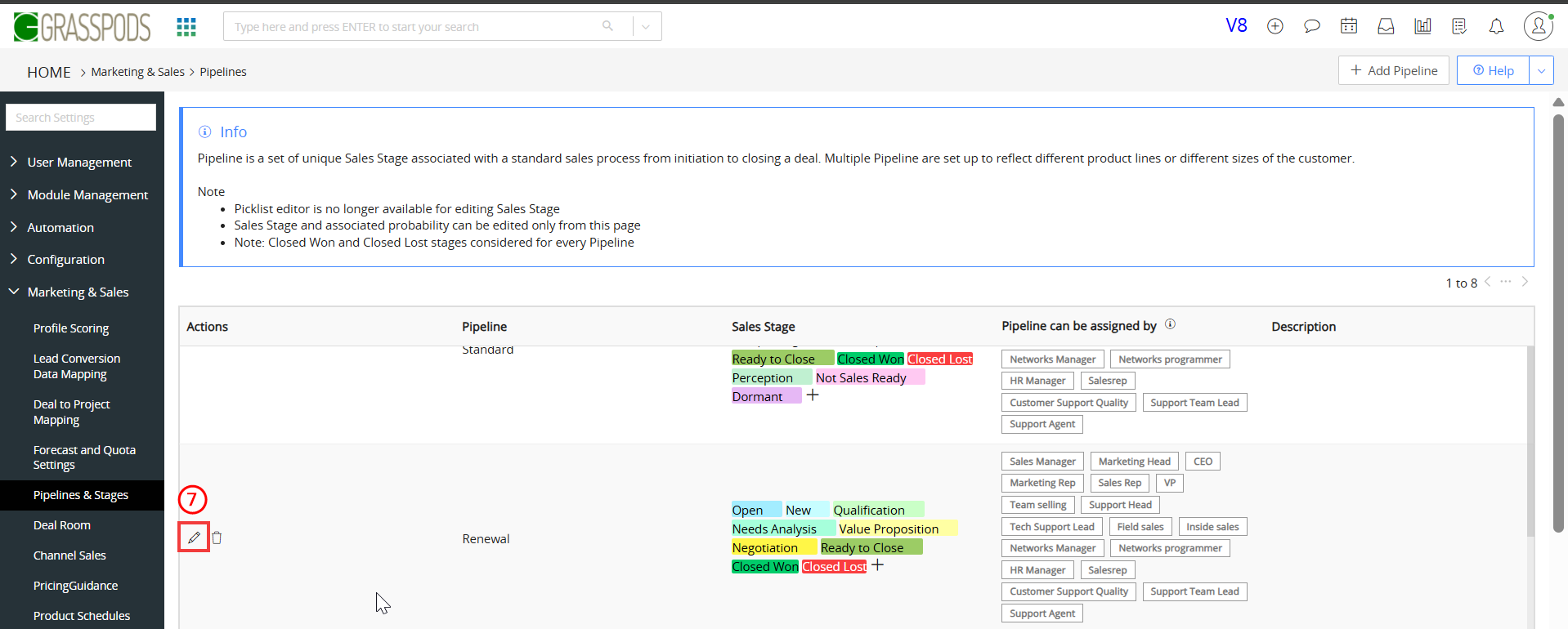
- Click Edit. The Edit Pipeline page opens.
- Enter or select the following information:
- Pipeline Name - Modify the name of the pipeline.
- Pipeline can be assigned by - Add or remove the roles that can assign the pipeline.
- Description - Modify the description of the pipeline.
- Hover over the required Sales Stage.
- Click Edit. The Editing Sales Stages opens.
- Sales Stage - Modify the name of the sales stage.
- Probability - Modify the probability percentage.
- Sales stage can be assigned by - Add or remove the roles that can assign the sales stage.
- Select Color - Change the color used to highlight the sales stage.
- Click Save.
The changes update the Sales Pipeline and appear on the Pipeline & Stages page.
Using Kanban View to Manage Sales Stages
You can also move deals between sales stages using drag and drop.
Follow these steps to view and manage pipelines in Kanban View:
- Log in to the CRM.
- Click the main Menu.
- Select Sales > Deals. The Deals List View opens.
- Click Kanban View. The Kanban View opens.
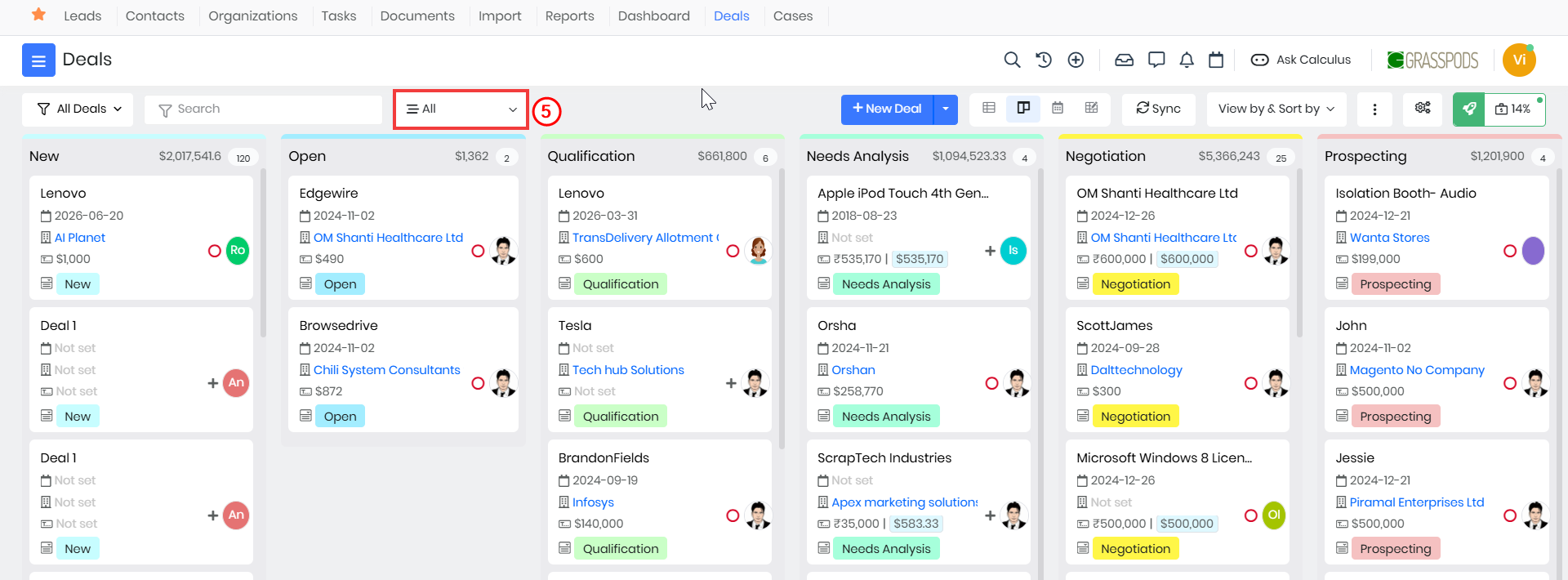
- Click Pipelines Filter. A Pipeline list drop-down opens.
- Select the required Pipeline from the filter options to view deals belonging to that pipeline.
- Drag and drop a Deal from one sales stage to another to update its stage.
The Deal moves to the selected sales stage, and this Sales Stage value is updated to that Deal record.
Example: If you want to view only deals in the Enterprise Pipeline, select Enterprise from the Pipeline filter. To move a deal from Qualification to Negotiation, drag the deal card to the Negotiation column. To learn more about Kanban View, click here.
Deleting a Pipeline Stage
You can delete a Sales Stage from a Pipeline when it is no longer part of your sales process.
Follow these steps to delete a Sales Stage:
- Log in to the CRM.
- Click the User Menu in the top-right corner of the screen.
- Click Settings. The Settings page opens.
- Go to the Marketing & Sales section.
- Select Pipeline & Stages. The Pipeline & Stages page opens.
- Hover over the Pipeline that contains the Sales Stage you want to delete.
- Click Edit. The Edit Pipeline page opens.
- Hover over the Sales Stage you want to delete.
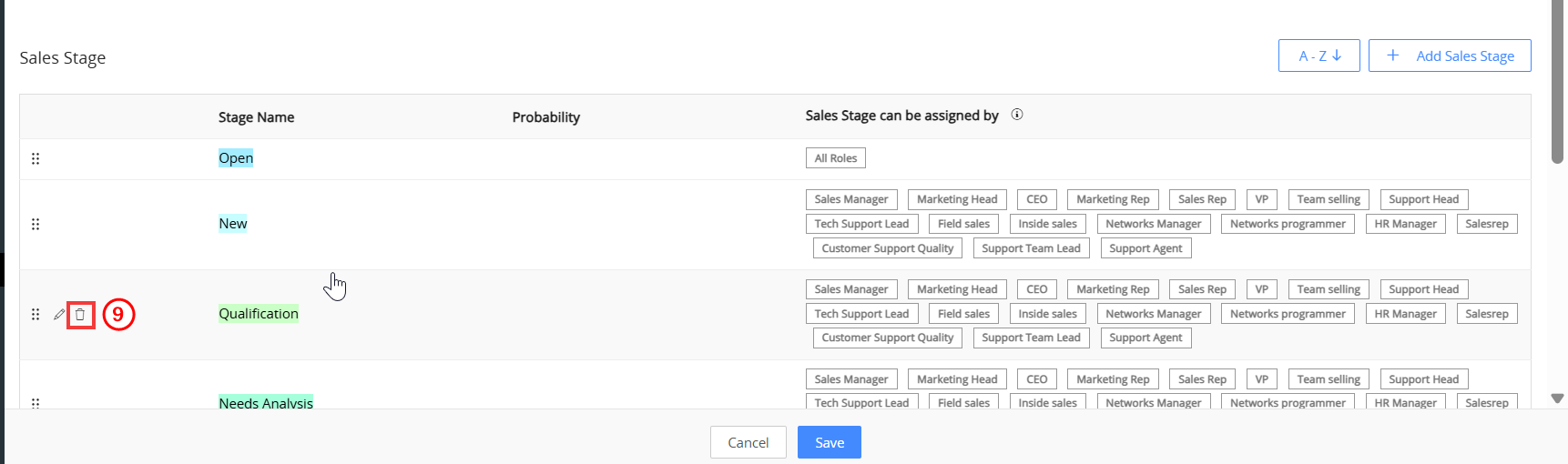
- Click Delete. A confirmation window opens.
- Click Yes.
The selected Sales Stage is removed from the Pipeline.
Note:
- You cannot remove the default closed states, Closed Won and Closed Lost.
- Every Pipeline must have at least one non-closed state.
Deleting a Pipeline
You cannot delete a Pipeline if records are assigned to it. You need to reassign records before deleting a Pipeline.Follow these steps to delete a Sales Pipeline:
- Log in to the CRM.
- Click the User Menu in the top-right corner of the screen.
- Click Settings. The Settings page opens.
- Go to the Marketing & Sales section.
- Select Pipeline & Stages. The Pipeline & Stages page opens.
- Hover over the pipeline you want to delete.
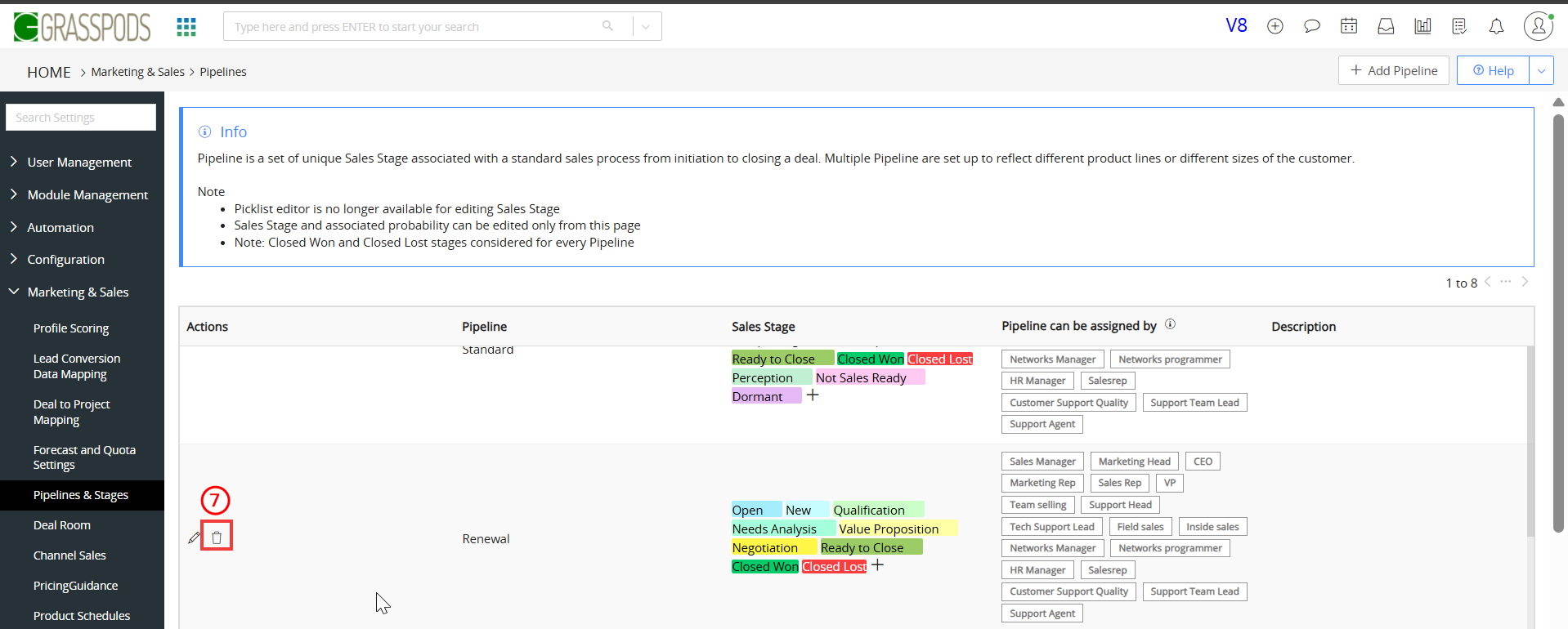
- Click Delete. A confirmation window opens.
- Click Yes.
Limitations
- The picklist dependency between Pipeline and Sales Stage does not work in the following areas:
- Webforms
- Web services, such as REST APIs, Mobile APIs, Webhooks, and third-party integrations
- Gmail Plugin
- Workflow Create Record action
- Workflow Update Fields action
- Import
- List View Merge
- The default probability values configured for pipelines are not available in:
- Webforms
- Web services
- Gmail Plugin
- Workflow Create Record action
- Vtiger 360