Articles in this section
Vtiger Phone Calls Integration with Tata Tele Services
Feature Availability
Vtiger Editions: One Pilot | One Growth | One Professional | One Enterprise
Introduction
The Phone Calls module helps you manage and log every phone call with your leads, customers, and team members—ensuring no critical conversation slips through the cracks.
The Phone Calls module in Vtiger lets you:
- Integrate with different service providers.
- Make and receive calls from the CRM.
- Track, manage, and log every phone call with your leads, customers, and team members—ensuring no critical conversation slips through the cracks.
- Create records for every phone call made or received.
- Integrate services such as Live Chat, email, call logging, purchase history, feedback surveying, support tickets, and more.
The Phone Calls module lets you connect to other hosted telephony services such as Twilio, ViciDial, and Knowlarity.
Tata Teleservices Integration with Vtiger CRM
Tata Tele Business Services provides cloud telephony services via the Smartflow app and APIs that can be integrated into CRM platforms.
You can integrate Tata’s Smartflow app with Vtiger’s Phone Calls module. With this integration, you can:
- Make and receive calls seamlessly within the CRM platform.
- Maintain detailed call records.
- Route calls to multiple agents.
- Use Phone Call module features such as -
- Incoming calls
- Outgoing calls
- Call notes
- Customer sentiments
- Call recordings
Requirements
To integrate Tata Teleservices with Vtiger, you need to:
- Have an active Tata Teleservices account. If you do not have an account, you must sign up with Tata Teleservices and create one.
- Have Direct Inward Dialing (DID) numbers provided by Tata Teleservices to make and receive calls.
- Access to the Smartflow APIs with the required credentials.
- Webhooks configured in Smartflow to send real-time call events to Vtiger CRM.
Before configuring Vtiger, you have to explain the IVR flow of your phone system to the Telephony service provider (Tata Teleservices) to ensure proper setup.
Using Webhooks for Integration
Webhooks are HTTP callbacks or push notifications that send real-time data from one system to another whenever a specified event occurs.
The Smartflow integration with Vtiger CRM uses Webhooks for your phone calls. For example, when a call is initiated, ended, or missed, Smartflow can send relevant details to your system via a Webhook.
With Webhooks, you can:
- Update your system with real-time call statuses.
- Set webhooks to trigger specific events, such as when a call is disconnected or a missed call occurs.
Features
The features of Tata Tele Business Services are:
- Cloud Telephony: Make and receive business calls over the cloud.
- Call Routing: Route incoming calls to the appropriate agent or department.
- IVR (Interactive Voice Response): Provide automated menu options for callers.
- Call Recording: Record calls for quality assurance and compliance.
- Call Logging: Automatically log call details for tracking and reporting.
- Click-to-Call: Initiate calls directly from CRM records.
Benefits
The benefits of using the Tata Teleservice integration are:- Initiate calls directly from Vtiger CRM without switching between a phone and separate apps.
- Record customer interactions, including call transcripts, as phone records in the CRM.
- Retrieve and access phone records for relevant information to address customer queries without putting them on hold.
- Enhance productivity and effectiveness along with a better customer experience.
In this article, you will learn about:
- Installing the Phone Calls module
- Installing Smartflo from the Extension Store
- Configuring Smartflo in Vtiger CRM
- Using Smartflo to make calls
- Accessing phone call records
Key Terminology
|
|
|
|
|
|
|
|
|
|
|
|
|
|
|
|
|
|
|
|
|
Installing the Phone Calls Module
To use the Phone Calls module, you must first install it from the Extension Store.
Note: Only Admins can install the Phone Calls module.
Follow these steps to install Phone Calls:
- Log in to the CRM.
- Click the User Menu in the top right corner of the screen.
- Click Settings. The Settings page opens.
- Look for the Extensions section.
- Select Extension Store.
- Search for Phone Calls using the search bar.
- Click Install.
After installation, the Phone Calls module is available under the main Menu > Essentials > Conversations.
Configuring Smartflow (Tata Teles Business Services App)
Note:
- You need to have an active Smartflo (Tata Tele Business Services) account to configure Smartflo in Vtiger CRM.
- You need to navigate back and forth between Tata Tele Business Services Smartflow and Vtiger CRM applications. Keep both apps open in different tabs or browser windows.
- You also need to keep a Notepad open to copy a few field values from Vtiger CRM.
Configuring Smartflo in Vtiger CRM requires the following steps:
- Step 1: Installing Smartflo from the Extension Store
- Step 2: Setting up Smartflo as a Normal Gateway
- Step 3: Configuring the Smartflo number (extension) in Vtiger CRM
Let us now look at setting up Tata’s telephony services in Vtiger CRM.
Installing Tata Tele Business Services from Vtiger CRM
Follow these steps to install the Tata Tele Business Services app:
- Log in to the CRM.
- Click the User Profile.
- Click Settings. The Settings page opens.
- Look for Extensions.
- Click Add-ons.
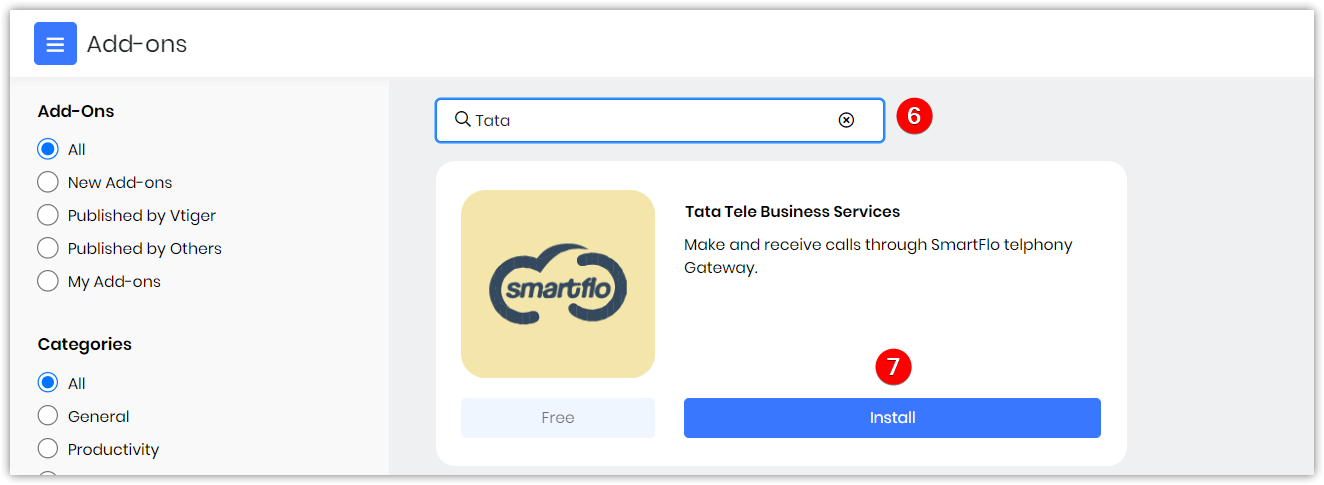
- Browse Tata Tele Business Services in the Add-on Search field.
- Click Install.
A message appears confirming that Tata Tele Business Services has been successfully added.
Setting up Smartflo as a Normal Gateway
To set up Tata Tele Services as a normal gateway, you need to do the following:
- Step 1: Retrieve the Smartflo Caller ID
- Step 2: Add Smartflo as a normal gateway in Vtiger CRM
- Step 3: Add the webhook for server-side calls in Tata Teleservices
- Step 4: Add the webhook for Calls handled by an agent
- Step 5: Add a webhook to handle disconnected Calls
Let us now go through these steps.
Step 1: Retrieving the Smartflo Caller ID
Note: You need to log in to your Smartflo account for this step. Keep the page open as you may need to perform other actions on it.
Follow these steps to retrieve the Smartflo Caller ID:
- Log in to your Smartflo account.
- Click on Click to Call from your Smartflo account.
- Click Select Agent.
- Copy the phone number without extension from the drop-down to Notepad.
Step 2: Adding Smartflo as a Normal Gateway in Vtiger CRM
Note: You need to log in to your Vtiger CRM account for this step. Keep the page open as you may need to perform other actions on it.
Follow these steps to set up Smartflo as a normal gateway in Vtiger CRM:
- Log in to the CRM.
- Click the User Menu in the top right corner of the screen.
- Click Settings. The Settings page opens.
- Look for the Extensions section.
- Select Phone Configuration. The Phone Configuration page opens.
- Click +Add Gateway. The Phone Configuration: Add New Gateway page opens.
- Enter or select the following information:
- Gateway: Select Tata Tele Business Services from the Gateway drop-down.
- Gateway Status: Select Active from the Gateway Status drop-down. This activates the gateway for incoming and outgoing calls.
- Default Gateway: Set the gateway as default by selecting Yes from the Default Gateway drop-down.
- Label: Enter a name for the Gateway.
- Incoming callback URL: The callback URL is automatically generated.
- Vtiger Secret key: The vtsecret value is automatically generated.
- Click Save.
Note: The Incoming callback URL and the vtsecret value are automatically generated. Copy these to Notepad.
Step 3: Adding the webhook for Server Side Calls in Smartflo
Note:
- The steps may change if the UI or the process on the Smartflo website changes.
- For the following steps, you will navigate between Smartflo (Tata Tele Business Services) and Vtiger CRM screens. Keep both screens.
- Keep the Notepad with the Incoming callback URL and vtsecret values open.
Follow these steps to add a Webhook for the calls received on the server:
- Log in to the Smartflo account.
- Go to API Connect > Webhooks on the left menu. A list of available Webhooks appears.
- Click Add Webhook. The Add Webhook page opens.
- Enter or select the following information:
- Select the Trigger Call Received on Server.
- URL: Enter the Incoming callback URL you copied from the Vtiger Phone Configuration page.
- Enter the following new headers along with the default headers in the payload of this webhook:
- vtsecret: ********************************
- Note: The vtsecret value is from the Vtiger Phone Configuration page.
- service: SmartFlo
- call_status: ringing
- direction: inbound
- vtsecret: ********************************
- Click Save.
Step 4: Adding the webhook for calls answered by an agent
Follow these steps to add a new webhook for calls that are answered by an agent:
- Log in to your Tata Teleservices account.
- Go to webhooks.
- Select Add a new webhook. The Add New Webhook page opens.
- Enter or select the following information:
- Select the Trigger Call answered by agent.
- URL: Enter the Incoming callback URL auto-generated in Vtiger phone configuration. Note: Copy this URL from the Vtiger Phone Configuration page of CRM.
- vtsecret: "**************************************"
- Note: Copy the vtsecret from the Vtiger phone configuration page.
- service: SmartFlo
- Click Save.
Step 5: Adding the webhook for disconnected calls
Follow these steps to add a new webhook for call hangup:
- Log in to your Tata Teleservices account.
- Go to webhooks.
- Select Add a new webhook. The page to add a new webhook opens.
- Enter or select the following information:
- Select the Trigger Call Hangup (Missed or Answered).
- URL: Enter the Status callback URL. Note: Copy the URL that was auto-generated on Vtiger’s Phone Configuration page.
- vtsecret: Copy the key which is displayed with asterisks, ***************************************.
- Note: Copy the vtsecret value that was auto-generated on Vtiger’s Phone Configuration page.
- service: Select SmartFlo.
- Click Save.
Configuring the Extension Number in Vtiger CRM
Configuring the extension number enables seamless Tata Teleservices integration with Vtiger CRM.
Follow these steps to configure the extension number in CRM:
- Log in to the CRM
- Click the User Menu in the top-right corner of the screen.
- Click My Preferences. The My Preferences page opens.
- Click the Edit icon.
- Scroll down to Phone Preferences and enter the extension number under Tata Teleservices Extension.
- Click Save.
Making a Phone Call Using Tata Tele Services
You can place calls using Tata Tele Services from supported records in Vtiger CRM, such as Contacts, Leads, and Organizations, by clicking the Phone Call icon.
Follow these steps to place a call using Telzio:
- Log in to the CRM.
- Click the main Menu.
- Go to Essentials > Contacts. The Contacts List View opens.
- Hover over the Contact record for which you want to make a call.
- Click the Phone icon to place the call.
- Select Tata Tele Services from the list of service providers to place calls.
Viewing Tata Tele Services Phone Call Logs
The log of the calls (incoming and outgoing) is listed under the main Menu > Essentials > Phone Calls.
You can view call log details in both the List View and Summary View.
List View
You can view the following details in the List View:
The call will be placed to the selected Contact through Tata Tele Services. The system generates a call record, and the call details are saved in this record in the Phone Calls module.
- Call status, customer number, which agent or rep handled the call (mentioned in Handled By and Assigned To fields), call duration, etc.
- You can create a list of all your phone calls, including missed and completed calls, in the List View.
Summary View
Details for each call can be seen when you open the call record summary view, such as:
- Links to the voice recording
- Call notes
- Call transfer details
- Call directions, etc.
One View
The One View displays the related contact details, deals, cases, and tickets.
Deleting Tata Tele Services as a Phone Call Service Provider
You can delete Tata Tele Services as a phone call service provider from the Phone Configuration settings in Vtiger CRM.
Deleting the integration removes the service provider configuration from the CRM. However, the previously created phone call records will remain available in the Phone Calls module for future reference.
Follow these steps to delete a Phone Call service provider:
- Log in to the CRM.
- Click the User Menu in the top-right corner of the screen.
- Click Settings. The Settings page opens.
- Look for the Extensions section.
- Select Phone Configuration. The Phone Configuration page opens.
- Hover over Tata Tele Services in the list of available service providers.
- Click the Delete icon.
- Click Yes to confirm the deletion.
Tata Tele Services will be deleted from the list of available service providers.
Troubleshooting Tips
The following are the issues encountered by users while using Tata Teleservices:
- Network Connectivity Issues: Intermittent Connectivity drops.
- Verify the network settings on your device (IP, DNS, etc.) and ensure they match the recommended settings by Tata Teleservices.
- Ensure all cables are securely connected.
- Hardware and Device Compatibility: Incompatibility with user-provided devices.
- Ensure your hardware is compatible with Tata Teleservices.
- Update device firmware to the latest version.
- Configuration and Software Issues: Misconfigured settings affecting service.
- Use Tata Teleservices’ recommended configurations for DNS, proxy, and VPN.
- Reset devices to factory settings and reconfigure.
- Latency and Quality of Service: Poor call quality in VoIP or traditional telephony.
- Reduce the number of devices connected to the network and prioritize critical devices.
- Consider a higher-speed or dedicated bandwidth plan for consistent performance.
- Use Quality of Service (QoS) settings on routers to prioritize certain types of traffic.
- Security Concerns: Unsecured connections leading to potential data breaches.
- Use VPNs and encrypted protocols for secure browsing.
- Avoid suspicious emails or calls claiming to be from Tata Teleservices.
References
- Phone Calls Module Overview
- Built-in Phone Dialer in CRM with Plivo and Twilio
- Vtiger Phone Calls Integration with Plivo
- Vtiger Phone Calls Integration with Twilio
- Vtiger Phone Calls Integration with Exotel
- Vtiger Phone Calls Integration with Asterisk
- Phone Calls Integration with Telzio
- Phone Calls Integration with Knowlarity
- Phone Calls Integration with VICIdial