Articles in this section
Tally Integration - On-premise
Feature Availability
Vtiger Editions: One Pilot | One Growth | One Professional | One Enterprise
Introduction
Integrate the Tally Prime version with Vtiger CRM to synchronize your financial data. Click here to learn more about the Tally Cloud version.
Benefits of Tally Integration
- Synchronizing ledgers and financial records in real time.
- Eliminating manual data entry between systems.
- Avoiding inconsistencies in billing and accounting data.
- Streamlining financial reporting and compliance.
- Install Tally Add-on in Vtiger
- Integrating Tally Prime with Vtiger CRM using the VtigerTallyConnector on an on-premise setup.
Key Terminology
|
|
|
|
|
|
|
|
|
|
|
|
|
|
|
|
|
|
Prerequisites
- As an admin, you must have access to Vtiger CRM and Tally Prime.
- Java is installed on your desktop.
- You must download the following files:
- Tally Prime
- VtigerTallyConnector ZIP file
Installing Tally Add-on in Vtiger CRM
Tally is a third-party app that you must install from Vtiger’s Extension Store. You can install extensions only if you are an Admin user in the CRM.
Follow these steps to install Tally:
- Log in to your CRM account.
- Go to the main Menu.
- Click Add-ons. The Add-ons page opens.
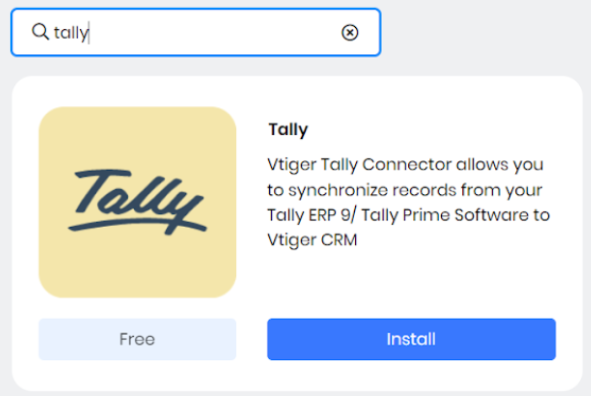
- Look for Tally and click Install.
- Click Yes to confirm the installation.
Note: Before you start syncing data, you must ensure the following:
- The base currencies in Tally and Vtiger must match.
- To set up the gateway, log in to your Tally account and keep both Vtiger and Tally tabs open.
- Configuration requires you to move back and forth between Vtiger CRM and the Tally website.
- You can configure Tally and other gateways only if you are an Admin user.
Installing Java
Follow these steps to check if Java is already installed:
- Open the command prompt.
- Type java-version, and press Enter.
- If Java is not installed, download it from the official Java website and install it.
Downloading Required Files
You must download the following files to connect Tally with Vtiger.
- Download the recent Tally Prime from the official website.
- Download the VtigerTallyConnector ZIP file.
- Extract the ZIP file to a temporary folder.
Moving the Connector Folder to the Tally Directory
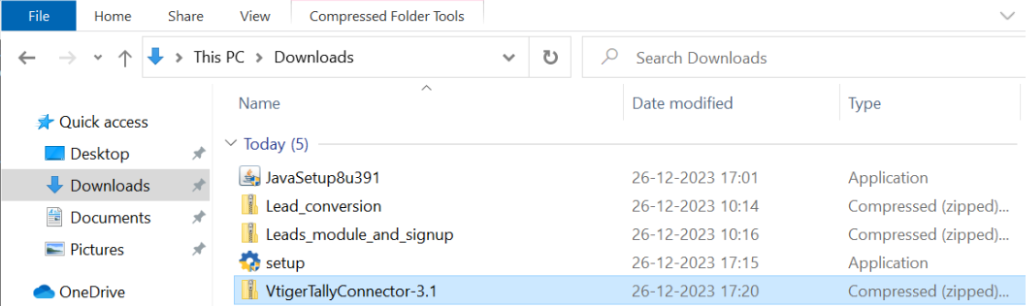
- Cut the VtigerTallyConnector folder from the extracted location.
- Paste it into the Tally Prime installation folder:
- Example: C:\Program Files\TallyPrime
Example: Open VtigerTallyConnector > Cut the folder(VtigerTallyConnector) and copy it into the Tally application folder.
Loading the TDL Files in Tally
- Open the Tally Desktop app.
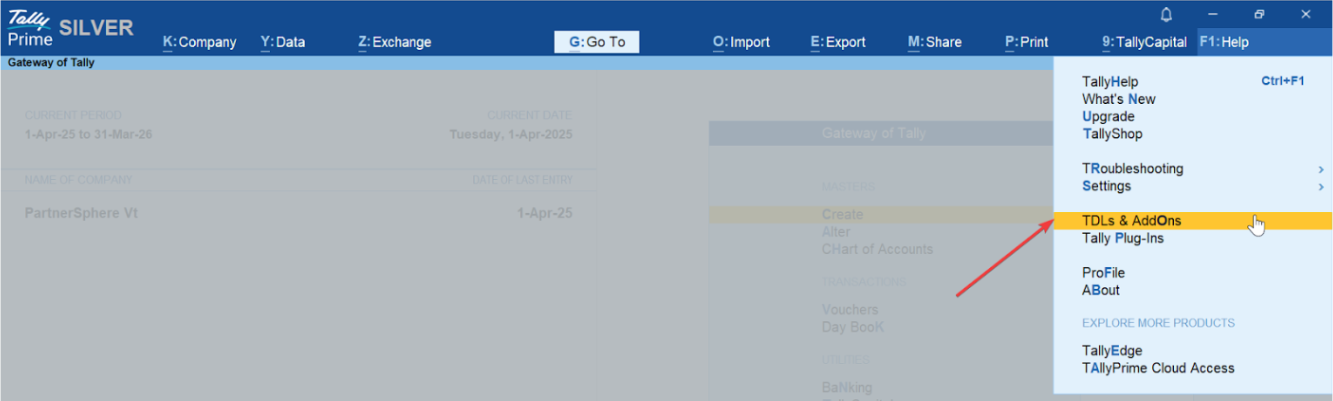
- Press Fn + F1 to open the Help menu.
- Click TDLs and Add-ons.
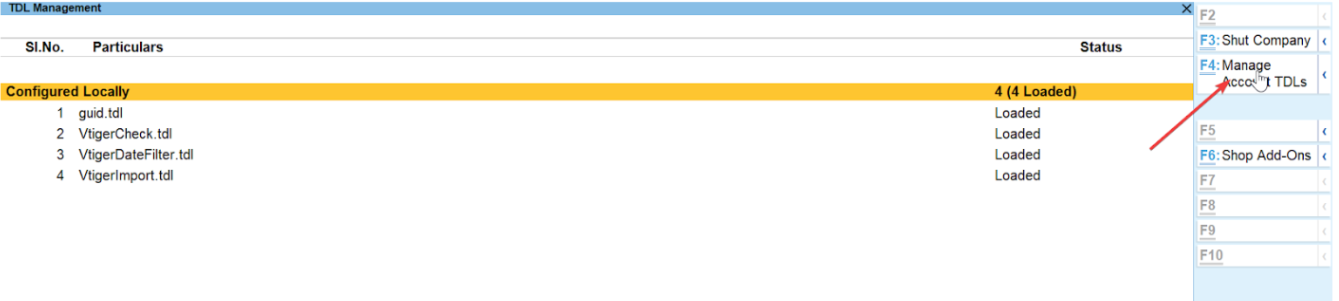
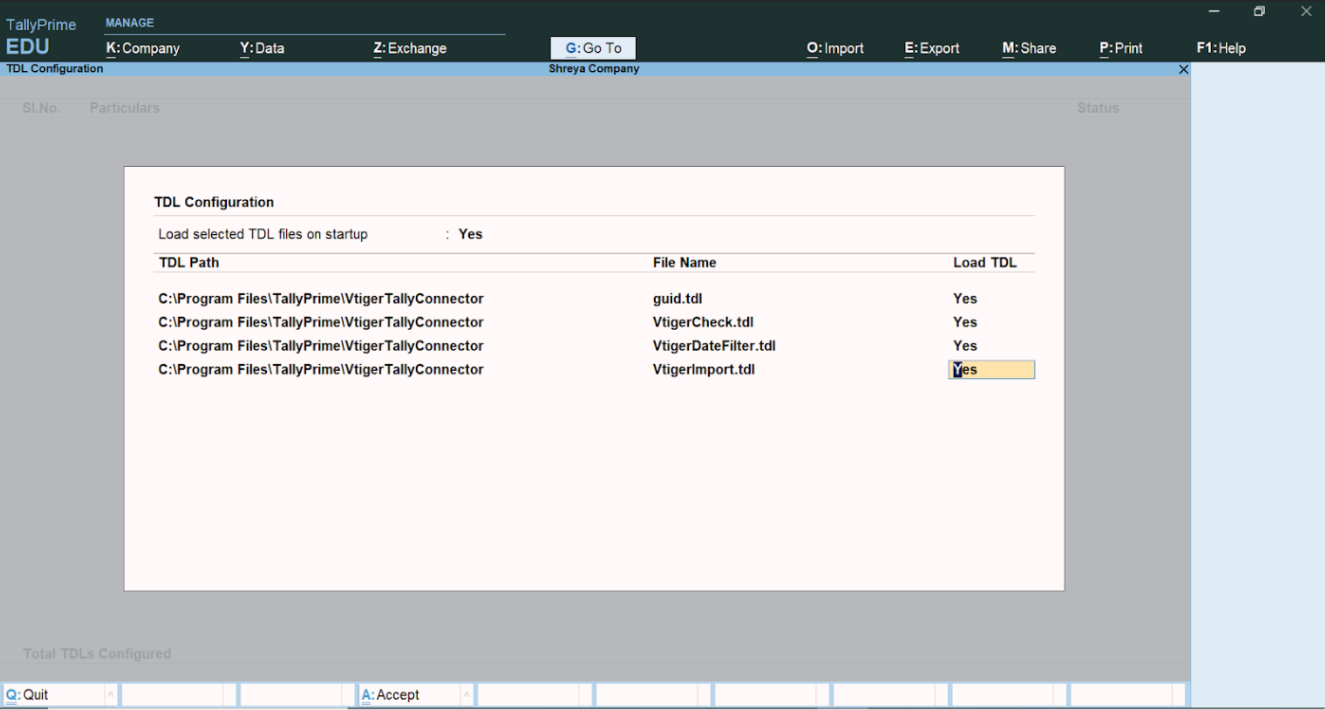
- Click Manage Local TDL Files. The TDL Configuration window opens.
- Click anywhere in the TDL Configuration window to load the following TDL files from the VtigerTallyConnector folder (available on the C drive of your system).
- GUID.tdl
- VtigerCheck.tdl
- VtigerDateFilter.tdl
- VtigerImport.tdl
Configuring Tally in Vtiger
Configuring Tally in Vtiger involves the following steps:
- Setting up Sync Direction.
- Adding sync Filters.
- Setting up sync limit.
- Setting up your Tally Account in Vtiger.
- Adding your Tally Company Name and Company Guid in Vtiger.
- Setting up default values for the Ledgers.
- Mapping Custom Fields.
Setting up Sync Direction
Follow the steps below to set up sync between the Tally Desktop app and Vtiger CRM:- Log in to the CRM.
- Go to the main Menu.
- Click Settings. The Settings page opens.
- Click Tally Configuration under the Extensions section. The Tally Configuration page opens.
- Enable the sync by choosing the Sync Direction for the following modules:
- Ledgers (Debtors) Organizations
- Ledgers (Creditors) Vendors
- Godown Stockroom
- Items Products
- Sale Orders Sales Orders
- Sale Vouchers Invoices
- Purchase Orders Purchase Orders
- Receipt Notes Receipt Notes
- Receipts Payments
Adding Sync Filters
- Add a Filter to sync based on the specific fields. For example, add the Organization Status field as a Filter in the Ledger/Organization module to sync based on its value. Note: This applies only to the Vtiger to Tally sync direction.
- Configure the Tally Pull Filter to sync tally records based on the filter condition.
Setting up Sync Limits
Set up sync limits to sync the maximum number of records in one sync
Note:
- Vtiger to Tally desktop sync is a manual process.
- Sync Organizations and Products first to ensure smooth Invoice and Sales Order syncs.
Understanding the Sync Process
- First Sync uses the Sync From Date field.
- Subsequent Syncs use the last sync timestamp.
- You can manually update the date to fetch historical data.
- Admins can access detailed logs from each sync batch.
Setting up Tally Account in Vtiger
Enter the following Tally Credentials in the Tally Configuration page.- Vtiger username: Select your CRM admin's username.
- Choose your secret key: Enter a secret key of your choice.
Set up the Tally company name and GUID
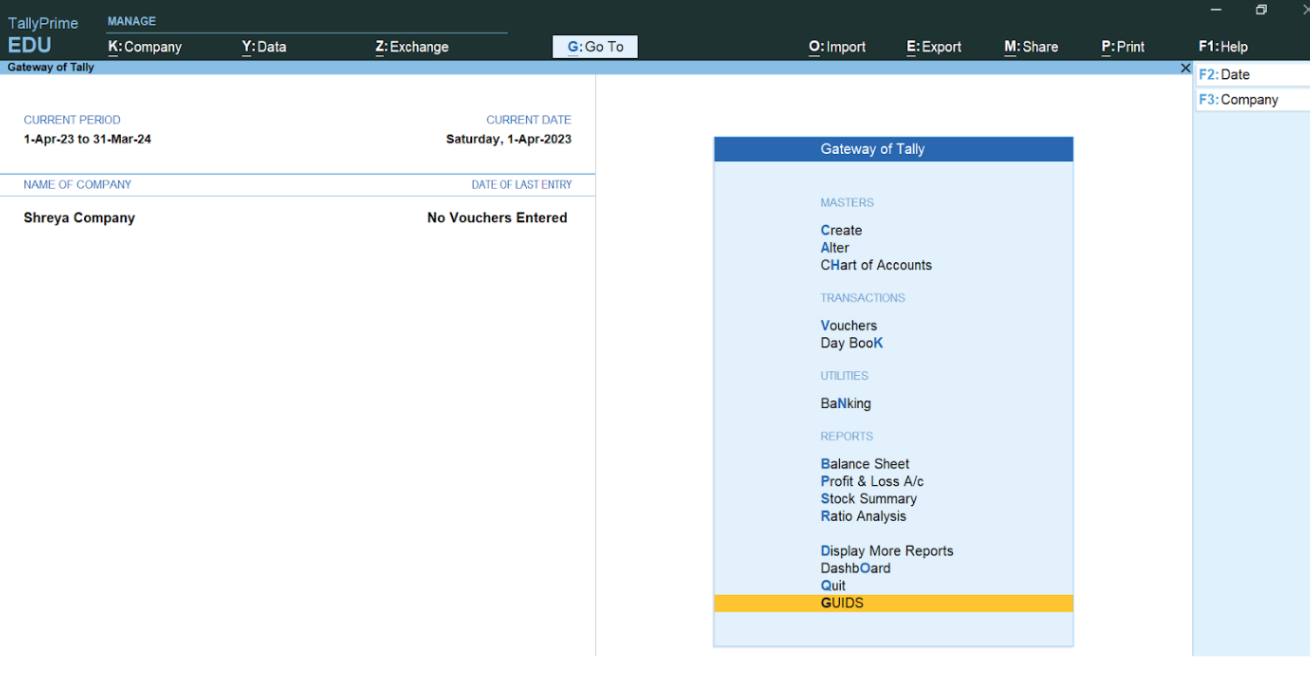
- Copy the Company Name and GUID from the Tally Desktop app.
- Paste the copied values into the respective fields in the CRM Tally Configuration page.
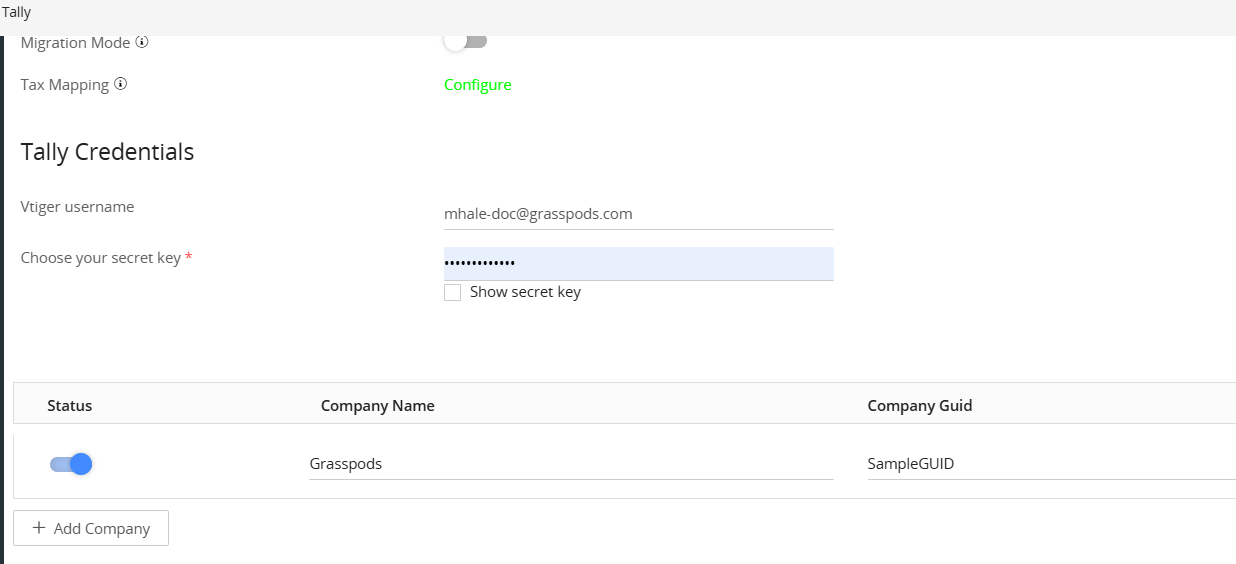
Note: You can add any number of Tally companies to sync with Vtiger.
Setting up Base Currency and default Ledger Values
You can set up the following:- Select Tally Base Currency: Select your preferred base currency.
- Prevent Product Tax Update:
- If set to Yes, the Product Tax values don't sync during record updates.
- If set to No, then the Product Tax values will sync on the record update.
- Default Sales Ledger
- Default Purchase Ledger
- Default Discount Ledger
- Default Shipping Ledger
- Default Adjustment Ledger
Setting Up the VTC File
-
Download the .vtc file from Vtiger.
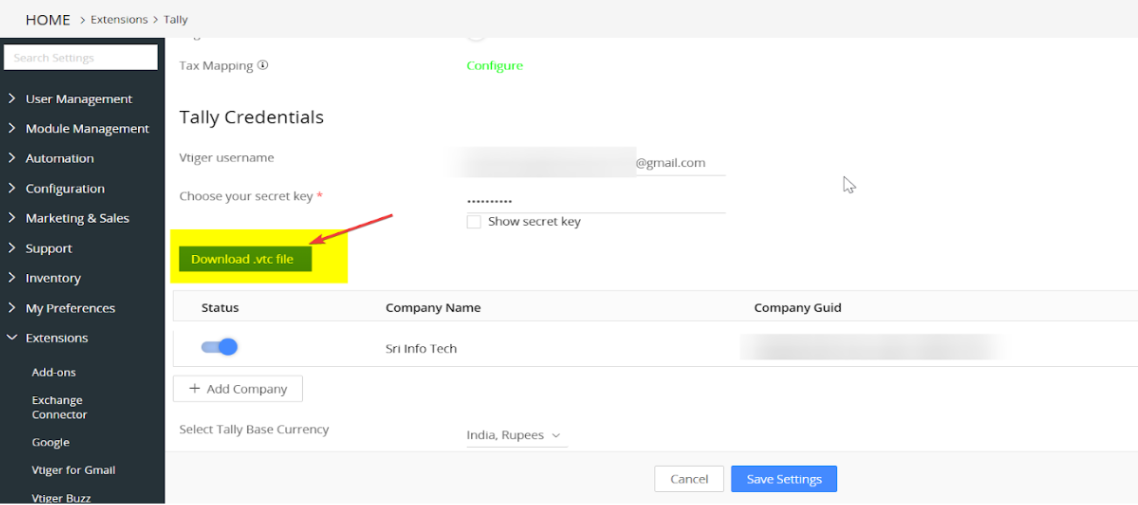
-
Move the downloaded .vtc file to the VtigerTallyConnector folder in your system.
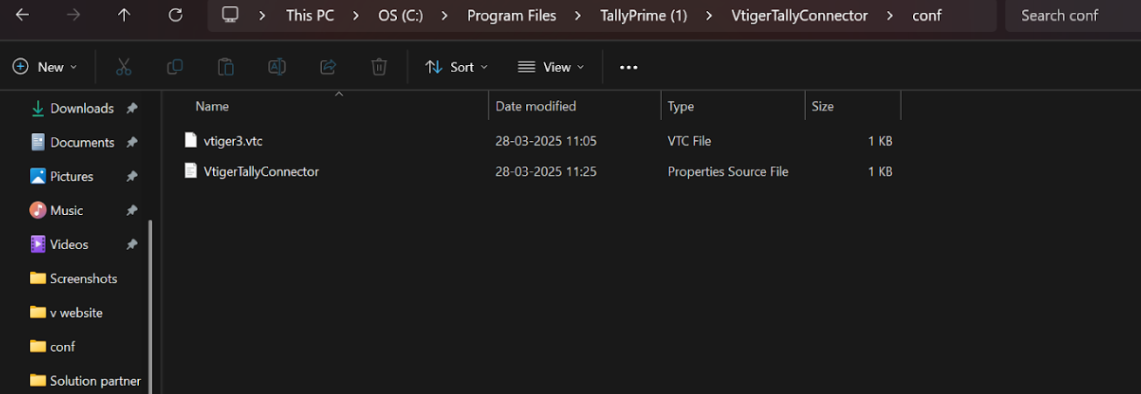
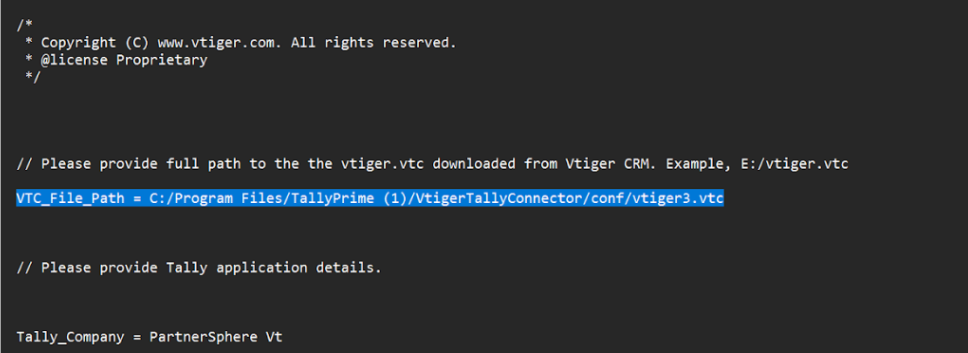
- Copy the downloaded .vtc file path.
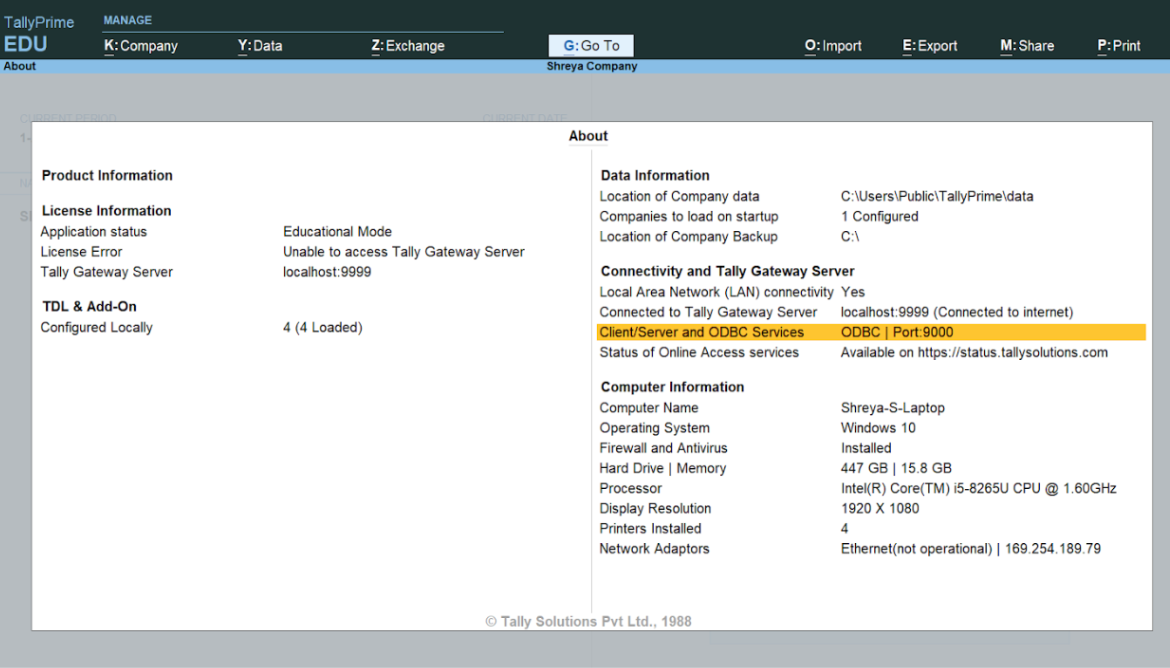
Retrieving Port Number from the Tally app
- Open the Tally Desktop app
- Press Fn + F1 > Help > About.
- Note the port number (default: 9000 or similar) for API connection.
Updating Configuration Files
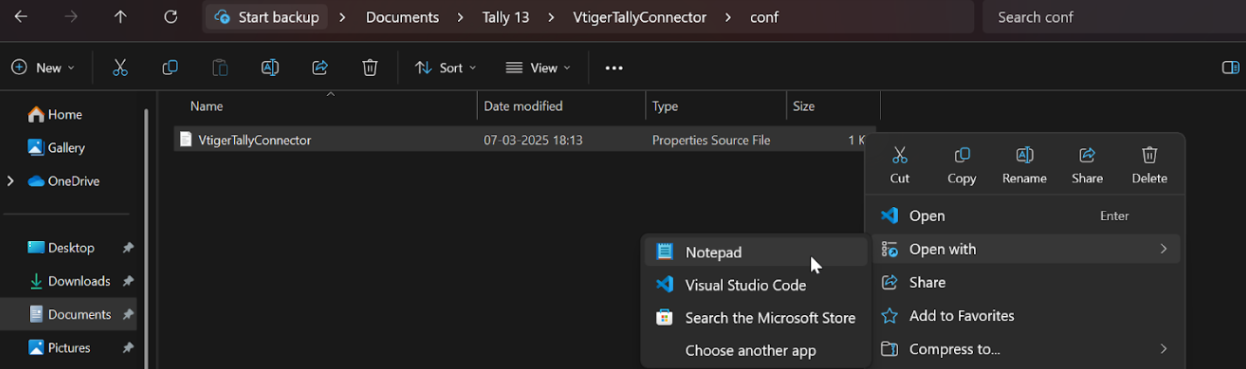
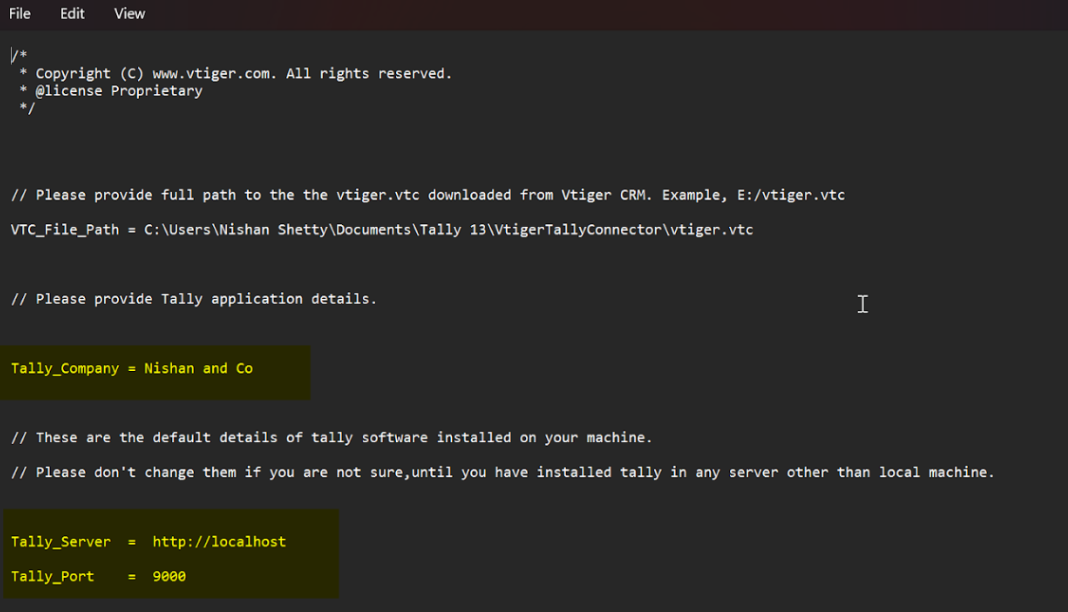
- Go to the Conf folder of the VtigerTallyConnector folder (for example: C:\Program Files\TallyPrime\VtigerTallyConnector\conf). You will see the VtigerTallyConnector.properties file.
- Open VtigerTallyConnector.properties in Notepad.
- Update the following:
- VTC_File_Path: Provide the full path to your downloaded .vtc file.
- Tally_Company: Enter your company name from Tally.
- Tally_Port: Enter the copied port number.
Note:
-
Use forward slashes (/) instead of backslashes in the path.
Example:
VTC_File_Path = C:\Program Files\TallyPrime\VtigerTallyConnector\conf\vtiger.vtc
Tally_Company = Your Company Name
Tally_Port = 9000
Creating Ledger in Tally
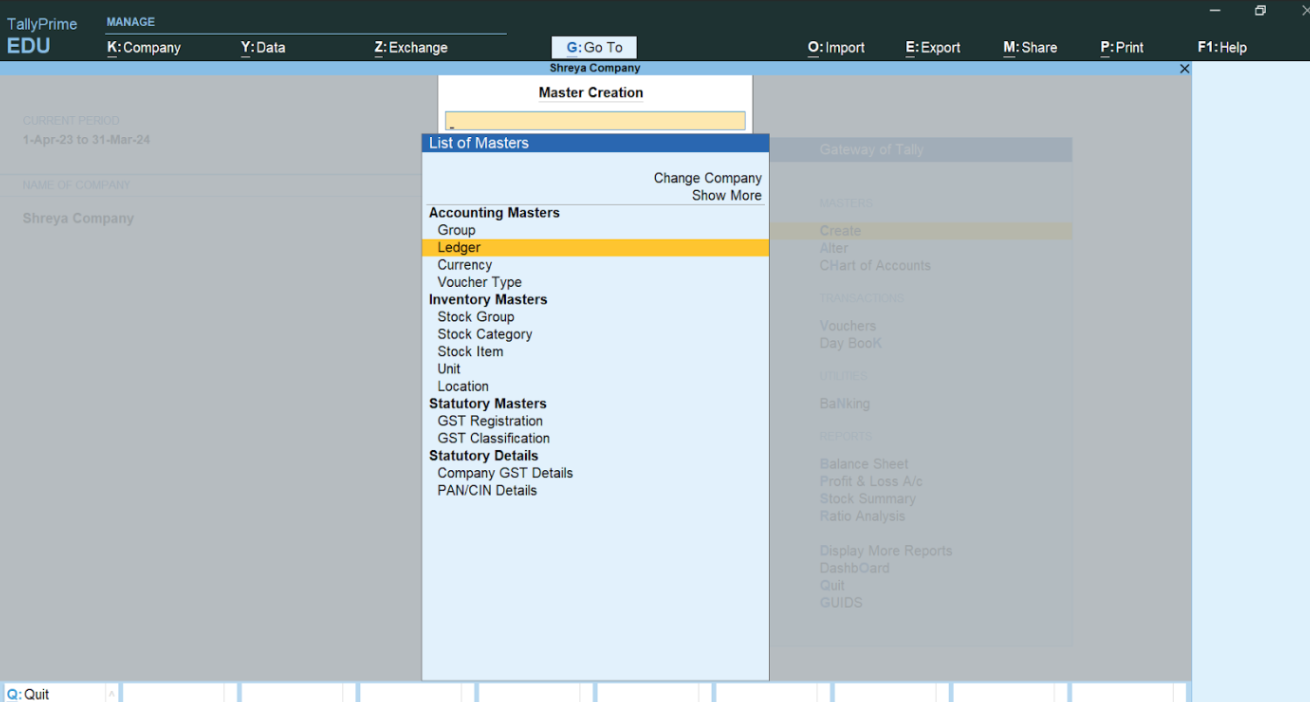
- In the Tally desktop app, go to Gateway of Tally > Masters > Create > Accounting Masters > Ledger.
- Fill in the required fields, such as your customer name and other information.
- Click Save.
Starting the Connector
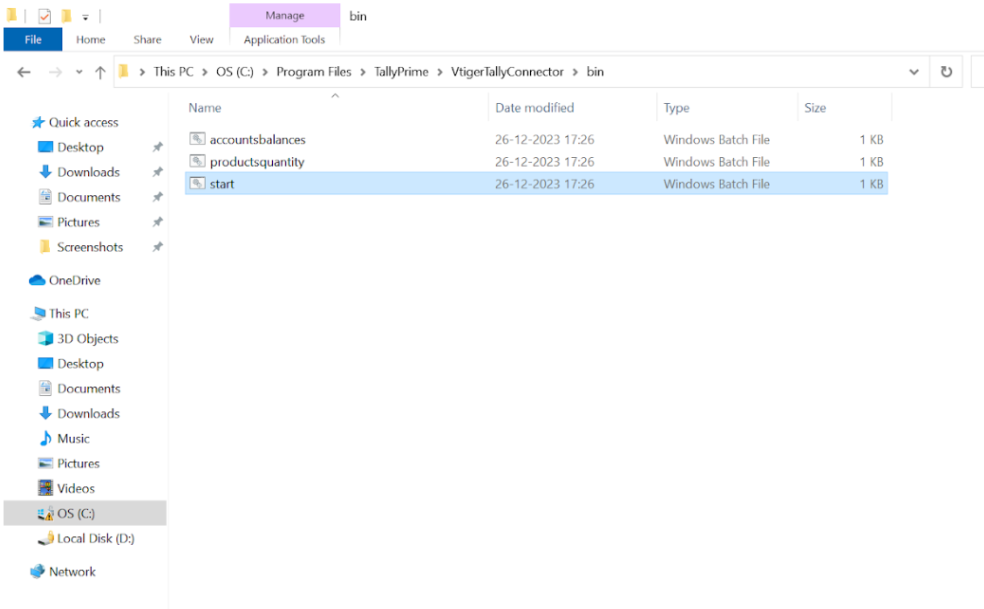
- Navigate to: C:/Program Files/TallyPrime/VtigerTallyConnector/bin in your local folder.
- Run the file named start (double-click or execute via command line).
- Wait for the service to start successfully.
Reviewing and Verifying the Sync in the CRM
Follow the steps below to verify the sync between the Tally Desktop app and Vtiger CRM:- Log in to the CRM.
- Go to the main Menu.
- Go to the Organizations module. You should see the Tally Ledger records synced from Tally to the Vtiger Organizations module, with the Source field set to Tally.
Viewing Sync Logs
Click Sync Log in the Tally Configuration page to view the sync log.Resetting Data (Optional)
- If synced data contains incorrect values, such as mismatched taxes:
- Use the Reset option at the module level in Vtiger CRM.
- This action clears the data and re-syncs the correct values from Tally.
- Example: Resetting will fix mismatched predefined taxes.