Articles in this section
Vtiger Trusted Devices
Feature Availability
Vtiger Editions: One Pilot | One Growth | One Professional | One Enterprise | One AI
Introduction
User credentials can sometimes become publicly available due to data breaches on third-party websites or services. Although these breaches do not originate from Vtiger CRM, attackers may obtain exposed usernames and passwords. They may then attempt to use these credentials to access CRM accounts.
The Trusted Devices feature provides an additional layer of security by verifying login attempts made from new or unrecognized devices before granting access to the CRM. Once a device is verified, it becomes a trusted device, allowing future logins without requiring additional verification for a limited period. Even if an attacker knows a user's username and password, they cannot access the CRM without approval from the user's registered email address.
Trusted Devices is enabled by default and helps administrators secure user accounts while allowing legitimate users to sign in with minimal interruption
Note:
- The user's email address is verified.
- Users sign in using their Vtiger username and password.
- Trusted Devices is enabled in the CRM.
- Users signing in through SSO or authentication methods that already use 2FA continue to use their existing authentication process.
How Trusted Devices work
Trusted Devices verifies every login attempt made from a new or unrecognized device before allowing access to the CRM. Once a device is verified, it becomes a trusted device, allowing future logins without requiring additional verification for a limited period.
The following steps explain how the Trusted Devices feature works.
Step 1: A user signs in to Vtiger CRM
When a user enters their username and password, Vtiger first checks whether the login request is coming from a trusted device. There are three possible scenarios:
Scenario 1: Login from a trusted device
If the device has already been verified and is still within the trust period, the user is signed in without any additional verification.
Scenario 2: Login from a trusted device with a different browser or location
If the device is already trusted but Vtiger detects a different browser or IP address, a security alert email is sent to the user informing them about the new login location or device.
The email contains a confirmation link that allows the user to confirm that the login was legitimate. Once confirmed, future logins from the same browser or network will no longer trigger the alert.
Scenario 3: Login from an unrecognized device
If the device has never been used to access the CRM or is no longer trusted, Vtiger pauses the login process and begins the verification process. The user sees the following message: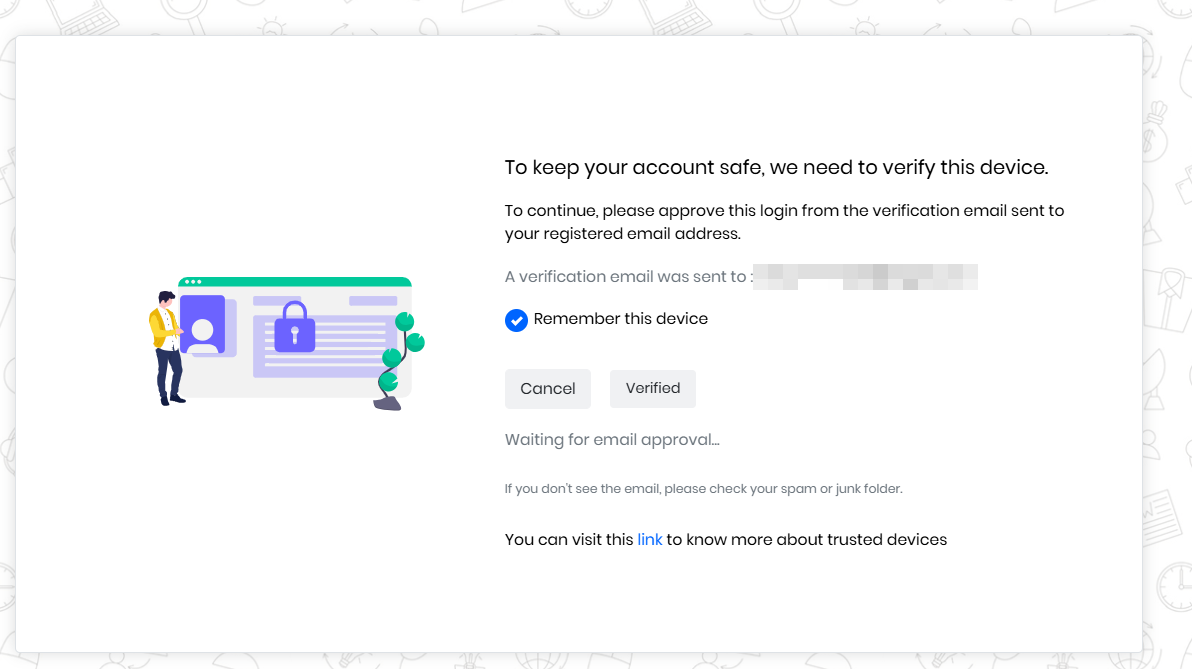
This initial verification helps ensure that only legitimate users can access the CRM from new devices.
Step 2: Vtiger verifies the login request
When an unrecognized device attempts to sign in, Vtiger sends a verification email to the user's registered email address. The email contains information about the login request along with the following options:
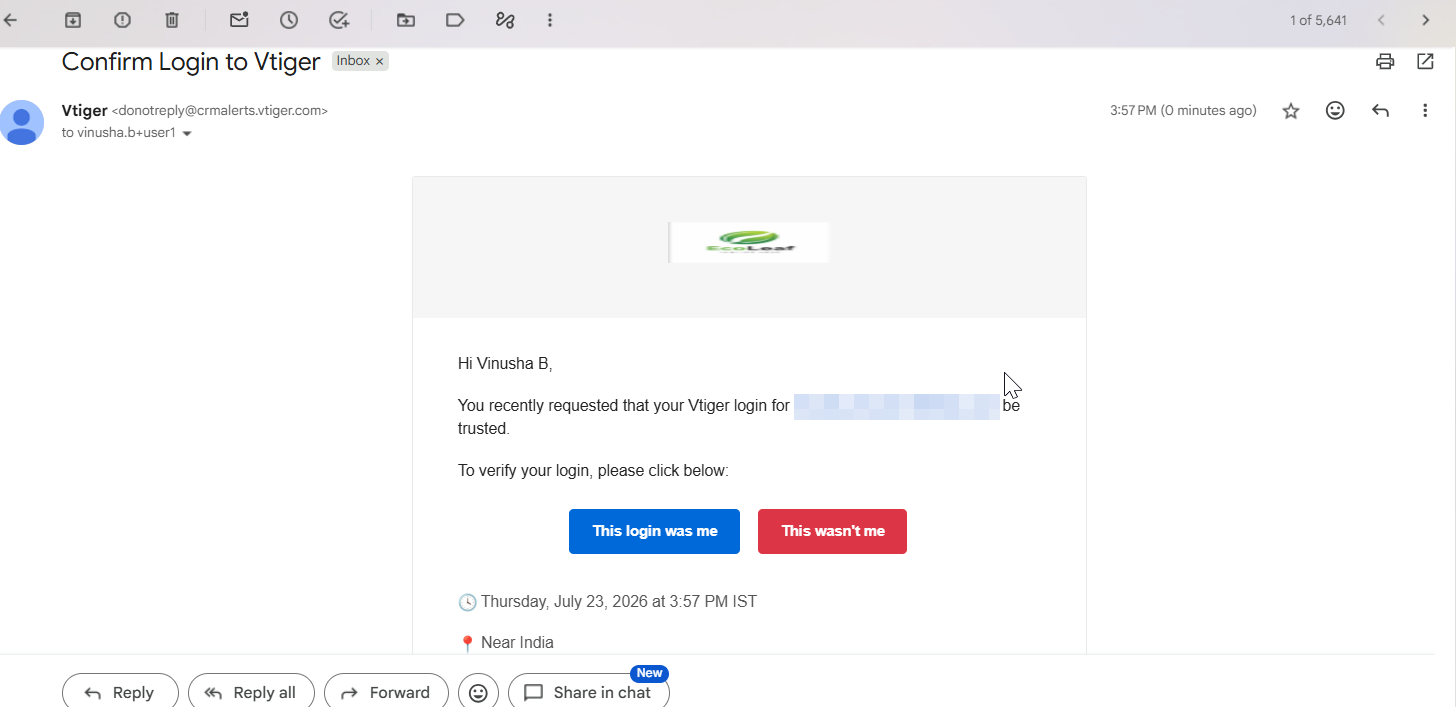
The user must review the login request and decide whether it is genuine before access is granted. If the user's registered email address has not been verified, Vtiger cannot send the verification email. Instead, the following message is displayed: To keep your account safe, we need to verify this device. To continue, we need to send a verification email—but your registered email address has not been verified. Please contact your administrator.
The administrator must verify the user's email address before the user can complete the login process.
This verification process ensures that login approvals are sent only to verified email addresses.
Step 3: The user approves or rejects the login
After receiving the verification email, the user can either approve or reject the login request.
If the user clicks This login was me:
- The login request is approved.
- The user is signed in to the CRM.
- The device becomes a trusted device.
- If the user selects Remember this device, the device is stored as a trusted device for future logins.
If the user clicks This wasn't me:
- The login request is rejected.
- Access to the CRM is denied.
- The user is protected from an unauthorized login attempt.
Step 4: What happens after verification
Once the login request is approved, the user is signed in successfully.
If the Remember this device option is selected, the device is added to the list of trusted devices.
The administrator can view the device from: Settings > Trusted Devices
The Trusted Devices page displays information such as:
- Username
- User Name
- Device
- IP Address
- Trusted Date
- Expiry Date
- Auto Remember status
Trusted devices remain active for 15 days from the user's last successful login. Every successful login refreshes the trust period for another 15 days.
If Remember this device is not selected, the login is allowed after email approval, but the user must complete the verification process again during the next login. This allows users to balance convenience and security based on their preferences.
Step 5: What happens if the login is not approved
If the user does not approve the verification request within one hour, the login request expires automatically.
The user sees the following message:
Login attempt unsuccessful. Please try logging in again.
To continue, the user must sign in again to generate a new verification email.
If the verification email is ignored, rejected, or expires repeatedly, Vtiger sends a maximum of three verification emails.
After the third unsuccessful attempt:
- The device is temporarily blocked for 24 hours.
- No additional verification emails are sent during this period.
- The blocked device is added to the Blocked Devices list.
Step 6: Managing trusted and blocked devices
Administrators can monitor all trusted and blocked devices from the Trusted Devices page. After a login is approved, the device is added to the Trusted Devices list. If a device is blocked after repeated unsuccessful verification attempts, it is moved to the Blocked Devices list.
Administrators can:
- View trusted devices.
- Revoke trusted devices.
- View blocked devices.
These management options give administrators complete control over device access across the CRM.
Use Case
ABC Technologies hires a new Sales Representative, Sarah, and creates a CRM account for her.
Sarah signs in to Vtiger CRM from her office laptop for the first time using the credentials provided by the administrator. Since Vtiger does not recognize the device, it sends a verification email to her registered email address. Sarah reviews the login request, clicks This login was me, and selects Remember this device.
Sarah is successfully signed in, and her laptop is added to the Trusted Devices list. Since she selected Remember this device, she can sign in from the same laptop without verification for the next 15 days. Each successful login extends the trust period by another 15 days.
Later, Sarah gets a new office laptop and signs in using the same credentials. Since it is an unrecognized device, Vtiger sends another verification email. After Sarah approves the request and selects Remember this device, the new laptop is added to the Trusted Devices list.
An attacker later obtains Sarah’s username and password and attempts to sign in from another computer. Although the credentials are correct, Vtiger detects an unknown device and sends a verification email to Sarah. Sarah clicks This wasn't me, rejecting the request and preventing unauthorized access.
After three failed verification attempts, the device is automatically blocked for 24 hours and added to the Blocked Devices list. If a trusted device is unused for 15 consecutive days, its trusted status expires, and verification is required again on the next login.
Benefits
The benefits of using Trusted Devices are:
- Prevent unauthorized users from accessing CRM accounts.
- Verify login attempts from new devices or locations.
- Alert users about suspicious login activity.
- Manage trusted and blocked devices from a single location.
- Revoke trusted devices when they are no longer in use.
- Protect accounts even if passwords have been exposed.
In this article, you will learn about:
- Accessing the Trusted Devices
- Viewing Trusted Devices
- Revoking a Trusted Device
- Unblocking a Device
- Disabling the Trusted Device
Key Terminology
|
|
|
|
|
|
|
|
|
|
|
|
|
|
|
|
|
|
|
|
|
|
|
|
|
|
|
Accessing the Trusted Devices page
You can use the Trusted Devices page to monitor devices that users have trusted and manage devices that have been blocked due to repeated unsuccessful verification attempts.
Follow these steps to access the Trusted Devices page:
- Log in to the CRM.
- Click the User Menu.
- Select Settings. The Settings page opens.
- Click User Management > Trusted Devices. The Trusted Devices page opens.
Viewing Trusted Devices
After a user successfully verifies a login request, the device is added to the Trusted Devices list. You can review this list to monitor devices that are allowed to access the CRM.
Follow these steps to view Trusted Devices:
- Log in to the CRM.
- Click the User Menu.
- Select Settings. The Settings page opens.
- Click User Management > Trusted Devices. The Trusted Devices page opens.
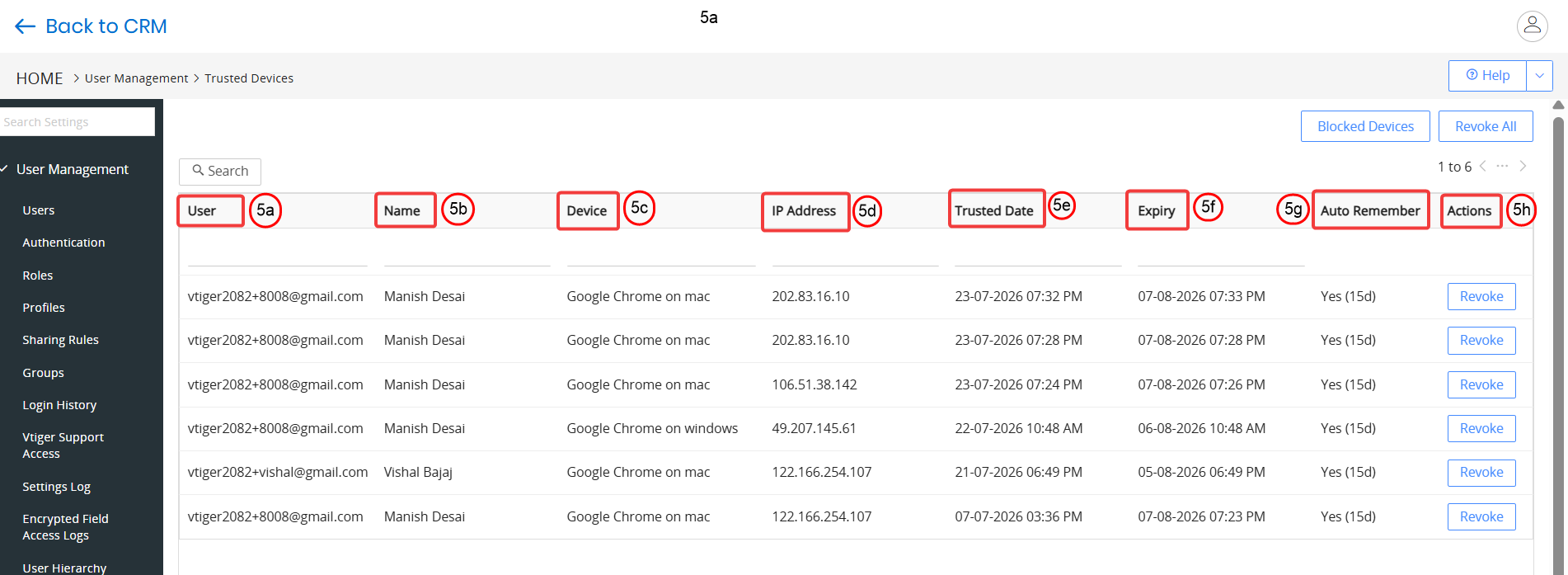
- View the following information:
- User: The user's email address used to sign in to the CRM.
- Name: The full name of the CRM user.
- Device: The browser and operating system used during login
- IP Address: The IP address from which the user signed in.
- Trusted Device: The date on which the device became trusted.
- Expiry: The date on which the trusted status expires.
- Auto remember: Indicates whether Remember this device was selected during verification.
- Actions: Click to remove the device's trusted access. The user must verify the device again during the next login.
Revoking a Trusted Device
You can revoke a trusted device at any time. Once revoked, the device is removed from the Trusted Devices list, and the user must verify the device again during the next login.
This is useful when:
- An employee changes laptops.
- A device is lost or stolen.
- A browser is no longer considered secure.
- An administrator wants the user to verify the device again.
Follow these steps to revoke access:
- Log in to the CRM.
- Click the User Menu.
- Select Settings. The Settings page opens.
- Click User Management > Trusted Devices. The Trusted Devices page opens.
- Locate the required device.
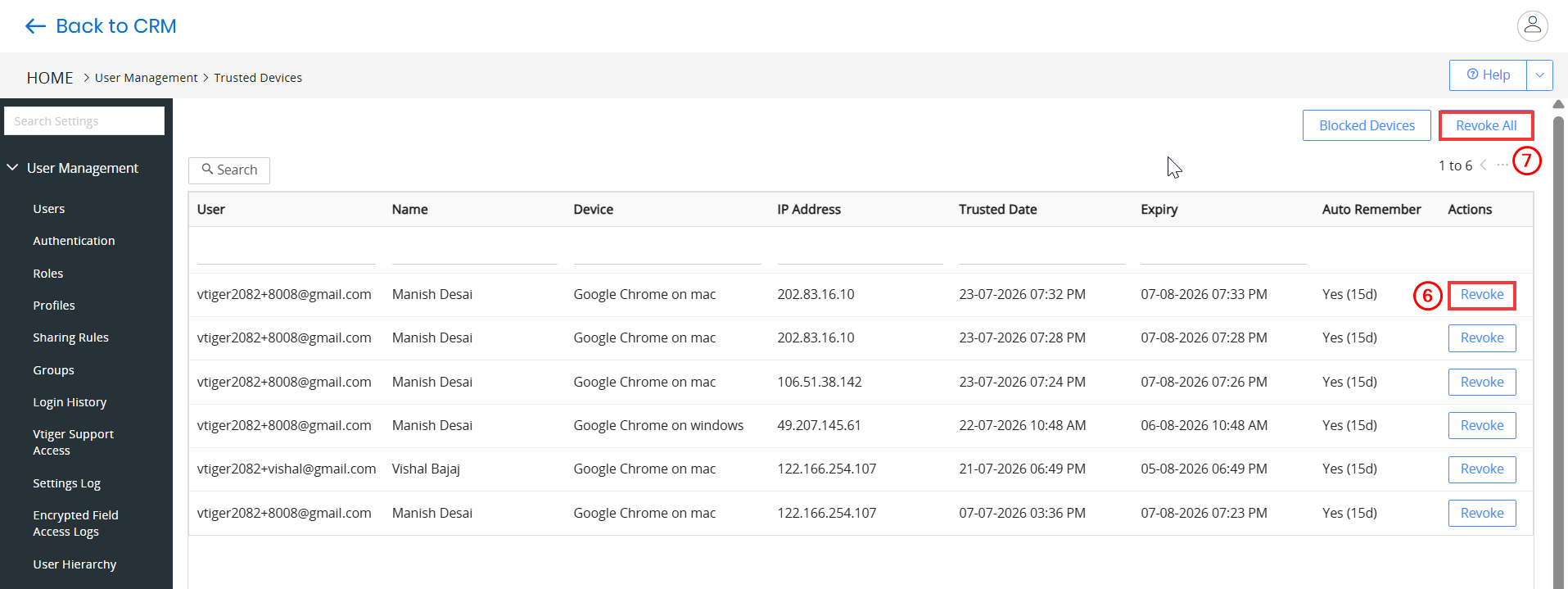
- Click Revoke to revoke a device.
- Click Revoke All to revoke all devices.
The selected device is removed from the Trusted Devices list. The next time the user signs in from that device, Vtiger treats it as a new device and sends a verification email before allowing access.
Viewing Blocked Devices
Vtiger automatically blocks devices after three repeated unsuccessful login verification attempts. You can review these devices from the Blocked Devices page.
A device is added to the Blocked Devices list when:
- The user ignores the verification email three consecutive times.
- The user rejects the verification request three consecutive times.
- The verification request expires three consecutive times.
After the third unsuccessful attempt:
- The device is blocked for 24 hours.
- No additional verification emails are sent during this period.
- The device is added to the Blocked Devices list.
Follow these steps to view the blocked device:
- Log in to the CRM.
- Click the User Menu.
- Select Settings. The Settings page opens.
- Click User Management > Trusted Devices. The Trusted Devices page opens.
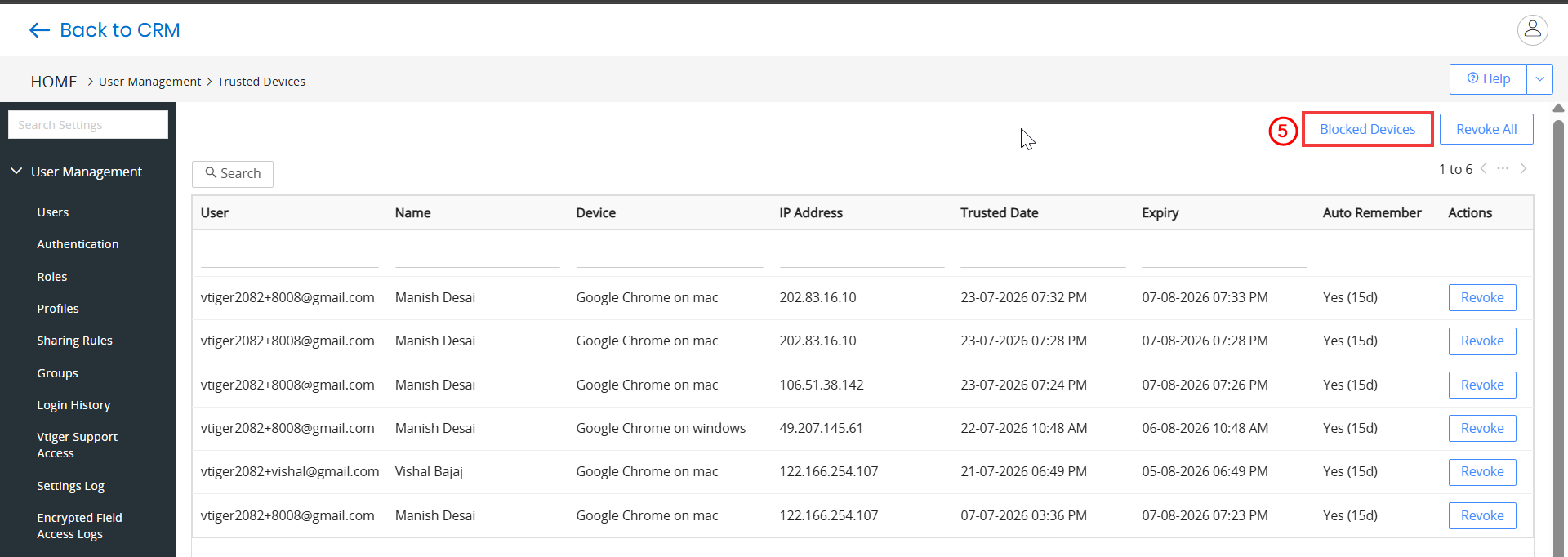
- Click Blocked Devices. The Blocked Devices page opens.
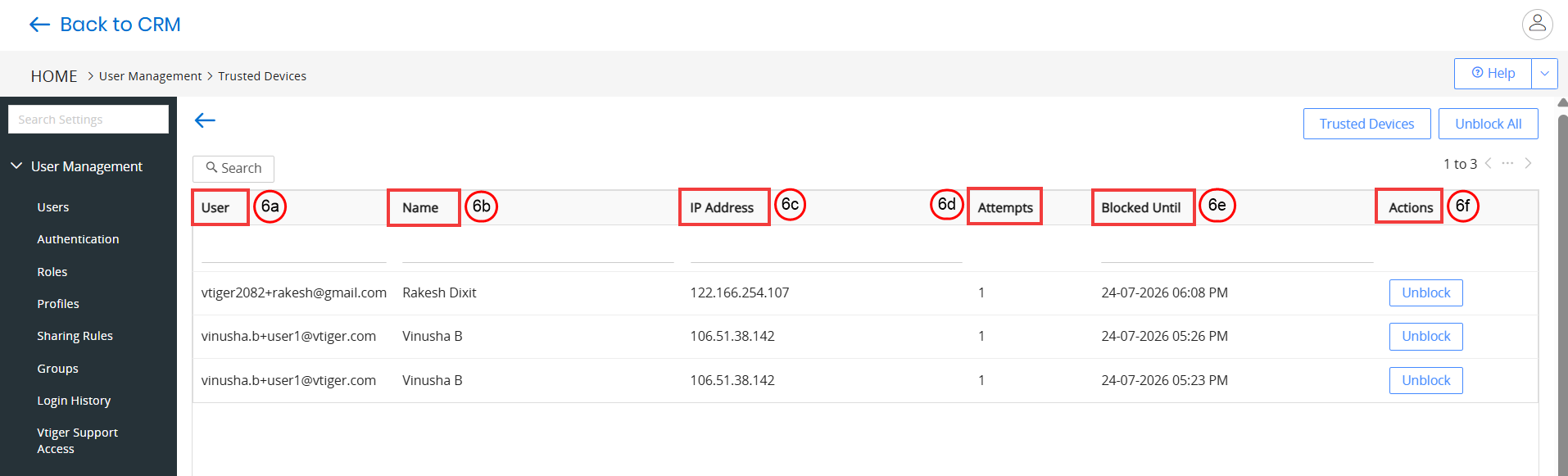
- View the following information:
- User: Displays the user's email address.
- Name: Displays the user's full name.
- IP Address: Displays the IP address from which the login attempt was made.
- Attempts: Displays the number of failed login attempts made from the device.
- Blocked Until: Displays the date and time until which the device remains blocked.
- Actions: Click to remove the block and allow login attempts from the device again.
Unblocking a Device
Sometimes a legitimate user may accidentally block their own device by rejecting or ignoring the verification emails multiple times. In such cases, you can remove the block and allow the user to verify the device again.
Follow these steps to unblock a Device:
- Log in to the CRM.
- Click the User Menu.
- Select Settings. The Settings page opens.
- Click User Management > Trusted Devices. The Trusted Devices page opens..
- Click Blocked Devices. The Blocked Devices page opens.
- Locate the required device.
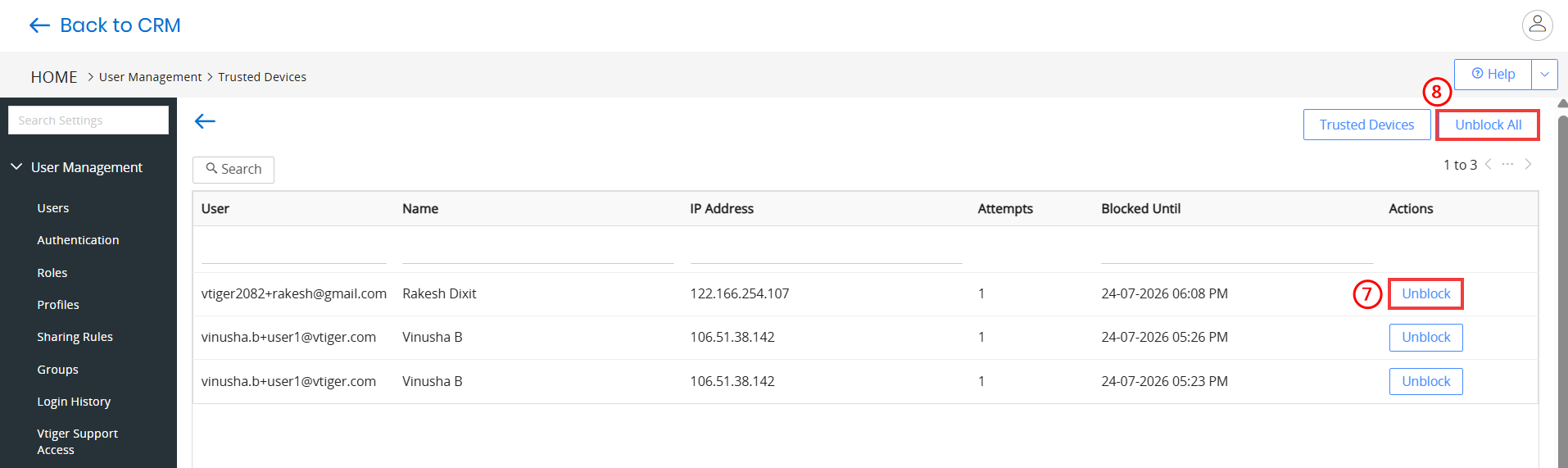
- Click Unblock to remove a device from the Blocked Devices list.
- Click Unblock All to remove the block from all blocked devices.
The user can now attempt to sign in again. Vtiger sends a new verification email, allowing the user to approve the login and regain access to the CRM.
Disabling the Trusted Devices module
The Trusted Devices module is enabled by default for all supported CRM editions.
If your organization does not want to use this feature, you can disable it from the Module Manager.
Follow these steps to disable the Trusted Devices module:
- Log in to the CRM.
- Click the User Menu.
- Select Settings. The Settings page opens.
- Click Module Management > Module. The Module Manager page opens.
- Locate Trusted Devices.
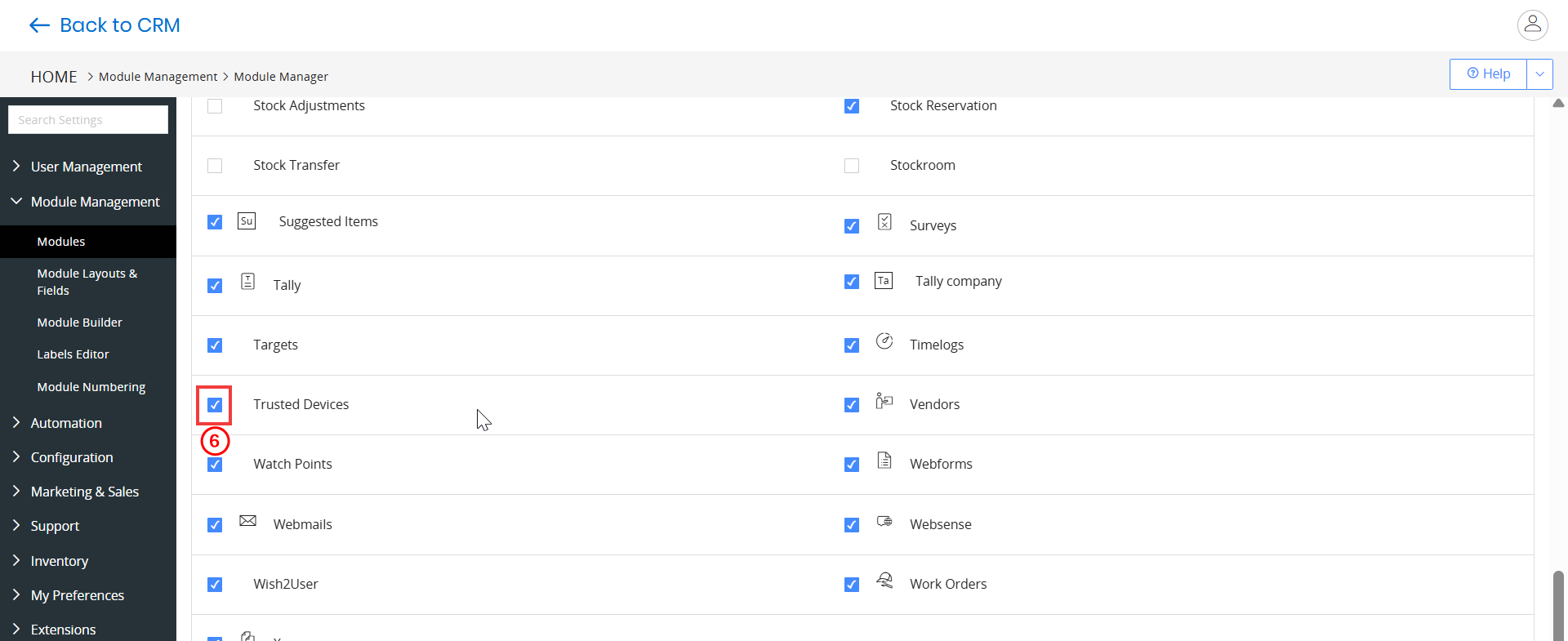
- Disable the Trusted Devices checkbox.
The Trusted Devices feature is disabled for your CRM instance.
Note: Disabling this module removes the additional device verification layer and allows users to sign in using only their username and password unless another authentication method, such as 2FA, is enabled.