Articles in this section
Lead Conversion Data Mapping
Feature Availability
Vtiger Editions: One Pilot | One Growth | One Professional | One Enterprise
Introduction
When a lead is qualified, it can be converted into a Contact, Organization, or Deal. During this conversion, some information from the Lead may need to be transferred to the other module record.
Data mapping defines which field in the source module record corresponds to which field in the target module record.
For example, suppose a Lead has a custom field called Customer Type. If the corresponding Contact, Organization, or Deal module has a field where this information needs to be stored, you can map the Lead field to the target field.
When the Lead is converted, Vtiger CRM:
- Fetches the configured field mapping.
- Transfers the value from the Lead field to the mapped target field.
- Helps retain important information during conversion.
- Reduces the need to manually enter the same information again.
Why is Data Mapping Required?
Data mapping is useful whenever the source and target modules store similar information in different fields. Without mapping, a value entered in a Lead field may not be transferred to the corresponding field when the Lead is converted.
Benefits
The benefits of mapping data are:
- Prevent data loss by transferring important field values during conversion.
- Reduce manual data entry by automatically carrying values to the target record.
- Maintain data consistency across related modules.
- Support customized CRM processes by allowing custom Lead fields to be mapped to target fields.
- Simplify data movement when information is transferred between modules or systems.
Vtiger specifically uses Lead Conversion Data Mapping to transfer Lead field values to Contacts, Organizations, and Deals during Lead conversion.
In this article, you will learn about:
- Lead Conversion Data Mapping
- Adding Custom Data Mapping
Enabling Leads Module
The Leads module is disabled by default. You must enable it manually before you can access the Lead Conversion Data Mapping settings.
Follow these steps to enable the Leads module:
- Log in to the CRM.
- Click the User Menu icon.
- Click Settings. The Settings page opens.
- Look for the Module Management section.
- Select Modules. The Modules page opens.
- Search for the Leads module.
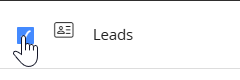
- Enable the checkbox.
- Refresh the page.
The Leads module is available in the Essentials and the Sales app.
Default Mapping
Vtiger CRM maps the following fields in the Leads module automatically to the fields in the Contacts, Organizations, or Deals modules by default:
|
|
|
| ||
|
|
|
|
|
|
|
|
|
|
|
|
|
|
|
|
|
|
|
|
|
|
|
|
|
|
|
|
|
|
Note: You cannot modify or delete the field mapping that is added by default in the CRM.
Custom Mapping
You can map additional Lead fields to fields in Contacts, Organizations, or Deals.
For example, your organization may have created a custom Customer Type field in Leads and Contacts. You can map Leads: Customer Type to Contacts: Customer Type
When the Lead is converted, the value entered in Customer Type is transferred to the mapped Contact field.
Follow these steps to create a custom mapping:
- Log in to the CRM.
- Click the User Menu in the top right corner.
- Click Settings. The Settings page opens.
- Go to the Marketing & Sales section.
- Click Lead Conversion Data Mapping. The Lead Conversion Data Mapping page opens.
- Click Edit.
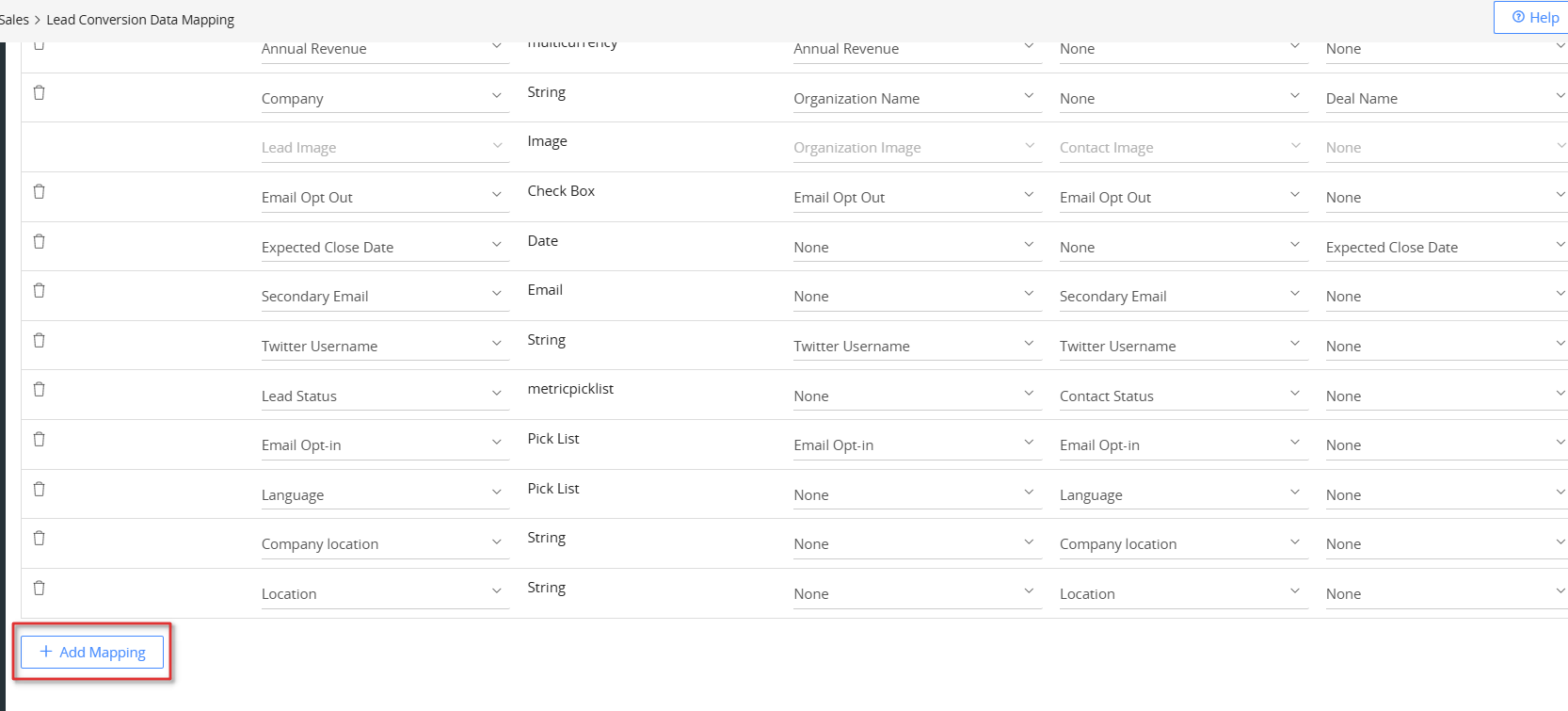
- Click +Add Mapping.
- Select the Lead field that you want to use as the source field.
- Select the corresponding target field in Contacts, Organizations, or Deals.
- Click Save. A confirmation warning message pops up.
- Type PROCEED.
- Click Proceed.
Note:
- For every source field added to the mapping, you must select a corresponding target field in Contacts, Organizations, or Deals. Otherwise, the mapping cannot be saved.
- You can delete a mapping by clicking the Delete icon under the Actions column.
- You cannot map auto-generated fields like Created Time, Modified Time, etc
Modifying the Mapping
Vtiger CRM provides you with the flexibility to modify a mapping that you have defined.
Follow these steps to modify a mapping:
- Log in to the CRM.
- Click the User Menu in the top right corner.
- Click Settings. The Settings page opens.
- Go to the Marketing & Sales section.
- Click Lead Conversion Data Mapping. The Lead Conversion Data Mapping page opens.
- Click Edit.
- Change the source and the target field accordingly.
- Click Save. A confirmation warning message pops up.
- Type PROCEED.
- Click Proceed.
The changes are saved to the mapping.