Articles in this section
Contacts Module in Vtiger CRM
Feature Availability
Vtiger Editions: One Pilot | One Growth | One Professional | One Enterprise | One AI
Introduction
A contact can represent an individual or be associated with an organization, enabling you to manage both personal and business relationships effectively in one place.
You can create a Contact record with all customer details, such as personal details, communication history, lifecycle stages, and engagement data. For example, Contacts move through different lifecycle stages, such as lead, prospect, and customer, helping teams track relationship maturity and sales readiness. Vtiger’s Contacts module is a central repository for your Contact records.
You can create a Contact record in multiple ways - Quick Create, from the Contacts module, from a Deal, etc. You can view Contact-related information using List View, Summary View, One View, etc.
Note: Contacts can also be linked with other CRM modules like Organizations, Deals, Activities, Emails, and Cases, providing a complete view of all interactions.
The Contacts module in Vtiger is listed under the main Menu > Essentials app.
Key Features
Good Contact management improves sales, marketing, and customer service and saves time. The Contacts module provides you with the following key features for effective contact management:
- Customize Contact Records: You can customize the following -
- Contacts Fields and Layout: You can add/modify fields and the layout of the fields. You can also identify header and key fields that you would like to be shown
- Deduplication rules: Identify the duplicate matching fields (usually the email address or phone number), and let Vtiger do the rest. Though you can use the duplicate merging tool to merge records after importing, it is better to do this before importing your data.
- Consents: Vtiger Privacy Guard allows you to configure the consents you need to comply with privacy laws such as GDPR in Europe. Contacts will be able to grant consent from the communication preferences page and contact forms.
- Contact Lifecycle Stages and Statuses: From Lead Stage to Customer, your Contact's lifecycle will involve many stages. Each stage will also have statuses (For example, the lead stage might have Hot and Cold statuses). You can customize these from the picklist editor, and the mapping to the stage-specific statuses can be done on the Picklist Dependency Settings page.
- Contact Profile Score: You can customize the scoring rules from the Profile Score configuration page.
- Contact Engagement Score: You can view the engagement score, which is auto-generated based on the customer interactions such as emails, calls, meetings, etc.
- Contact Closed States: You can click on the closed column to flag a value as a closed state.
- Note:
- Closed records cannot be modified. Only comments can be added.
- When deleting a user, closed records are not transferred.
- In Auto-Assignment, only open records are counted in the least-loaded method of assignment.
- Idle record alerts will not be sent for Closed records.
- When importing, if any of the duplicate merge options are enabled, closed records will not be merged.
- Note:
- Contact One View: In the Contact Summary view, you can see everything you need on one page. From One View Settings, you can customize the related records you would like to see when viewing a Contact
- Contact Analytics: Any stats related to the contact, such as outstanding invoice amount and the # of products bought, can be shown on the Contact Analytics page.
- Automation: You can automate Contact creation and updation with the following -
- Import data - import data from a CSV file
- Sync data with existing tools - Vtiger can synchronize with your Contact data in Google, Office365, QuickBooks, and more
- Capture Leads directly from Facebook/Google/Webforms
- Customize Contact Alerts: Vtiger sends Idle Contact Alerts. Customize the alert rules from the Actions page.
- Calculus AI: If you have the Calculus AI add-on installed, you will also see the Best Time to Contact feature on the Contact Record. This will predict the best time for you to contact your customer or prospect.
- Conversations
- A Contact record lets you communicate with your customer from key communication channels such as email, phone, SMS, Chat, WhatsApp, and social media.
- The Inbox module makes it easy to bring group emails and individual emails into Vtiger
- Mailroom allows the automatic creation of Cases, Contacts, and Leads from incoming emails.
- Conversations Analysis
- With the Calculus AI add-on, Vtiger can analyze each call, email, and chat conversation. It will flag the ones that need to be reviewed. It also offers suggestions to improve the conversation.
- Related
- Appointment Scheduling - Make it easy for your clients to pick a time by sharing your or your team's calendar.
- Email Sequences - For outbound prospecting, automate the drip emails
- Contact Types
- Earlier, we mentioned that contact could be a lead, potential, or a customer. How do you identify which contact is which type?
- It’s simple - by looking at its Lifecycle Stage.
- Lifecycle Stage is a field in the Contacts Module that depicts the entire lifecycle of a contact. It has different values such as Lead, Marketing Qualified Lead, Sales Qualified Lead, Customer, etc.
- When you convert a lead, you can use one of the lifecycle values to represent it. Let us see how.
- Tip! You can see a contact’s lifecycle stage on the top-right side of its Summary View.
Benefits
The benefits of using the Contacts module are:
- Maintain a centralized repository of all Contact information.
- Track a Contact’s complete lifecycle from lead to customer.
- View all interactions and communication history in one place.
- Identify and focus on qualified and high-priority Contacts.
- Improve collaboration between sales, marketing, and support teams.
- Automate Contact-related activities and follow-ups.
- Ensure data accuracy, consistency, and compliance with privacy regulations.
- Deliver personalized and timely communication based on engagement insights.
In this article, you will learn about:
- Creating a Contact
- Editing a Contact
- Converting a Contact to Lead
- Exporting a Contact
- Deleting a Contact
- Actions in a Contact Record
Key Terminology
|
|
|
|
|
|
|
|
|
|
|
|
|
|
|
|
|
|
|
|
|
Creating a Contact
There are several ways to create a Contact in Vtiger CRM, such as:
- From the Contacts module
- Using Quick Create
- By importing
- From another record within the CRM
- Through Workflows
- Through the Process Designer
- Through Sync integrations
- Webforms
- Lead conversion
- From the Mailroom
Creating a Contact from the Contacts module
You can create a Contact directly by using the Add Contact button in the Contacts module.
Follow these steps to create a Contact from the Contacts module:
- Log in to the CRM.
- Click the main Menu.
- Go to Essentials > Contacts. The Contacts List View opens.
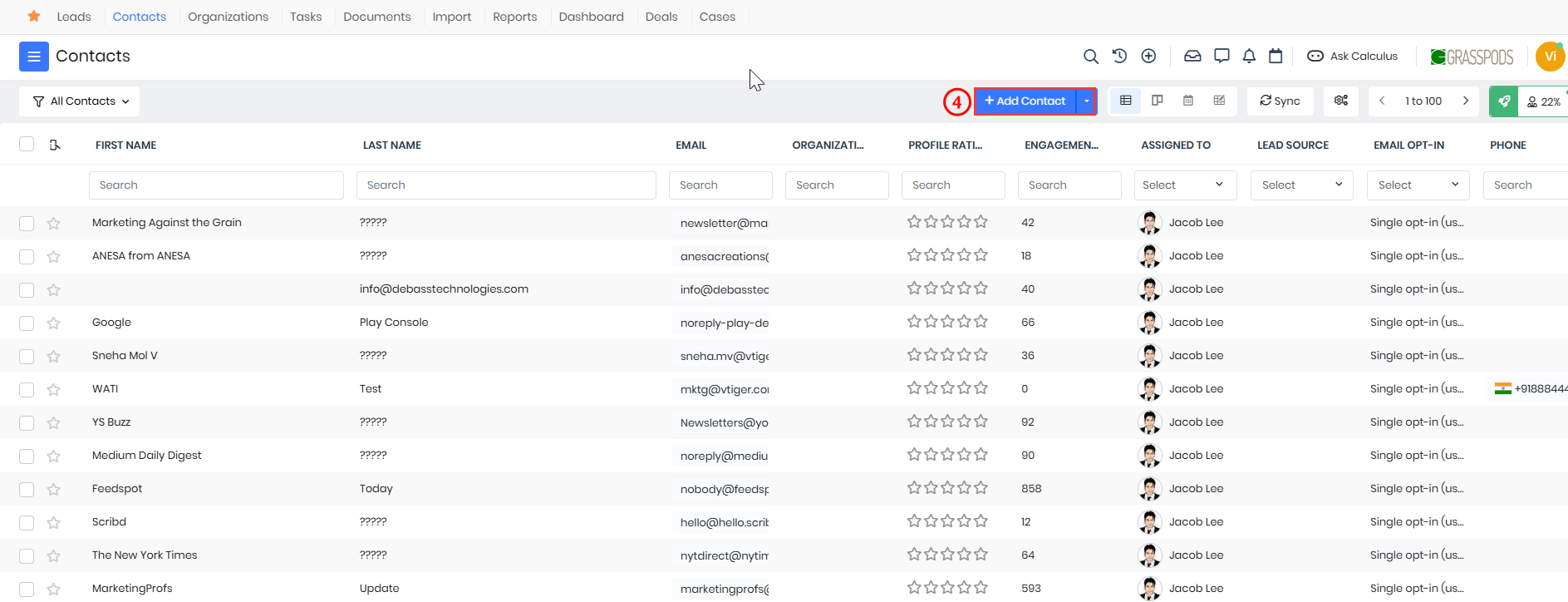
- Click + Add Contact. The Add Contact page opens.
- Enter or select the following information:
- Salutation: Select a salutation from the dropdown.
- First Name: Enter the Contact’s first name.
- Email: Enter the primary email address. You can click + Add to include additional email fields.
- Assigned To: Select the user who will own the Contact.
- Last Name: Enter the Contact’s last name (mandatory field).
- Contact Type: Select the type (e.g., Lead, Customer).
- Organization Name: Search and select the related Organization. You can also create a new one using the + icon.
- Phone: Enter the phone number and select the phone type. You can add more numbers using + Add.
- Do Not Call: Enable this checkbox if the Contact should not be contacted via phone.
- Reports To: Select the Contact’s reporting manager, if applicable.
- Co-Owner: Assign a co-owner if required.
- Contact Image: Upload an image using the Browse option.
- View full form: Click to access additional fields.
- Click Save.
Creating a Contact using Quick Create
You can use Quick Create to add a Contact quickly without opening the full Contacts module.
Follow these steps to create a Contact using Quick Create:
- Log in to the CRM.
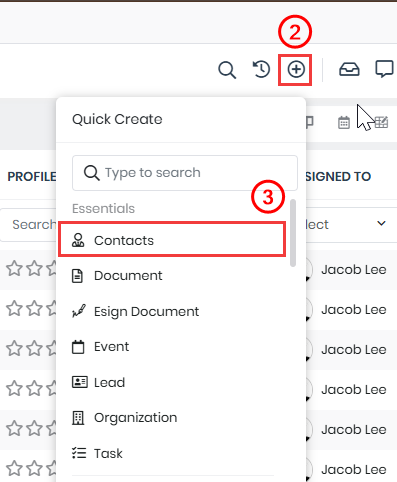
- Click the + icon (Quick Create) in the top-right corner of the screen.
- Select Contact from the list of available modules. The Quick Create pop-up opens.
- Enter or select the following information:
- Salutation: Select a salutation from the dropdown.
- First Name: Enter the Contact’s first name.
- Email: Enter the primary email address. You can click + Add to include additional email fields.
- Assigned To: Select the user who will own the Contact.
- Last Name: Enter the Contact’s last name (mandatory field).
- Contact Type: Select the type (e.g., Lead, Customer, etc.).
- Organization Name: Search and select the related Organization. You can also create a new one using the + icon.
- Phone: Enter the phone number and select the phone type. You can add more numbers using + Add.
- Do Not Call: Enable this checkbox if the Contact should not be contacted via phone.
- Reports To: Select the Contact’s reporting manager, if applicable.
- Co-Owner: Assign a co-owner if required.
- Contact Image: Upload an image using the Browse option.
- View full form: Click to access additional fields.
- Click Save.
The saved Contact record is available in the Contacts module List View.
Note: Quick Create may display only a limited set of fields based on your CRM configuration. You can save a Contact by adding only the relevant information, and return later to add the details.
To know more about Quick Create, click here.
Creating a Contact by Importing
You can import Contact data stored on your desktop or a laptop into the Contacts module. Importing helps you quickly add multiple Contacts to the CRM. For example, you have captured contact or lead information into an Excel sheet at an exhibition and would now like to save this information in the CRM. Vtiger CRM supports importing Contacts using CSV and VCF file formats.
Key aspects of importing
- Column names in the local file match the Contact fields: Data is imported from your local file and saved in the CRM if the column names in the local file match those in the CRM and align with the field names in the Contacts module.
- Check for duplicate contacts: You can configure the system to identify and eliminate duplicate contacts during the import process. This will provide you with the following options:
- Import only new Contacts.
- Update existing Contacts and also create new ones.
- Replace existing values with blank values.
Follow these steps to import Contacts:
- Log in to the CRM.
- Click the main Menu.
- Go to Essentials > Contacts. The Contacts List View opens.
- Click Import. The Import page opens.
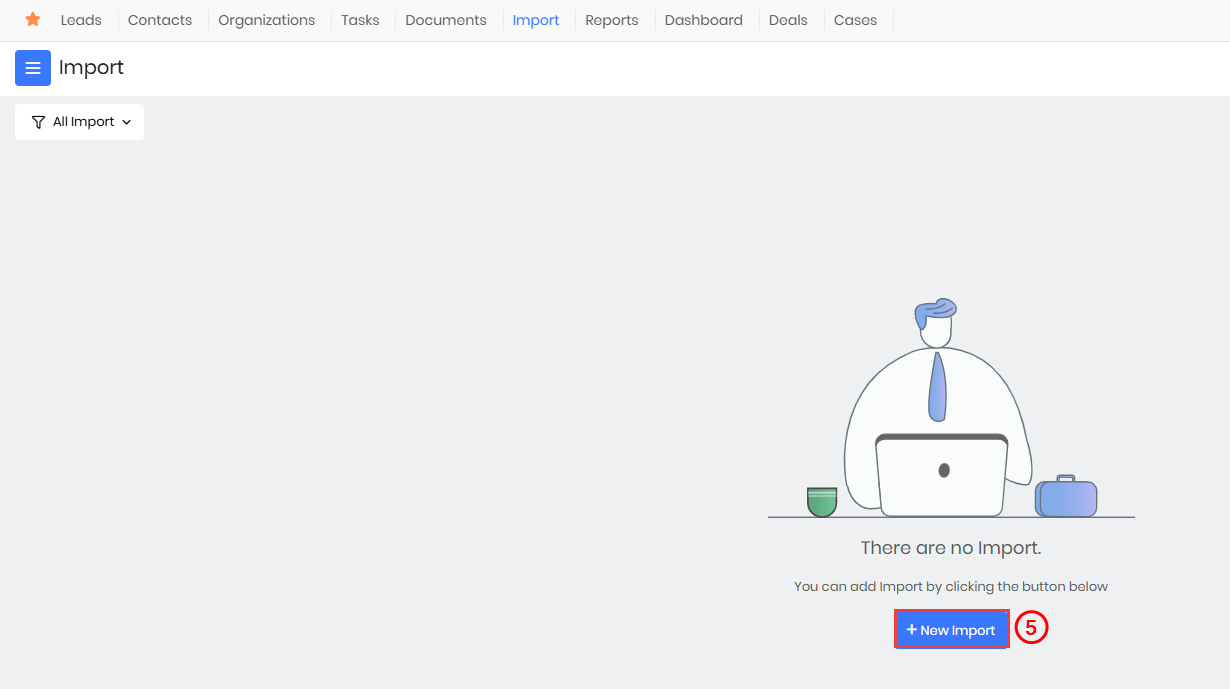
- Click + New Import. The New Import window opens.
- Enter or select the following information:
- Title: Enter a name for the import.
- Select Module: Select Contacts.
- Import File Format: Choose CSV or VCF.
- Has Header: Enable this checkbox if your file contains column headers.
- Character Encoding: Select the encoding format (for example, UTF-8).
- Delimiter: Select the delimiter used in the file (for example, comma).
- Choose File: Upload the Contact file from your local system.
- Click Next.
- Map the file columns to Contact fields:
- CRM Fields: Map each column in your file to the corresponding Contact fields (for example, First Name, Last Name, Email, Phone).
- Default Value: Provide default values if required.
- Click Save Mapping to reuse the configuration (optional).
- Click Next.
- Handle duplicate Contacts:
- Check Duplicates: Enable to identify duplicate Contacts.
- Duplicate Check Fields: Select fields such as Email or Phone to detect duplicates.
- Choose one of the following options:
- Add New Records: Imports only new Contacts.
- Add New Records and Update Existing Records: Updates existing Contacts and creates new ones.
- Overwrite fields with any incoming blank values: Replaces existing values with blank values.
- Do Not Check Duplicates: Imports all Contacts without checking duplicates.
- Click Next.
- Review the data in the Preview Import window (up to three records are displayed).
- Click Start Import.
After the import is completed, a summary is displayed showing the number of Contacts imported, created, updated, skipped, and failed. You can click Finish, Import More, or Undo based on your requirement.
Note:
- Ensure mandatory fields, such as Last Name, are included in the file.
- The file size must not exceed 50 MB.
- Duplicate Handling helps maintain data accuracy by preventing repeated Contact records.
Creating a Contact from another record within the CRM
You can create a Contact from related records such as an Organization, Deal, or Help Desk ticket.
Follow these steps to create a Contact from another record:
- Log in to the CRM.
- Open the required parent record, such as:
- Organization
- Deal
- Lead (after conversion-related flow, if applicable)
- Other related modules
- Go to the Related Records section.
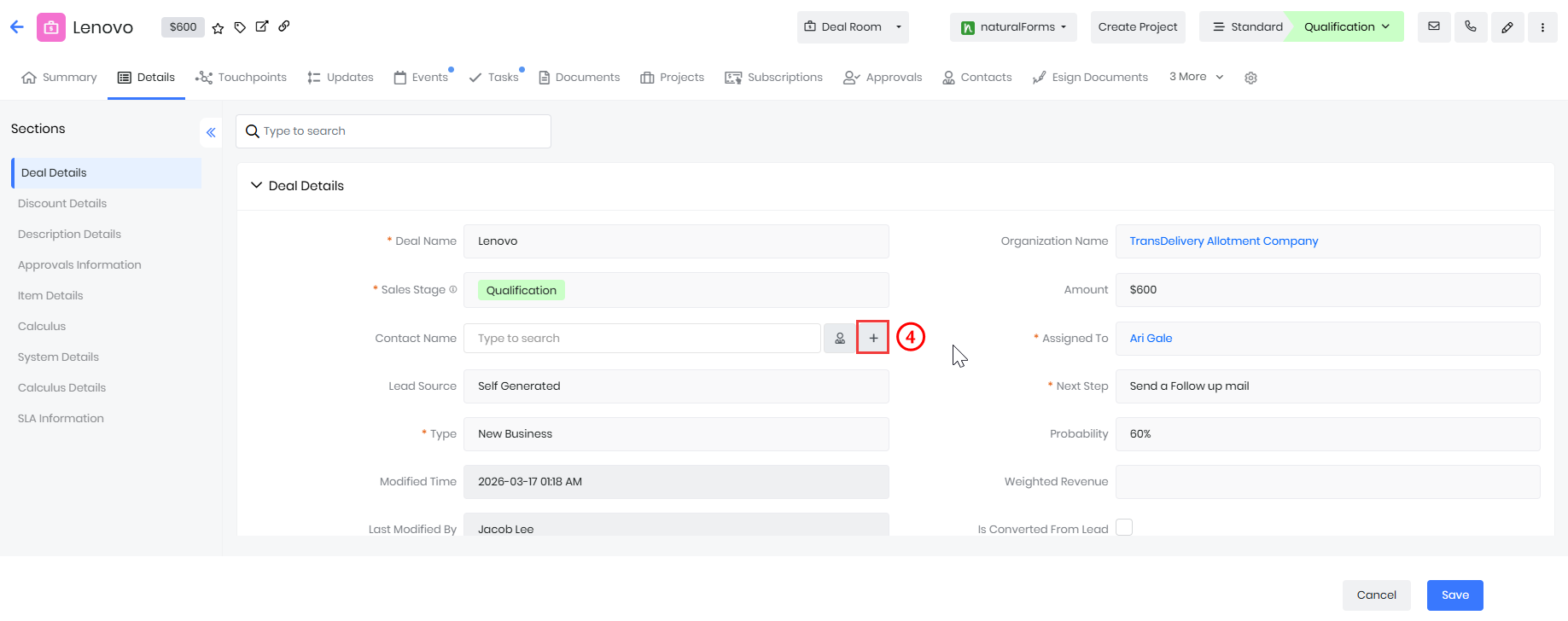
- Click + Add Contact. The Add Contact window opens.
- Enter or select the following information:
- Salutation: Select a salutation from the dropdown.
- First Name: Enter the Contact’s first name.
- Email: Enter the primary email address. You can click + Add to include additional email fields.
- Assigned To: Select the user who will own the Contact.
- Last Name: Enter the Contact’s last name (mandatory field).
- Contact Type: Select the type (e.g., Lead, Customer, etc.).
- Organization Name: Search and select the related Organization. You can also create a new one using the + icon.
- Phone: Enter the phone number and select the phone type. You can add more numbers using + Add.
- Do Not Call: Enable this checkbox if the Contact should not be contacted via phone.
- Reports To: Select the Contact’s reporting manager, if applicable.
- Co-Owner: Assign a co-owner if required.
- Contact Image: Upload an image using the Browse option.
- View full form: Click to access additional fields.
- Click Save.
The Contact is created and linked to the selected record.
Note: The exact option name may vary depending on the module and layout configuration.
Creating a Contact through Workflows
You can create Contacts automatically when specific workflow conditions are met.
Follow these steps to create a Contact through Workflows:
- Log in to the CRM.
- Click the User Menu.
- Click Settings. The Settings page opens.
- Click Automation > Workflows. The Workflow page opens.
- Select the module from which the workflow should run.
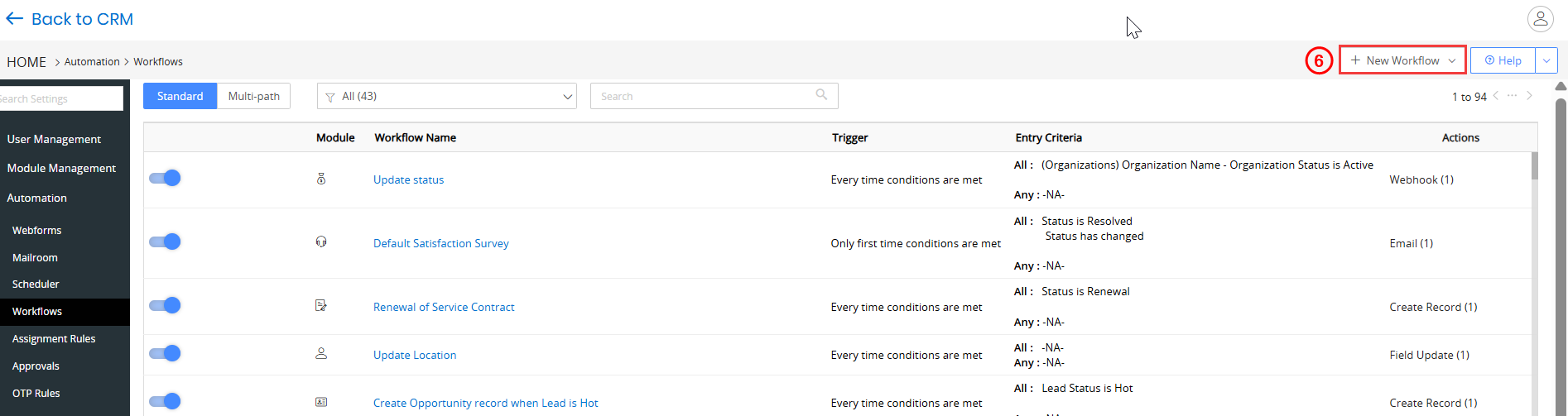
- Click + New Workflow. The Add New Workflow window opens.
- Enter or select information for the following sections:
- Basic Information
- Workflow Name: Add a name for the workflow.
- Target Module: Select Contacts as the target module.
- Status: Select status as Active.
- Description: Add a description.
- Workflow Trigger
- Trigger Workflow on: Add an action to create a record
- Recurrence: Select the recurrence option (available for contact record updates)
- Entry Criteria
- Add Action
- Map or enter the required Contact field values.
- Basic Information
- Click Save.
A Contact is created automatically when the workflow conditions are satisfied.
To know more about Workflows, click here.
Example: A Contact can be created automatically when a new Organization record is added.
Creating a Contact through Process Designer
You can create a Contact automatically as part of a business process using Process Designer.
Follow these steps to create a Contact through Process Designer:
- Log in to the CRM.
- Click the User Menu.
- Click Settings. The Settings page opens.
- Click Automation > Process Designer. The Process Designer page opens.
- Open an existing process or click + New Process.
- Select the module for which you want to configure the process.

- Add a Create Record block to the process flow.
- Select Contacts as the module to create the record in.
- Configure the required Contact fields.
- Define the process conditions and transitions.
- Click Save and Activate the process.
A Contact is created automatically when the process is triggered.
To know more about Process Designer, click here.
Example: A Contact can be created during a service request or onboarding process.
Creating a Contact through Sync integrations
Contacts can also be created automatically in Vtiger CRM through sync integrations with external applications.
Follow these steps to create a Contact through Sync integrations:
- Log in to the CRM.
- Click the User Menu.
- Click Settings. The Settings page opens.
- Go to the relevant Extensions section.
- Open the connected application settings, such as:
- Email integrations
- Calendar integrations
- Contact sync tools
- Third-party apps
- Enable Contact Sync if it is available.
- Configure the sync direction and field mapping.
- Save the integration settings.
Contacts from the connected application are synced and created automatically in Vtiger CRM.
Note: The sync behaviour depends on the external application and integration settings.
Creating a Contact using Webforms
Webforms allow you to capture Contact information from your website.
Follow these steps to create a Contact using Webforms:
- Log in to the CRM.
- Click the User Menu.
- Click Settings. The settings page opens.
- Click Marketing > Webforms. The webforms page opens.
- Create or edit a Webform.
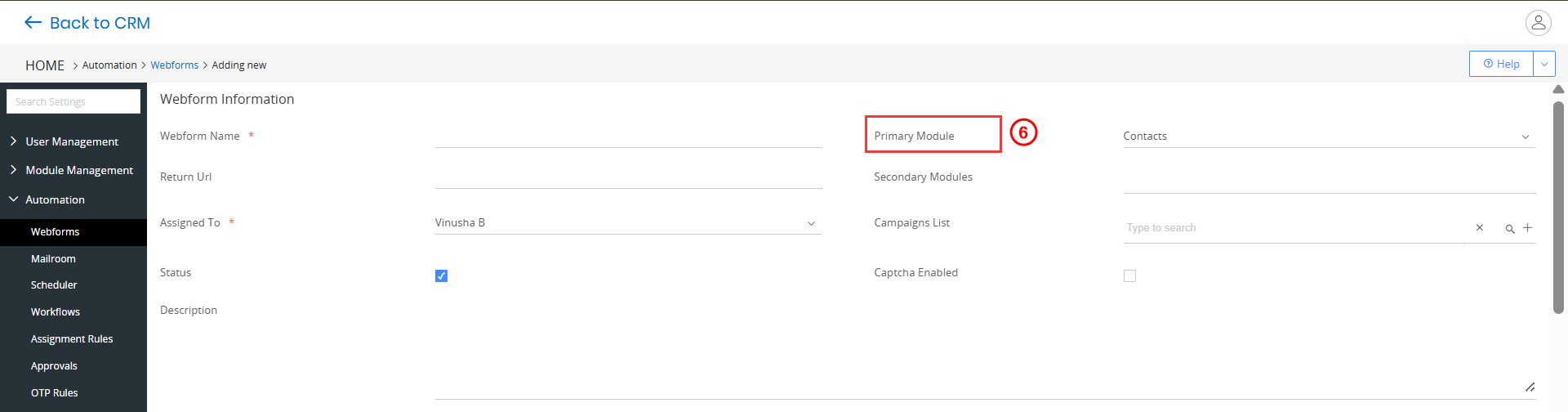
- Select Contacts as the primary module.
- Add required fields to the form.
- Embed the form on your website.
When a user submits the form, a Contact is created automatically in the CRM.
To know more about Webforms, click here.
Creating a Contact through Lead Conversion
Contacts are created when Leads are converted.
Follow these steps to create a Contact through Lead conversion:
- Log in to the CRM.
- Click the main Menu.
- Go to Essentials > Leads. The Leads page opens.
- Open a Lead record.
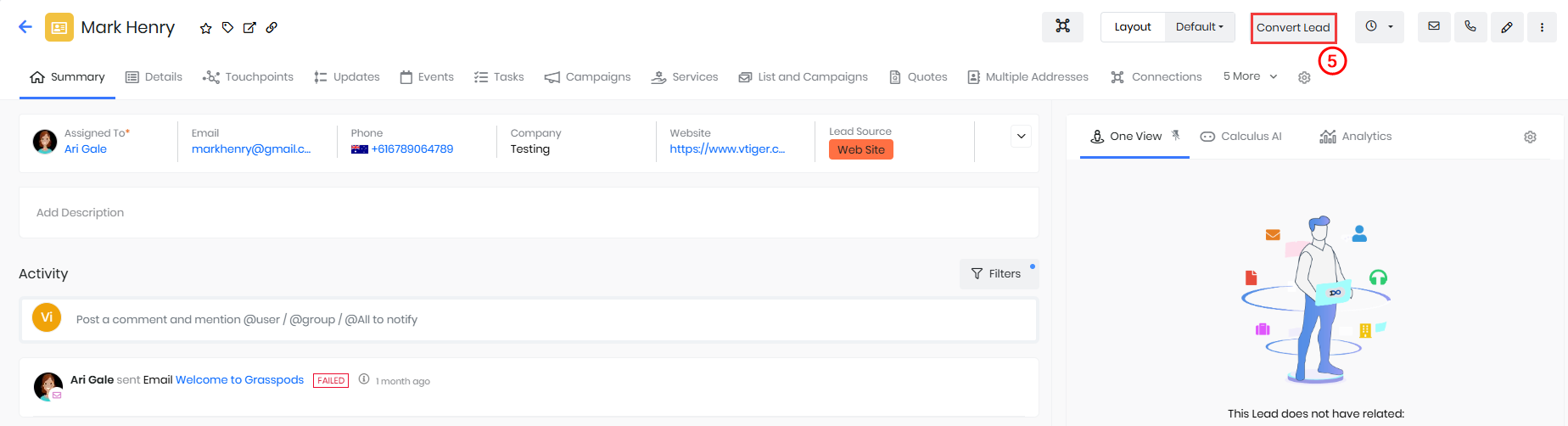
- Click Convert Lead.
- Select Contact in the conversion options.
- Review or update the details.
- Click Save.
A Contact is created from the Lead record.
To know more about Leads, click here.
Creating a Contact using Mailroom
Mailroom can create Contacts automatically from incoming emails.
Follow these steps to create a Contact using Mailroom:
- Configure Mailroom in the CRM.
- Define rules to process incoming emails.
- Map sender email fields to Contact fields.
- Save the Mailroom configuration.
When an email is received, a Contact is created based on the defined rules.
To know more about Mailroom, click here.
Editing a Contact
There are two ways to edit a Contact.
- From the List View
- From the Summary View
From the List View
Follow these steps to edit a Contact from the List View:
- Log in to the CRM.
- Click the main Menu.
- Click Essentials > Contacts. The Contacts List View opens.
- Hover over the Contact record to which you want to edit.

- Click Edit. The Editing Contact page opens.
- Make the required changes in the Summary View of the Contact record.
- Click Save.
From the Summary View
Follow these steps to edit a Contact from the Summary View:
- Log in to the CRM.
- Click the main Menu.
- Click Essentials > Contacts. The Contacts List View opens.
- Click to open the Summary View. The Summary View of the Contact opens.

- Click Edit. The Editing Contact page opens.
- Make the required changes in the Summary View of the Contact record.
- Click Save.
Converting a Contact
Follow these steps to convert a Contact:
- Log in to the CRM.
- Click the main Menu.
- Click Essentials > Contacts. The Contacts List View opens.
- Select and click a Contact record that you want to convert. The Summary View of the record opens.
- Click Convert Contact. The Convert Window opens.
- Enter or select the following information:
- Contact Type: Select the appropriate type for the Contact.
- Contact Status: Update the current status of the Contact.
- Assigned To: Choose the user who will own the Contact.
- Do you want to create a deal? - Enable the New Deal checkbox if you want to create a Deal simultaneously while converting the Contact.
- Fill in all the Deals information.
- Click Save.
Exporting a Contact
Follow these steps to export a Contact:
- Log in to the CRM.
- Click the main Menu.
- Click Essentials > Contacts. The Contacts List View opens.
- Select the records you want to export.
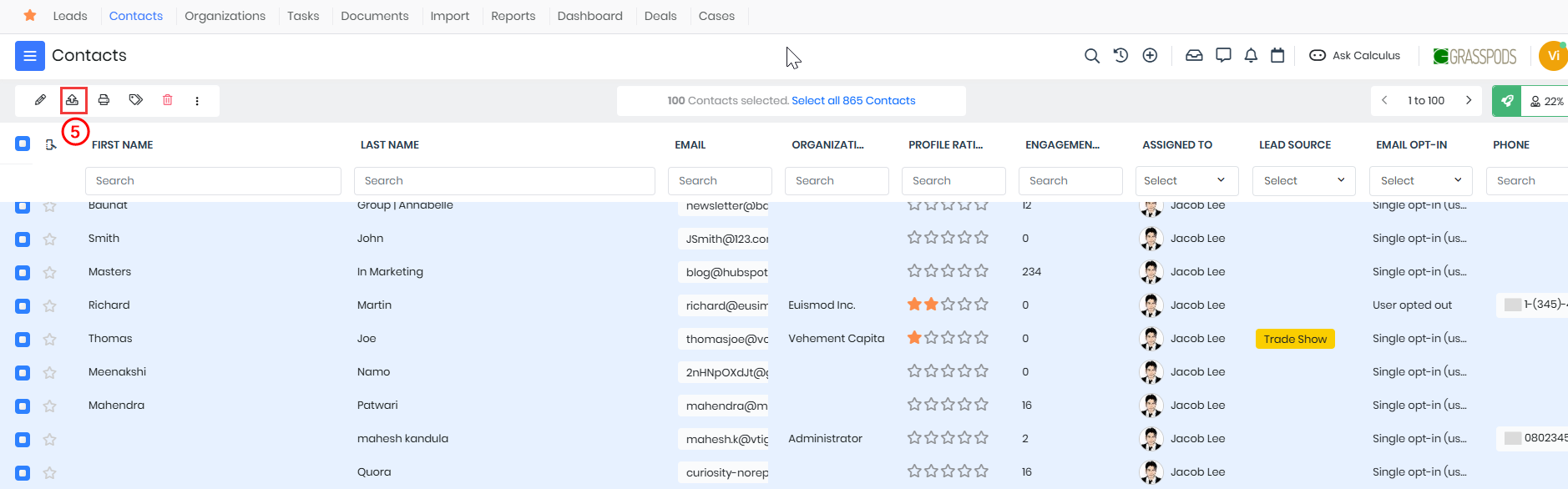
- Click Export. The Export window opens.
- Enter or select the following information:
- Export Selected Records: Exports only the selected Contact records.
- Export Records on the Current Page: Exports all records visible on the current page.
- Export All Records: Exports all Contact records available in the module.
- Click Export.
Deleting a Contact
There are two ways to delete a Contact.
- From the List View
- From the Summary View
From the List View
Follow these steps to delete a Contact from the List View:
- Log in to the CRM.
- Click the main Menu.
- Click Essentials > Contacts. The Contacts List View opens.
- Select the Contact record you want to delete.

- Click Delete. The Delete record window opens.
- Click Yes to delete the record.
From the Summary View
Follow these steps to delete a Contact from the List View:
- Log in to the CRM.
- Click the main Menu.
- Click Essentials > Contacts. The Contacts List View opens.
- Select the Contact record you want to delete. The Summary View opens.
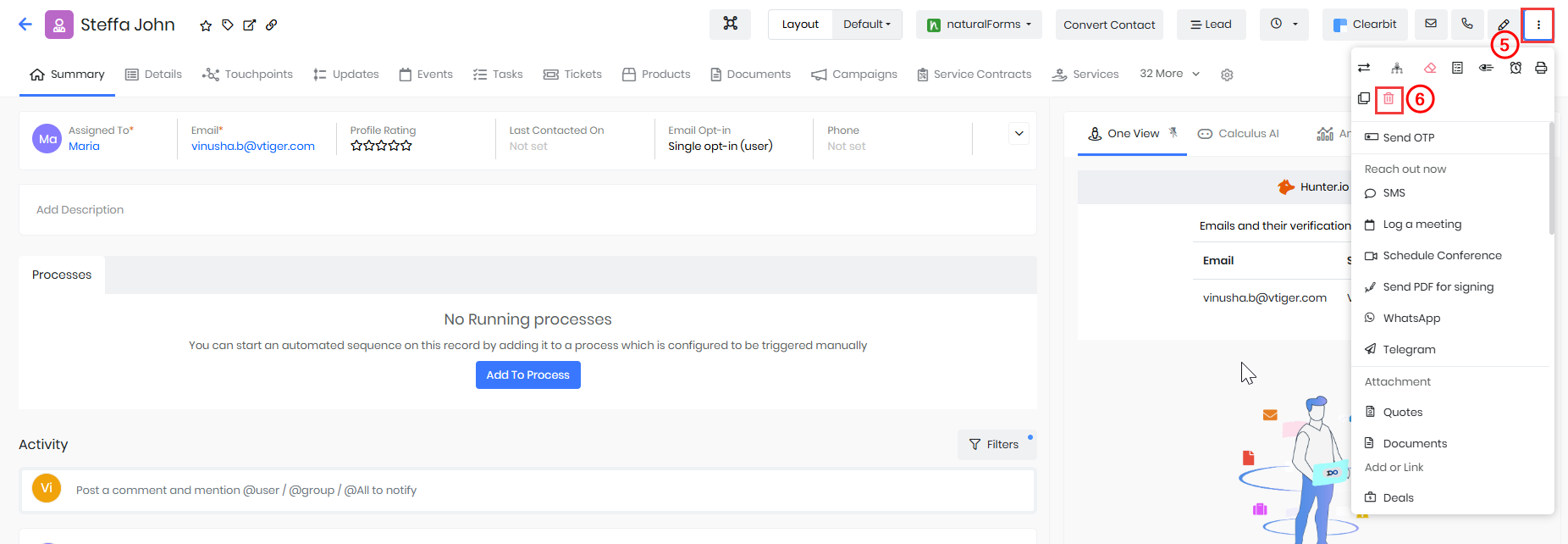
- Click More.
- Click Delete. The Delete record window opens.
- Click Yes to delete the record.
Actions in a Contact record
You can perform the following actions in a Contact record:
- Edit
- Export
- Print / Export PDF
- Tag
- Delete
- More
Follow these steps to perform the above actions:
- Log in to the CRM.
- Click the main Menu.
- Click Essentials > Contacts. The Contacts List View opens.
- Select the Contact records.

- Click one of the following icons to perform the related action:
- Edit - Click the Edit the Contact record.
- Export - Click to export the Contact record.
- Print / Export PDF - Click to Print / Export PDF. The Print window opens.
- Tag - Click to add new Tags, select Tags, or add multiple Tags for easy reference.
- Delete - Click to Delete the Contact record.
- More - Click and perform the following actions:
- Comment
- Send Email
- Send OTP
- Calculus AI
- Export to Google Spreadsheet
- Follow
- Unfollow
- Transfer Ownership
- Merge selected records
- Add to Process
- Update in Marketing List
Setting up Contact Hierarchy
When dealing with multiple contacts in a deal, you can set up a tree structure involving all the contacts to understand their hierarchy. So, if a deal’s contact reports to another contact, you can tell by looking at the hierarchy.
Follow these steps to set up a contact hierarchy:
- Log in to the CRM.
- Click the main Menu.
- Go to Essentials.
- Select Contacts. The List View opens.
- From the List View, open the contact record you want. The Summary View opens.
- Click Edit on the top right side of the screen.
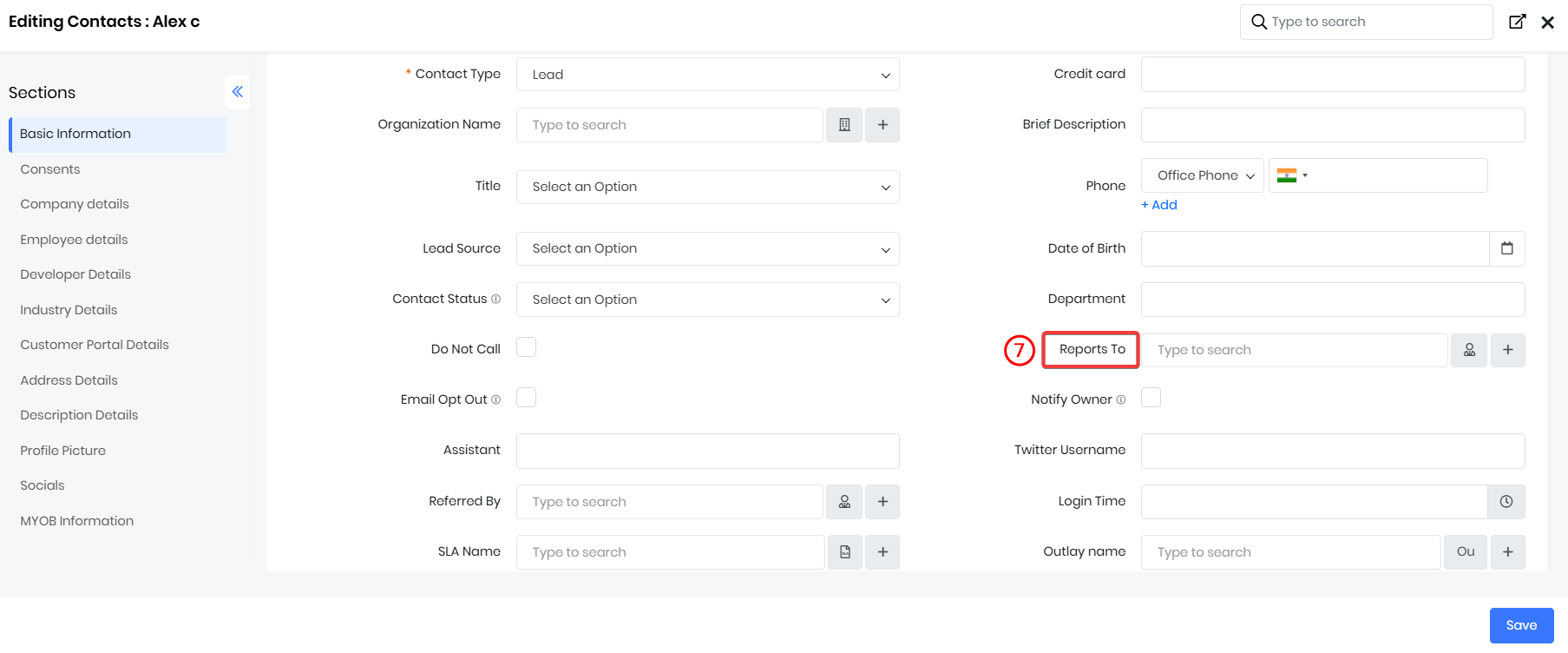
- Look for the Reports To field and select the contact who is a level above in the contact hierarchy.
- Click Save.
Note: If Contact 1 reports to Contact 2, Contact 1 is a subordinate of Contact 2, and if Contact 2 reports to Contact 3, Contact 2 is a subordinate of Contact 3. In this way, you can set up a hierarchy for the contacts.
Viewing Contact Hierarchy
Follow these steps to view a contact’s hierarchy:
- Log in to the CRM.
- Click the main Menu.
- Go to Essentials.
- Select Contacts. The Contacts page opens.
- Click open the Contact record you want. The Summary View opens.
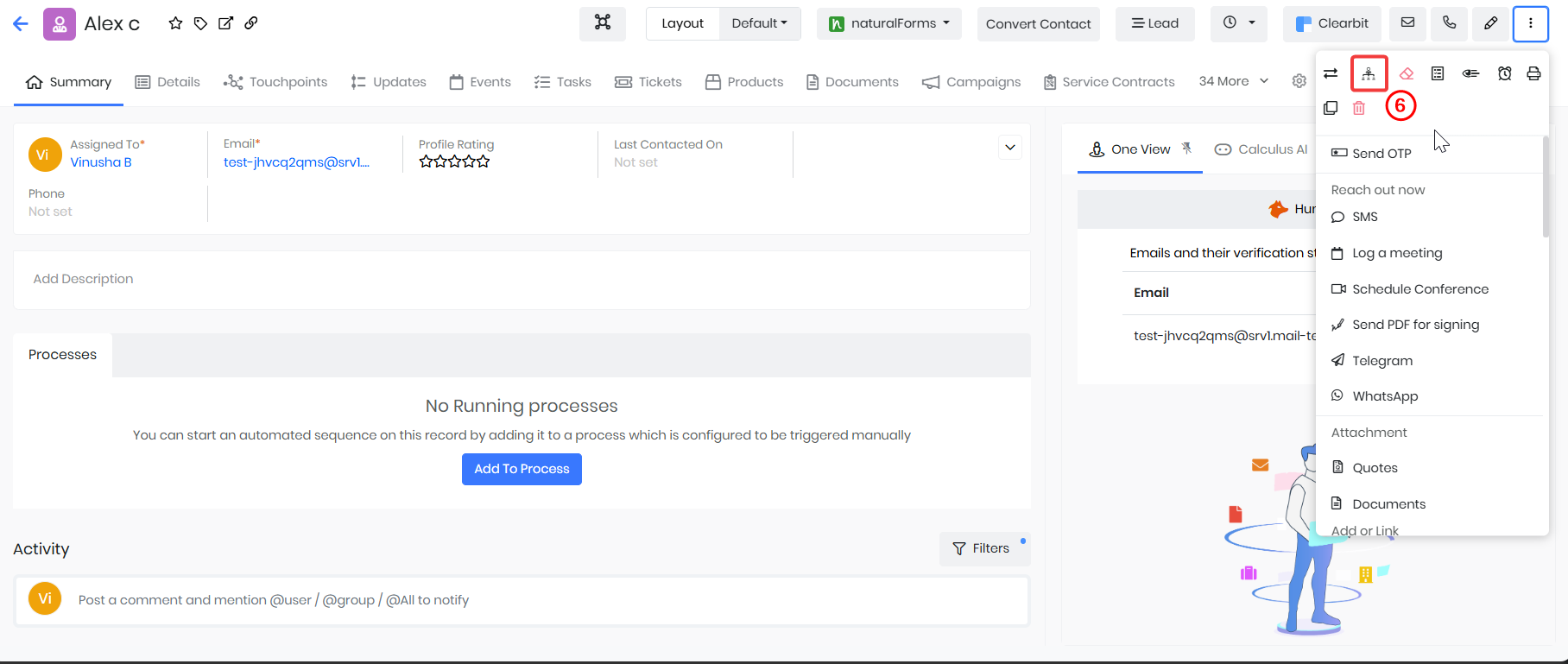
- Click More on the top right.
- Select Contact Hierarchy. The Contact Hierarchy page is displayed.
Transferring Contact Record Ownership
If a sales rep has discontinued pursuing a Deal, you can transfer the deal’s ownership along with its associated contacts to another rep.
Follow these steps to transfer ownership of a contact:
- Log in to the CRM.
- Click the main Menu.
- Go to Essentials.
- Select Contacts. The Contacts page opens.
- Click open the record From the List View, open the contact you want to convert. The Summary View opens.
- Click More on the top right.
- Select Transfer Ownership.
- Enter or select the following information:
- Select Related Modules - Select the related records that you want to transfer to the new owner.
- Assigned To - Select the new owner of the contact and the related records.
- Transfer Closed Records - Enable this checkbox to transfer closed records to the new owner.
- Click Save.
You can see the new owner’s name in the Assigned To fields of the Contact and the related records that you transferred.
Viewing Contacts
You can view and manage your Contacts using the following options: List View, Summary View, Kanban View, Calendar View, and Grid View. By default, Contacts are displayed in List View. You can switch between these views using the view icons available at the top right of the Contacts page.
List View
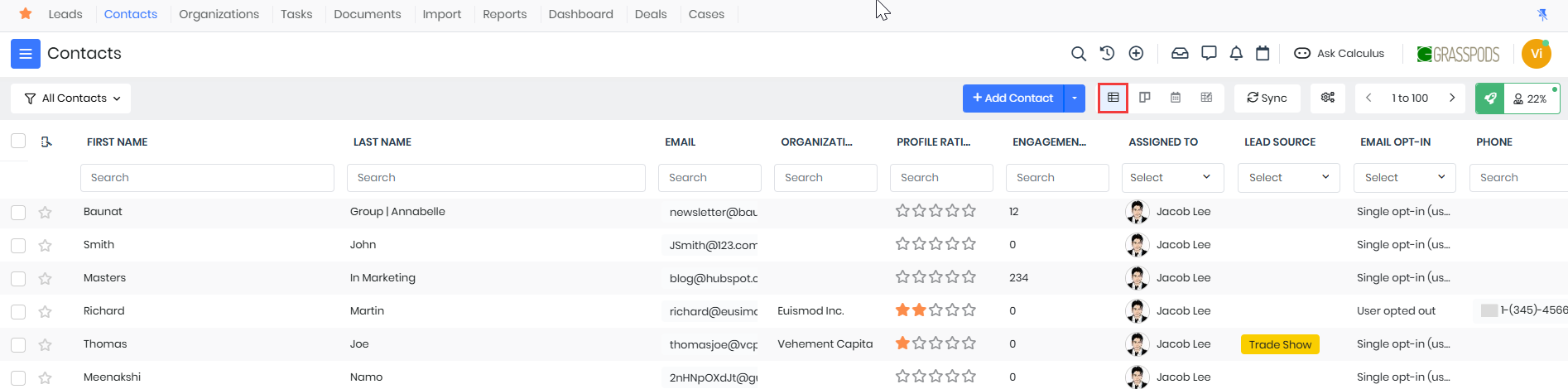
The List View displays all your Contacts in a structured list format. You can sort Contacts by name, email, contact status, organization, owner, and other fields by clicking the column headers.
From this view, you can:
- Edit Contact records
- Merge duplicate Contacts
- Apply filters and create Custom Lists
- Perform bulk actions on multiple Contacts
To learn more about List View, click here.
Summary View
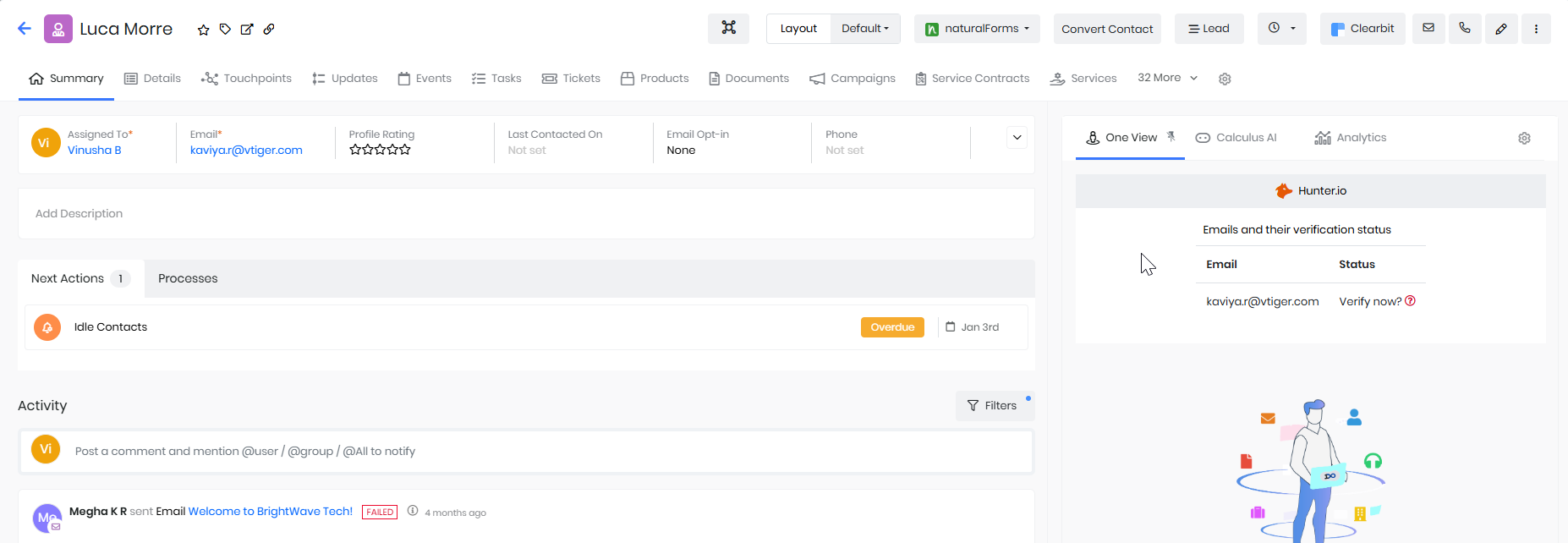
The Summary View shows complete information about an individual Contact on a single page.
In this view, you can:
- View and edit Contact details such as phone number, email, organization, and status
- Track activities, comments, and updates related to the Contact
- Use Calculus AI to gain insights into the Contact’s engagement
- Use One View to access all related information in one place
To learn more about Summary View, click here.
Kanban View
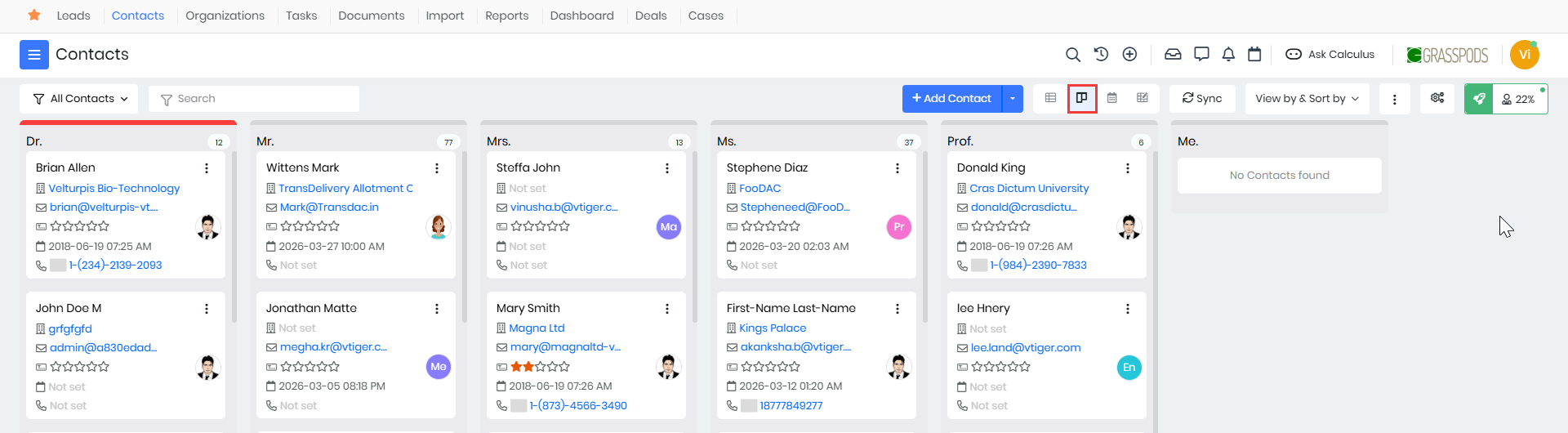
The Kanban View displays Contacts as cards grouped by Contact Status (for example, Hot, Warm, or Cold). This visual layout helps you easily track and manage Contacts as they move through different stages. You can also drag and drop Contact cards between columns to update their status.
To learn more about Kanban View, click here.
Calendar View
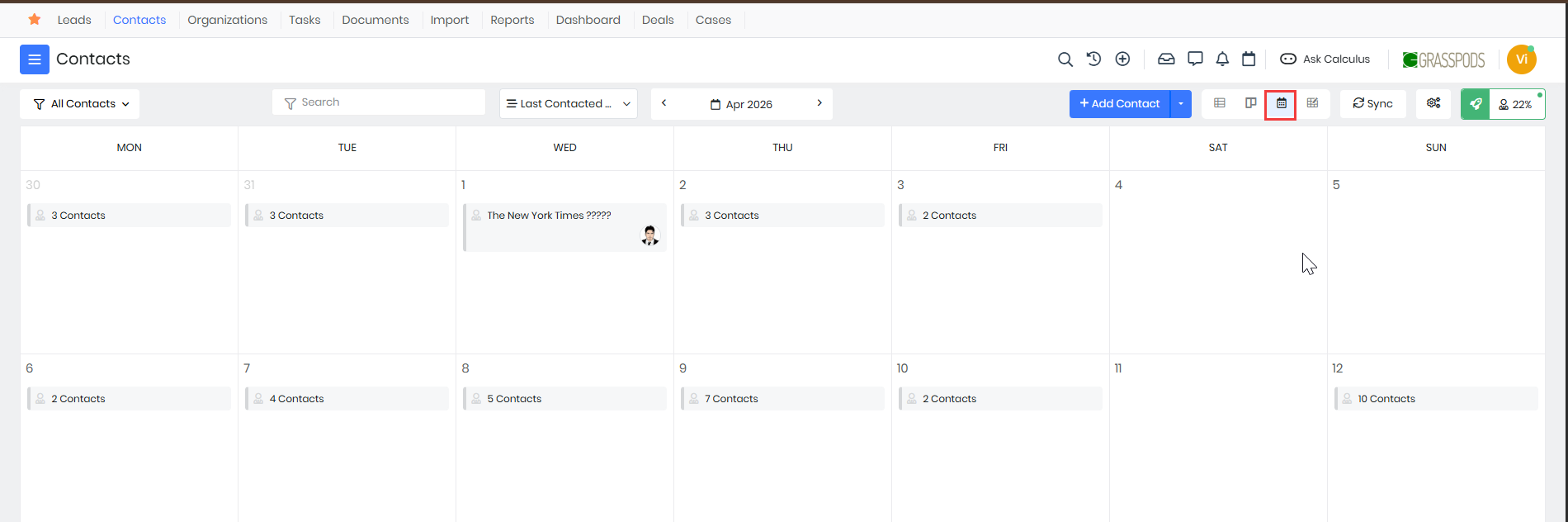
The Calendar View shows Contacts based on scheduled activities such as meetings, calls, and follow-ups associated with them.
From this view, you can:
- View upcoming and past activities related to Contacts
- Click an activity to see details like date, time, owner, and status
- Edit or mark activities as completed directly from the calendar
To learn more about Calendar View, click here.
Grid View
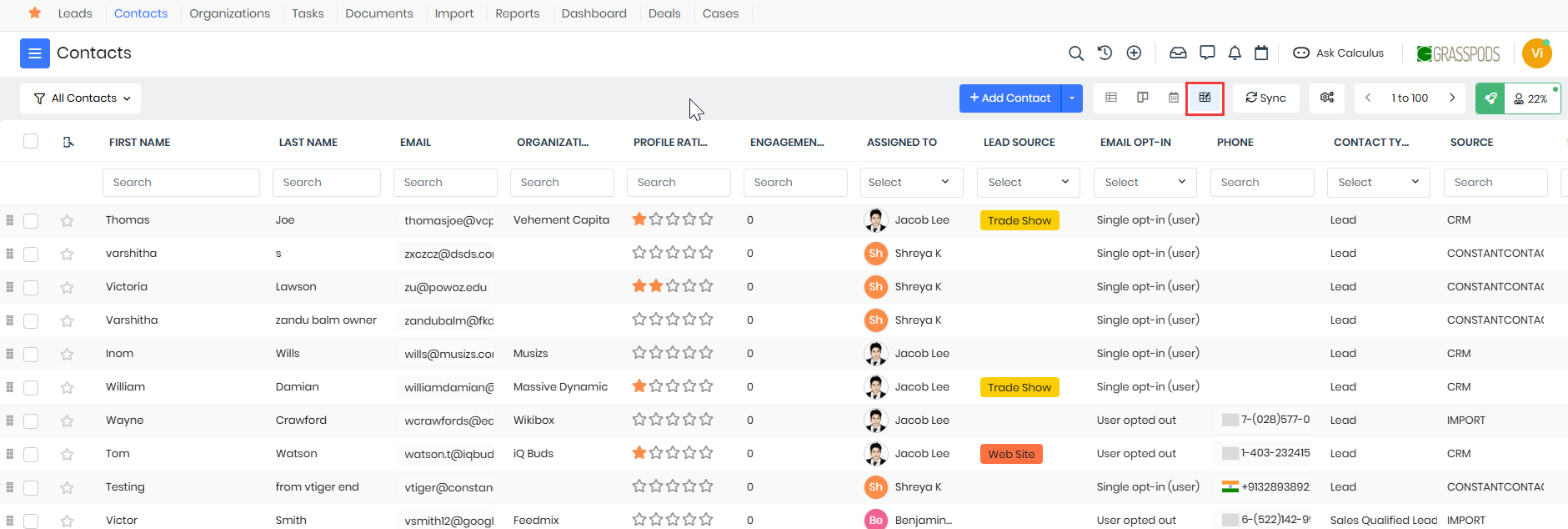
The Grid View presents Contacts in a compact, tile-based layout, making it easy to quickly browse through multiple Contact records at once. This view is useful when you want a visual overview of Contacts with key details displayed for each record.
To learn more about Grid View, click here.