Articles in this section
Contact Hierarchy in Vtiger CRM
Feature Availability
Vtiger Editions: One Pilot | One Growth | One Professional | One Enterprise | One AI
Introduction
Contact Hierarchy helps users visualize the reporting structure within an organization by establishing relationships between contacts using the Reports To field. It allows users to understand who reports to whom and how different employees are connected within the organization.
When a user opens a contact record, they can specify another contact in the Reports To field to define the reporting relationship. Once the relationship is established, users can click Contact Hierarchy in the Summary view to visualize the reporting structure, including the contacts above and below the selected contact.
In an organization with multiple teams, each Team Lead can report to the same CEO while managing different team members. The hierarchy brings these relationships together, providing a clear view of the organization's reporting structure. All related contacts should belong to the same organization to maintain a meaningful and connected hierarchy.
Use Case
Consider ABC Company, an organization with a CEO, multiple Team Leads, and several team members working across different departments. Jane is the CEO of ABC Company. She oversees the organization's teams and their respective Team Leads.
The company has two teams:
Team 1 – Sales Team
- Jane — CEO
- David — Sales Team Lead, reports to Jane
- Alex — Sales Executive, reports to David
- Maria — Sales Executive, reports to David
Team 2 – Support Team
- Jane — CEO
- Sarah — Support Team Lead, reports to Jane
- John — Support Executive, reports to Sarah
- Emily — Support Executive, reports to Sarah
Each contact is linked to the appropriate manager through the Reports To field. When Alex opens the Contact Hierarchy, he can view David above him and Jane above David. He can also view the other contacts in the hierarchy below or around his reporting level, depending on how the hierarchy view is configured.
When David opens the Contact Hierarchy, he can view Jane above him and Alex and Maria below him. He can also navigate further down the hierarchy if additional reporting levels exist. When Jane opens the Contact Hierarchy, she can view both the Sales and Support teams, including their Team Leads and team members, because both reporting structures are connected to her contact record. This allows ABC Company to maintain a connected organizational hierarchy while keeping each team's reporting relationships clearly defined.
Benefits of Contact Hierarchy
The benefits of using Contact Hierarchy are:
- Visualize reporting relationships: Understand who reports to whom within an organization.
- Improve organizational visibility: Identify managers, team leads, team members, and other reporting levels.
- Simplify team management: View the contacts reporting directly or indirectly to a particular contact.
- Understand management structures: Identify the reporting chain from an individual employee to senior management.
- Support multiple teams: Maintain separate team structures under the same CEO or senior leader.
- Navigate reporting levels easily: Move from a contact's record to a visual representation of their reporting relationships.
- Maintain an organized contact structure: Establish reporting relationships using the Reports To field.
In this artcile, you will learn about:
- Adding a Contact Hierarchy
- Viewing the Contact Hierarchy
- Changing a Contact Hierarchy
- Removing a Contact Hierarchy
Adding a Contact Hierarchy
You can establish reporting relationships between contacts by specifying the Reports To field in a contact record. The configured relationships are reflected in the Contact Hierarchy window, allowing you to view the reporting structure within an organization.
Follow these steps to add a contact hierarchy:
- Log in to the CRM.
- Click the main Menu.
- Go to Essentials > Contacts. The Contacts List View opens.
- Open the contact record of the employee whose reporting relationship you want to define. The Summary View opens.
- Click Edit. The Editing Contact Record window opens.
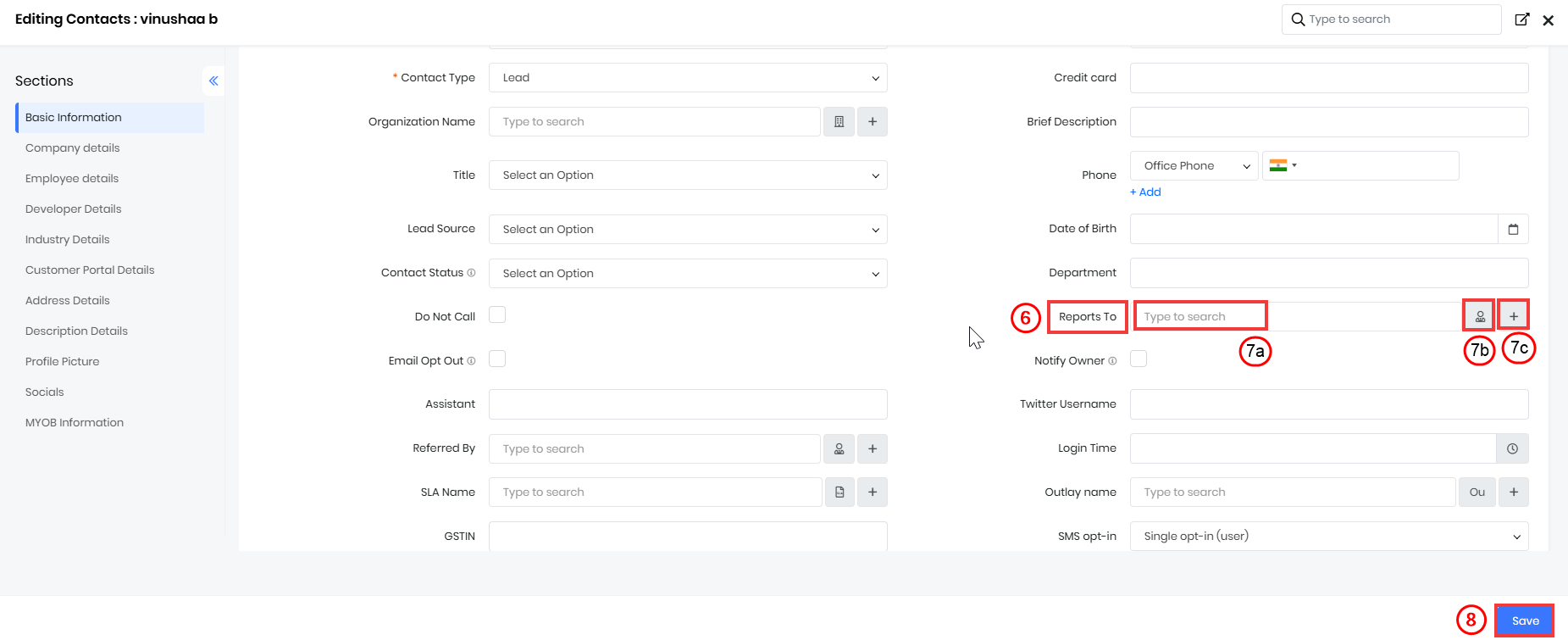
- Locate the Reports To field.
- Add the reporting contact using one of the following options:
- Type to Search: Enter the contact's name to search for and select the required contact record.
- Select: Click to choose a contact from the existing list.
- Create: Click to create a new contact record.
- Click Save.
Example:
At ABC Company, Alex is a Sales Executive who reports to David, the Sales Team Lead. David, in turn, reports to Jane, the CEO.
To establish this reporting structure:
- Open Alex's contact record and select David in the Reports To field.
- Open David's contact record and select Jane in the Reports To field.
- Save both contact records.
The reporting relationships are now configured, connecting Alex to David and David to Jane. You can view these relationships in the Contact Hierarchy window.
Viewing the Contact Hierarchy
After establishing the reporting relationships between contacts, you can view the Contact Hierarchy to understand the reporting structure above and below a selected contact.
Follow these steps to view the contact hierarchy:
- Log in to the CRM.
- Click the main Menu.
- Go to Essentials > Contacts. The Contacts List View opens.
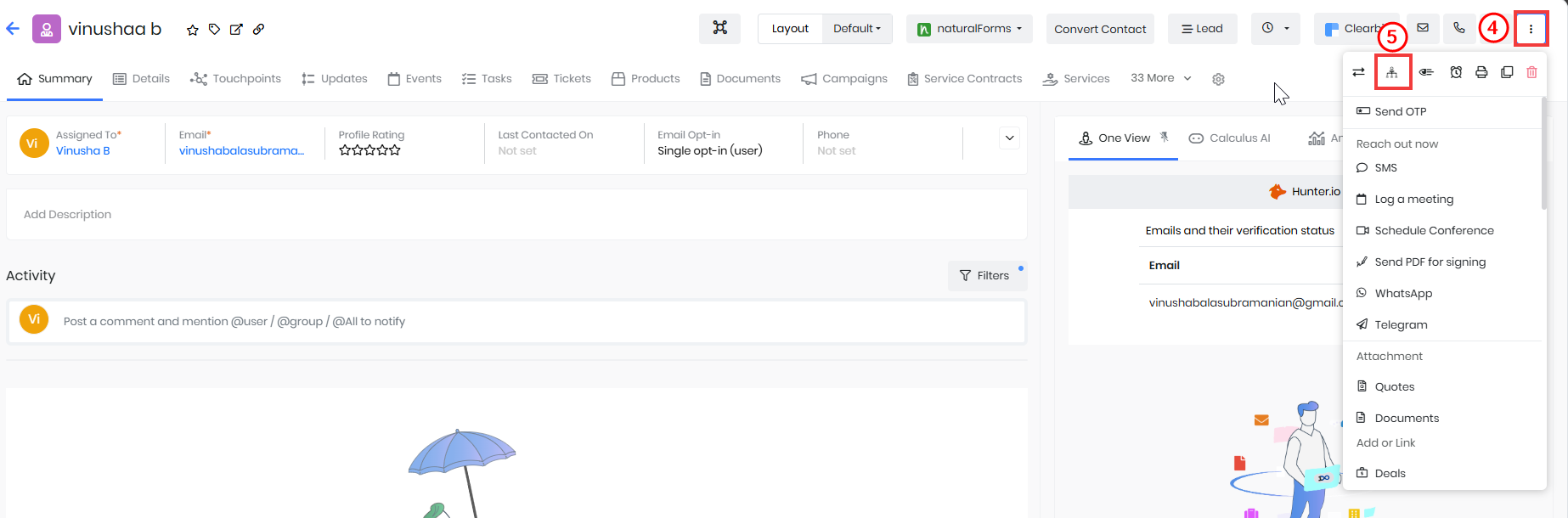
- Click More. A drop-down menu opens.
- Click Contact Hierarchy. The Contact Hierarchy window opens.
Review the displayed hierarchy to view the reporting relationships associated with the selected contact.
Example:
At ABC Company, when David opens the Contact Hierarchy, he can see Jane, the CEO, above him and Alex and Maria, the Sales Executives, below him. When Jane opens the Contact Hierarchy, she can view the connected Sales and Support teams, including their Team Leads and team members, provided the reporting relationships have been configured accordingly.
The hierarchy displayed depends on the configured Reports To relationships and the visibility supported by the CRM.
Changing a Contact Hierarchy
When an employee starts reporting to a different manager, you can update the existing reporting relationship by changing the contact selected in the Reports To field.
Follow these steps to change a contact hierarchy relationship:
- Log in to the CRM.
- Click the main Menu.
- Go to Essentials > Contacts. The Contacts List View opens.
- Open the contact record whose reporting relationship you want to change. The Summary View opens.
- Click Edit. The Editing Contact Record window opens.
- Locate the Reports To field.
- Add the new reporting contact using one of the following options:
- Type to Search: Enter the contact's name to search for and select the required contact record.
- Select: Click to choose a contact from the existing list.
- Create: Click to create a new contact record.
- Click Save.
Example:
At ABC Company, Alex initially reports to David, the Sales Team Lead. Later, Alex moves to the Support Team and begins reporting to Sarah, the Support Team Lead. To update the reporting relationship, open Alex's contact record, change the Reports To field from David to Sarah, and save the changes. The reporting relationship is updated to reflect Sarah as Alex's manager. You can open the Contact Hierarchy window to verify the updated structure.
Removing a Contact Hierarchy
If a reporting relationship is no longer required, you can remove it by clearing the existing contact from the Reports To field in the relevant contact record.
Follow these steps to remove a contact hierarchy relationship:
- Log in to the CRM.
- Click the main Menu.
- Go to Essentials > Contacts. The Contacts List View opens.
- Open the contact record whose reporting relationship you want to remove. The Summary View opens.
- Click Edit. The Editing Contact Record window opens.
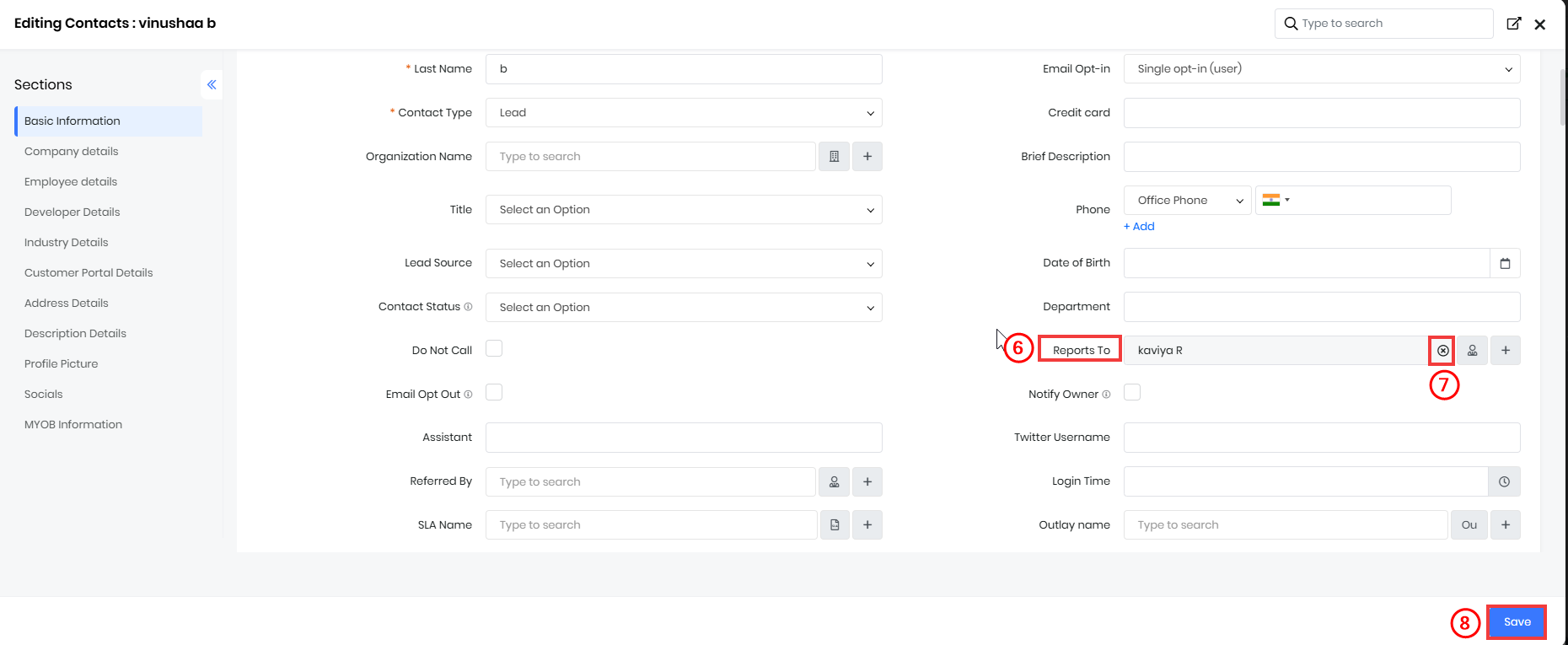
- Locate the Reports To field.
- Remove the existing contact selected in the field.
- Click Save.
Example:
At ABC Company, Maria, a Sales Executive, previously reported to David, the Sales Team Lead. Following a team restructuring, Maria now reports directly to Jane, the CEO. To remove the existing reporting relationship, open Maria's contact record, clear David from the Reports To field, and save the changes. The reporting relationship between Maria and David is removed. If Maria needs to report to Jane, you can establish the new relationship by selecting Jane in the Reports To field and saving the contact record.