Articles in this section
Set up your Company Details
This article will help you set up your company details and logo in the CRM.
R
Rashmi Kashyap
20 Jul, 2026 - Updated
3 months ago
Feature Availability
Vtiger Editions: One Pilot | One Growth | One Professional | One Enterprise | One AIIntroduction
The Company Details feature allows administrators to personalize the CRM by adding their organization's information and logo. These details are stored in the CRM and automatically appear across various modules, helping maintain consistent branding in customer-facing documents and communications.Administrators can update information such as the company name, address, website, and logo at any time from the CRM Settings page.
Where Company Details Are Displayed
- The company logo and information appear in all screens of the CRM.
- The company logo is displayed in the upper-right corner of the CRM.
- Quotes
- Sales Orders
- Purchase Orders
- Invoices
- Credit Notes
- Receipt Notes
- Delivery Notes
- Bills
- Subscriptions
- Other inventory-related documents
- Customer Portal
- Email Templates
- Print Templates
Key Features
The key features of Company Details are:- Store company information in a centralized location.
- Upload and manage the company logo.
- Display company branding across CRM modules.
- Automatically populate company details in inventory documents.
- Reflect branding in Email Templates and Print Templates.
- Maintain a consistent brand identity across customer-facing communications.
Benefits
The key benefits of configuring company details are:- Creates a consistent brand experience across the CRM.
- Saves time by automatically displaying company information in documents.
- Eliminates the need to manually enter company details repeatedly.
- Improves the professionalism of customer-facing documents.
- Builds customer trust with consistent branding.
- Makes it easy to update company information from a single location.
Key Terminology
Adding Company Details
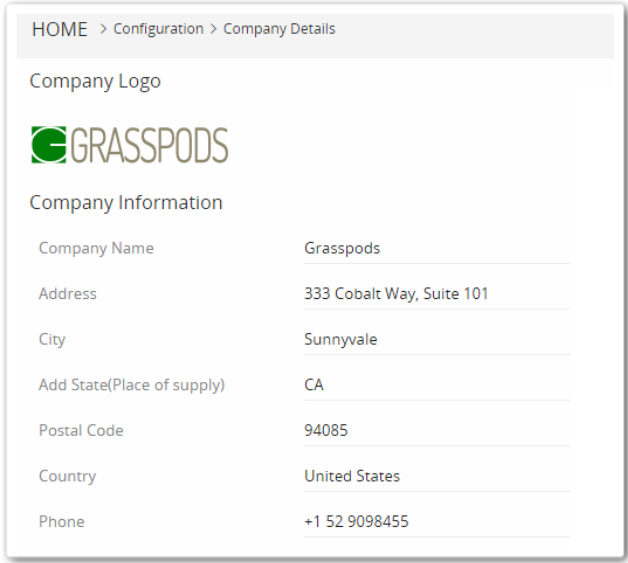
- Log in to your CRM.
- Click the User Menu in the top-right corner of the screen.
- Click Settings. The Settings page opens.
- Look for the Configuration section.
- Select Company Details.
- Click Edit.
- Enter the following information:
- Company Logo: Upload your company logo.
- Company Name: Enter your company name.
- Address: Enter your company address.
- City: Specify the city where your company is located.
- State (Place of Supply): Select the state or place of supply.
- Postal Code: Enter the postal or ZIP code.
- Country: Select your company's country.
- Phone: Enter the primary contact number.
- Fax: Enter the company fax number.
- Website: Provide your company website URL.
- Facebook: Add your company's Facebook page link.
- Twitter: Add your company's Twitter (X) profile link.
- LinkedIn: Add your company's LinkedIn page link.
- Financial Year Starts In Month: Select the first month of the financial year.
- VAT Number: Enter the company's VAT registration number.
- Click Save.
Before you upload your company’s logo, make sure that the image is within these limits:
- Recommended formats of the image - jpeg, jpg, png, gif, pjpeg, x-png
- Recommended size of the image - 150*40 px, 170*60 px
- Maximum file size allowed - 1MB.