Articles in this section
Twitter Integration with Vtiger Social
Feature Availability
Vtiger Editions: One Pilot | One Growth | One Professional | One Enterprise | One AI
Introduction
The Social module is Vtiger CRM's built-in social media management tool that lets you manage platforms such as Facebook, Instagram, Google Business Profile, and X (formerly Twitter) from a single place. You can create posts, monitor activities, reply to comments and messages, and engage with your audience directly from the CRM.
Vtiger Social for X(Twitter)
The X (formerly Twitter) integration allows you to connect your official X account with Vtiger CRM, enabling you to manage your social media activities directly from the Social module. You can perform the following actions from the Social module:
- Post a Tweet
- Reply to a Tweet
- Schedule a Tweet
- Like a Tweet
- Retweet a Tweet
- Quote Tweet
- Delete a Tweet
- Select and add Contacts, Leads, Deals, and Cases to your Tweets.
- Use Search Streams to monitor relevant content across supported social media platforms, such as Twitter and Instagram.
- Track and search for content using specific hashtags, keywords, and Twitter accounts.
Note: All users can access the Social module, but only Admin users can configure the Social module settings.
Benefits
The benefits of integrating Twitter with Vtiger’s social module are:
- Manage your Twitter interactions directly from the CRM without switching platforms.
- Monitor Tweets, replies, and mentions and respond to customers quickly.
- Convert Twitter users into Leads or Contacts directly from conversations.
- Create support Cases from customer complaints or queries shared on Twitter.
- Compose, schedule, and publish Tweets directly from the Social module.
- Track all interactions and conversations with customers in one place.
In this article, you will learn how to:
- Compose and publish posts on X
- View, reply to, and like posts and comments
- Schedule posts for future publishing
- Search X using hashtags, keywords, and user accounts
- Search social streams across X and Instagram simultaneously
- Create Contacts, Leads, Deals, and Cases directly from X interactions
Key Terminology
|
|
|
|
|
|
|
|
|
|
|
|
|
|
|
|
|
|
|
|
|
|
|
|
Installing X(Twitter)
You need to install X from the Extension Store before integrating your X account with the Vtiger Social module.
Follow these steps to install X:
- Log in to the CRM.
- Click the main Menu.
- Click Add-ons from the bottom-left. The Add-ons page opens.
- Search for X.
- Click Install. A confirmation window appears.
- Click Yes.
A success message appears after the installation is complete. The X is then available in the Social module.
Integrating X with the Vtiger Social Module
To integrate X with the Vtiger Social module, you must authorize your X account.
Requirements
You need a X (Twitter) Business account to integrate your X(Twitter) handle with Vtiger CRM.
Authorizing your X (Twitter) account in the Social module
To use your account from the Social module, you need to first authorize it.
Follow these steps to authorize and use your X(Twitter) account from the Social module:
- Log in to the CRM.
- Click the main Menu.
- Go to Marketing > Campaigns.
- Select Social. The Social module opens.
- Select X(Twitter). The Twitter login page opens.
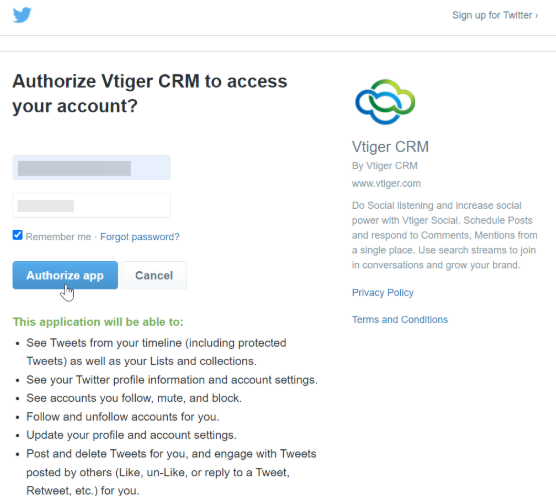
- Click Authorize app. Twitter will now be displayed under the Social module.
- Click X(Twitter).
Using X(Twitter) in the Social Module
Your Vtiger Social X(Twitter) page consists of three sections, namely:
- My Tweets
- Mentions
- Scheduled
Let us understand each section in detail.
My Tweets
My Tweets section is where you can manage your Tweets. In this section, you can:
- Post a Tweet
- Reply to a Tweet
- Retweet and Quote a Tweet
- Like a Tweet
You can also select and add Contacts, Leads, Deals, and Cases to your Tweets.
Let us look into each of these functionalities.
Posting a Tweet
Let us compose and post a Tweet.

Follow these steps to compose and post a Tweet:
- Log in to the CRM.
- Click the main Menu.
- Go to Marketing > Campaigns.
- Select Social. The Social module dashboard opens.
- On the left-hand side, under Posts, click X(Twitter). The X page opens.
- Click the Compose Post icon. The New Post window opens.
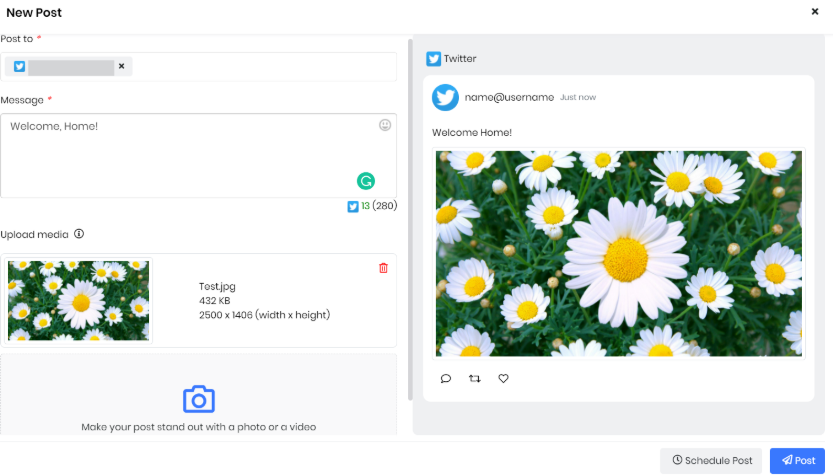
- Enter or select the following information in the New Post window:
- Post to - Select your Twitter account.
- Message - Enter your Tweet content.
- Upload media - Upload any (image, audio, video) files to be Tweeted. You can drop your files here or click Browse to upload files from your system. You can view the preview of your Tweet on the right-hand side of the New Post window.
- Click Post.
The My Tweets screen will display all the Tweets you post.
Note:
- Plan and prepare your content before you create a Tweet.
- Review content for grammar and punctuation before you post a Tweet.
Replying to a Tweet
The reply option lets you respond to or add comments to a Tweet.
Follow these steps to reply to a Tweet:
- Log in to the CRM.
- Click the main Menu.
- Go to Marketing > Campaigns.
- Select Social. The Social module dashboard opens.
- On the left-hand side, click X(Twitter) under Posts. The X page opens.
- Choose the Tweet you want to reply to.
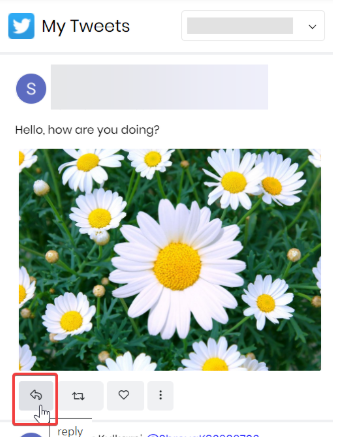
- Click the reply icon at the bottom of the Tweet. The Tweet your reply window opens.
- Tweet your reply in the Tweet your reply window.
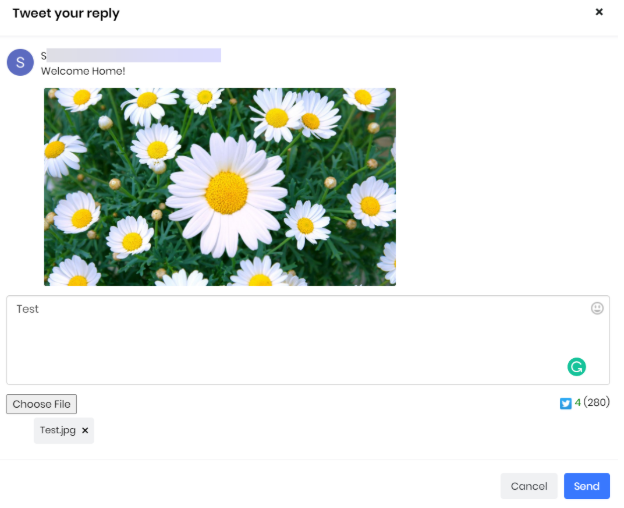
- Type your reply in the Enter Message window. Note: Make sure the content does not exceed the 280-character limit.
- Click Choose File to upload any (image, audio, video) files from your system.
- Click Send.
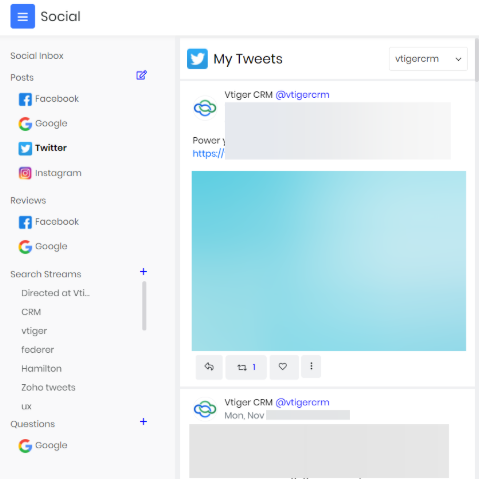
My Tweets will display all your replies at the top.
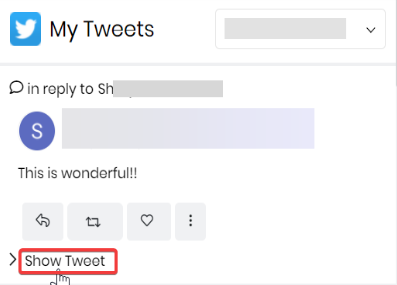
Click the Show Tweet button to view the original Tweet you replied to.
Retweeting a Tweet
The Retweet option automatically reposts an existing Tweet. This section provides the Quote Tweet option as well.
Follow these steps to retweet a Tweet:
- Log in to the CRM.
- Click the main Menu.
- Go to Marketing > Campaigns.
- Select Social. The Social module dashboard opens.
- On the left-hand side, under Posts, click X(Twitter). The X page opens.
- Choose the Tweet you want to Retweet.
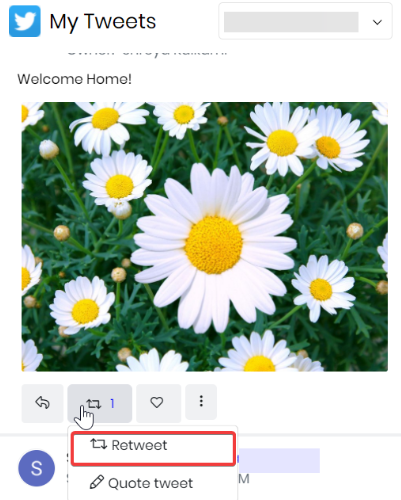
- Click the Retweet icon at the bottom of the Tweet.
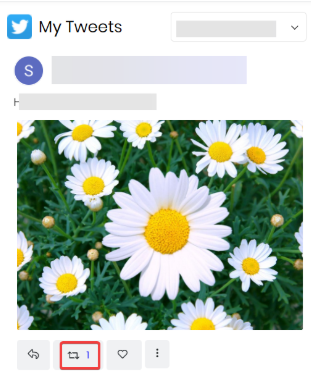
The specific Tweet will be reposted on your X(Twitter) page, and only the Retweet count will be displayed on CRM.
Quoting (sharing) a Tweet
The Quote Tweet option allows you to share a Tweet and add your comments to it.
Follow these steps to quote (share) a Tweet:
- Log in to the CRM.
- Click the main Menu.
- Go to Marketing > Campaigns.
- Select Social. The Social module dashboard opens.
- On the left-hand side, under Posts, click X(Twitter). The X page opens.
- Choose the Tweet you want to quote (share).
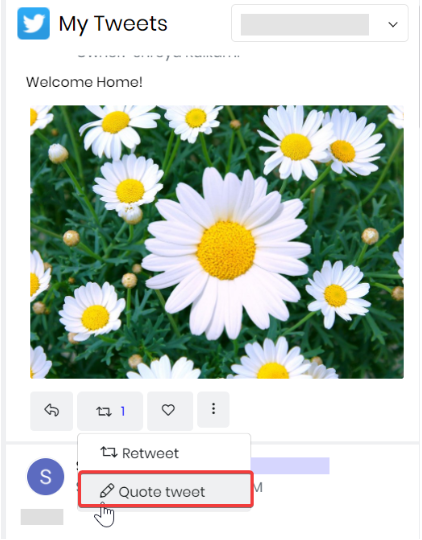
- Click the Retweet icon at the bottom of the Tweet.
- Select Quote Tweet. The Quote Tweet window opens.
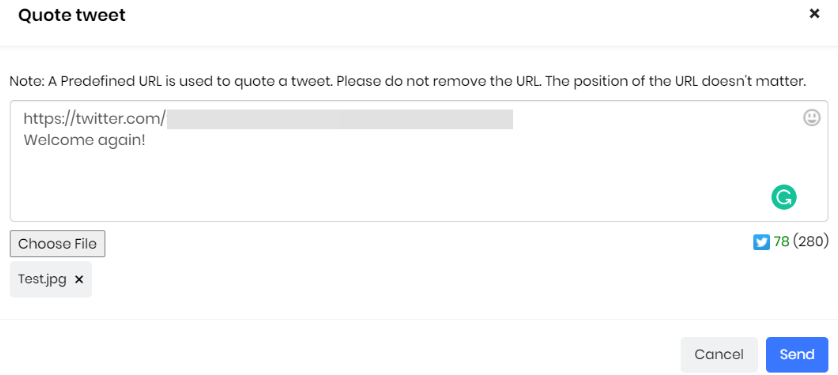
- Enter your comments for the specific Tweet. Note: Ensure the predefined URL is present, and you do not remove it, and the content does not exceed the 280-character limit.
- Enter your comments for the specific Tweet.
- Ensure that the total content, including the predefined URL displayed in the Message box, does not exceed X's 280-character limit. Do not remove the predefined URL.
- Click Choose File to upload image, audio, or video files (if any) from your system.
- Click Send.
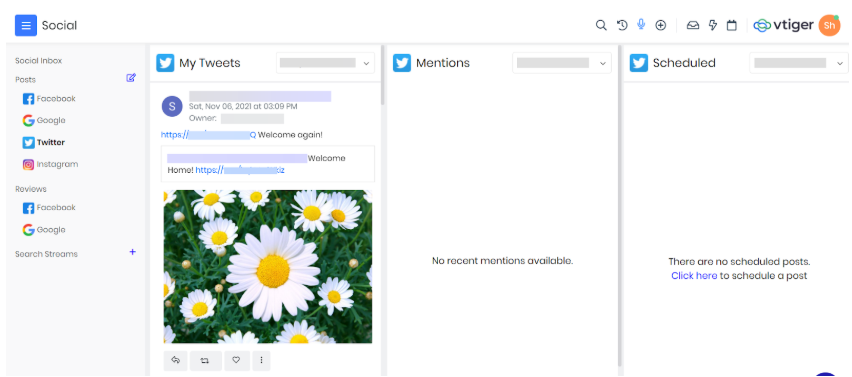
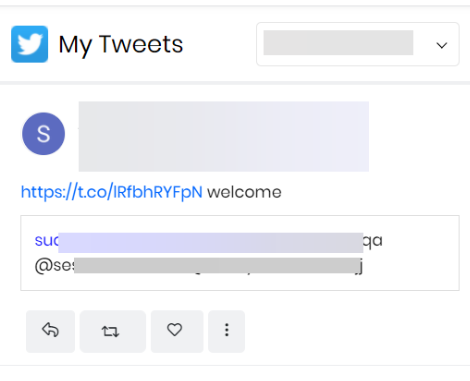
The specific Tweet will appear under My Tweets, showing your comments alongside the original Tweet. A URL to the Twitter page is generated, directing you to the user’s Twitter account to which you quoted a Tweet.
Liking a Tweet
The Like Tweet option allows you to express your appreciation for a Tweet.
Follow these steps to like a Tweet:
- Log in to the CRM.
- Click the main Menu.
- Go to Marketing > Campaigns.
- Select Social. The Social module dashboard opens.
- On the left-hand side, under Posts, click X(Twitter).
- Choose the Tweet you want to like.
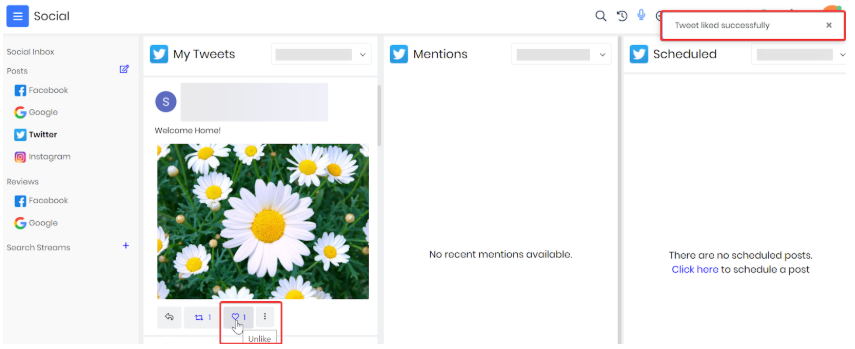
- Click the Like icon at the bottom of the Tweet.
Viewing a User’s Profile
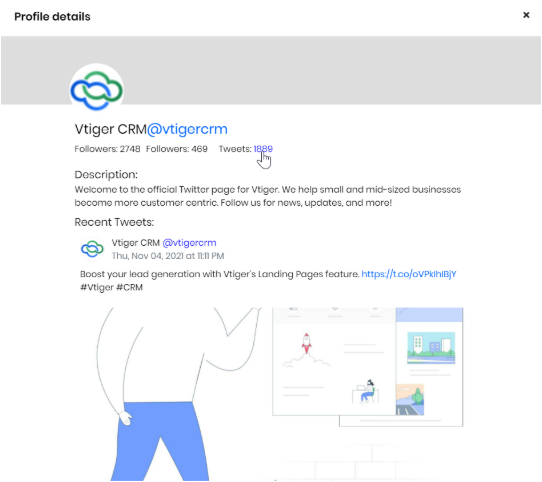
You can view a Twitter user’s account and their profile by clicking on the username.
You can view details such as who they are following, the number of Tweets they have made, and the profile description. You can also view all the Tweets they have made in order from the latest to the oldest.
Tracking the Number of Retweets and Likes
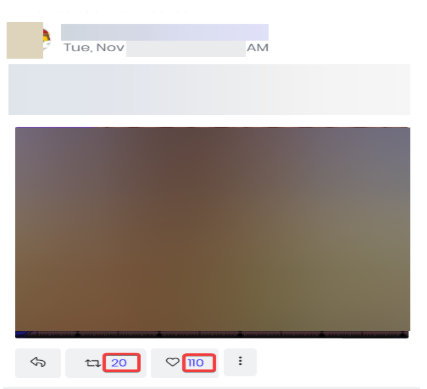
You can view a Tweet’s Retweet and Like counts beside their icons.
Clicking the count also displays the user profiles of those who have retweeted and liked the specific Tweet. You can view the user profiles of the recent 100 Likes.
Actions
Actions (three dots) allow you to select and add a contact, lead, deal, or case record to a Tweet.
Using Actions, you can:
- Add a Contact
- Select a Contact
- Add a Lead
- Select a Lead
- Add a Deal
- Add a Case
- View Contacts, Leads, Deals, and Cases already added
Adding a Contact
You can add Contacts who are mentioned in your Tweets or who have replied to them.
Follow these steps to add a contact:
- Log in to the CRM.
- Click the main Menu.
- Go to Marketing > Campaigns.
- Select Social. The Social module dashboard opens.
- On the left-hand side, under Posts, click X(Twitter).
- Choose the Tweet.
- Click Actions.
- Click Add Contacts.
- Click New Contact. The Add Contact window opens.
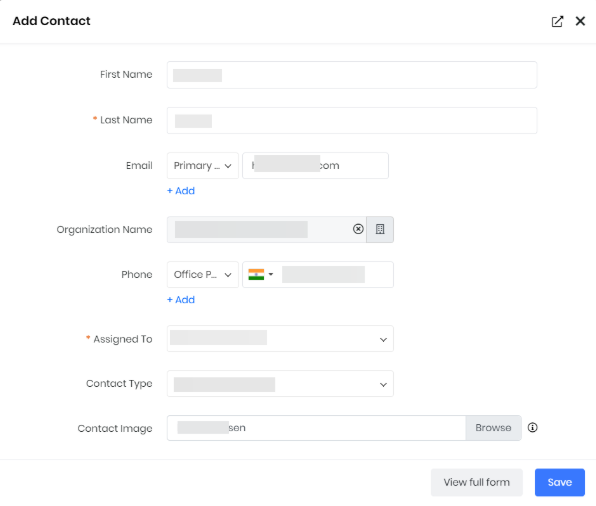
- Enter or select the following information in the Add Contact window:
- Last Name: The user’s name, by default, is taken as the Last Name for the contact record.
- Description: The user’s Tweet is, by default, taken as the Description for the contact record.
- Organization Name: Select the Organization to associate with the Contact.
- Assigned To: Select the user or group responsible for managing the contact.
- Contact Type: Select the category or type of contact, such as Customer, Partner, or Vendor.
- Click Save..
The Contact record is created successfully and can be found in the Contacts module by filtering the Source field.
Selecting a Contact
Let us link the contact records of existing CRM users who have mentioned or replied to your Tweets.
Follow these steps to select and link a contact:
- Log in to the CRM.
- Click the main Menu.
- Go to Marketing > Campaigns.
- Select Social. The Social module dashboard opens.
- On the left-hand side, under Posts, click X(Twitter).
- Choose the Tweet.
- Click Actions.
- Click Select Contact. The Select Contact window opens.
- The user (Contact) who tweeted will be displayed if they are already available in the CRM as a contact.
- Select the respective contact record.
The Twitter conversation is linked to the selected Contact record. To view the Contact details, click View Contact.
Adding a Lead
You can add users who mentioned or replied to your Tweets as new Leads in the CRM.
Follow these steps to add a lead:
- Log in to the CRM.
- Click the main Menu.
- Go to Marketing > Campaigns.
- Select Social. The Social module dashboard opens.
- Click X(Twitter) under Posts on the left-hand side.
- Click Actions.
- Click Add Lead. The Add Lead window opens.
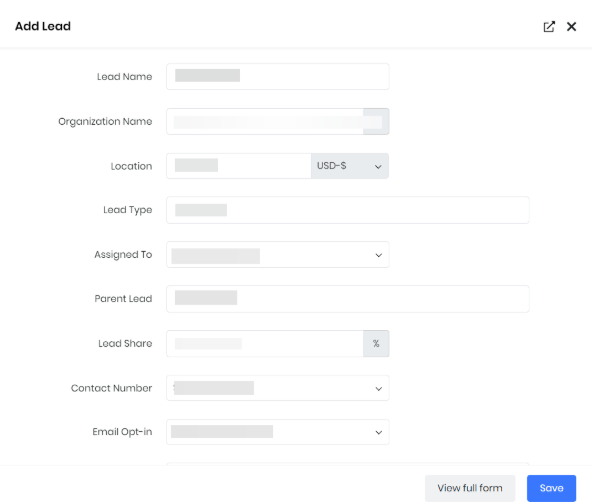
- Enter or select the following details:
- Lead Name: The Twitter handle of the user, by default, is added as the Last Name.
- Organization Name: Enter the name of the organization associated with the lead, if available.
- Lead Type: Select the appropriate type to categorize the lead.
- Assigned To: Select the user or group responsible for managing the lead.
- Contact Number: Enter the lead's contact number, if available.
- Email Opt-in: Enable this option if the lead has consented to receive email communications.
- Click Save.
The Lead is created successfully and is available in the Leads module, with the Source field set to X.
Selecting or Linking a Lead
Link lead records of users who have mentioned or replied to your Tweets who are existing CRM Contacts.
Follow these steps to select and link a lead:
- Log in to the CRM.
- Click the main Menu.
- Go to Marketing > Campaigns.
- Select Social. The Social module dashboard opens.
- Click Twitter under Posts on the left-hand side.
- Click Actions.
- Click Select Lead. The Select Lead window opens.
- The user (Lead) who Tweeted will be displayed if already available on your CRM contacts.
- Select the respective lead record.
The Twitter conversation is now linked with the selected CRM Lead. To view the Lead details, click View Lead.
Adding a Deal
You can create a new Deal from a Twitter conversation that represents a potential business opportunity.
Follow these steps to add a deal:
- Log in to the CRM.
- Click the main Menu.
- Go to Marketing > Campaigns.
- Select Social. The Social module dashboard opens.
- Click Twitter under Posts on the left-hand side.
- Click Actions.
- Click Add Deal. The Add Deal window opens.
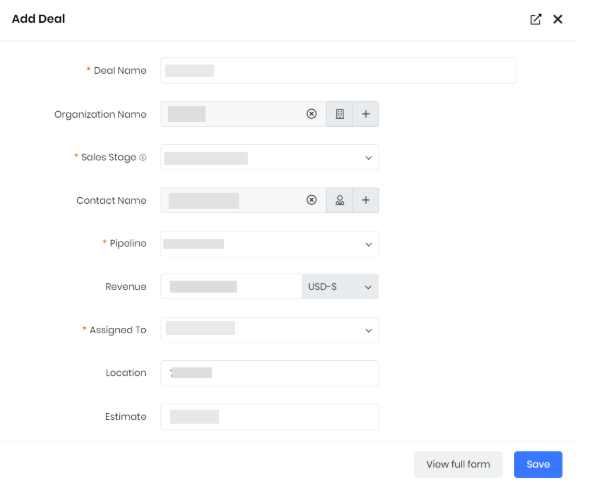
- Enter or select the following details:
- Deal Name: Enter a name to identify the deal.
- Sales Stage: Select the current stage of the deal in the sales process.
- Pipeline: Select the pipeline to which the deal belongs.
- Assigned To: Select the user or group responsible for managing the deal.
- Click Save.
The Deal is created successfully and is available in the Deals module, with the Source field set to X.
Adding a Case
You can record complaints or any special inquiries as Cases mentioned or replied to on your Tweets.
Follow these steps to add a case:
- Log in to the CRM.
- Click the main Menu.
- Go to Marketing > Campaigns.
- Select Social. The Social module dashboard opens.
- Click X(Twitter) under Posts on the left-hand side.
- Click Actions.
- Click Add Case. The Add Case window opens.
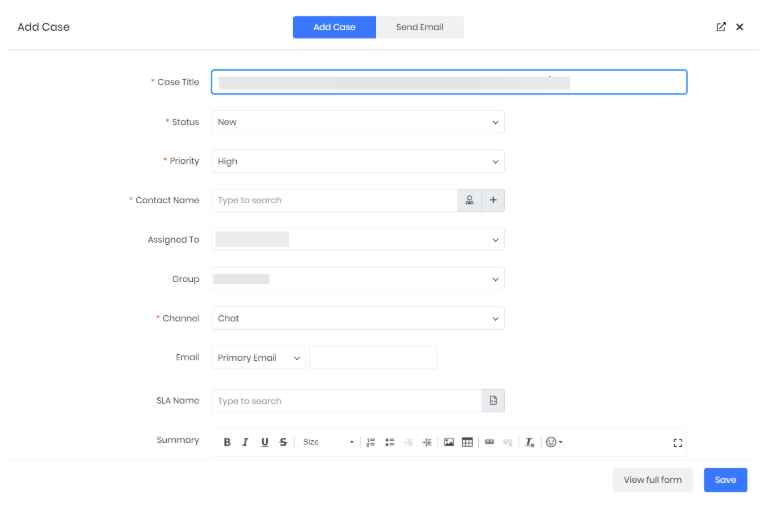
- Enter or select the following details in the Add Case window:
- Case Title: Enter a title that briefly describes the issue or request.
- Status: Select the current status of the case.
- Priority: Select the priority level of the case.
- Contact Name: Select the contact associated with the case.
- Channel: Select the communication channel through which the case was created.
- Click Save.
- Clicking Send Email lets you email the case details.
Viewing Contacts, Leads, Deals, and Cases
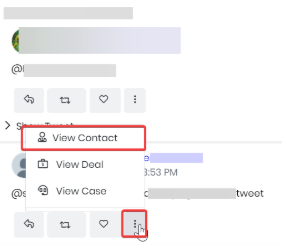
Once you add or select Contacts, Leads, Deals and Cases, you can view the added and selected contacts, leads, deals, and cases on My Tweets and Mentions by clicking Actions.
- View Contact: Click to view the linked contact record.
- View Lead: Click to view the linked lead record.
- View Deal: Click to view the linked deal record.
- View Case: Click to view the linked case record.
With this, you will be directed to their respective contact, lead, deal, and case records.
You can view the contact, lead, deal, and case records created on the Contacts, Lead, Deals, and Cases module, respectively. For a quicker search, you can input the keyword Twitter in the source field.
Deleting a Tweet
Let us delete a Tweet.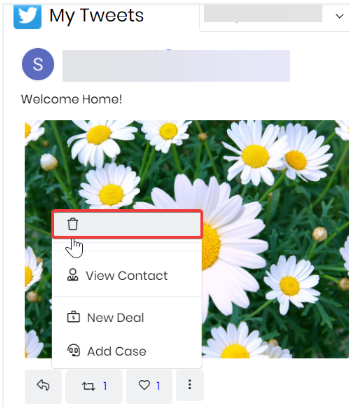
Follow these steps to delete a Tweet:
- Log in to the CRM.
- Click the main Menu.
- Go to Marketing. > Campaigns.
- Select Social. The Social module dashboard opens.
- Click Twitter under Posts on the left-hand side.
- Select a tweet that you want to delete.
- Click Actions in the top right corner of the scheduled Tweet.
- Click the Delete icon. The Are you sure you want to delete? pop-up opens.
- Click Ok.
The selected Tweet will be deleted from X.
Note: In Vtiger CRM, if a user Tweets or schedules a Tweet, the user’s name will be displayed as Owner above the Tweet.
Mentions
The Mentions section is where you can view the users who have mentioned you (replied to you) on your Tweets, as well as the replies to the mentions. In this section, you can:
- Reply to a mention
- Retweet and Quote Tweet a mention
- Like a mention
- Actions such as Add New Contacts, Leads, Deals, and Cases, and viewing the same from a mention
Let us look into each of these functionalities.
Replying to a Mention
The reply option lets you respond to or add comments to a Tweet.
Follow these steps to reply to a Mention:
- Log in to the CRM.
- Click the main Menu.
- Go to Marketing > Campaigns.
- Select Social. The Social module dashboard opens.
- On the left-hand side, under Posts, click X(Twitter).
- Choose the mentioned Tweet you want to reply to.
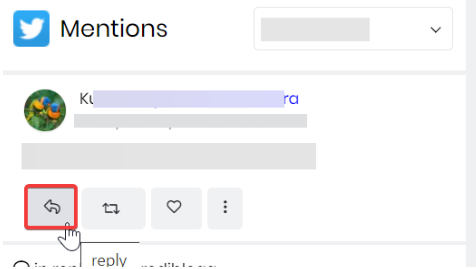
- Click the reply icon at the bottom of the mentioned Tweet. The Tweet your reply window opens.
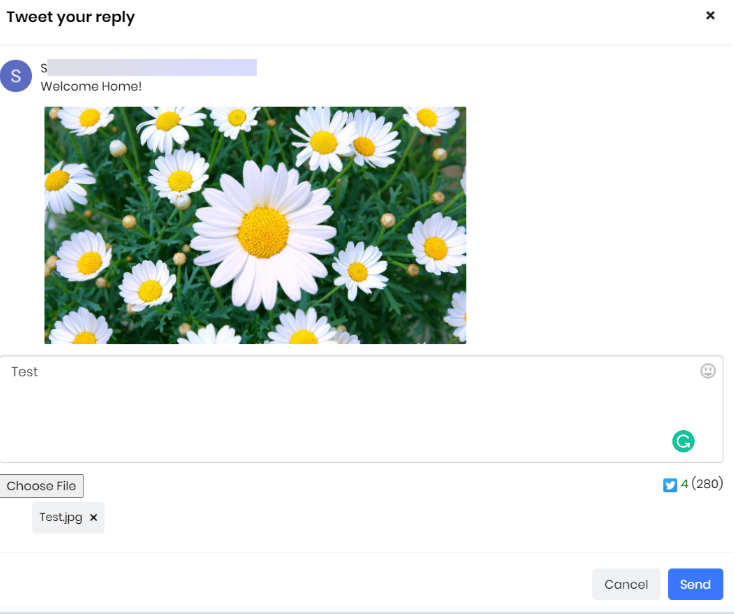
- Type your reply content in the Enter Message input window. Make sure the content does not exceed the 280-word limit.
- Click Choose File to upload image, audio, and video files from your system.
- Click Send.
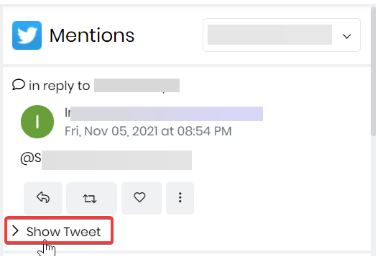
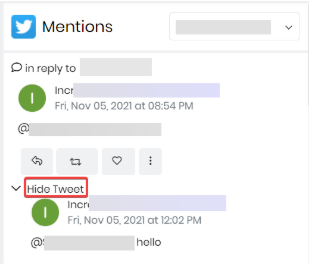
Your reply to the mentioned Tweet will appear under Mentions at the top. To view the original Tweet (the mentioned Tweet you replied to), click Show Tweet and Hide Tweet to hide the same.
Retweeting a Mention
The retweet option automatically reposts the existing mentioned Tweet. This section provides the Quote Tweet option as well.
Follow these steps to retweet a mention:
- Log in to the CRM.
- Click the main Menu.
- Go to Marketing > Campaigns.
- Select Social. The Social module dashboard opens.
- On the left-hand side, under Posts, click X(Twitter).
- Choose the mentioned Tweet you want to retweet.
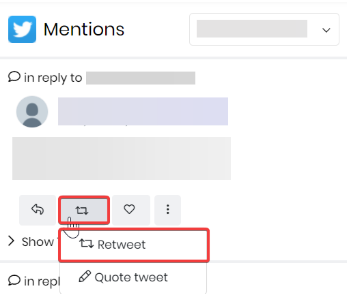
- Click the Retweet icon at the bottom of the mentioned Tweet.
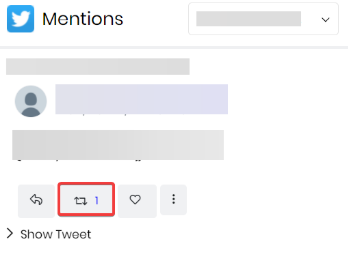
The Retweeted mentioned Tweet will be reposted on your Twitter page; only the Retweet count will be displayed on CRM.
Quote Tweeting a Mention
The Quote Tweet option allows you to share a mentioned Tweet and add your comments to it.
Follow these steps to Quote Tweet a Tweet:
- Log in to the CRM.
- Click the main Menu.
- Go to Marketing > Campaigns.
- Select Social. The Social module dashboard opens.
- On the left-hand side, under Posts, click X(Twitter).
- Choose the Tweet to which you want to Quote-Tweet.
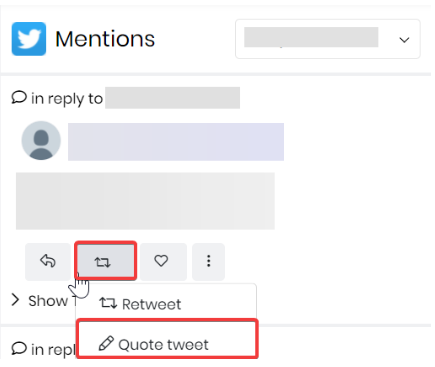
- Click the Retweet icon at the bottom of the Tweet.
- Select Quote Tweet. The Quote Tweet window opens.
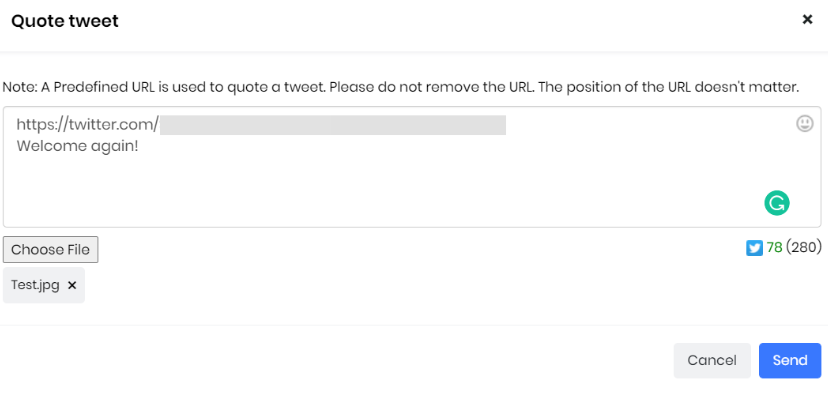
- Enter your comments for the specific Tweet. Note: Make sure the predefined URL is present, and you do not remove it, and the content does not exceed the 280-word limit.
- Click Choose File to upload image, audio, and video files from your system.
- Click Send.
Your mentioned Quote Tweet will be displayed on My Tweets at the top, displaying your comments as well as the original Tweet. A URL is generated directing you to the user’s Twitter account, to which you quote-tweet as well as your quote-tweet.
Liking a Mention
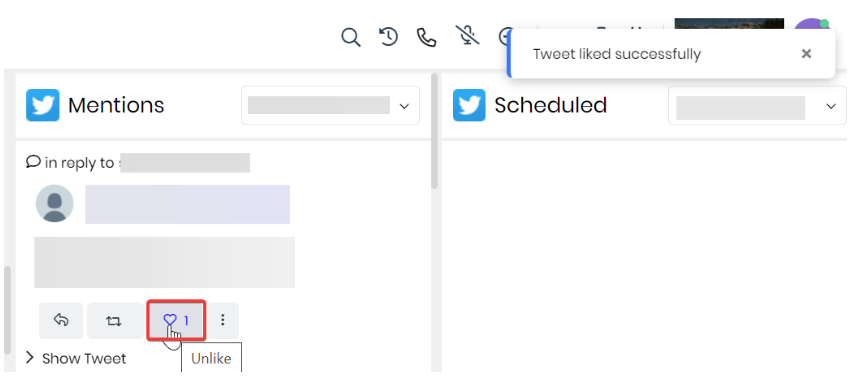
The Like Tweet option allows you to express your appreciation for a mention Tweet.
Follow these steps to like a mention:
- Log in to the CRM.
- Click the main Menu.
- Go to Marketing> Campaigns.
- Select Social. The Social module opens.
- On the left-hand side, under Posts, click X(Twitter).
- Choose the mentioned Tweet you want to like.
- Click Like at the bottom of the mentioned Tweet.
Actions
Action functionalities remain the same as illustrated in the My Tweets section.
Scheduled
The scheduled section lets you compose your Tweets and post them later.
Follow these steps to schedule a Tweet:
- Log in to the CRM.
- Click the main Menu.
- Go to Marketing > Campaigns.
- Select Social. The Social module dashboard opens.
- On the left-hand side, under Posts, click X(Twitter).
- Click the Compose Post icon. The New Post window opens.
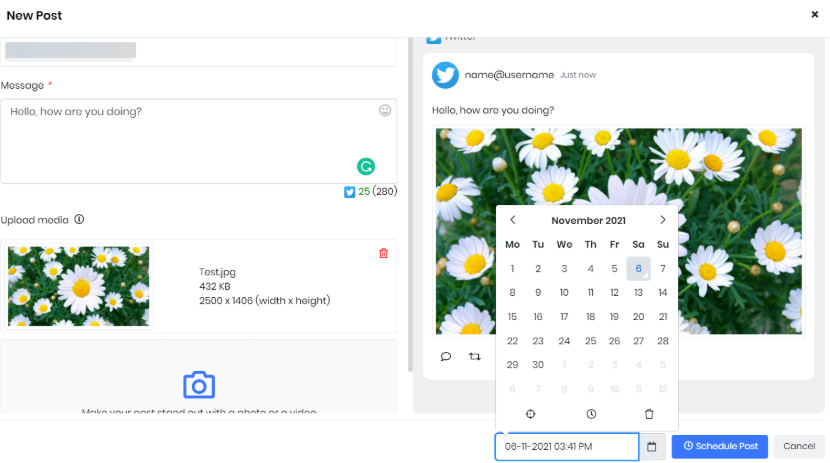
- Enter or select the following information:
- Post to - Select your Twitter account.
- Message - Enter your Tweet content.
- Upload media - Upload your images, audio/video files to be Tweeted. You can drop your files here or click Browse to upload files from your system. You can always view the preview of your Tweet on the right-hand side of the New Post window.
- Click Schedule Post.
- Click the Calendar icon.
- Select the required month and date.
- Click time to set the required time slot. The delete icon helps you clear the selection.
-
- Once the date and time are set, click Schedule Post.
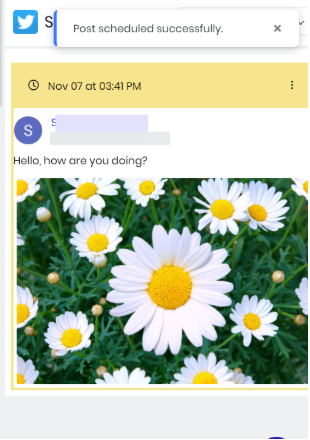
Your Tweet scheduled for the specific date and time will be displayed under Scheduled.
Rescheduling a Tweet
Rescheduling allows you to reschedule an already scheduled Tweet
Follow these steps to reschedule a Tweet:
- Log in to the CRM.
- Click the main Menu.
- Go to Marketing > Campaigns.
- Select Social. The Social module dashboard opens.
- On the left-hand side, under Posts, click X(Twitter).
- Click the Actions in the top right corner of the Tweet.
- Click Reschedule. The Reschedule window opens.
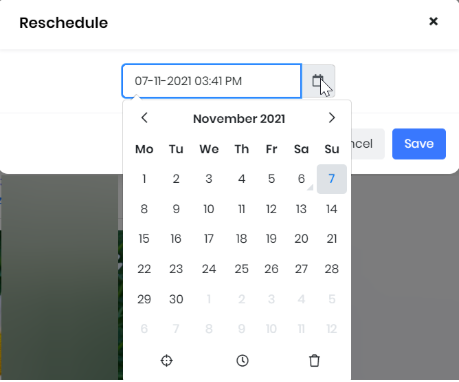
- Click the Calendar icon.
- Select the required month and date.
- Click the time icon to set the required time slot.
- The delete icon helps you clear the selection.
- Click Save.
Your scheduled Tweet rescheduled for the specific date and time will be displayed under Scheduled and posted then.
Deleting a Scheduled Tweet
Let us delete a scheduled Tweet.
Follow these steps to delete a scheduled Tweet:
- Log in to the CRM.
- Click the main Menu.
- Go to Marketing > Campaigns.
- Select Social. The Social module dashboard opens.
- On the left-hand side, under Posts, click Twitter.
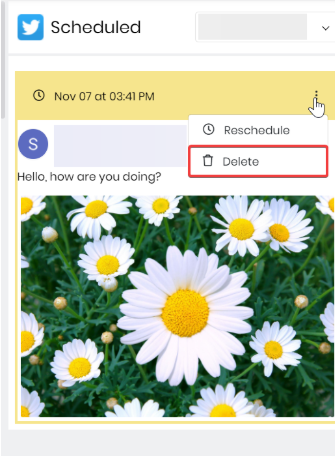
- Click Actions in the top right corner of the scheduled Tweet.
- Click Delete. The Are you sure you want to delete? pop-up opens.
- Click Ok.
A success message will be displayed.
Note: In Vtiger CRM, if a user Tweets or schedules a Tweet, the user’s name will be displayed as Owner above the Tweet.
Managing your Account from Social Settings
The Social Settings page allows you to manage your connected social media accounts from a single location.
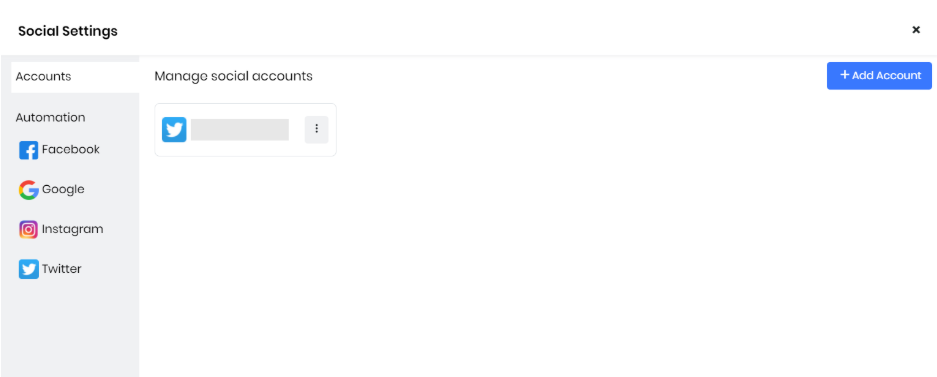
You can:
- Add, disconnect, or remove your account
- Set up automation for actions like creating leads.
Let’s look at each of them.
Adding an Account
You can add an X account to the Social module.
Follow these steps to add a Twitter account to the Social module:
- Log in to the CRM.
- Click the main Menu.
- Go to Marketing > Campaigns.
- Select Social. The Social module opens.
- Click Manage Accounts in the bottom left corner of the screen. The Social Settings window opens.
- Click +Add Account.
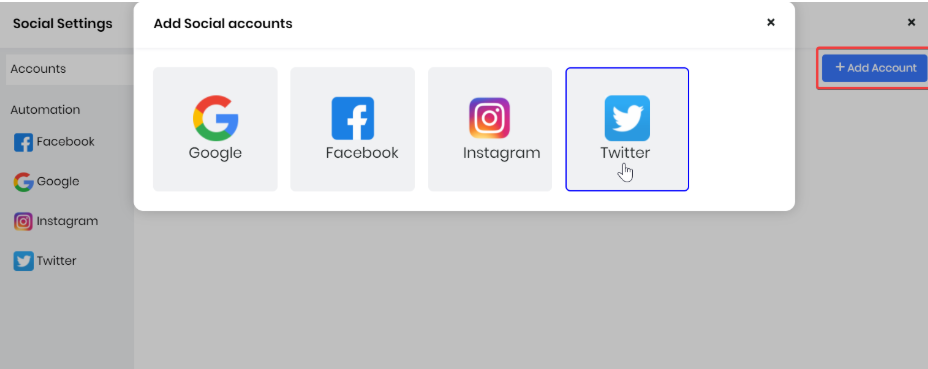
- Select Twitter. The Twitter login page opens.
- Click Authorize app. The Social module opens.
Note:
- You can add multiple Twitter accounts.
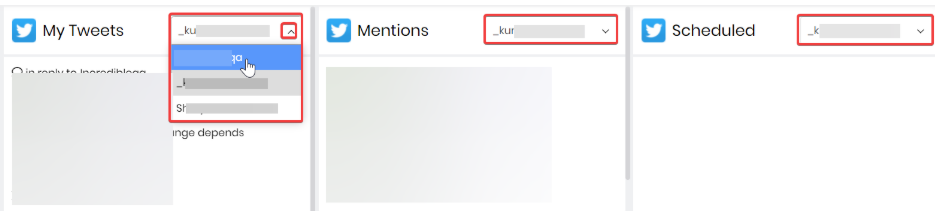
- You can switch to different Twitter accounts on My Tweets, Mentions, and Scheduled by clicking the dropdown next to the titles and selecting the Twitter account, as shown below.
Disconnecting an account
Disconnect helps you disable your Twitter account from the Social module. When you disconnect your account, only the sync stops between Twitter and CRM. Old Tweets and data will still be visible.
Follow these steps to disconnect your Twitter account from the Social module:
- Log in to the CRM.
- Click the main Menu.
- Go to Marketing > Campaigns.
- Select Social. The Social module opens.
- Click Manage Accounts in the bottom left corner of the screen. The Social Settings window opens.
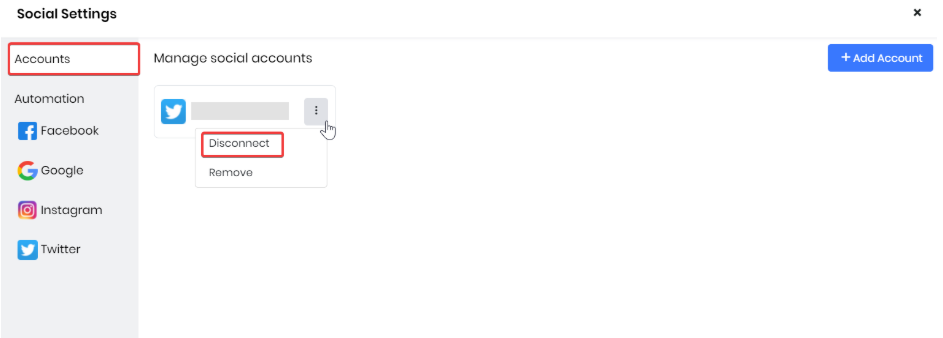
- Click the Actions icon on the account you want to disconnect.
- Click Disconnect.
- Click OK.
The Twitter account will be disconnected from the Social module.
Removing an account
Removing deletes your Twitter account from the Social module. When you remove an account, it will no longer be visible in the Social module.
Follow these steps to remove a Twitter account from the Social module:
- Log in to the CRM.
- Click the main Menu.
- Go to Marketing > Campaigns.
- Select Social. The Social module dashboard opens.
- Click Manage Accounts in the bottom left corner of the screen. The Social Settings window opens.
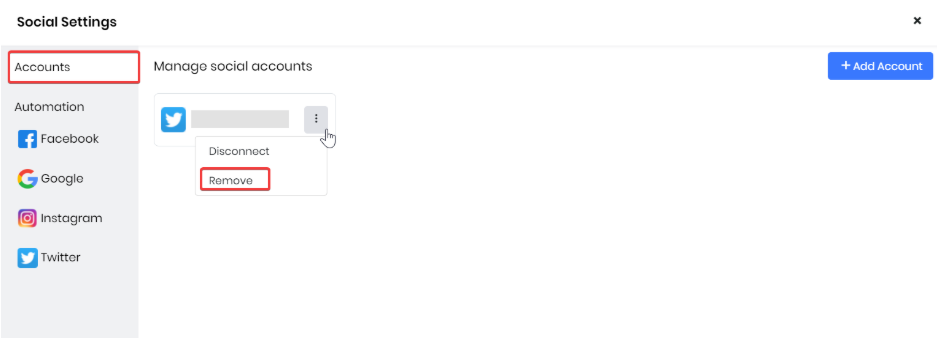
- Click the Actions icon on the account you want to remove.
- Click Remove.
- Click OK.
The Twitter account will be removed from the Social module.
Note: Deleting a Tweet from Twitter will not be reflected on the Vtiger CRM Social Twitter page.
Automation
With automation rules, you can automatically create contact, lead, and case records in the CRM. You can trigger the creation of records when a user leaves a reply on your Twitter page.
For instance, if you receive a reply that says, How do I buy this product? You can assume this to be a lead for your business and create a lead record for the user.
Additionally, you can specify tags or keywords that must be present in the reply. For instance, the tag is want to subscribe and a user tweets a reply that matches the tag. You can assume them to be a lead and trigger the creation of a lead record.
Follow these steps to add a rule:
- Log in to the CRM.
- Click the main Menu.
- Go to Marketing > Campaigns.
- Select Social. The Social module dashboard opens.
- Click Manage Accounts in the bottom left corner of the screen. The Social Settings window opens.
- Click Twitter under automation on the left-hand side.
- Click on +Add Rule. The Add Automation window opens.
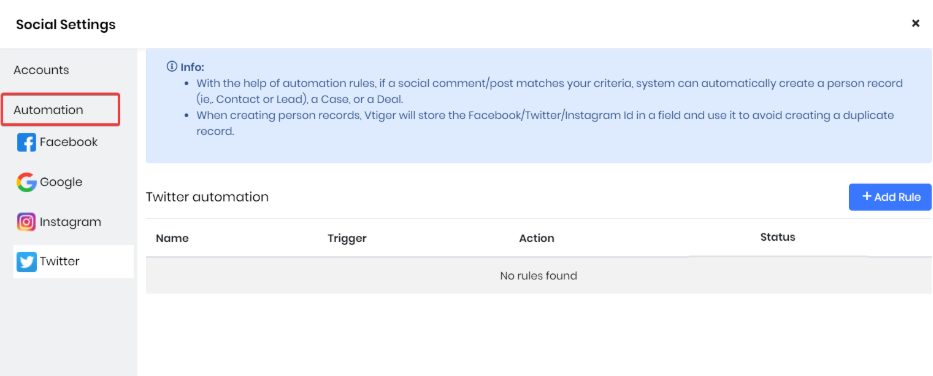
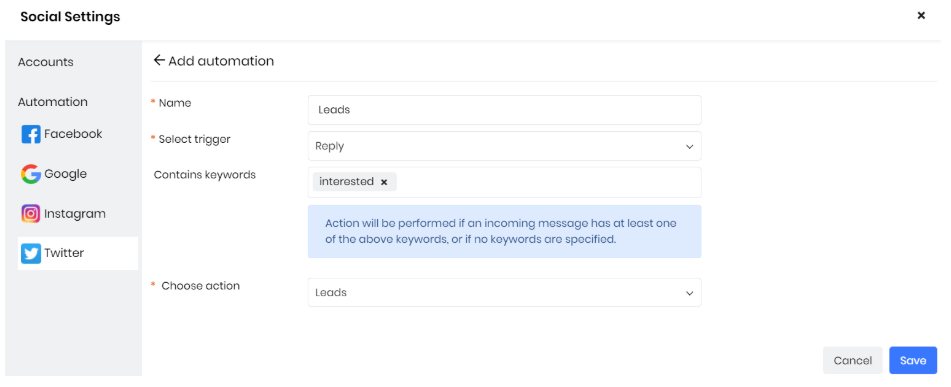
- Enter or select the following information:
- Name - Provide a title for the rule.
- Select trigger - Choose when the record must be created (on receiving a reply).
- Contains Keywords - Enter the keywords that must be present in the reply.
- Choose action - Choose which record to create.
- Click Save
Once saved, the rule will trigger and create the selected record based on the defined keywords.
Social Posts From Process Designer
You can automate your social media posts using the Process Designer, helping you save time and ensure consistent communication. By adding the Social Message action to a process, you can automatically publish messages to your connected Twitter accounts.
When you select the Social Message action, the process action window opens. Here, you can enter the message content and choose the social media accounts from Vtiger’s Social module where the message should be posted.
To learn more about the Process Designer, click here.
Social Inbox
The Social Inbox displays all your recent activities performed on social media platforms available on the Social module, such as your Facebook, Google, Instagram, and Twitter accounts.
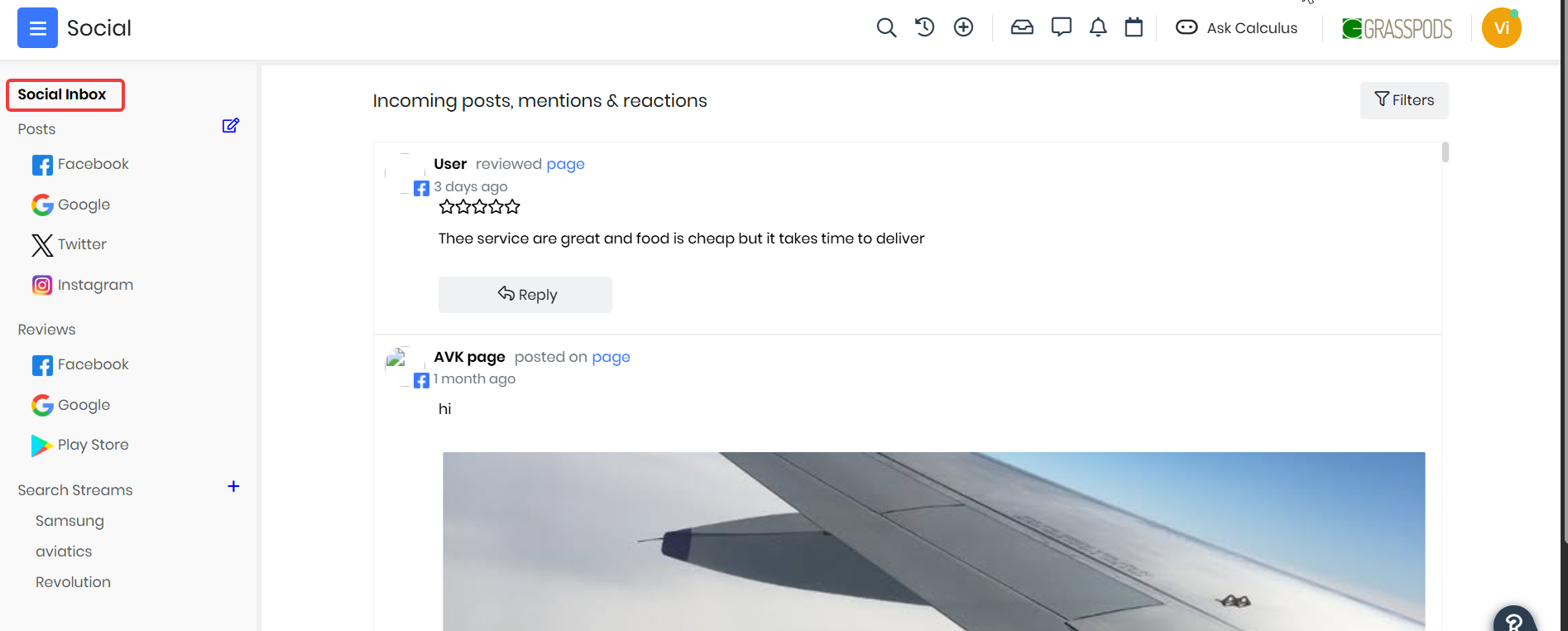
To learn more about Social Inbox, click here.