Articles in this section
WhatsApp Integration with Gupshup
Feature Availability
Vtiger Editions: One Professional | One Enterprise | One AI
Introduction
Gupshup is a highly secure messaging platform offering two-way communication and interactive messaging solutions for enterprises. Gupshup offers smart messaging services and advanced development tools to easily build, test, deploy, monitor, and track bots.

WhatsApp Integration with Gupshup for Vtiger CRM
WhatsApp Integration with Gupshup for Vtiger CRM helps you send and receive WhatsApp messages to and from your customers directly on the CRM screens.
WhatsApp Integration with Gupshup is available for the following modules:
- Cases
- Contacts
- Deals
- Internal Tickets
- Invoices
- Leads
- Organizations
- Quotes
- Vendors
Once Gupshup is integrated with the Vtiger WhatsApp module, you can carry out WhatsApp conversations via Vtiger CRM or a mobile phone.
Requirements
To integrate WhatsApp and use it with Vtiger CRM through Gupshup:- You must have a business account with Gupshup.
- Your business account with Gupshup should be Active.
- You must enable WhatsApp Extension in Vtiger CRM.
Benefits
The benefits of using WhatsApp Integration with Gupshup are:
- Manage customer WhatsApp conversations directly from Vtiger CRM.
- Create Leads, Contacts, Cases, or Deals from WhatsApp conversations.
- View complete WhatsApp conversation history within the related CRM record.
- Send approved WhatsApp message templates for notifications and follow-ups.
- Share images, documents, videos, and other supported attachments with customers
- Respond to customer queries instantly from within the CRM.
In this article, you will learn about:
- Prerequisites for installing and using WhatsApp through Gupshup
- Installing Gupshup
- Configuring WhatsApp with Gupshup for Vtiger CRM
- Sending WhatsApp messages from Vtiger CRM
- Using Gupshup Templates with Vtiger CRM
Key Terminology
|
|
|
|
|
|
|
|
|
|
|
|
|
|
|
|
|
|
|
|
|
|
|
|
Installing WhatsApp via Gupshup
To use WhatsApp Integration with Gupshup, you need to first install the Gupshup Add-on. The Gupshup Add-on is not available by default in the CRM, and you will have to install it from the Extension Store.
Follow these steps to install the Gupshup Add-on:
- Log in to the CRM.
- Click the User Menu.
- Click Settings. The Settings page opens.
- Go to Extensions.
- Click Add-ons. The Add-ons page opens.
- Look for the WhatsApp via Gupshup Add-on.
- Click Install.
A success message appears after the installation is complete.
Follow these steps to add Gupshup as a service provider.
- Log in to the CRM.
- Click the User Menu.
- Click Essentials.
- Look for Conversations.
- Click WhatsApp.
- Click the Settings icon.
- Click +Add. The add Configuration pop-up opens.
- Select Provider as Gupshup
Gupshup will now be available in the list of WhatsApp providers.
Configuring WhatsApp with Gupshup for Vtiger CRM
Let us now learn how to configure WhatsApp with Gupshup for Vtiger CRM.
Note: Keep both the Gupshup and Vtiger CRM screens open as these steps require you to navigate back and forth between the Vtiger CRM screen and the Gupshup platform.
Configuring WhatsApp via Gupshup requires you to do the following:
- Step 1: Adding Gupshup as a service provider
- Step 2: Creating a Gupshup account
- Step 3: Adding your WhatsApp number in Gupshup
- Step 4: Opting in and activating your Gupshup WhatsApp number
- Step 5: Integrating APIs and retrieving the From Number
- Step 6: Adding API Key, From Number and Sandbox App Name in Vtiger CRM
Step 1: Adding Gupshup as a Vtiger CRM WhatsApp Provider
Follow these steps to integrate WhatsApp via Gupshup:
- Log in to the CRM.
- Click the User Menu.
- Click Essentials.
- Look for Conversations.
- Click WhatsApp.
- Click the Settings icon.
- Click +Add. The Add Configuration window opens.

- Enter or select the following information:
- Choose the Provider as Gupshup.
- Select Active input as Yes.
- Once you select Gupshup as the Provider, the Status Callback and Incoming Callback URLs fields are displayed.
- Copy the Status Callback and Incoming Callback URLs (to a Notepad or a document)
With this, navigate to Gupshup.
Step 2: Creating your Gupshup Account
On the Gupshup screen, you will be able to retrieve the API Key, From Number, and Sandbox App Name.
Note: Keep your Gupshup login credentials before you begin.
Follow these steps to retrieve the API Key:
- Go to https://www.gupshup.io/. The Gupshup homepage opens.

- Click Login.
- Choose Login via Google, GitHub, or Facebook. Once you log in, the WhatsApp Dashboard opens.

- Click the Account icon, the API Key will be displayed.
- Copy the API Key.

Follow these steps to create your Gupshup App:
- Click Create App. The Create App window opens.

- Click Access API.

- Enter or select the following information:
- Enter app name - Enter a name for your Gupshup WhatsApp Messaging App configuration in the Enter app name section.
- Copy the same App Name. This serves as the Sandbox App Name for configuration with Vtiger CRM.
- Click Submit.

Step 3: Adding your WhatsApp number to Gupshup
Follow these steps to add your WhatsApp number to Gupshup:
- Go to https://www.gupshup.io/. The Gupshup homepage opens.
- Scroll down to Smart mechanism to get active and opted in users.

- Scan the QR Code via WhatsApp on your Mobile phone. This immediately initiates a WhatsApp chat with Gupshup on your mobile phone. With this, you become an opted-in and active user with Gupshup.
- Click on web widget - You will have to embed the given code in your website and click on the widget to initiate a WhatsApp chat with Gupshup.
- Click URL - Clicking the Click URL icon allows you to initiate a WhatsApp chat with Gupshup via WhatsApp Web.
Step 4: Opting in and activating your Gupshup WhatsApp number
- Go to https://www.gupshup.io/. The Gupshup homepage opens.
- Click SMS to opt-in users.

- Send an SMS saying OPTIN App name (for example, if the app name is testinstance OPTIN testinstance) based on your location. With this, you have successfully become an opted-in user as well as an active user with Gupshup.
- Click Next.
Follow these steps to retrieve the From Number:
- Go to https://www.gupshup.io/. The Gupshup homepage opens.
- Once you opt in, the system redirects you to the Step 3 screen.

- Enable Template Messaging.

- Scroll down to the Receive inbound messages from customers section.
- Click the Callback URL / Link your bot.
- Click ON (Enable) the Callback URL / Link your Bot.

- Enter the copied Status Callback URL in the Enter your Callback URL field.
- Choose all the required message statuses. You can choose any Message status.
- Click Set.
- The Gupshup Sender Number appears by default under Send messages to desired recipients.

- Copy the Sender Number. This serves as the From Number for configuration with Vtiger CRM.
- In the Recipient field, you will have to enter only the WhatsApp Number and its Country Code, which was activated and opted in by you in the SMS to opt-in user section. If you input any other WhatsApp number other than the active and opted-in one, you will receive an error message.
- In the Message field, choose the appropriate GupShup Templates only. You can also enter the customized content in place of the variables if you wish to personalize the message. You can attach the image and video files as well. Note: You will not be able to type in individual message content other than the GupShup Templates.
- Click Send.
You will now have to navigate back to Vtiger CRM.
Step 6: Adding API Key, From Number, and Sandbox App Name in Vtiger CRM
Follow these steps to add the API Key, From Number, and Sandbox App Name (you copied on the Gupshup screen):
- Log in to the CRM.
- Click the main Menu.
- Click Essentials.
- Look for Conversations.
- Click WhatsApp.
- Click Settings.
- Click +Add. The Add Configuration window opens.

- Enter or select the following information:
- Provider: Provider displays as Gupshup.
- Paste the copied API Key in the API Key field.
- Paste the copied Sender Number in the From Number field.
- Paste the copied App Name in the Sandbox App Name field.
- Click Save.

You can now view the Gupshup WhatsApp record added to the WhatsApp module List View screen.

Displaying WhatsApp - Gupshup Records
You can view all WhatsApp records in the WhatsApp List View.
Follow these steps to display WhatsApp - Gupshup records:
- Log in to the CRM.
- Click the main Menu.
- Click Essentials.
- Look for Conversations.
- Click WhatsApp. The WhatsApp List View opens
- Select Gupshup in the Source field to view WhatsApp records with Gupshup as the service provider,
- Click on a record to view its details.

The Details View displays all the related WhatsApp information, including the message content, message source, API response, and other relevant details.
Sending WhatsApp Messages from Vtiger CRM
You can send WhatsApp messages:
- From the desktop version of Vtiger CRM as well as the Vtiger CRM Mobile app.
- Via Gupshup for all the modules where the WhatsApp Integration feature is available.
- From Vtiger CRM to customers who are only Gupshup WhatsApp Templates.
- Once the user replies, you can accordingly send the personalized replies only within 24 hours of the response.
- From the List view as well as the Summary view in all the modules where the WhatsApp Integration feature is available.
Let us see how.
Sending WhatsApp Messages from List View
Here, for instance, let us consider the Contacts module.
Follow these steps to send WhatsApp messages via Gupshup:
- Log in to the CRM.
- Click the main Menu.
- Click Essentials.
- Look for Lead & Contact Management.
- Click Contacts.
- Hover over the Contact record to whom you want to send the message.
- Click WhatsApp from the options that are displayed. The Send WhatsApp Message window opens.

- Choose the appropriate Phone Number.
- Select the required WhatsApp Template.
- Attach files if needed.
- Note: Approved WhatsApp templates saved in the WhatsApp Template module are displayed here.
- Click Send.
You have now sent a WhatsApp message to the selected customer.
Viewing WhatsApp Messages
You can view WhatsApp messages between Vtiger CRM and customers in the Details View of the contact record.

The Activity section displays WhatsApp messages and different delivery statuses such as Delivered, Failed, and Read.
Sending WhatsApp messages from the record Summary View
Note: You can send WhatsApp messages via the record Summary View only after the customer responds. You can use this section to reply and continue the WhatsApp conversations.
Follow these steps to continue WhatsApp conversations from the record Summary view.
- Log in to the CRM.
- Click the main Menu.
- Click Essentials.
- Look for Lead & Contact Management.
- Click Contacts.
- Click the Contact record to whom you want to reply
- Click WhatsApp.

You can reply and continue personalized or non-personalized WhatsApp conversations in the input box provided. You can also make voice calls, attach images and videos, and send WhatsApp Templates by clicking the options available in the input box.

Note: You cannot send personalized messages outside a 24-hour session. If you attempt to do so, you will receive an error message.
Checking the Message Delivery Status of WhatsApp messages
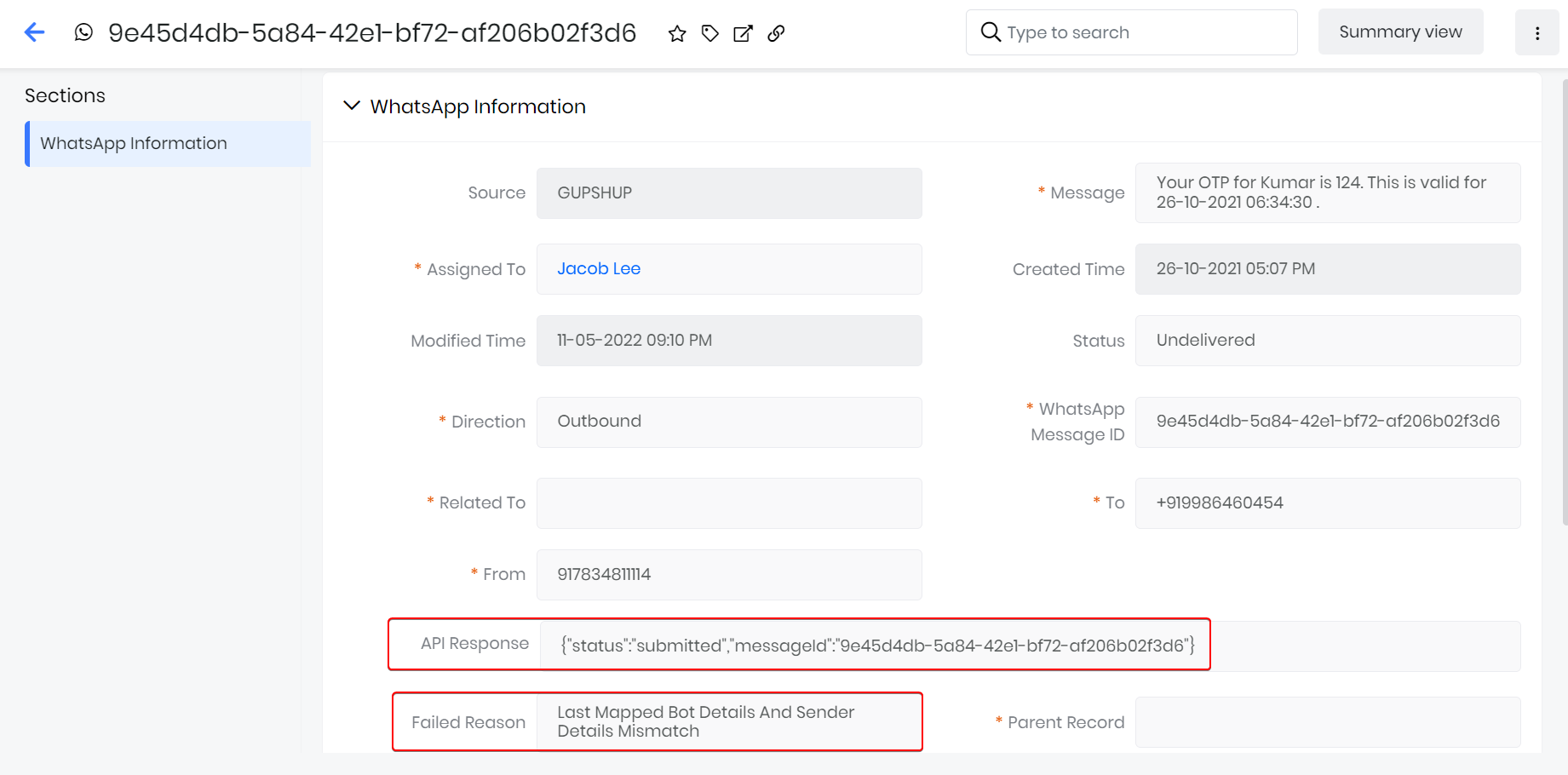
Once you have sent a message on WhatsApp, you can check its status by heading to the Information section.
Here, you can view the API Response and Failed Reason. If your message wasn't successfully delivered, the API Response field will display authentication failed. The Failed Reason field will also give you more information on why the message was not sent.
Using Gupshup WhatsApp Templates with Vtiger CRM
With Vtiger CRM, when you use Gupshup as your WhatsApp Service Provider, you will only have to use Gupshup WhatsApp Templates (default or customized) on Gupshup, which WhatsApp approves.
Note: Template API support is now available for the Gupshup-WhatsApp self-service platform.
With the API support, you will be able to:
- Create a template with variables and a call-to-action (CTA). For example, you can send an offer to your customer and ask them to click the link to avail the offer.
- Attach PDFs, images, documents, audio, and video files.
- Rename image files with special characters
- Send outbound messages from workflows, the Process Designer, Live Chats, and Conversation view.
- Send inbound messages and session messages.
- Log in to your Gupshup account.
- Click your GupShup account displayed on the Dashboard.
- Scroll down to the Test access API and set callback URL section.
- Click View Templates. The Template List screen opens, displaying all available Gupshup templates.


- You can choose the appropriate Gupshup Template and copy the Template content.
- You can also create your customized WhatsApp templates on GupShup by clicking +Add More.
- The WhatsApp Template created by you will have to be approved by WhatsApp. Once WhatsApp approves your WhatsApp Template, you have successfully created the Gupshup WhatsApp Template.
- Copy the same approved WhatsApp Template content.
Navigate back to Vtiger CRM.
Follow these steps to use Gupshup WhatsApp Templates on Vtiger CRM:
- Log in to the CRM.
- Click the main Menu.
- Click Marketing.
- Look for Marketing Enablement.
- Click WhatsApp Templates.
- Click +Add Template. The Create WhatsApp Template page opens.

- Enter or select the following details:
- Content: Paste the copied Gupshup Template in the Content section.
- Template Name: Provide a name to the Gupshup WhatsApp Template. Note: The Gupshup WhatsApp Template names provided here are the Select WhatsApp Template dropdown list on the Contacts module.
- Assigned to: Creator of the Template.
- Module: The only desired modules where you want the specific WhatsApp Templates to remain available.
- Merge Field: The selected fields will display and be added to the Gupshup WhatsApp Template Content. Note: The field’s data selected here will, by default, appear in the Contacts module > Send WhatsApp Message > Message Body section.
- Click Save.
The Gupshup WhatsApp template is now ready to use. You can now view the successfully created Gupshup WhatsApp Template in the List View of the WhatsApp Template module.

WhatsApp opt-in settings for Gupshup
The WhatsApp opt-in is a field available in a few CRM module records under Basic Information > WhatsApp opt-in in the Summary View and Detailed View. It provides WhatsApp opt-in options. WhatsApp opt-in options are WhatsApp messaging options available for sending and receiving WhatsApp messages with Gupshup. You can select the following WhatsApp opt-in options for your contacts, leads, organizations and vendors based on your preferences:
- Single opt-in: It lets you send outgoing messages and receive incoming messages from WhatsApp using Gupshup.
- User opted out: It lets you receive incoming messages and does not let you send outgoing messages from WhatsApp using Gupshup.
- None: It lets you send outgoing messages and receive incoming messages from WhatsApp using Gupshup.
The WhatsApp opt-in options are available for the following modules:
- Contacts
- Leads
- Organization
- Vendors
Follow these steps to select a WhatsApp opt-in option while creating or editing a record for a contact, lead, organization, or vendor:
Note: For instance, we have considered the Contacts module; you can go to any module mentioned above.
- Log in to the CRM.
- Click the main Menu.
- Click Essentials.
- Look for Lead & Contact Management.
- Select Contacts.
- Click +Add Contact.
or
- Select a Contact record.
- Go to the Summary View or Detailed View of the record.
- Go to Basic Information.
- Look for the WhatsApp opt-in field. Select a suitable WhatsApp opt-in option.
You have now successfully selected a WhatsApp opt-in option for a contact in CRM.
Note:
- The WhatsApp opt-in options are available for all the WhatsApp providers with which Vtiger CRM is integrated.
- With Gupshup, to send a WhatsApp message to a customer, you first need to send an opt-in request to the customer's phone number.
Disabling WhatsApp Integration with Gupshup
Admin users can disable WhatsApp Integration with Gupshup in Vtiger CRM by disabling the Gupshup Add-on.
Follow these steps to disable the Gupshup feature:
- Log in to the CRM.
- Click the User Menu.
- Click Settings. The Settings page opens.
- Look for Module Management.
- Click Modules.
- Uncheck the WhatsApp by Gupshup extension.
Once you uncheck the WhatsApp by Gupshup extension, a success message will be displayed.

Once you disable the Gupshup extension, the Gupshup option won’t be visible anymore.