Articles in this section
RAG Model in Generative Designer
Feature Availability
Vtiger Editions: One Growth | One Professional | One Enterprise | One AI
Introduction
The Generative AI Designer in Vtiger CRM is a centralized workspace used to configure AI-powered capabilities such as Prompts, Agents, Chatflows, and RAG Models. It helps businesses create AI experiences that can retrieve CRM data, respond to user questions, and automate customer and internal interactions.
One of the key capabilities available in the Generative AI Designer is the RAG Model, which allows AI to retrieve relevant CRM information before generating a response.
RAG Model
Retrieval-Augmented Generation (RAG) is an AI method that improves responses by using relevant information from available data sources. A RAG model helps the AI generate answers that are more accurate, relevant, and based on the information it can access.
RAG Models in Generative Designer
In Vtiger CRM, RAG models help ensure that AI responses are based on actual CRM data, making them more reliable and relevant.
RAG models are commonly used for:
- AI-powered chatbots
- Knowledge base automation
- Customer support assistance
- Internal CRM data retrieval
For example, if a user asks a question related to a support article, the system retrieves the relevant Articles or FAQ records and generates an answer based on that information.
Overview of the RAG Models
In Vtiger, a RAG Model is first connected to a Prompt. The Prompt can then be used in a Chatflow or an AI Agent, depending on the use case. When a user asks a question through the connected Chatflow or Agent, the system uses the associated RAG Model to retrieve relevant information and generate a contextual response.
This setup allows the same RAG-backed knowledge to be reused across different AI-powered interactions, including external website bots and internal AI use cases.
The process works as follows:
- Information is stored in the required CRM module.
- A RAG Model is created by selecting the module that contains the required data.
- The RAG Model is connected to a Prompt.
- The Prompt is then used in a Chatflow or an AI Agent.
- When a user asks a question through the Chatflow or Agent, the system retrieves relevant information from the selected module records.
- The AI generates a response based on the retrieved content.
This setup allows the AI to provide responses based on actual CRM data while making the same Prompt reusable across multiple AI-powered interactions.
Types of RAG Models
RAG models can be configured depending on how they will be used.
You can configure the following types of models:
- Customer Facing RAG models
- Non-Customer-Facing RAG models
Customer-Facing RAG Models
Customer-facing models are used by chatbots or AI assistants that interact with customers. These models typically retrieve information from knowledge base modules such as:
- Articles
- FAQ
- Documents
They are commonly used in:
- Customer support chatbots
- Website chat assistants
Non-Customer-Facing RAG Models
Non-customer-facing models are used internally within the CRM by employees.
These models retrieve information from CRM modules such as:
- Cases
- Contacts
- Deals
- Other CRM records
They help employees quickly retrieve CRM information using AI.
Use Case
Acme Electronics uses Vtiger CRM to manage customer support for its smart home devices. The support team regularly receives customer questions about product setup, troubleshooting, and usage instructions.
To make this information easily available, the company publishes troubleshooting guides, setup instructions, and warranty-related help content for customers through the Articles module. To help customers get quick and relevant answers, Priya, the CRM administrator, creates a customer-facing RAG model using the Articles module. She selects the required fields and trains the model so it can retrieve relevant support content based on customer questions.
After training the model, Priya connects it to a Customer Prompt in the Prompt Builder. She then uses the Prompt in a Chatflow for the company’s customer support chatbot. When a customer asks a question such as How do I register my product warranty?, the chatbot retrieves the most relevant article content using the connected RAG model. The AI then generates a response based on that information and displays it to the customer.
Benefits of Using RAG Models
The benefits of using RAG models in the Generative AI Designer are:
- Accurate Responses- Responses are generated using actual CRM records and knowledge base data.
- Improved Customer Support - Customers can receive instant answers to common questions.
- Reduced Manual Effort - Support agents spend less time answering repetitive queries.
- Contextual AI Responses - AI responses are based on real data stored in the CRM rather than generic AI knowledge.
In this article, you will learn about:
- Accessing the RAG Model
- Creating a RAG Model
- Training a RAG Model
- Testing a RAG Model
- Viewing a RAG Model
- Managing a RAG Model
- Resetting a RAG Model
- Deleting a RAG Model
- Using RAG models with Prompts
Key Terminology
|
|
|
|
|
|
|
|
|
|
|
|
|
|
|
|
|
|
|
|
|
|
|
|
Accessing the RAG Models
Before accessing the RAG model, ensure the Calculus AI Add-on is installed from the Extension Store > Add-ons.
Follow these steps to access the RAG Models page:
- Log in to the CRM.
- Click the main Menu.
- Go to Platform.
- Select Generative AI Designer. The Generative AI Designer page opens.
- Click the GenAI Setup tab. The GenAI Setup page opens.
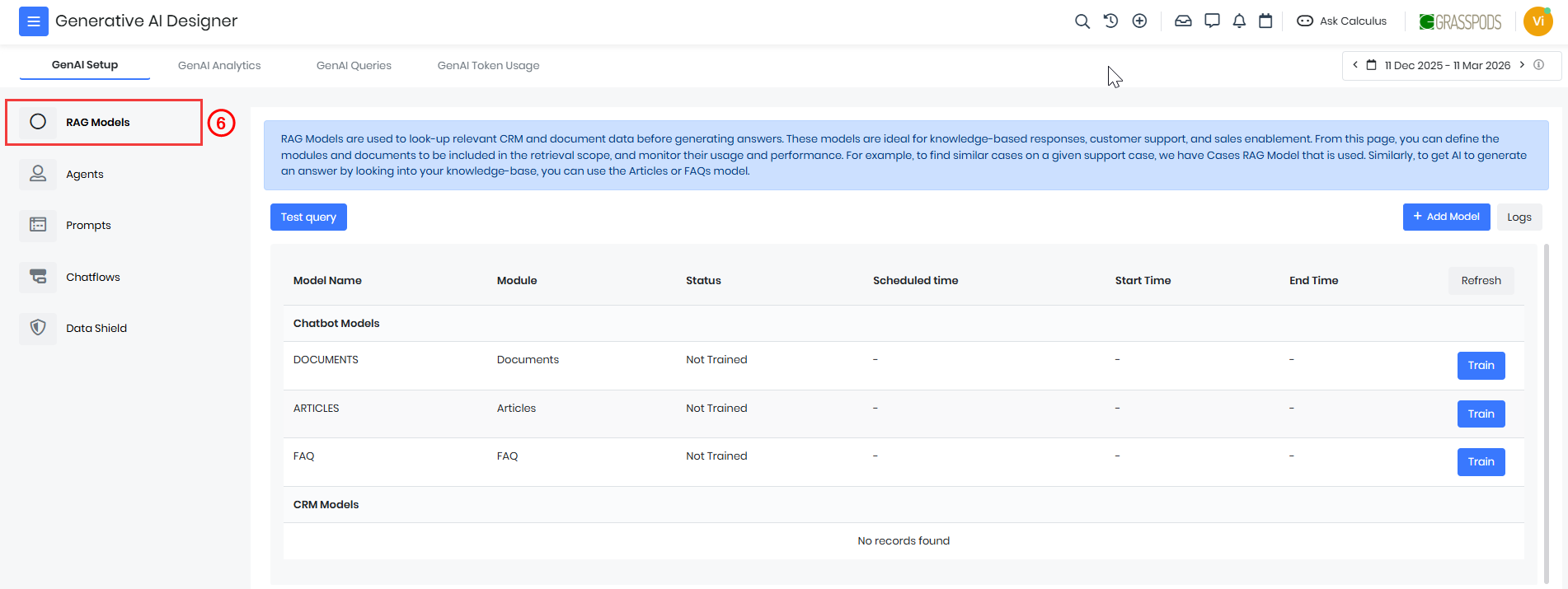
- Select RAG Models from the left panel.
The RAG Models page opens.
Creating a RAG Model
Follow these steps to create a RAG model:
- Log in to the CRM.
- Click the main Menu.
- Go to Platform.
- Select Generative AI Designer. The Generative AI Designer page opens.
- Click on the GenAI Setup tab. The GenAI Setup page opens.
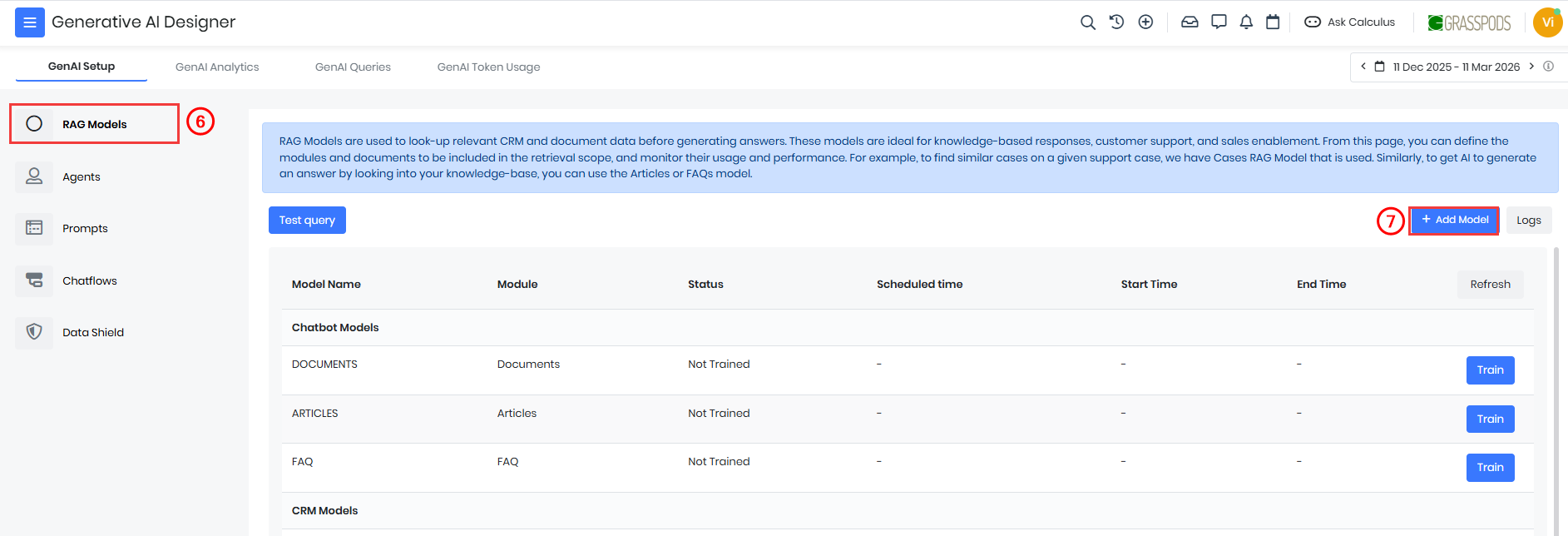
- Select RAG Models from the left panel.
- Click + Add Model. The Add Model window opens.
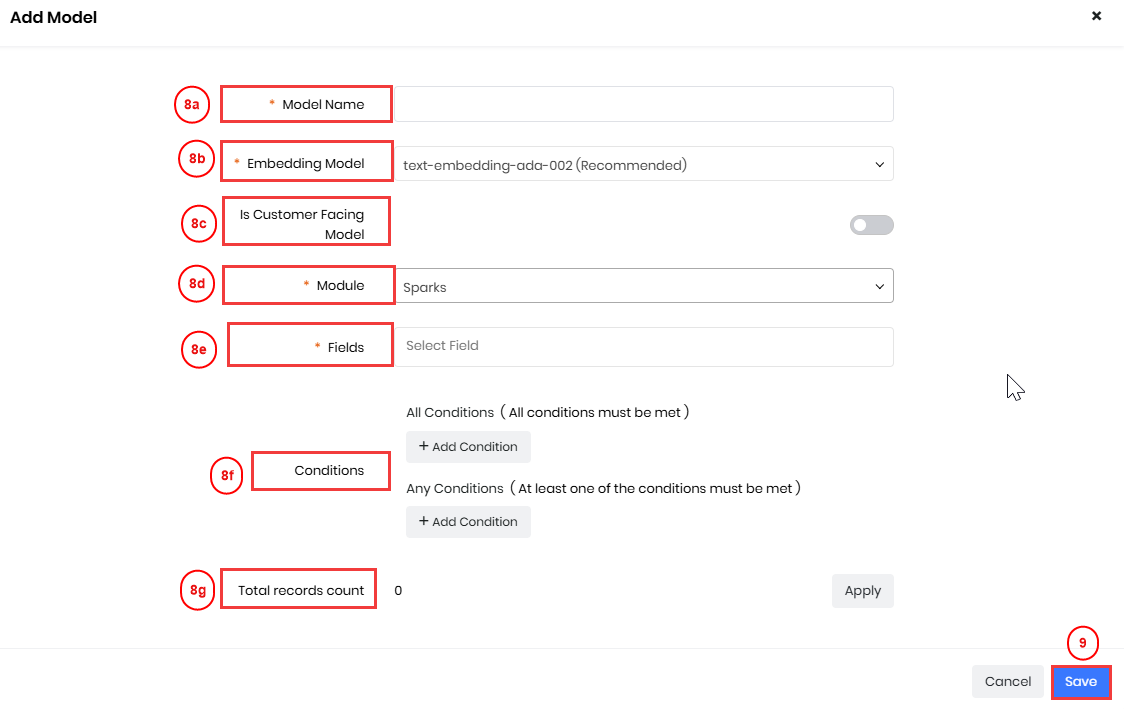
- Enter or select the following information:
- Model Name – Enter a name for the RAG model.
- Embedding Model – Select the embedding model used to convert module data into embeddings for retrieval.
- Is Customer Facing Agent – Enable this option if the model will be used in customer-facing agents or chatbots.
- Module – Select the CRM module from which information should be retrieved.
- Fields – Select the fields of the module whose data should be used for generating responses.
- Conditions – Define conditions to filter the records that should be included in the model.
- All – Retrieves records that match all the specified conditions.
- Any – Retrieves records that match any of the specified conditions.
- Click Save.
The RAG model will be created and displayed in the RAG Models list.
Note: After the model is created, the Module and Embedding Model cannot be edited.
Editing a RAG Model
You can edit a RAG model to update its configuration, such as the selected fields, conditions, or other settings used for retrieving data.
Note: The Module and Embedding Model fields cannot be edited after the RAG model is created.
Follow these steps to edit a RAG Model:
- Log in to the CRM.
- Click the main Menu.
- Go to Platform.
- Select Generative AI Designer. The Generative AI Designer page opens.
- Click on the GenAI Setup tab. The GenAI
- Select RAG Models from the left panel.
- Open the RAG Model that you want to edit.
- Click Edit. The Editing RAG Model page opens.
- Enter or select the following information:
- Model Name – Enter a name for the RAG model.
- Embedding Model – View the embedding model used to convert module data into embeddings for retrieval.
- Is Customer Facing Agent – Enable this option if the model will be used in customer-facing agents or chatbots.
- Module – View the CRM module from which information should be retrieved.
- Fields – Select the fields of the module whose data should be used for generating responses.
- Conditions – Define conditions to filter the records that should be included in the model.
- All – Retrieves records that match all the specified conditions.
- Any – Retrieves records that match any of the specified conditions.
- Click Save.
The updated RAG model will be updated in the RAG Models list.
Training a RAG Model
A RAG model must be trained to retrieve the correct information to respond.
Follow these steps to edit a RAG Model.
- Log in to the CRM.
- Click the main Menu.
- Go to Platform.
- Select Generative AI Designer. The Generative AI Designer page opens.
- Click on the GenAI Setup tab. The GenAI Setup page opens.
- Select RAG Models from the left panel.
- Select the RAG Model you want to train.
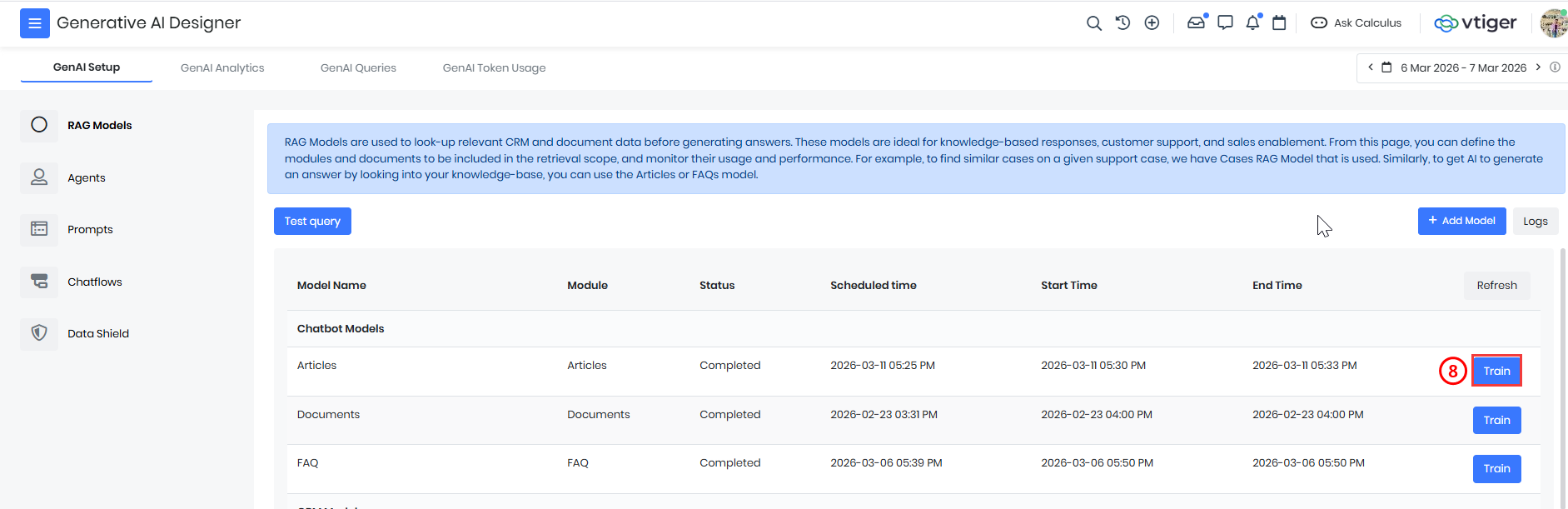
- Click Train.
Note:
- When you click the Train button, the Status changes to In Progress. The Scheduled Time updates automatically to the time when the training is initiated.
- When training starts, the Start Time is updated. Once the training is completed, the End Time is updated automatically, and the Status changes to Completed.
Testing a RAG Model
After training a RAG model, you can test it by running a Test Query. Testing helps verify whether the model retrieves relevant information from the selected CRM module.
Note: To test a RAG model, it must be connected to a Prompt. RAG models retrieve relevant information, and the Prompt uses that information to generate responses. To know more about the Prompt Builder, click here.
Testing a query helps verify:
- Whether the correct records are retrieved.
- Whether the selected fields contain the required information.
Follow these steps to test a RAG model.
- Log in to the CRM.
- Click the main Menu.
- Go to Platform.
- Select Generative AI Designer. The Generative AI Designer page opens.
- Click the GenAI Setup tab.
- Select RAG Model from the left panel.
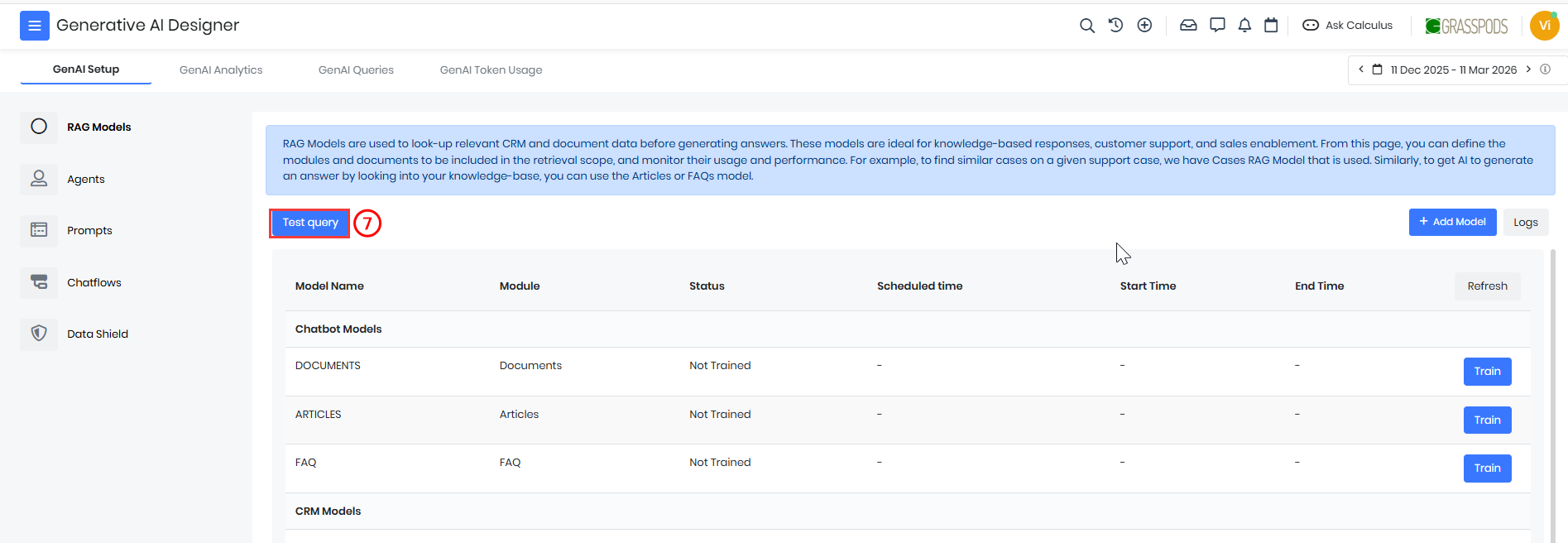
- Click Test Query.
- Enter a query in the Test Query field.
- For example, how to reset the password?
- Click Generate.
The system retrieves relevant information from the trained data and displays the response based on the retrieved content.
Viewing a RAG Model
Follow these steps to view the details of a RAG Model:
- Log in to the CRM.
- Click the main Menu.
- Go to Platform.
- Select Generative AI Designer. The Generative AI Designer page opens.
- Click on the GenAI Setup tab. The GenAI
- Select RAG Models from the left panel.
- Click the RAG Model in the list.
You can view the following information for a RAG model:
- Training Details
- Status – Displays the current training status (Completed, In Progress, etc.).
- Total Trained Records – Shows the total number of records processed during training.
- Modified Records Count – Displays the number of records modified after training.
- Model Details
- Model Name – Displays the name of the RAG model.
- Module – Shows the module selected while creating the RAG model.
- Status – Indicates the training status of the model.
- Is Customer Facing Model – Indicates whether the model is used for customer-facing agents.
- Fields - Displays the fields selected from the module that are used for generating embeddings.
- Conditions
- All Conditions – Displays conditions where all rules must be satisfied.
- Any Conditions – Displays conditions where at least one rule must be satisfied.
- Additional Details
- Scheduled Time – Displays the time when the training was scheduled.
- Record Sync Start Time – Shows when the record synchronization started.
- Record Sync End Time – Shows when the record synchronization ended.
- Start Time – Displays when the training process started.
- End Time – Displays when the training process was completed.
Managing RAG Model Logs
Logs help you to monitor and troubleshoot a RAG model. They provide details about training activities, record processing, and any issues that occur while training the RAG Model.
Follow these steps to view logs:
- Log in to the CRM.
- Click the main Menu.
- Go to Platform.
- Select Generative AI Designer. The Generative AI Designer page opens.
- Click the GenAI Setup tab.
- Select RAG Models from the left panel.
- Click the required RAG Model from the list.
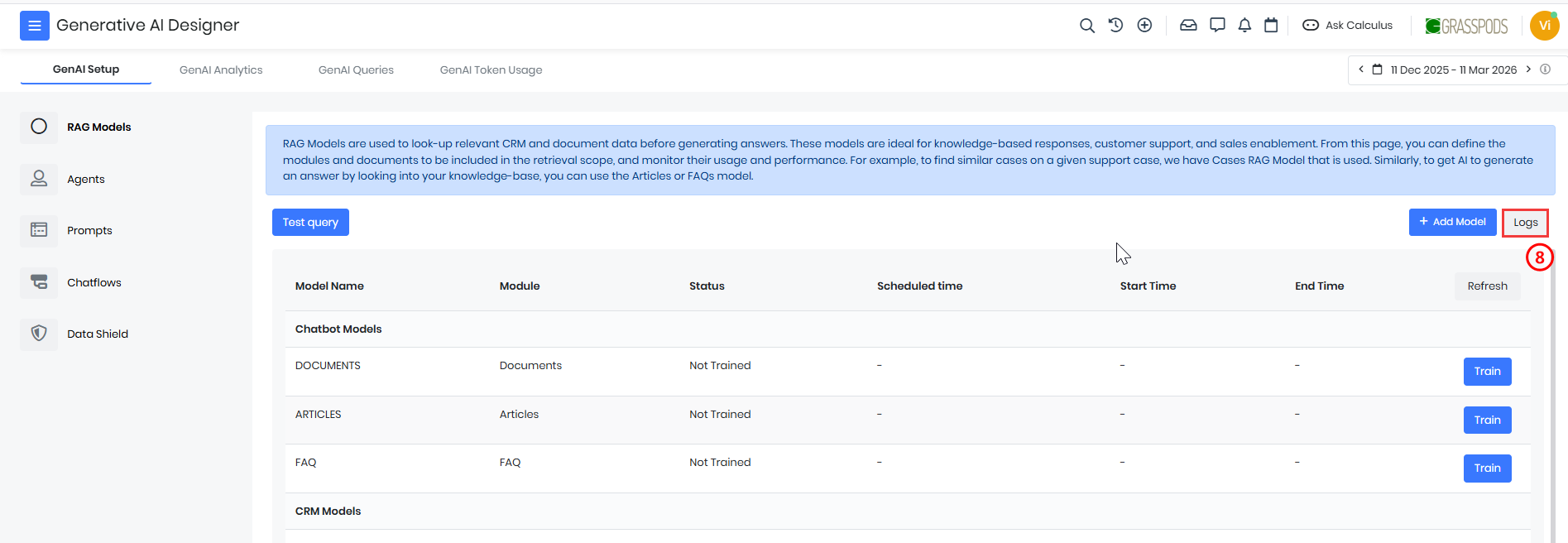
- Click Logs.
You can view the following details from a log:
- Model Name – Displays the name of the RAG model used for training.
- Status – Shows the training status (for example, Completed).
- Trained Records – Displays the number of records processed during training.
- Reused Records – Shows the number of records reused from previous training.
- Scheduled Time – Displays the time when the training was scheduled.
- Start Time – Shows when the training process started.
- End Time – Shows when the training process was completed.
- Tokens Consumed – Displays the number of tokens used during the training process.
Using RAG Models with Prompts
A RAG Model must be connected to a Prompt to generate responses. The RAG model retrieves relevant information from CRM records or documents, and the prompt uses that information to generate a contextual AI response.Once configured, the prompt is used by AI components such as Agents or Chatflows to interact with users.
- To know more about Prompts, click here.
- To know more about Agents, click here.
RAG Model Support in Prompt Types
After creating a RAG model, it can be used in different Prompt Types within Vtiger’s Prompt Builder.The supported prompt types are:
- Dynamic
- Customer
- Chatbot
Dynamic Prompt
When the Prompt Type is set to Dynamic, CRM-end RAG models can be used.CRM-end RAG models are those created without enabling the Is Customer Facing Model option during RAG model creation. These models retrieve information directly from CRM modules and are primarily used for internal AI interactions within the CRM.
Dynamic prompts are the only prompt type that supports CRM-end RAG models.
Customer Prompt
When the Prompt Type is set to Customer, only customer-facing RAG models can be used.Customer-facing RAG models are those created by enabling the Is Customer Facing Model option while creating the RAG model. These models are designed to retrieve information that can be safely shared with external users such as customers.
Chatbot Prompt
When the Prompt Type is set to Chatbot, only customer-facing RAG models can be selected. These RAG models are created with the Is Customer Facing Model option enabled, ensuring that only appropriate information is used when generating responses for users.Follow these steps to connect a RAG model with a prompt:
- Log in to the CRM.
- Click the main Menu.
- Go to Platform.
- Select Generative AI Designer. The Generative AI Designer page opens.
- Click the GenAI Setup tab.
- Create a RAG Model. The Add RAG Model page opens.
- Train the created RAG model.
- Click the Prompt. The Prompt page opens.
- Click Add Prompt. The Add Prompt Template window opens.
- Enter or select the following information:
- Prompt Name – Enter a unique name for the prompt.
- Status – Select the status to make the prompt active or inactive.
- Prompt Type – After selecting one of the following types, the RAG Model option appears, displaying the models supported for the selected prompt type.
- Dynamic
- Customer
- Chatbot
- RAG Model - Select the RAG Model for the prompt.
- Module – Select the CRM module whose data will be used in the prompt.
- LLM Selection – Select the Large Language Model that will generate the AI response.
- Click Save.
After the prompt is configured, it can be used in AI components such as Agents or Chatflows to generate responses based on retrieved CRM data.
Resetting a RAG Model
You can reset a RAG model if you want to clear the existing training data and retrain the model from the beginning. Resetting removes the current training data and allows the model to be trained again using the configured module records.
Follow these steps to reset a RAG model:
- Log in to the CRM.
- Click the main Menu.
- Go to Platform.
- Select Generative AI Designer. The Generative AI Designer page opens.
- Click the GenAI Setup tab.
- Select RAG Models from the left panel.
- Click and open the required RAG Model in the list.
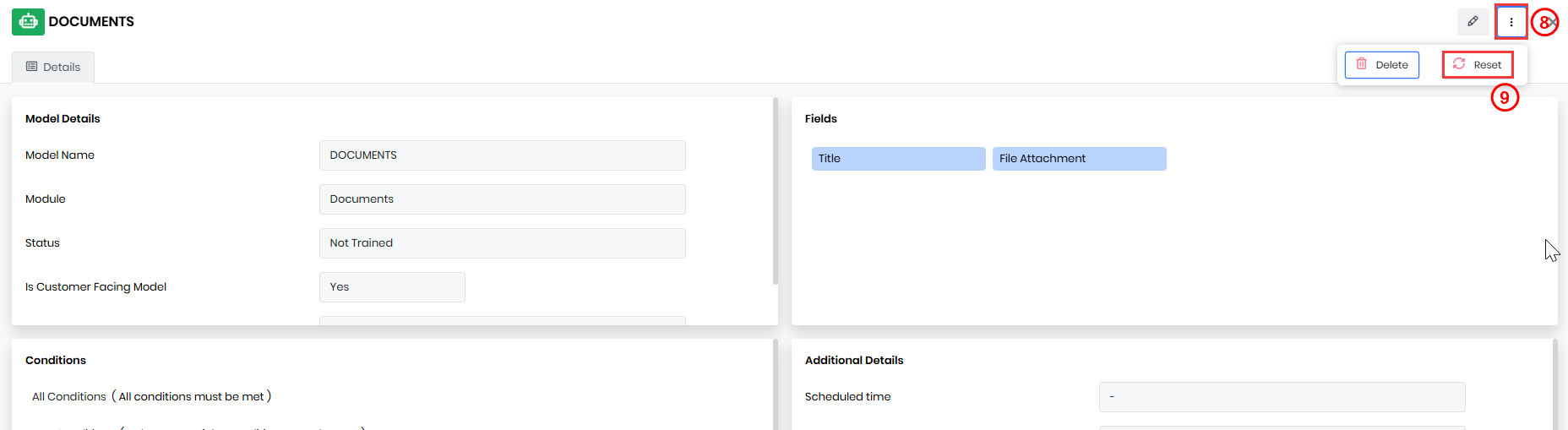
- Click More.
- Click Reset. The confirmation window opens.
- Click Yes.
After resetting, the model training data is cleared, and you can train the model again.
Deleting a RAG Model
You can delete a RAG model if it is no longer required. Deleting a model permanently removes it from the system. Once deleted, the model cannot be recovered.
Follow these steps to delete a RAG model:
- Log in to the CRM.
- Click the main Menu.
- Go to Platform.
- Select Generative AI Designer. The Generative AI Designer page opens.
- Click the GenAI Setup tab.
- Select RAG Models from the left panel.
- Select the RAG Model you want to delete from the list.
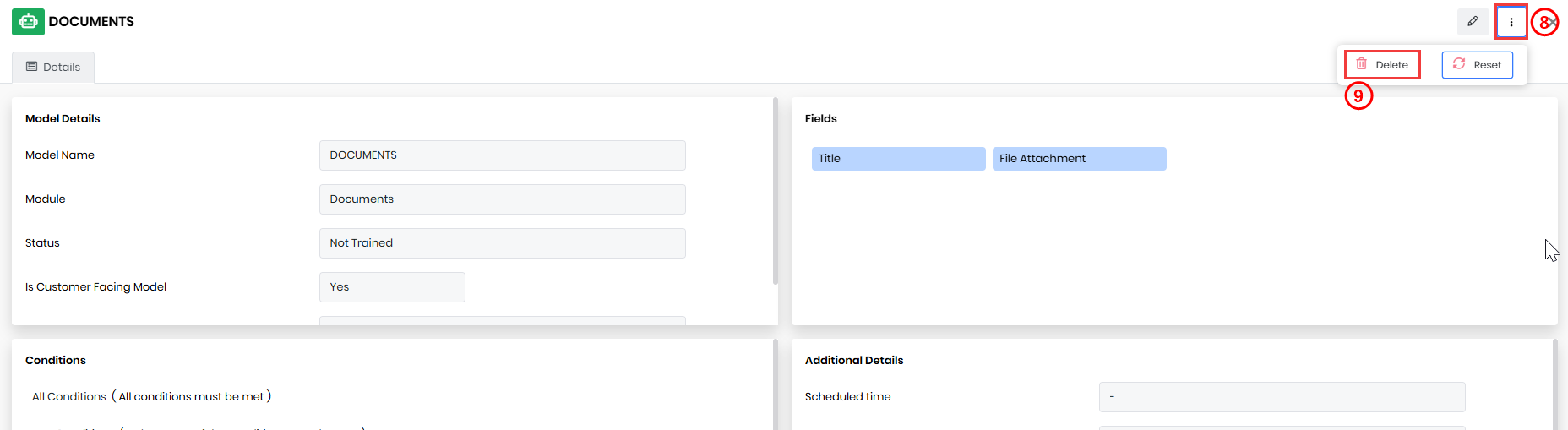
- Click Delete. The confirmation window opens.
- Click Yes.
The selected RAG model will be permanently removed from the system.
Best Practices
Follow these best practices when working with RAG models:
- Keep the knowledge base content updated.
- Use clear titles and structured documentation.
- Apply filters or conditions to improve search accuracy.
- Retrain models after adding large amounts of data.
- Test queries regularly to verify response quality.