Articles in this section
Data Shield in Generative AI Designer
Feature Availability
Vtiger Editions: One Growth | One Professional | One Enterprise | One AI
Introduction
When users interact with Generative AI features in Vtiger CRM, the content sent for AI processing may sometimes include confidential or sensitive information.
These may include:
- Email addresses
- Phone numbers
- Account-related identifiers
- Tax or personal identification numbers
- Payment references
- Business-specific internal codes
If such information is sent directly to AI models, it may increase privacy, compliance, and data protection risks. To address this, Vtiger provides the Data Shield feature in Generative AI Designer.
Data Shield is available under Generative AI Designer > GenAI Setup and allows you to define masking rules.
With Data Shield, you can:
- Use predefined masking rules for commonly used sensitive data.
- Create custom masking rules for organization-specific identifiers.
- Test pattern-matching rules before enabling them.
- Enable or disable masking rules based on business requirements.
This helps reduce unnecessary exposure while still allowing AI-powered features to function effectively.
Use Case
Acme Electronics uses Vtiger CRM to manage customer support for its smart home devices. The support team uses Generative AI features to summarize customer issues and draft responses quickly.
Some support conversations may include warranty registration numbers that are specific to the business. Since these values are not part of the default masking setup, they must be added manually.
To protect this information, Priya, the CRM administrator, reviews the default masking rules in Data Shield and creates a custom rule for warranty registration numbers.
Before saving the rule, she tests the regular expression to verify accurate matching. When support agents use AI features, Vtiger masks matching warranty registration numbers automatically before processing.
This helps Acme Electronics use AI features more safely while protecting confidential customer information.
Benefits of Data Shield
The Benefits of using Data Shield are:
- Protects sensitive information - Prevents confidential data from being sent to AI models.
- Supports safer AI usage - Helps organizations use AI with better data control.
- Reduces accidental exposure - Minimizes the risk of sending sensitive information unintentionally.
- Improves privacy readiness - Supports better data protection and privacy practices.
- Supports custom needs - Allows you to create rules for business-specific data formats.
- Maintains workflow continuity - Masks sensitive data without interrupting AI usage.
In this article, you will learn about:
- Accessing Data Shield
- Default Masked Fields
- Adding a Masked Field
- Testing a Masking Rule
- Enabling the Masked Field
- Disabling the Masked Field
- Deleting a Masked Field
Key Terminology
|
|
|
|
|
|
|
|
|
|
|
|
|
|
|
|
|
|
|
|
|
|
|
|
Accessing Data Shield
Follow these steps to access Data Shield:
- Log in to the CRM.
- Click the main Menu.
- Go to Platform.
- Select Generative AI Designer. The Generative AI Designer page opens.
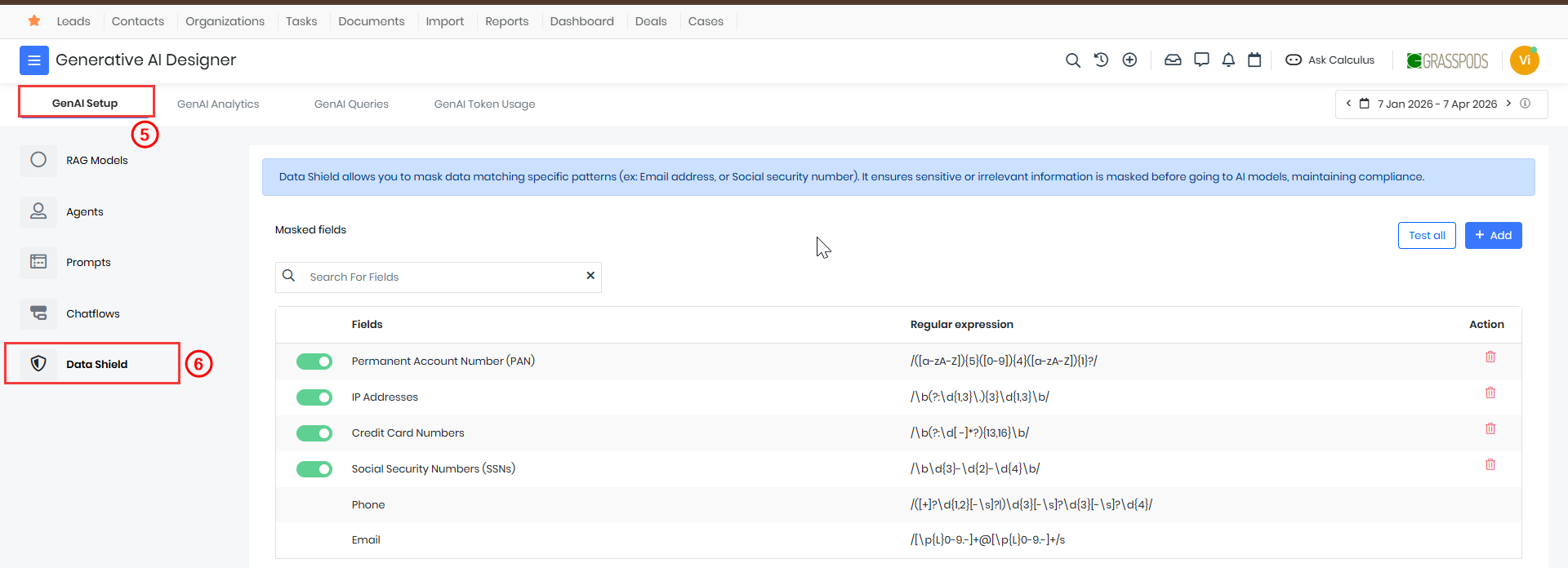
- Click GenAI Setup. The GenAI Setup page opens.
- Click Data Shield.
The Data Shield page opens. The Default Data Shield will be displayed.
Default Masked Fields
Vtiger provides a set of default masking rules in Data Shield to help protect sensitive information during AI processing.
Follow these steps to view the default masked fields:
- Log in to the CRM.
- Click the main Menu.
- Go to Platform.
- Select Generative AI Designer. The Generative AI Designer page opens.
- Click GenAI Setup. The GenAI Setup page opens.
- Click Data Shield. The Data Shield page opens.
View the following fields are masked by default:
- Permanent Account Number (PAN)
- IP Addresses
- Credit Card Numbers
- Social Security Numbers (SSNs)
- Phone
These fields are used to identify and mask matching values before content is sent to the AI model.
Note: Phone and Email are masked by default and cannot be disabled, edited, deleted, or unmasked.
Adding a Masked Field
You can create a custom masking rule if your organization needs to protect additional types of information.
This is useful for business-specific values such as:
- Warranty registration numbers
- Internal employee IDs
- Service agreement codes
- Customer membership IDs
- Custom financial identifiers
Follow these steps to add a new masked field:
- Log in to the CRM.
- Click the main Menu.
- Go to Platform.
- Select Generative AI Designer. The Generative AI Designer page opens.
- Click GenAI Setup. The GenAI Setup page opens.
- Click Data Shield. The Data Shield page opens.
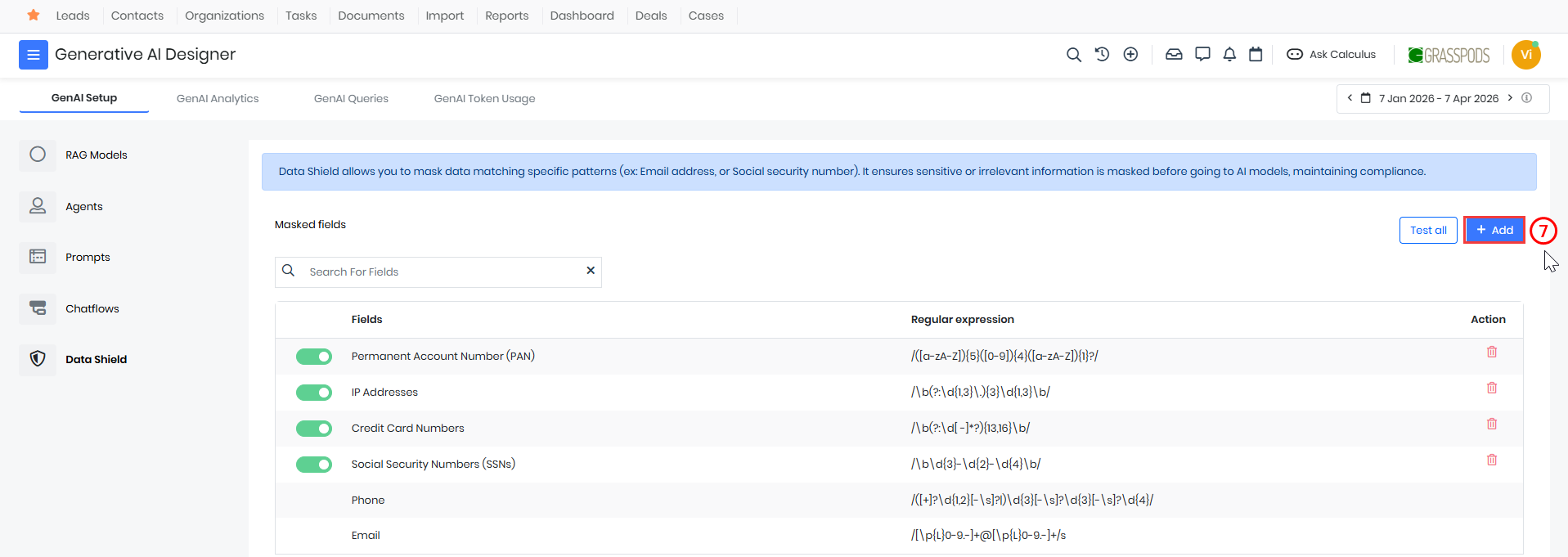
- Click + Add. The Add Field window opens.
- Enter or select the following information:
- Name - Enter the name of the masking rule.
- Regular expression - Enter the regex pattern used to identify the data.
- Click Test to validate the pattern.
- Click Save.
The new field will be added to the Masked fields list.
Note: You can create custom masking rules for additional sensitive data formats. However, the default Phone and Email masking rules cannot be modified.
Testing Masking Rules
Testing masking rules helps ensure that the configured regular expressions correctly identify sensitive data.
You can use the Test all option on the Data Shield page to validate the existing masking rules.
Follow these steps to test masking rules:
- Log in to the CRM.
- Click the main Menu.
- Go to Platform.
- Select Generative AI Designer. The Generative AI Designer page opens.
- Click GenAI Setup. The GenAI Setup page opens.
- Click Data Shield. The Data Shield page opens.
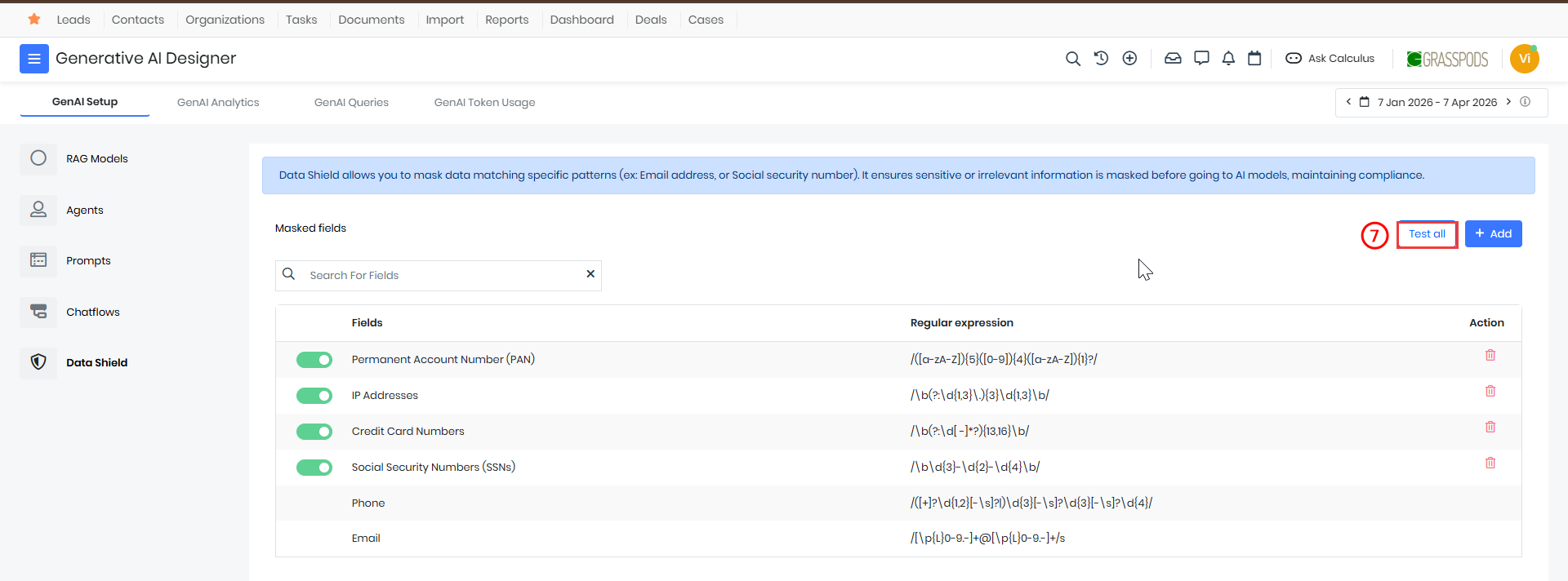
- Click Test all. The Test all page opens.
- Enter the text in the text box.
- Click Validate.
Testing helps ensure that the rules work as expected and do not miss sensitive values or match unrelated content
Enabling a Masked Field
Enabling a field allows Data Shield to identify and mask matching values before AI processing.
Follow these steps to enable a masked field:
- Log in to the CRM.
- Click the main Menu.
- Go to Platform.
- Select Generative AI Designer. The Generative AI Designer page opens.
- Click GenAI Setup. The GenAI Setup page opens.
- Click Data Shield. The Data Shield page opens.
- Locate the required field in the Masked fields list.
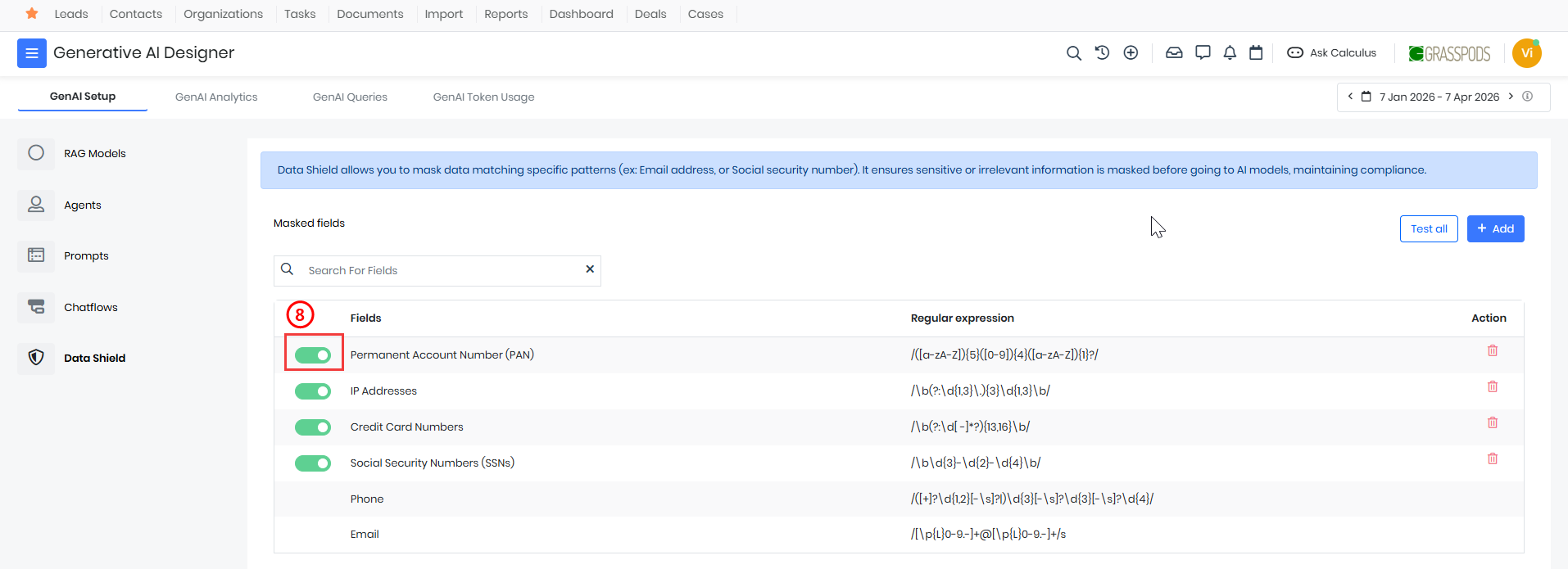
- Turn the toggle on.
The masking rule will now be active.
Note: Default fields such as Phone and Email are always enabled and cannot be turned off.
Disabling a Masked Field
Disabling a field keeps the rule in the system, but it is not applied during masking.
Follow these steps to disable a masked field:
- Log in to the CRM.
- Click the main Menu.
- Go to Platform.
- Select Generative AI Designer. The Generative AI Designer page opens.
- Click GenAI Setup. The GenAI Setup page opens.
- Click Data Shield. The Data Shield page opens.
- Locate the required field in the Masked fields list.
- Turn the toggle off.
The masking rule will remain saved but inactive.
Note: Default fields such as Phone and Email cannot be disabled.
Deleting a Masked Field
If a masking rule is no longer required, you can remove it from Data Shield.
Follow these steps to delete a masked field:
- Log in to the CRM.
- Click the main Menu.
- Go to Platform.
- Select Generative AI Designer. The Generative AI Designer page opens.
- Click GenAI Setup. The GenAI Setup page opens.
- Click Data Shield. The Data Shield page opens.
- Locate the required masking rule.
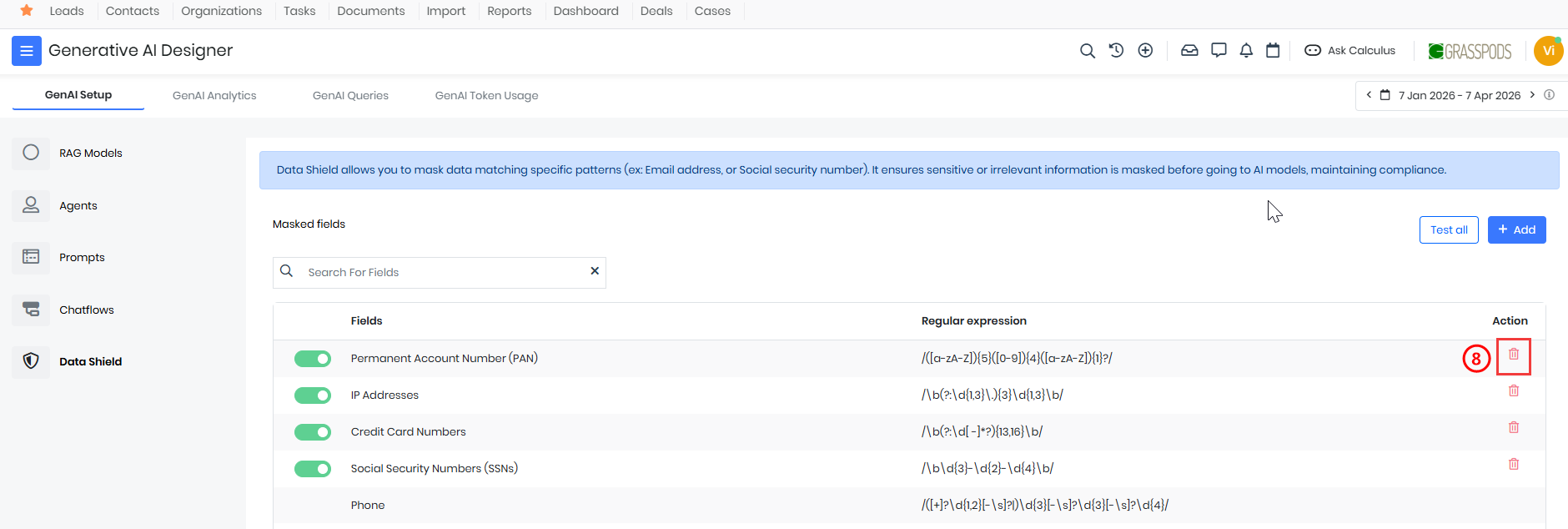
- Click Delete. A confirmation screen opens.
- Click Yes.
The selected rule will be removed from the list.
Note: Default fields such as Phone and Email cannot be deleted.
Best Practices
Follow these best practices while using Data Shield:
- Use clear names for masking rules.
- Test every regular expression before saving it.
- Use specific regex patterns to improve masking accuracy.
- Review masking rules regularly to keep them relevant.
- Disable a rule before deleting it if you are unsure.
- Maintain internal documentation for custom masking rules.
Limitations
Keep the following limitations in mind when using Data Shield:
- Masking depends on the accuracy of the configured regular expression.
- Only values matching the defined patterns are masked.
- Broad regex patterns may mask unrelated content.
- Data Shield should be used along with your organization’s data protection practices.
Troubleshooting
Sensitive data is not getting masked
Check the following:
- Verify that the masking rule is enabled.
- Ensure the regular expression is correct.
- Confirm that the input format matches the configured regex.
- Test the rule again before saving.
Cannot find a masking rule
Check the following:
- Use the search option.
- Verify whether the rule was deleted.
- Confirm whether the field was saved successfully.
The Add Field pop-up is not saving
Check the following:
- Ensure the Name field is entered.
- Ensure the Regular expression field is not empty.
- Verify that the regex format is valid.
- Click Test before saving.
A configured rule is not being applied
Check the following:
- Confirm that the toggle is turned ON.
- Verify that the regex still matches the current data format.
- Check whether the rule was modified recently.