Articles in this section
GenAI Queries in Generative AI Designer
Feature Availability
Vtiger Editions: One Growth | One Professional | One Enterprise | One AI
Introduction
The GenAI Queries feature in Vtiger CRM helps organizations monitor and review AI-powered interactions across the CRM. It captures user queries and AI-generated responses from supported Generative AI features, allowing teams to assess response quality, identify gaps, and improve AI performance over time.
By providing visibility into how AI is being used in both internal and external interactions, this feature helps teams maintain accurate, relevant, and useful AI-generated responses.
GenAI Queries Overview
GenAI Queries are the interactions between users and Generative AI in Vtiger CRM. Each query includes the user’s input and the AI's response.
These interactions are captured from supported GenAI-powered features and stored in the system for review and analysis. This allows teams to examine how the AI responds across different use cases, rather than limiting reviews to a single channel, such as a website or live chat.
The GenAI Queries feature acts as a centralized review and improvement layer for AI-powered interactions. It helps organizations monitor AI usage, evaluate generated responses, identify recurring issues, and improve prompts, source content, or configurations when needed. The GenAI Queries dashboard provides a consolidated view of these interactions, making it easier to review AI responses across the CRM and continuously improve response quality.
Use Case
BrightEdge Solutions uses Generative AI in Vtiger CRM to handle a large volume of customer support queries related to CRM features and usage.
A customer asks, How do I schedule a meeting in CRM? through the chat interface. The AI instantly generates a response with the required steps.
A support analyst from BrightEdge Solutions reviews this interaction in GenAI Queries:
- If the response is accurate and complete, the analyst clicks Accept Answer.
- If the response can help other customers, the analyst clicks Add FAQ.
- If a similar FAQ already exists but needs improvement, the analyst clicks Update FAQ.
- If the response is incorrect or misleading, the analyst clicks Wrong Answer.
- If the question is irrelevant or unclear, the analyst clicks Invalid Question.
If the analyst adds a new FAQ or updates an existing FAQ, the support team then trains the related RAG Model so the updated information becomes available for future AI responses.
Later, when another customer asks the same or a similar question, the bot can retrieve the updated FAQ or Article content and generate a more accurate and relevant response.
Over time, BrightEdge Solutions sees the following outcomes:
- A reliable FAQ repository is built
- Customer support tickets are reduced
- AI responses become more accurate and consistent
- Customers receive faster and more effective support
To know more about RAG Models in Vtiger CRM, click here.
Benefits of GenAI Queries
The benefits of using GenAI Queries are:
- Improves response accuracy and relevance
- Helps build a strong FAQ knowledge base
- Identifies incorrect or incomplete AI responses
- Enables continuous AI learning and optimization
- Enhances overall user experience
In this article, you will learn about:
- Accessing GenAI Queries
- Navigating the GenAI Queries Dashboard
- Reviewing a Bot Query
- Testing and Training Query
- Deleting a Bot Query
Key Terminology
|
|
|
|
|
|
|
|
|
|
|
|
|
|
|
|
|
|
Accessing GenAI Queries
Follow these steps to access GenAI Queries:
- Log in to Vtiger CRM.
- Click the main Menu.
- Click the Platform.
- Go to Designers.
- Click Generative AI Designer. The Generative AI Designer page opens.
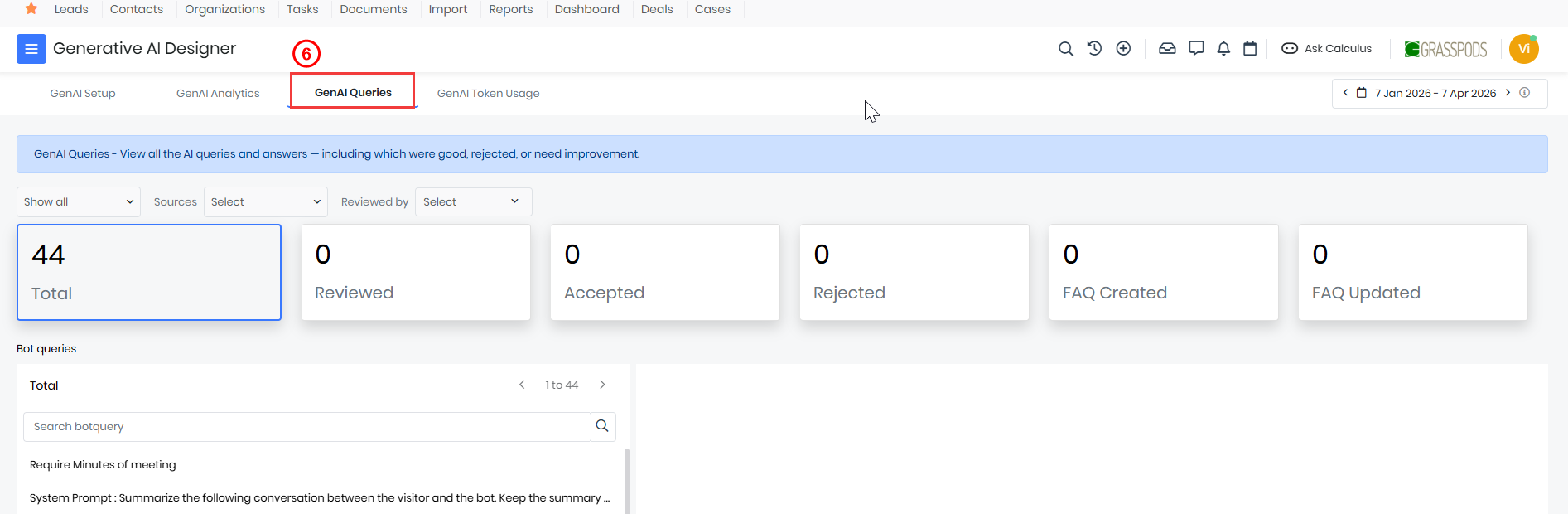
- Select GenAI Queries.
The GenAI Queries page opens.
Navigating the GenAI Queries Dashboard
The GenAI Queries dashboard provides a centralized view of AI-powered interactions captured in the system.
It allows administrators and teams to review user questions, analyze AI-generated responses, and identify whether further action is required to improve response quality.
Key Components
- Query List - Displays user questions submitted to the AI
- AI Response - Shows the response generated by the system
- Status Indicators -Displays the review status of each query
- Action Buttons - Allows reviewers to take appropriate actions
Actions for Query Review
You can perform the following actions when reviewing a query:
- Accept Answer - Use this option when the AI response is correct and relevant.
This marks the response as validated. - Add FAQ - Use this option to convert a query and its response into a new FAQ entry. This helps expand the knowledge base.
- Update FAQ - Use this option when a similar FAQ already exists but needs improvement. This ensures that existing content stays accurate and updated.
- Invalid Question - Use this option when the query is irrelevant, unclear, or not meaningful. This helps filter out unnecessary inputs.
- Wrong Answer - Use this option when the AI response is incorrect or misleading. This helps identify areas where AI needs improvement.
Query Status Tracking
The system categorizes queries based on reviewer actions and assigns different statuses, which helps track performance.
Status Types:
- Accepted - Valid and correct responses
- Rejected - Incorrect or unusable responses
- FAQ Added - Queries converted into FAQs
- FAQ Updated - Existing FAQs improved
Reviewing a Bot Query
Reviewing a bot query allows administrators to evaluate AI-generated responses and take appropriate actions to improve accuracy and relevance.
Follow these steps to review Bot Query:
- Log in to the CRM.
- Click main Menu.
- Click the Platform.
- Go to Designers.
- Click Generative AI Designer. The Generative AI Designer page opens.
- Open a query from the list.
- Review the user query and the AI-generated response.
- Choose an appropriate action based on the response quality:
- Accept - Click if the response is correct.
- Add FAQ - Click to create a new FAQ from the query.
- Update FAQ - Click to modify an existing FAQ.
- Invalid Question - Click if the query is irrelevant.
Once you select any of these actions, the query is automatically categorized, and the GenAI Queries dashboard is updated accordingly to reflect the latest review status and metrics.
You will have to train the related RAG Model after adding or updating FAQs or Articles.
Testing and Training a Query
In Vtiger CRM, the Test and Train option is available only when a query is linked to an existing FAQ in the Bot Source. This allows you to validate and improve responses based on already available knowledge.
Follow these steps to access and use Test and Train for existing FAQs:
- Log in to Vtiger CRM.
- Click main Menu.
- Click Platform.
- Go to Designers.
- Click Generative AI Designer. The Generative AI Designer page opens.
- Select GenAI Queries.
- Open a query that has an existing FAQ mapped in the Source field.
- Click the Test and Train option.
- Enter or select the following information:
- Query - Displays the user’s original question.
- Source - Shows the mapped FAQ.
- Question - Displays the standardized FAQ question.
- Answer - Shows the existing FAQ answer.
- Bot Response - Displays the AI-generated response.
- Retraining Status - Indicates if retraining is completed.
- Review the Bot Response and compare it with the Answer.
- Click Accept Answer if the response is correct.
- Click Update Source FAQ if the existing FAQ needs improvement.
- Click Save.
Once an action is performed, the system updates the FAQ (if modified) and retrains the AI model, improving the accuracy and consistency of future responses.
Deleting a Query
Deleting a query helps remove irrelevant, duplicate, or unnecessary entries from the GenAI Queries list.
Follow these steps to delete a query:
- Log in to Vtiger CRM.
- Click main Menu.
- Click Platform.
- Go to Designers.
- Click Generative AI Designer. The Generative AI Designer page opens.
- Select GenAI Queries.
- Open the required query from the list.
- Click Delete. A confirmation window opens.
- Click Yes.
Once deleted, the query is permanently removed from the system and will not be available for further review or analysis.
Best Practices
Follow these best practices to effectively manage GenAI Queries:
- Review queries regularly to maintain response quality
- Convert frequently asked questions into FAQs
- Update outdated or incomplete responses
- Mark incorrect answers to improve AI learning
- Mark irrelevant inputs as invalid
- Maintain a clean and updated knowledge base
- Periodically review repeated user questions to identify missing documentation
- Train the related RAG Model after adding or updating FAQs or Articles
- Retrain FAQ- and Article-based RAG Models at least once a week to keep AI responses aligned with the latest knowledge
- Test important user queries after retraining to verify response quality
Reference
- Calculus AI
- AI Agent Builder
- Vtiger Chatflows
- Calculus AI: Your Smart Assistant with AI Technology
- Natural Language Query
- Calculus GPT
- Deal Health
- Best Time to Contact
- Contact Sentiment
- Deal Recommendations
- Conversation Insight
- Generative AI Designer
- GenAI Setup
- RAG Model
- GenAI Setup in Generative Designer
- GenAI Analytics in Generative Designer
- GenAI Token Usage in Generative Designer