Articles in this section
Deals Module in Vtiger CRM
Feature Availability
Vtiger Editions: One Pilot | One Growth | One Professional | One Enterprise | One AI
Introduction
Sales teams often manage opportunities across different stages, people, products, and follow-ups. When this information is spread across different records or tools, it can become difficult to track the progress of an opportunity and understand what needs to happen next.
Vtiger CRM helps sales teams manage these opportunities through the Deals module. A deal represents a sales opportunity that you are pursuing with a person or organization. As an opportunity progresses through the sales process, you can maintain its details, track its stage, manage related products or services, and monitor its progress until it is won or lost.
The Deals module provides access to deal information at both the module and record levels through views such as List View, Kanban View, Summary View, and One View. It also supports sales pipelines, workflows, assignment rules, currencies, and sales analytics.
Use Case
Michael, a sales representative at a software company, tracks his opportunities in emails and spreadsheets. When David shows interest in a business software package, Michael can't easily see the deal's value, its expected close date, or what stage it has reached. His manager, Sarah, has the same problem: she can't tell how much revenue to expect or which opportunities have gone quiet.
Michael creates a deal for David in Vtiger, recording the expected value, close date, and assigned user, and adds the software and services being discussed as line items. As the conversation moves forward, he updates the deal's sales stage. When he prepares a quote, he syncs it with the deal so the products and pricing stay current.
Sarah can open the deal at any time to see its stage, value, and how long it has been in each stage, and she follows up on any deal that has stalled. The deal ends as won or lost. Michael and Sarah now have one record for each opportunity, showing its progress, expected revenue, and final outcome.
Benefits
The benefits of using the Deals module are:
- Streamlined sales process: Track opportunities through customized sales pipelines and stages.
- Better collaboration: Keep deal information in one place so sales teams can work with the same information.
- Increased productivity: Use quick actions and automation to reduce repetitive work.
- Data-driven insights: Use deal and pipeline information for reports, analytics, and sales forecasting.
In this article, you will learn about:
- Accessing the Deals Module
- Creating a Deal record
- Adding Line Items to a Deal
- Editing a Deal record
- Syncing a Quote with a Deal record
- Importing Deal records
- Expoting Deal records
- Deleting a Deal
- Viewing Deals
Key Terminology
|
|
|
|
|
|
|
|
|
|
|
|
|
|
|
|
|
|
|
|
|
|
|
|
|
|
|
|
|
|
|
|
|
|
|
|
Accessing the Deals Module
Follow these steps to access the Deals Module:
- Log in to the CRM.
- Click the main Menu.
- Go to Sales.
- Click Deals. The Deals List View opens.
The Deals module opens and displays your deal records. From here, you can create, view, edit, and manage deals using the available views and actions.
Creating a Deal
You can create a deal in the following ways:
- Using the + Add Deal button in the Deals module
- Using Quick Create
- From another record within the CRM
Now, we will learn about each method in detail.
Creating a Deal using the Add Deal button
To create a Deal, you can use the Add Deal button on the List, Kanban, Calendar, or Grid Edit Views in the Deals module. The example below shows how to create a deal from the List View. The steps remain the same in the Kanban, Calendar, and Grid Edit Views.
Follow these steps to create a deal record in the Deals Module:
- Log in to the CRM.
- Click the main Menu.
- Go to Sales.
- Click Deals. The Deals List View opens.
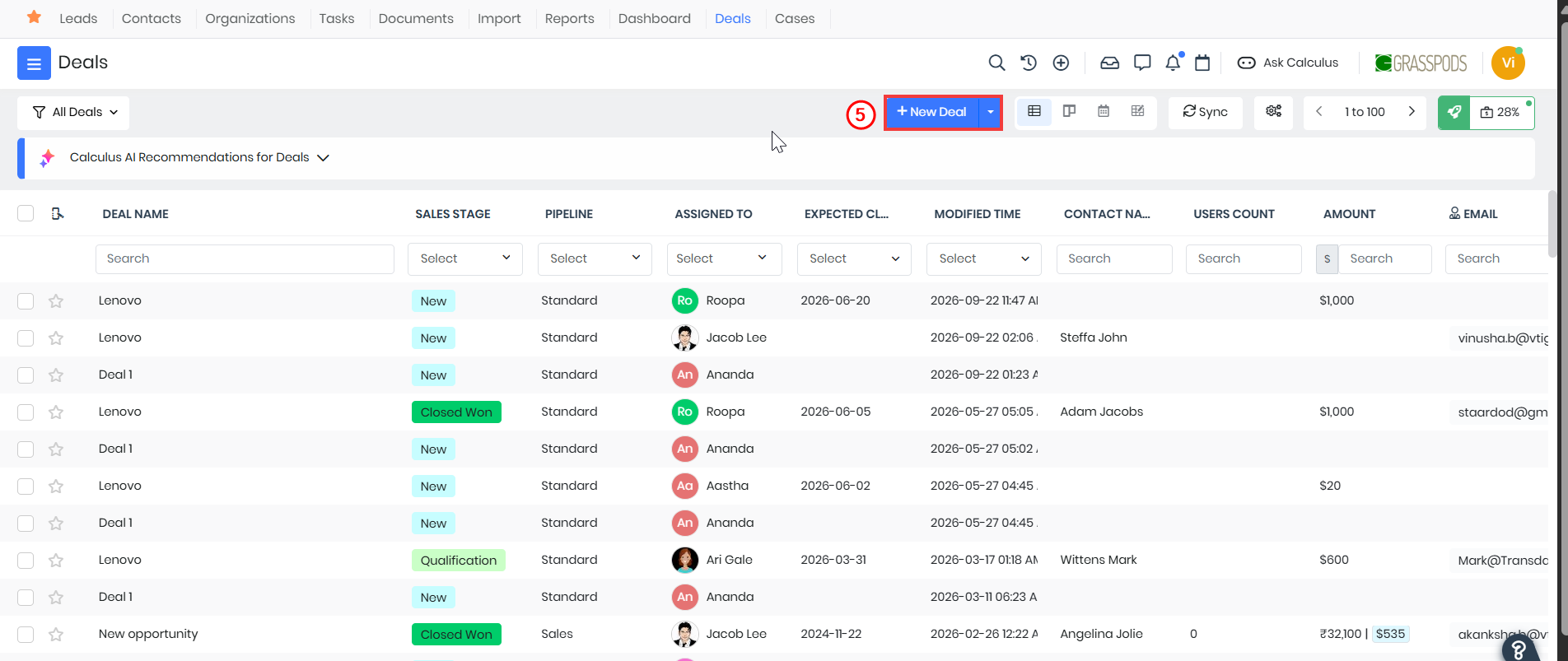
- Click +Add Deal. The Add Deal page opens.
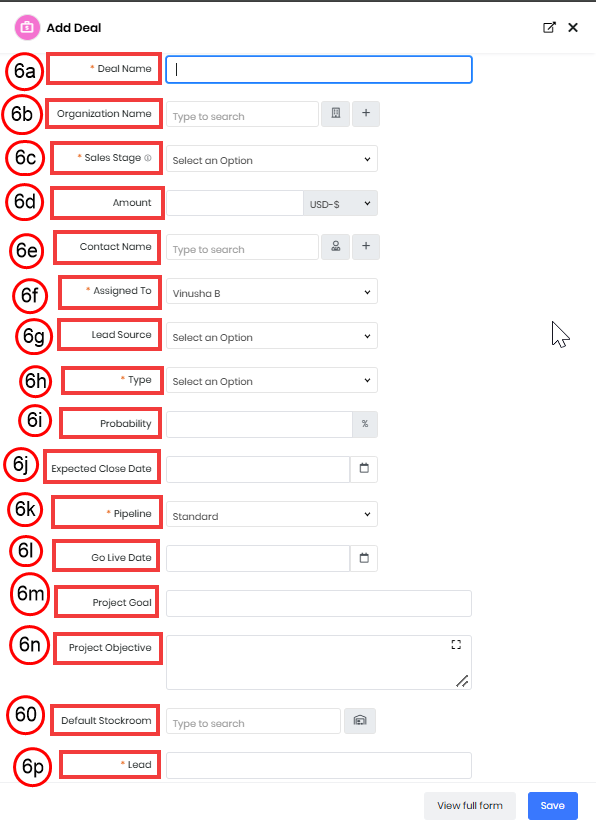
- Enter or select the following information:
- Deal Name: Enter a name that clearly identifies the sales opportunity. For example, Enterprise Software Subscription - Acme Technologies.
- Organization Name: Select the organization associated with the deal.
- Sales Stage: Select the current stage of the deal in the sales process.
- Amount: Enter the expected revenue or value of the deal.
- Contact Name: Select the contact associated with the deal.
- Assigned To: Select the user responsible for managing the deal.
- Lead Source: Select the source from which the opportunity originated, such as a website, referral, or campaign, based on the values configured in your CRM.
- Type: Select the type of deal from the available options configured in your CRM.
- Probability: Enter or select the probability of successfully closing the deal.
- Expected Close Date: Select the date on which you expect the deal to be closed.
- Pipeline: Select the sales pipeline that the deal should follow.
- Go Live Date: Select the date on which the customer is expected to go live with the product or service.
- Project Goal: Enter the primary goal that the customer wants to achieve through the project or solution.
- Project Objective: Enter the specific objectives or outcomes that support the project goal.
- Default Stockroom: Select the default stockroom associated with the deal, if applicable.
- Lead: Select the lead associated with the deal.
- Click Save.
Creating an Deal Using Quick Create
Quick Create allows you to create a deal by entering only the essential details. You can access this feature from any screen in the CRM, saving you significant time.
Follow these steps to create a deal using Quick Create:
- Log in to the CRM.
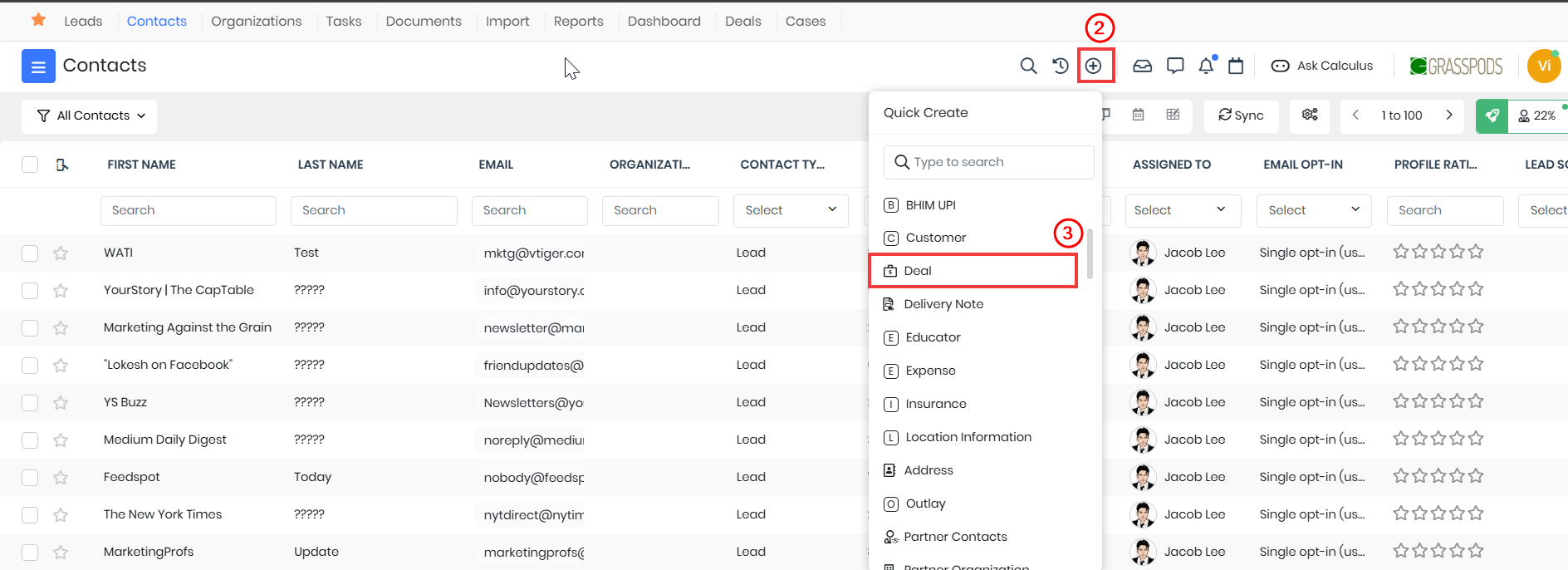
- Click the Quick Create icon on your screen's top right side.
- Select Deals. The Deals page opens.
- Enter or select the following information:
- Deal Name: Enter a name that clearly identifies the sales opportunity. For example, Enterprise Software Subscription - Acme Technologies.
- Organization Name: Select the organization associated with the deal.
- Sales Stage: Select the current stage of the deal in the sales process.
- Amount: Enter the expected revenue or value of the deal.
- Contact Name: Select the contact associated with the deal.
- Assigned To: Select the user responsible for managing the deal.
- Lead Source: Select the source from which the opportunity originated, such as a website, referral, or campaign, based on the values configured in your CRM.
- Type: Select the type of deal from the available options configured in your CRM.
- Probability: Enter or select the probability of successfully closing the deal.
- Expected Close Date: Select the date on which you expect the deal to be closed.
- Pipeline: Select the sales pipeline that the deal should follow.
- Go Live Date: Select the date on which the customer is expected to go live with the product or service.
- Project Goal: Enter the primary goal that the customer wants to achieve through the project or solution.
- Project Objective: Enter the specific objectives or outcomes that support the project goal.
- Default Stockroom: Select the default stockroom associated with the deal, if applicable.
- Lead: Select the lead associated with the deal.
- Click Save.
Creating a Deal from other module records
You can create a Deal from a Deal, Contact, Organization, or Quotes record.
Follow these steps to create a deal from other module records:
- Log in to the CRM.
- Click the main Menu.
- Go to Contacts(Organizations or Quotes). The List View opens.
- Select a record. The Summary View of the record opens.
- Click Edit. The Editing Contact page opens.
- Search Deals.
- Click plus in the Deals field. The Add Deal window opens.
- Enter or select the following information:
- Deal Name: Enter a name that clearly identifies the sales opportunity. For example, Enterprise Software Subscription - Acme Technologies.
- Organization Name: Select the organization associated with the deal.
- Sales Stage: Select the current stage of the deal in the sales process.
- Amount: Enter the expected revenue or value of the deal.
- Contact Name: Select the contact associated with the deal.
- Assigned To: Select the user responsible for managing the deal.
- Lead Source: Select the source from which the opportunity originated, such as a website, referral, or campaign, based on the values configured in your CRM.
- Type: Select the type of deal from the available options configured in your CRM.
- Probability: Enter or select the probability of successfully closing the deal.
- Expected Close Date: Select the date on which you expect the deal to be closed.
- Pipeline: Select the sales pipeline that the deal should follow.
- Go Live Date: Select the date on which the customer is expected to go live with the product or service.
- Project Goal: Enter the primary goal that the customer wants to achieve through the project or solution.
- Project Objective: Enter the specific objectives or outcomes that support the project goal.
- Default Stockroom: Select the default stockroom associated with the deal, if applicable.
- Lead: Select the lead associated with the deal.
- Click Save.
Adding Line Items to a Deal
Note: Before you begin to add revenue line items to a deal, ensure that the Product/Service Line Items module is enabled. To enable Product/Service Line Items, go to Settings > Module Management > Modules.
Follow these steps to add line items while creating a deal.
- Log in to the CRM.
- Click the main Menu.
- Go to Sales.
- Click Deals.
- Select and open the record to which you want to add line items. The Summary View opens.
- Click Edit. The Edit page opens.
- Go to the Line Items section.
- Enter or select the following information to add the Line Items:
- Add Product or Service row: Click to add the product or service to the Deal record.
- Click More:
- Add Product Row: Add a new product line next to an existing line item.
- Add Service Row: Add a new service line next to an existing line item.
- Select Products (or Services). A list of products (or services) will be shown depending on your selection.
- Click the Product (or Service) icon in the item rows.
- Select products or services to add them as line items.
- Click Save.
The products and services added by you are shown under the Line Items widget, along with their grand total. You can edit or delete line items from the widget.
Editing a Deal
You can edit deal records to update their information as the opportunity progresses.
There are two ways to edit a Deal:
- From the List View
- From the Summary View
From the List View
Follow these steps to edit an existing deal record in the Deals Module:
- Log in to the CRM.
- Click the main Menu.
- Go to Sales.
- Click Deals. The Deals List View opens.
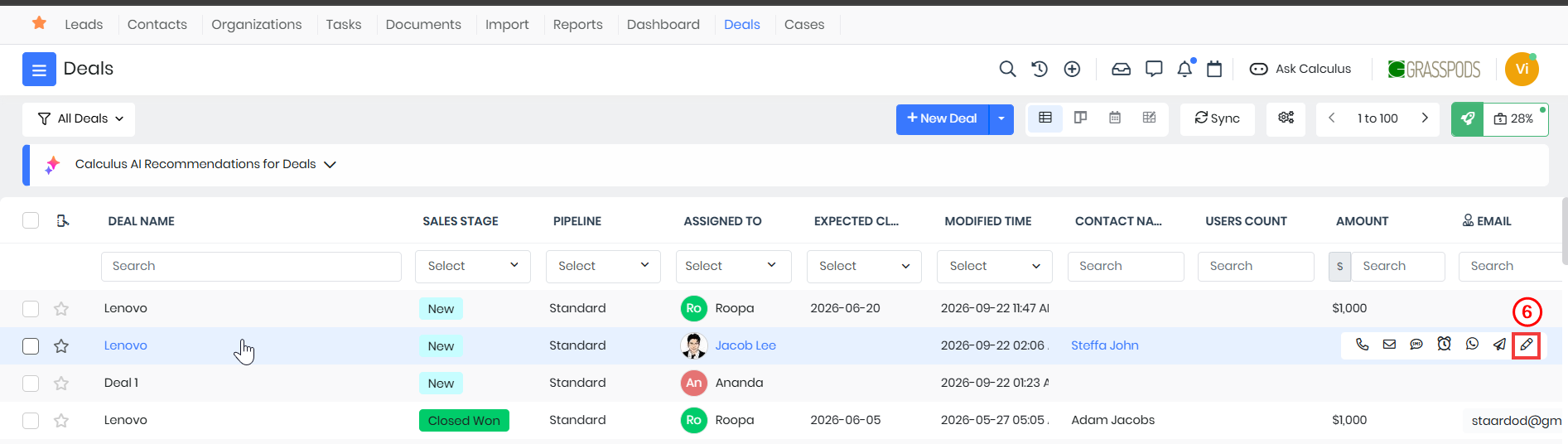
- Hover over the Deal record you want to edit.
- Click Edit. the Editing Deal record opens.
- From here you can edit the required field.
- For example, if you want to update the Deal name, go to the Deal Name field and update the required name.
- Click Save.
Changing a Deal’s Pipeline from List View
You might need to move a deal to another pipeline when the deal needs to follow a different sales process.
Follow these steps to change a Deal’s Pipeline from the List View:
- Log in to the CRM.
- Click the main Menu.
- Go to Sales.
- Click Deals. The Deals List View opens.
- Hover over the Deal record you want to change the Pipeline.
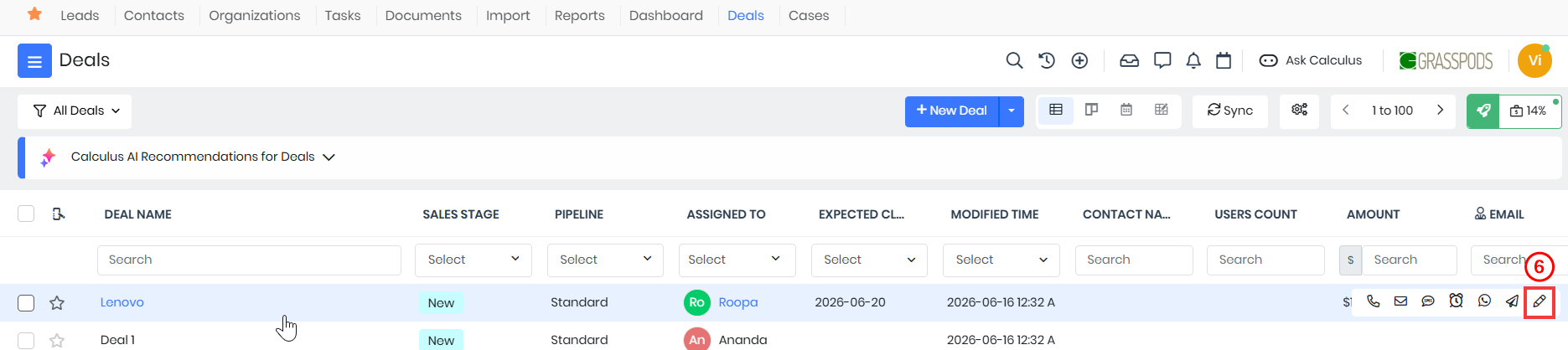
- Click Edit. The Edit Deal page opens.
- Look for the Pipeline field.
- Select a pipeline from the drop-down.
- Look for the Sales Stage field.
- Select a Sales Stage from the picklist.
- Click Save.
The Deal record is updated with the new Pipeline field value.
From the Summary View
Follow these steps to edit an existing deal record in the Deals Module:
- Log in to the CRM.
- Click the main Menu.
- Go to Sales.
- Click Deals. The Deals List View opens.
- Locate and open the deal record you want to edit.
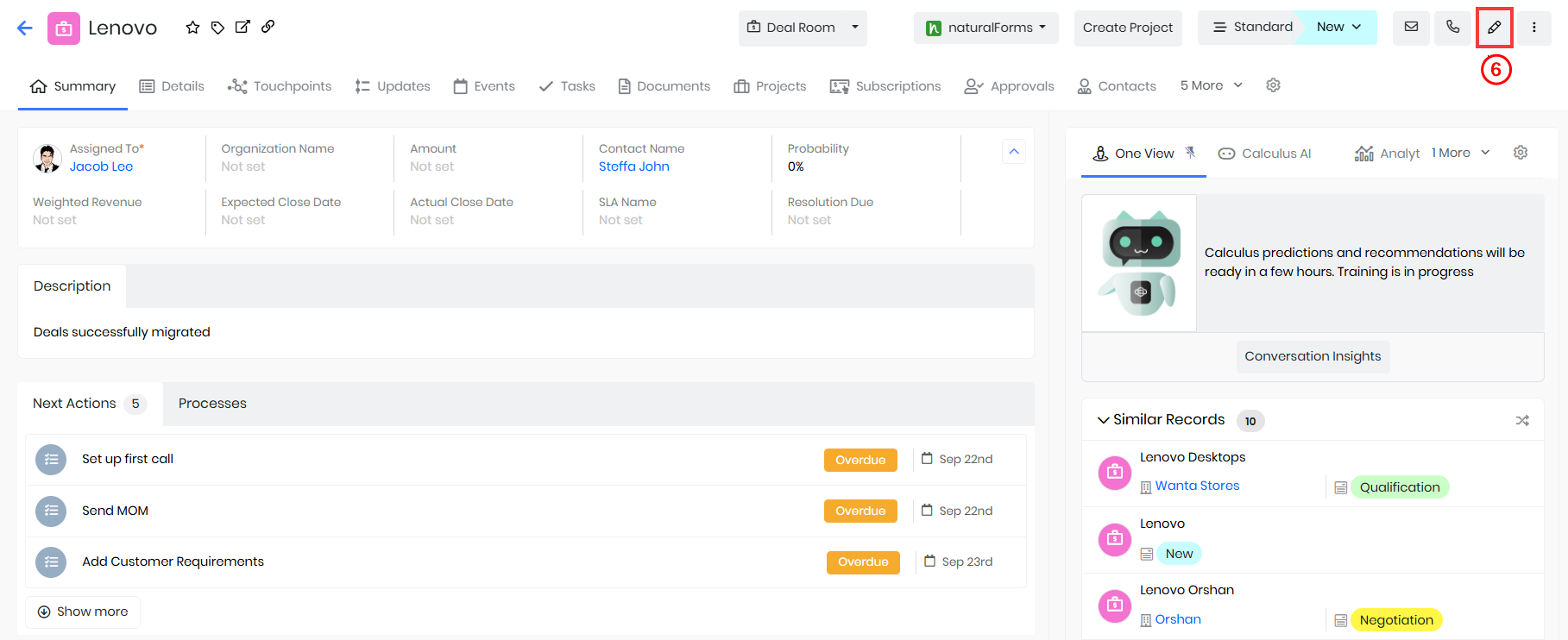
- Click Edit. The Editing Deal page opens.
- From here you can edit the required field.
- For example, if you want to update the Deal name, go to the Deal Name field and update the required name.
- Click Save.
Changing a Deal’s Pipeline from Summary View
You might need to move a deal to another pipeline when the deal needs to follow a different sales process.
Follow these steps to change a Deal’s Pipeline from the Summary View:
- Log in to the CRM.
- Click the main Menu.
- Go to Sales.
- Click Deals. The Deals list View opens.
- Open the Deal you want to change the pipeline for. The Summary View opens.
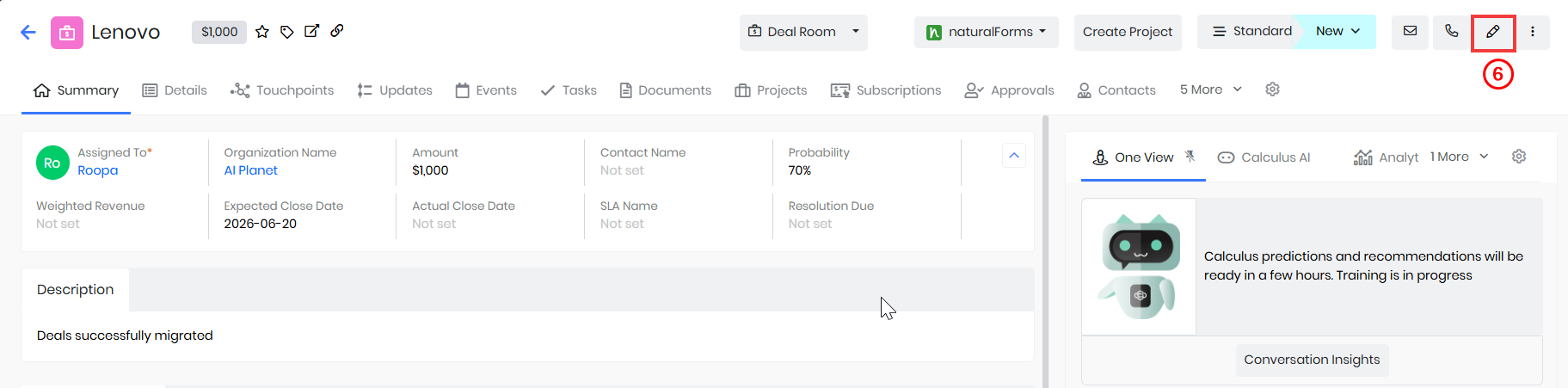
- Click Edit. The Edit Deal page opens.
- Look for the Pipeline field.
- Select a pipeline from the drop-down.
- Look for the Sales Stage field
- Select a sales stage from the picklist.
- Click Save.
The Deal record is updated with the new Pipeline field value
Syncing a Quote with a Deal
Syncing a quote with a deal attaches all line items added to the quote to the Line Items tab in the deal. To learn more about Quotes. click here.
Follow these steps to sync a quote with a deal:
- Log in to the CRM.
- Click the main Menu.
- Go to Sales.
- Click Quotes.
- Select and open the quote whose line items you want to sync.
- Click Edit. The Editing Quote page opens.
- Enter the deal name in the Deal Name field.
- Scroll down to the Item Details block.
- Add Line Items.
- Enable the Sync with deal toggle button.
- Click Save.
The Quote is synced with the Deal.
Note: Whenever you make changes to a quote synced with a deal, they are reflected in the deal’s Line Items.
Importing Deal records
Import deals from your local system by uploading existing deal data in bulk, making it easy to add large volumes of records to the Deals module.
Follow these steps to import Deal records into the Deals Module:
- Log in to the CRM.
- Click the main Menu.
- Go to Sales.
- Click Deals. The Deals list View opens.
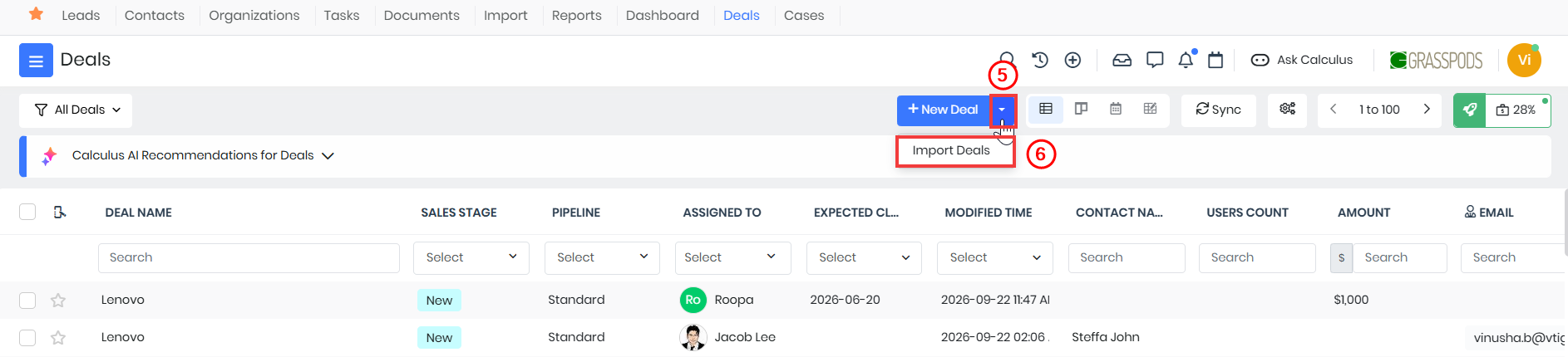
- Click the drop-down next to the New Deal.
- Select Import. The New Import window opens.
Step 1: Select a data file
- Enter or select the following information:
- Title: Enter a title for the import.
- Select Module: The Deals module is selected by default and cannot be changed.
- Import File Format: Select the format of the data file by clicking the corresponding radio button.
- Has Header: Select the checkbox if the data file contains column headers.
- Character Encoding: Select the character encoding used by the data file.
- Delimiter: Select the delimiter used to separate values in the data file.
- Choose File: Select the Deal data file from your local drive.
- Click Next.
Step 2: Map the columns of the data file to CRM fields
- Enter or select the following information:
- CRM Fields: Map each column in the data file to the corresponding Deals field from the drop-down.
- Default Value: Enter a default value for a CRM field when required.
- Save Mapping: Click Save Mapping to save the custom field mapping. This step is optional.
- Click Next.
Step 3: Handle duplicate Deal records
- Enter or select the following information:
- Check Duplicates: Select this radio button if you want to check for duplicate Deal records during the import.
- Duplicate Check Fields: Select the field or fields from the drop-down that should be used to identify duplicate records.
- Add New Records: Select this radio button to create new or unique Deal records. Duplicate records in the data file are not imported.
- Add New Records and Update Existing Records: Select this radio button to create new Deal records and update existing records when duplicates are found.
- Overwrite fields with any incoming blank values: Select this option to replace existing field values with blank values from the imported data.
- Don't Check Duplicates: Select this radio button to create new Deal records without checking for duplicates.
- Check Duplicates: Select this radio button if you want to check for duplicate Deal records during the import.
- Click Next.
- Review the field mapping in the Preview Import window. The preview displays a maximum of three records.
- Click Start Import.
The Deal records are imported into the Deals module based on the selected field mapping and duplicate-handling options.
Note:
- You will not see the Duplicate Handling step when importing records into the Inventory or Users modules.
- You will not see the Duplicate Handling and Field Mapping steps when importing ICS files.
- The fields shown by default in the Duplicate Handling step are configured under Settings > Module Management > Module Layouts & Fields > Duplicate Prevention.
Exporting a Deal
Export deals from the Deals module to your local system.
Follow these steps to export a Deal:
- Log in to the CRM.
- Click the main Menu.
- Click Sales > Deals. The Deals List View opens.
- Select the records you want to export.
- Click Export. The Export window opens.
- Enter or select the following information:
- Export Selected Records: Exports only the selected Deal records.
- Export Records on the Current Page: Exports all Deal records visible on the current page.
- Export All Records: Exports all Deal records available in the module.
- Click Export.
The selected Deal records are exported based on the option you selected.
Deleting a Deal
There are two ways to delete a Deal:
- From the List View
- From the Summary View
From the List View
Follow these steps to delete a Deal from the List View:
- Log in to the CRM.
- Click the main Menu.
- Click Sales > Deals. The Deals List View opens.
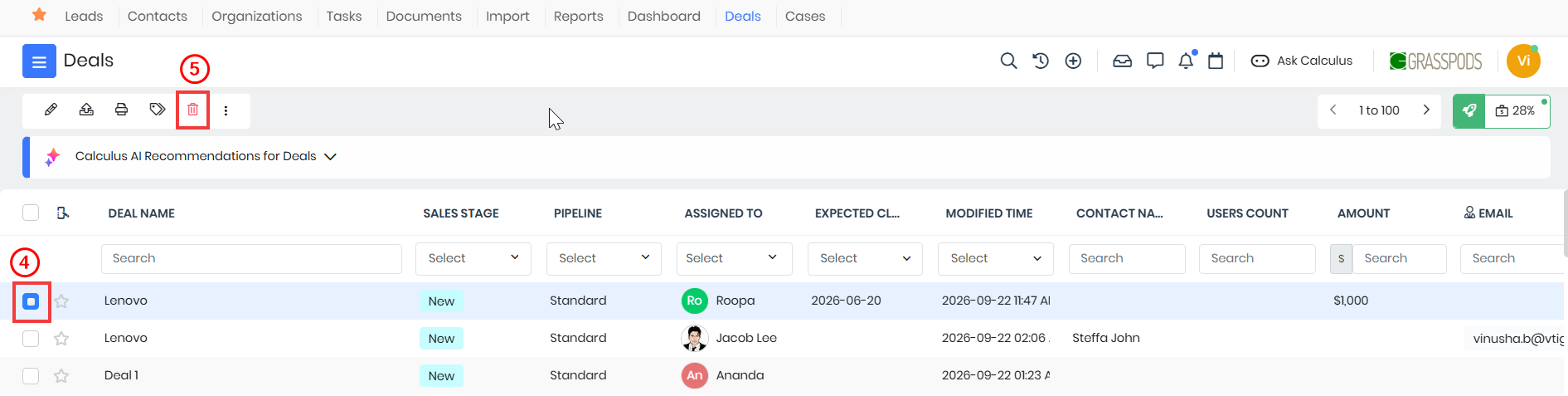
- Select the Deal record you want to delete.
- Click Delete. The Delete Record window opens.
- Click Yes to delete the record.
The selected Deal record is deleted from the Deals module.
From the Summary View
Follow these steps to delete a Deal from the Summary View:
- Log in to the CRM.
- Click the main Menu.
- Click Sales > Deals. The Deals List View opens.
- Select the Deal record you want to delete. The Summary View opens.
- Click More.
- Click Delete. The Delete Record window opens.
- Click Yes to delete the record.
The selected Deal record is deleted from the Deals module.
Workflows for Deals
Vtiger CRM includes four default workflows for the Deals module. These workflows automate common sales processes and help keep deal-related information up to date.
- Send Email to User on Potential Creation: When a new deal is created and assigned to a user, this workflow automatically sends an email notification to the assigned user.
- Calculate or Update Weighted Revenue: When an amount is entered for a deal, the Weighted Revenue field is automatically calculated using the formula: (Amount × Probability) / 100.
- Update Contact and Organization Type to Customer: When a deal’s sales stage is changed to Closed Won, the Type field of the related contact or organization is automatically updated to Customer.
- Update Contact Type When an Opportunity Is Created: When a deal is created for a contact, the contact’s Lifecycle Stage is automatically updated to Sales Qualified Lead.
Item Details in Deal Workflows
The Item Details block allows you to carry product and service information from an existing deal into a new deal record.
With this feature, you can:
- Copy product and service line-item details from an existing deal to a new deal.
- Automatically populate product or service information without manually entering it again.
- Simplify the process of creating renewal deals by carrying forward the relevant item details.
Example: You can create an Automated Renewal Deal in the Renewal Pipeline based on an existing deal from the Standard Pipeline. The product and service details from the original deal can be copied automatically to the new renewal deal.
To view or modify these workflows, go to Settings > Automation > Workflows.
Note: Only users with Administrator access can access Settings and manage workflows.
Viewing Deals
You can view and manage your Deals using the following options: List View, Summary View, Kanban View, Calendar View, and Grid View. By default, Deals are displayed in List View. You can switch between these views using the view icons available at the top right of the Deals page.
List View
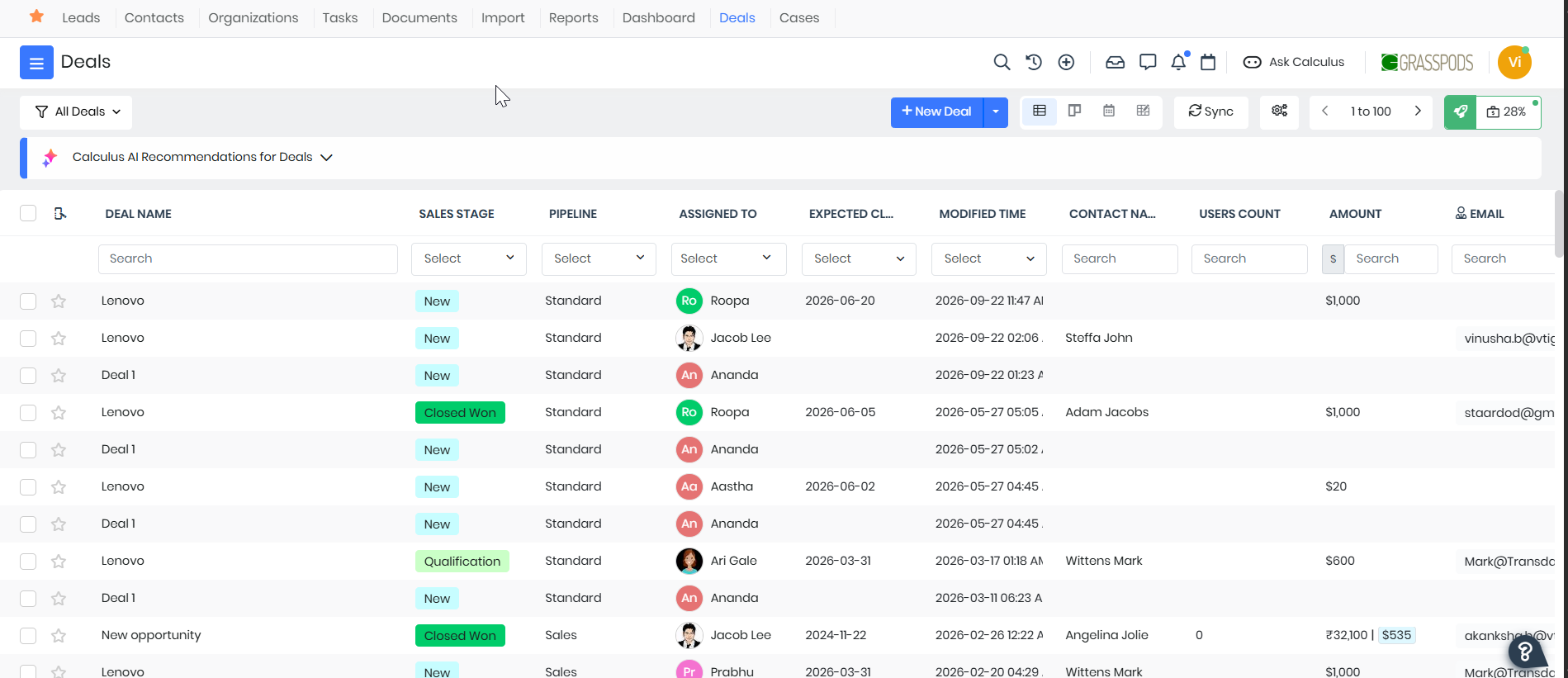
The List View displays all your Deals in a structured list format. You can sort Deals by deal name, sales stage, amount, expected close date, assigned user, and other fields by clicking the column headers.
From this view, you can:
- Edit Deal records
- Merge duplicate Deals
- Apply filters and create Custom Lists
- Perform bulk actions on multiple Deals
To learn more about List View, click here.
Summary View
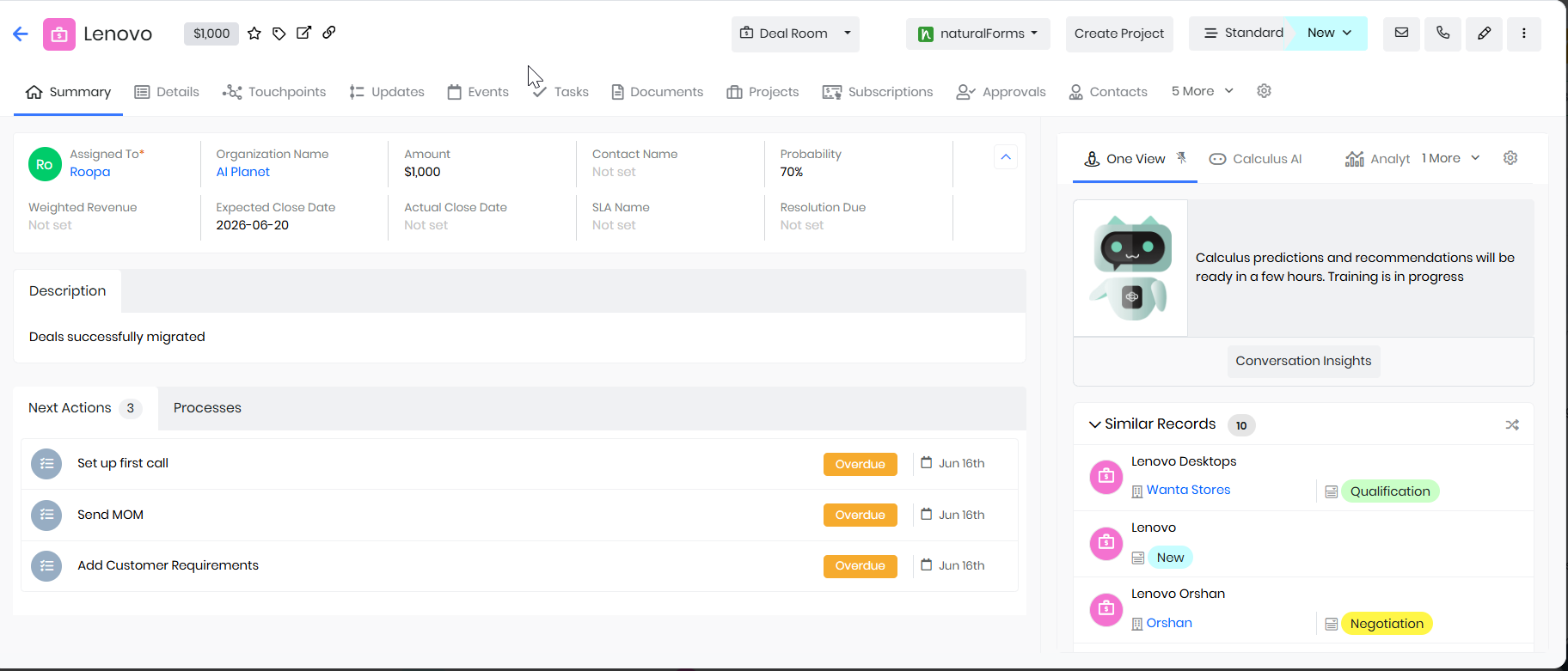
The Summary View shows complete information about an individual Deal on a single page.
In this view, you can:
- View and edit Deal details such as deal name, amount, sales stage, pipeline, and expected close date
- Track activities, comments, and updates related to the Deal
- View related information and records associated with the Deal
- Access available actions for managing the Deal
To learn more about Summary View, click here.
Kanban View
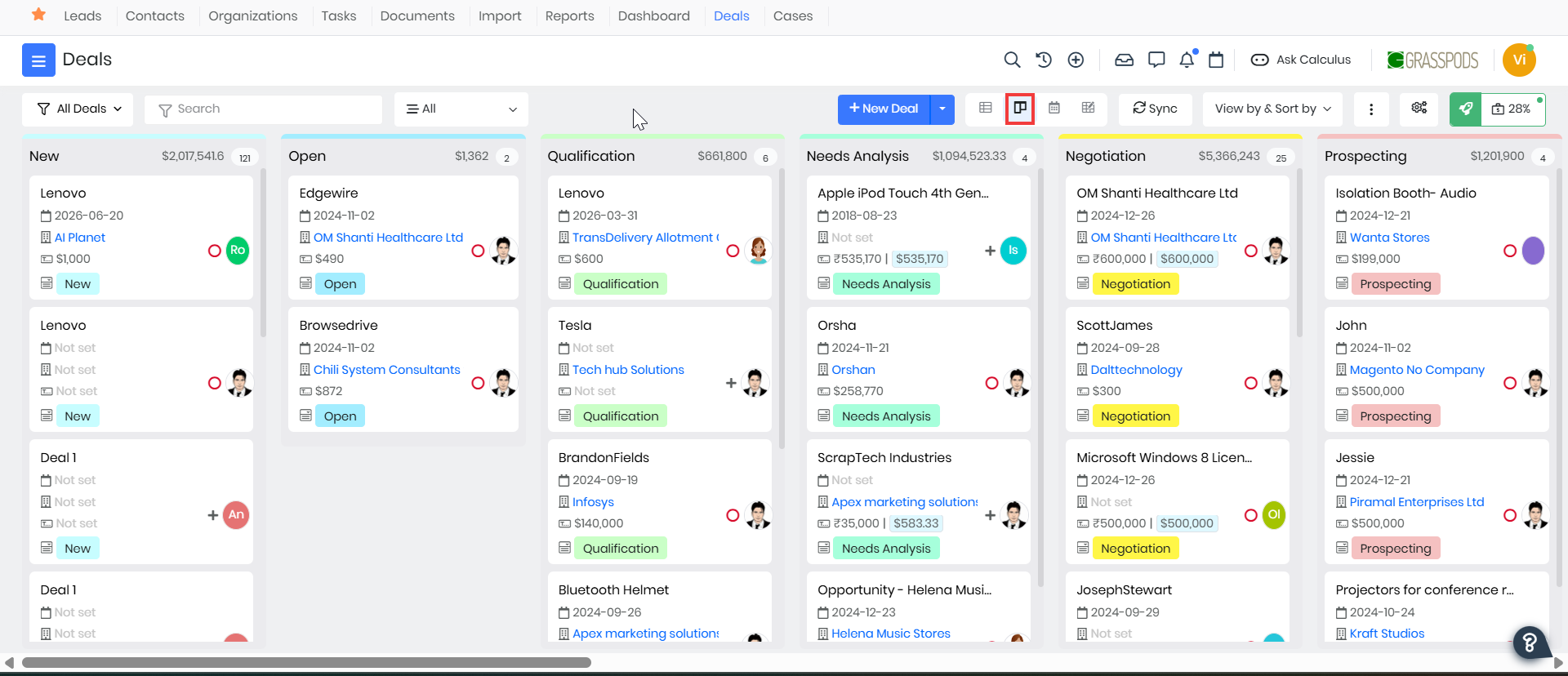
The Kanban View displays Deals as cards grouped by Sales Stage. This visual layout helps you easily track Deals as they move through different stages of the sales process. You can also drag and drop Deal cards between columns to update their sales stage.
To learn more about Kanban View, click here.
Calendar View
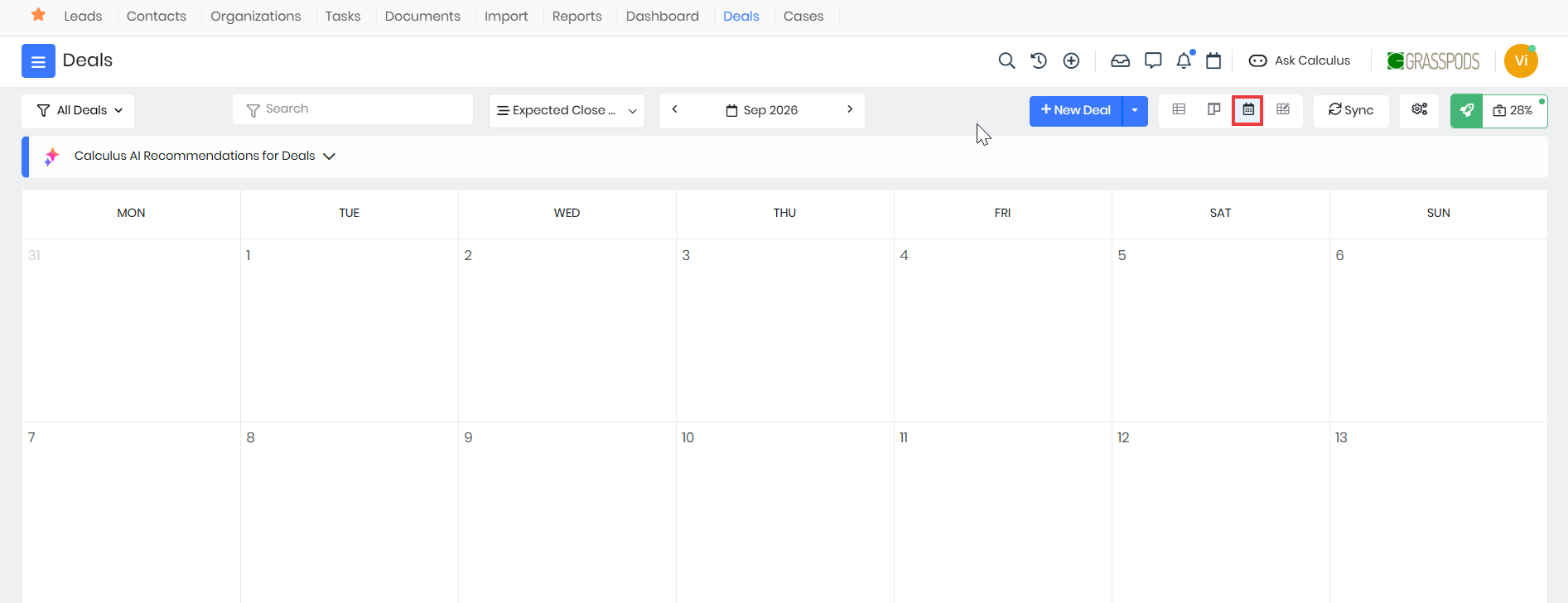
The Calendar View shows Deals based on scheduled activities such as meetings, calls, and follow-ups associated with them.
From this view, you can:
- View upcoming and past activities related to Deals
- Click an activity to see details such as date, time, owner, and status
- Edit or mark activities as completed directly from the calendar
To learn more about Calendar View, click here.
Grid View
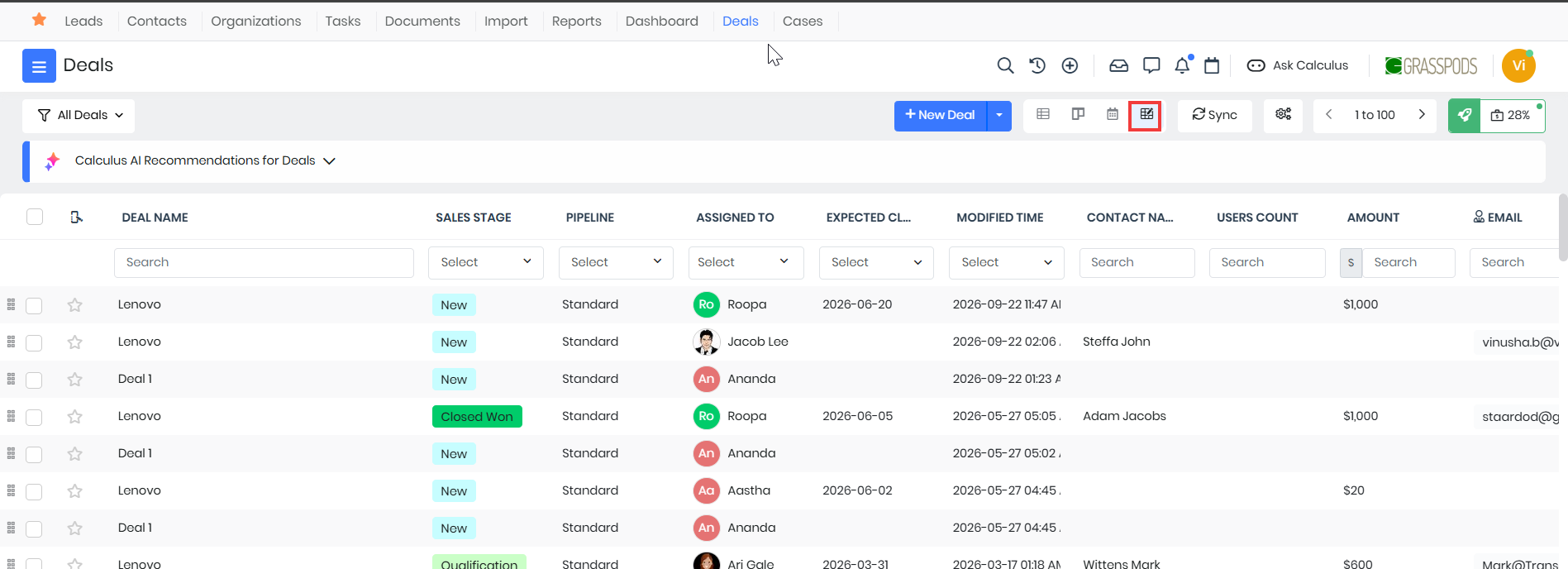
The Grid View presents Deals in a compact, tile-based layout, making it easy to quickly browse through multiple Deal records at once. This view is useful when you want a visual overview of Deals with key details displayed for each record.
To learn more about Grid View, click here.