Articles in this section
Configuring Signals using Calculus AI
Feature Availability
Vtiger Editions: One Professional | One Enterprise | One AI
Introduction
Signals in Vtiger CRM help you identify specific patterns in incoming emails and trigger intelligent, context-aware suggestions using Calculus AI. By configuring Signals, you can define keyword-based conditions that analyze received emails and display relevant suggestion words directly in the reply mail box.
Signals in Calculus AI
A Signal is a rule created in Calculus AI that detects predefined keywords or phrases in incoming emails using logical conditions. When an email meets the configured conditions, Calculus AI activates the Signal and displays suggested response words in the email reply editor.
Signals are especially useful for handling repetitive email patterns such as greetings, follow-ups, acknowledgements, or common customer queries.
Use case
When a new customer sends an email with a simple greeting such as Hello or Hey, how are you?, Calculus AI detects the message using a configured Signal. The AI then suggests a predefined reply like Welcome to Vtiger in the reply mail box, enabling agents to send a warm and consistent first response quickly.
Benefits of Using Signals
The benefits of using signals are:
- Faster Email Responses: AI suggestions reduce manual typing and response time.
- Consistent Messaging: Ensures uniform tone and messaging across teams.
- Improved Customer Experience: Helps users respond appropriately even when intent is unclear.
- Reduced Cognitive Effort: Eliminates repetitive thinking for common email patterns.
- Context-Aware Suggestions: Suggestions appear only when relevant conditions are met.
In this article, you will learn about:
- Configuring Signals using Calculus AI
- Editing a Signal
- Deleting a Signal
- Using Signals
Configuring Signals
Follow these steps to configure Signals:
- Log in to the CRM.
- Click User Menu.
- Click Settings. The Settings page opens.
- Click Extension > Calculus. The Calculus AI page opens.
- Go to Signals.
- Click Add New. The Key Signals page opens.
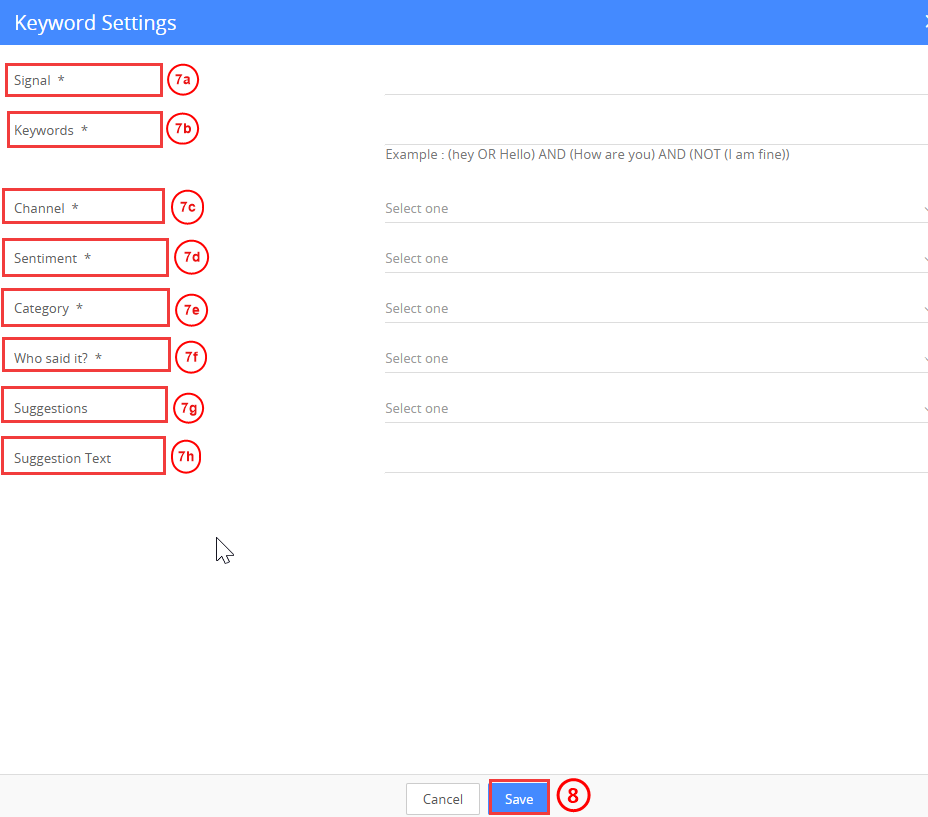
- Enter or select the following information:
- Signal Name: Enter a name to identify the signal.
- Keywords: Define keywords or phrases using AND, OR, and NOT conditions.
- Channels: Select the channel where the signal should be applied.
- Sentiment: Choose the sentiment of the message to trigger the signal.
- Category: Select the category that best describes the signal.
- Who Said It?: Specify whether the message is from a customer, agent, or any.
- Suggestions: Select which suggestion to display, such as a document, email template, etc.
- Suggestion Text: Enter the predefined reply shown in the reply mail box.
- Click Save.
Editing a Signal
Follow these steps to edit Signals:
- Log in to the CRM.
- Click User Menu.
- Click Settings. The Settings page opens.
- Click Extension > Calculus. The Calculus AI page opens.
- Go to Signals.
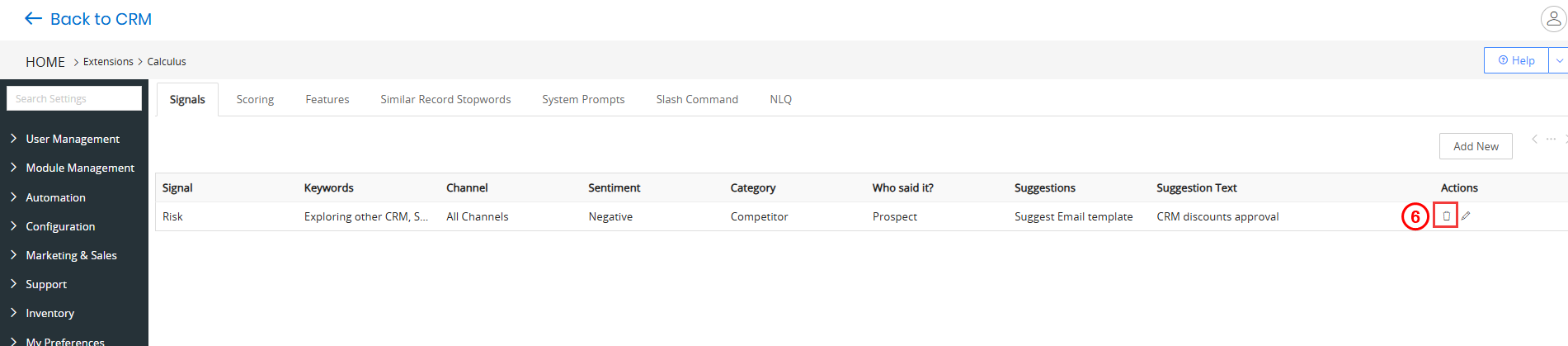
- Click Edit. The Key Signals page opens.
- Enter or select the following information:
- Signal Name: Enter a name to identify the signal.
- Keywords: Define keywords or phrases using AND, OR, and NOT conditions.
- Channels: Select the channel where the signal should be applied.
- Sentiment: Choose the sentiment of the message to trigger the signal.
- Category: Select the category that best describes the signal.
- Who Said It?: Specify whether the message is from a customer, agent, or any.
- Suggestions: Select which suggestion to display, such as a document, email template, etc.
- Suggestion Text: Enter the predefined reply shown in the reply mail box.
- Click Save.
Deleting a Signal
Follow these steps to configure Signals:
- Log in to the CRM.
- Click User Menu.
- Click Settings. The Settings page opens.
- Click Extension > Calculus. The Calculus AI page opens.
- Go to Signals.
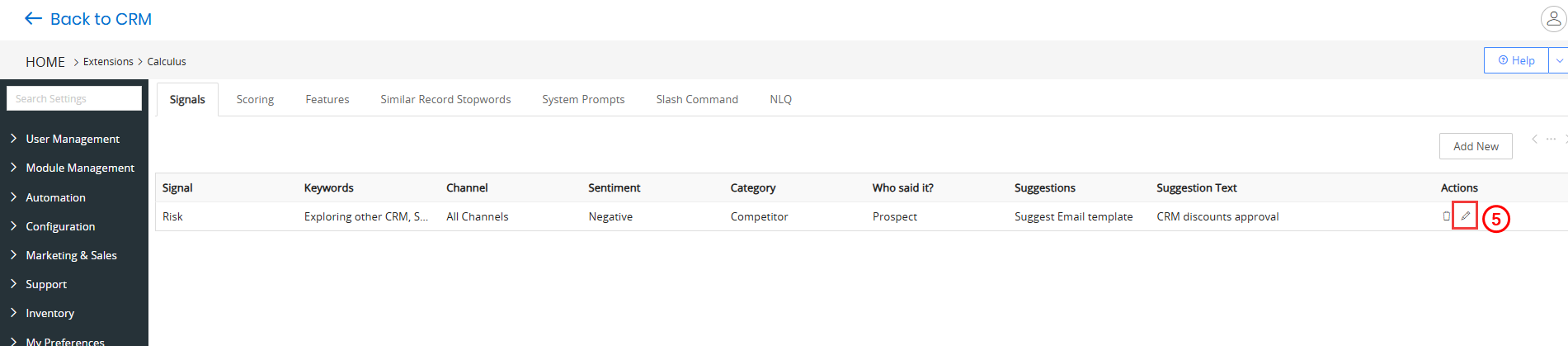
- Click Delete. The Are you sure you want to delete window appears.
- Click yes to Delete.
Using Signals
After configuring Signals in Calculus AI, you can start using them while replying to emails.
Follow these steps to use signals:
- Log in to the CRM.
- Open an incoming email that matches the configured Signal conditions (keywords, sentiment, channel, etc.).
- Click Reply to the email.
- If the Signal conditions are met, Calculus AI automatically triggers the Signal.
- The predefined Suggestion Text appears in the email reply box.
- Review the suggested response and modify it if required.
- Click Send to reply to the email.
The Signal suggestion appears only when the incoming email satisfies all configured conditions, ensuring relevant and context-aware responses.