Articles in this section
Authenticate Emails with SPF, DKIM, and DMARC
Auto forward your emails to Vtiger
Configuring Email Settings
Managing User Profiles
Automation - Approvals
Automation - Assignment Rules
Set up Multi-path Workflows
Creating a Scheduled Workflow
Automation - Workflow Scheduler
Workflows in Vtiger CRM
Vtiger Webforms
Set up a Workflow Action to Create Event
Set up a Workflow Action to Create Records
Set up a Workflow Action to Create Task
Set up a Workflow Action to Invoke Custom Function
Set up a Workflow Action to Create an SMS Task
Setting Up a Workflow Action to Send Emails
Workflow Action to Update Fields
Automation - Webhook Workflow
Automation - Expressions Workflow
Configuring Business Hours
Configuration - Company Details
Configuring Consents
Configuring the Customer Portal
Maps in Vtiger CRM
Configuration - Usage Details
Configuring Encrypted Data Fields in Vtiger CRM
Configure Picklist Dependencies
Considerations for Deactivating Vtiger Users
Create Reminders for Records and Inbox
Creating a Grid Field Type
Enable Desktop Notifications on Chrome Web Browsers
Vtiger CRM Add-ons
IMAP Configuration - 2-way sync between Vtiger and IMAP providers
Setting up Autopay & Payment Gateways
Inventory - Tax Management
Inventory - Terms and Conditions
Login to Vtiger on SSO SAML using ADFS
Mailroom Functionality for Different Scenarios
Managing Multiple Currencies
Marketing and Sales - Deal to Project Mapping
Lead Conversion Data Mapping
Marketing and Sales - Profile Scoring
Using the Module Label Editor
Configuring Module Numbering
Configuring My Preferences
My Preferences - Calendar Settings
Tags in Vtiger
My Preferences - Notification Preferences
SAML Support in Vtiger CRM
Vtiger Mailroom
Configuring Module Settings
Configuring a Relationship Between Modules
Configuring Global Picklists in Vtiger
Settings - Set up your Support Team
Settings - Start Up Page
Configuring Picklist Values
Configuring Modules Using Module Builder
SLA Policies in Vtiger
Troubleshooting Login Issues
Add-Edit Unsubscribe Links in your Email Template
User Management - Authentication
User Management - Encrypted Field Access Logs
User Management - Groups
User Management - Login History
User Management - Profiles
User Management - Roles
User Management - Settings Log
User Management - Sharing Rules
User Management - Users
User Management - Vtiger Support Access
Vtiger Buzz - Chrome Extension for Notifications
Vtiger Implementation wizard
Vtiger Language Support
Setting Up Websense Trackers
Vtiger Websense Widgets
Adding a local DNS Entry
Customizing Module Layouts
Configuring Module Layouts & Fields
Automation - SMS Reply Actions
Configuring Dependent Fields and Blocks for Modules
Creating Custom Modules in Vtiger CRM
Generate and Manage Third-party App Passwords in Yahoo
Formula Fields
Configuring App Passwords for Gmail Outgoing Server and Yahoo Mail
Auto forward Emails from Microsoft Office 365
Duplicate Record Prevention in Vtiger CRM
Configuration - Storage Guard
Customizing your Self-Service Portal Theme Using CSS Styles
Adding Hidden Fields to a Webform
Login Page Customization
Creating Custom Filters
Configuration Editor for Field & Record Displays
Customize CRM settings for display, search, security, and demo data management.
B
Bindu Rekha Babu
29 Oct, 2026 - Updated
19 hours ago
Feature Availability
Vtiger Editions: One Pilot | One Growth | One Professional | One Enterprise | One AI
Introduction
The Configuration Editor lets you configure system-wide settings that control how information is displayed and managed across the CRM. Using the Configuration Editor, you can customize list view behavior, search options, display preferences, security settings, and other general CRM configurations to suit your organization's requirements.
Benefits
The benefits of Configuration Editor settings are:
- Customize CRM behavior as per your requirements.
- Improve the user experience with personalized display settings.
- Control search and list view preferences.
- Strengthen security with additional verification options.
- Manage demo data with a single action.
In this article, you will learn about:
- Setting up Configuration Editor
Setting up Configuration Editor
Note: Only users with admin privileges can manage Configuration Editor settings.
Follow the steps below to set up Configuration Editor settings:
- Log in to the CRM.
- Go to the main Menu.
- Click Settings. The Settings page opens.
- Go to Configuration > Configuration Editor. The Configuration Editor page opens.
- Click Edit. The Editing Configuration Editor page opens.
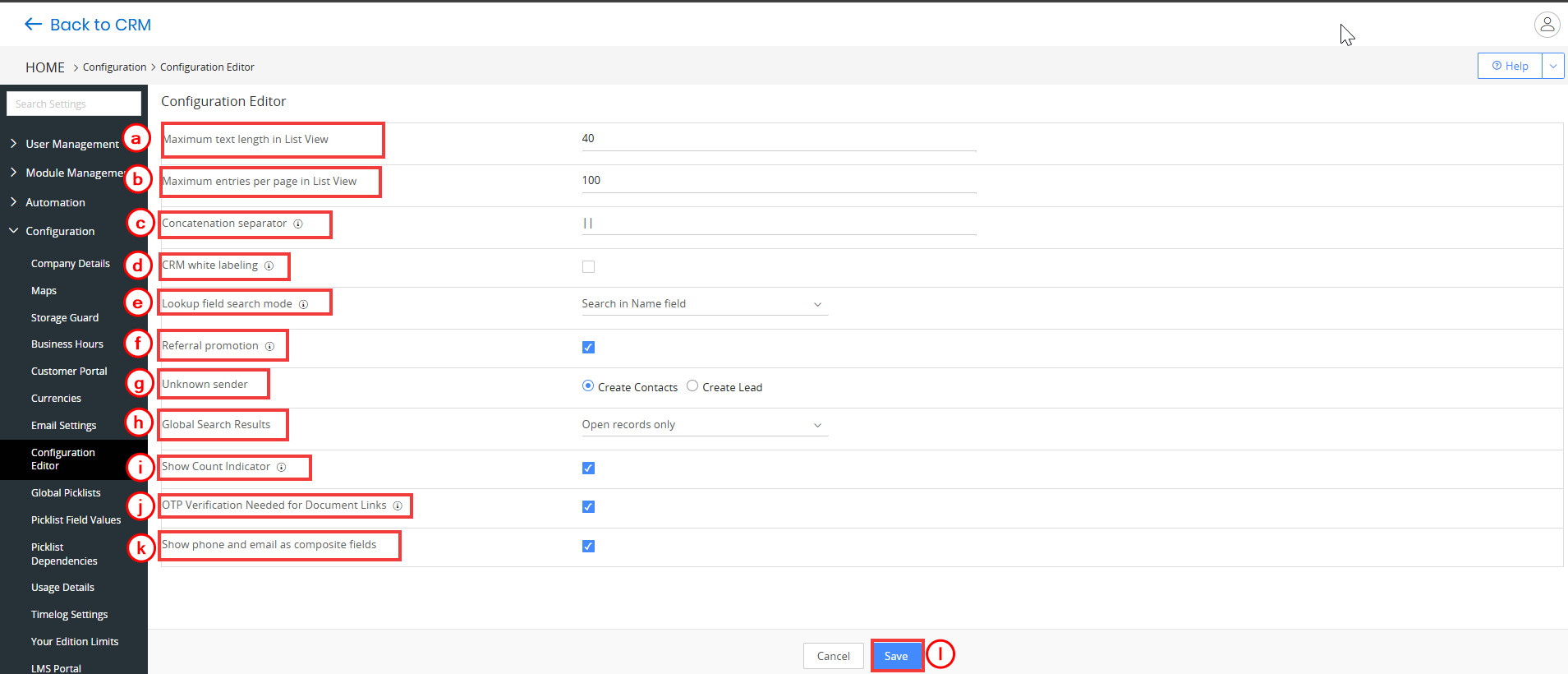
- Enter or select the following information:
- Maximum text length in List View: Enter the maximum number of characters displayed for text fields in the List View.
- Maximum entries per page in List View: Enter the number of records displayed on a single page in the List View.
- Concatenation separator: Define a separator that separates text field values concatenated during duplicate webform submissions, mass edits, and other operations.
- CRM white labeling: Enable the checkbox to remove the What’s New section and Vtiger branding in the CRM interface.
- Lookup field search mode: Define how lookup fields search for records. For example, searching only by the Name field.
- Referral promotion: Enable the checkbox to allow the referral promotion option in the CRM.
- Unknown sender: Specify the module where emails or messages from unknown senders are stored, such as Contacts or Leads.
- Global Search Results: Control whether global search displays only open records or all matching records.
- Show Count Indicator: Displays the number of records available in modules, Inbox, and related lists.
- Note: Enabling this may slow down CRM’s performance.
- OTP Verification Needed for Document Links: Enable to make recipients verify their identity using a One-Time Password (OTP) before accessing shared document links.
- Show phone and email as composite fields: Enable to view phone numbers and email addresses together as a single composite field where applicable.
- Click Save.
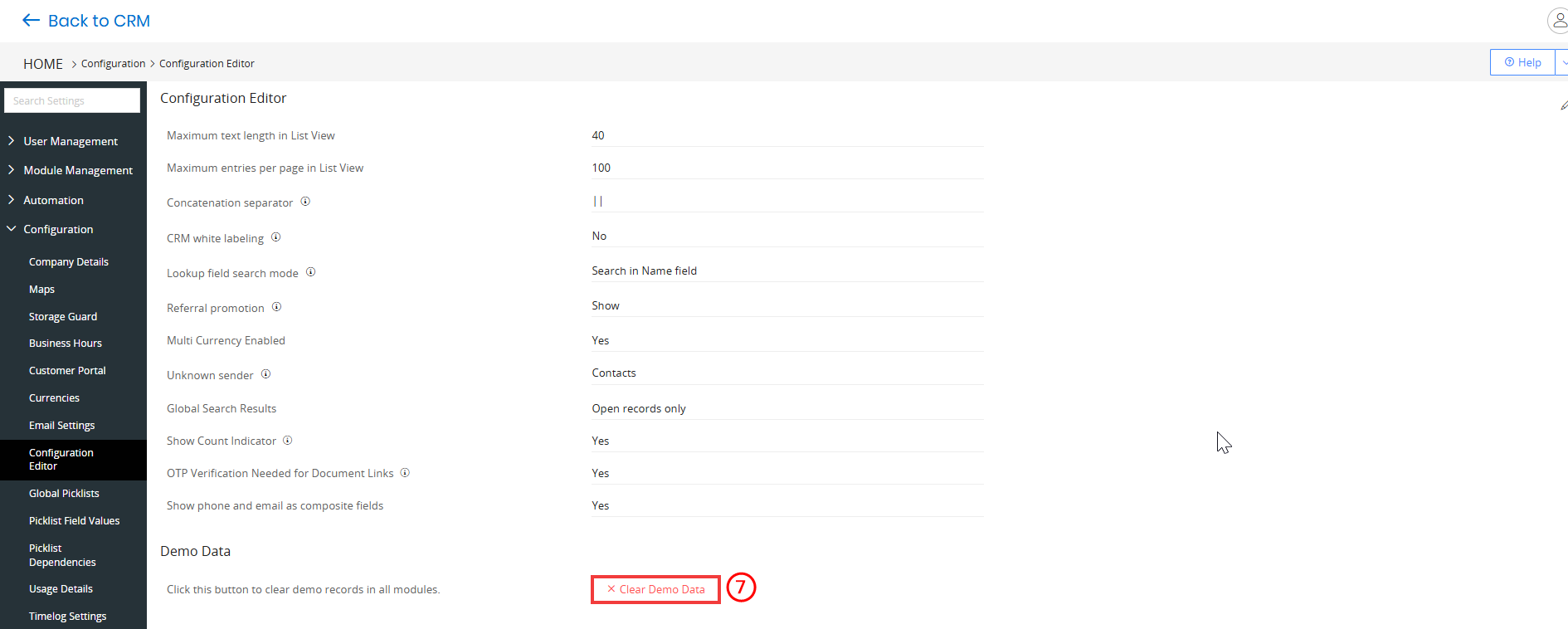
- Click Clear Demo Data in the Demo Data section to delete the sample records created by the CRM.
- All demo records across supported modules are permanently deleted.
- Note: This action cannot be undone.