Articles in this section
Authenticate Emails with SPF, DKIM, and DMARC
Auto forward your emails to Vtiger
Managing User Profiles
Automate Outgoing Emails in Email Settings
Automation - Approvals
Automation - Assignment Rules
Set up Multi-path Workflows
Creating a Scheduled Workflow
Automation - Workflow Scheduler
Workflows in Vtiger CRM
Vtiger Webforms
Set up a Workflow Action to Create Event
Set up a Workflow Action to Create Records
Set up a Workflow Action to Create Task
Set up a Workflow Action to Invoke Custom Function
Set up a Workflow Action to Create an SMS Task
Setting Up a Workflow Action to Send Emails
Workflow Action to Update Fields
Automation - Webhook Workflow
Automation - Expressions Workflow
Configuring Business Hours
Configuration - Company Details
Configuration - Consents
Configuring the Customer Portal
Maps in Vtiger CRM
Configuration - Usage Details
Configuring Encrypted Data Fields in Vtiger CRM
Configure Picklist Dependencies
Considerations for Deactivating Vtiger Users
Configuring Field and Record Displays
Create Reminders for Records and Inbox
Dealing with Currencies and Taxes
Enable Desktop Notifications on Chrome Web Browsers
Vtiger CRM Add-ons
IMAP Configuration - 2-way sync between Vtiger and IMAP providers
Setting up Autopay & Payment Gateways
Inventory - Tax Management
Inventory - Terms and Conditions
Login to Vtiger on SSO SAML using ADFS
Mailroom Functionality for Different Scenarios
Manage Multiple Currencies
Marketing and Sales - Deal to Project Mapping
Lead Conversion Data Mapping
Marketing and Sales - Profile Scoring
Using the Module Label Editor
Configuring Module Numbering
Configure My Preferences Feature
My Preferences - Calendar Settings
Tags in Vtiger
My Preferences - Notification Preferences
SAML Support in Vtiger CRM
Vtiger Mailroom
Configuring Module Settings
Configuring a Relationship Between Modules
Settings - Left Menu
Configuring Global Picklists in Vtiger
Settings - Set up your Support Team
Settings - Start Up Page
Configuring Picklist Values
Configuring Modules Using Module Builder
SLA Policies in Vtiger
Troubleshooting Login Issues
Add-Edit Unsubscribe Links in your Email Template
User Management - Authentication
User Management - Encrypted Field Access Logs
User Management - Groups
User Management - Login History
User Management - Profiles
User Management - Roles
User Management - Settings Log
User Management - Sharing Rules
User Management - Users
User Management - Vtiger Support Access
Vtiger Buzz - Chrome Extension for Notifications
Vtiger Implementation wizard
Vtiger Language Support
Setting Up Websense Trackers
Vtiger Websense Widgets
Creating Custom Modules in Vtiger CRM
Configuring Dependent Fields and Blocks for Modules
Formula Fields
Configuring App Passwords for Gmail Outgoing Server and Yahoo Mail
Customizing Module Layouts
Configuring Module Layouts & Fields
Auto forward Emails from Microsoft Office 365
Automation - SMS Reply Actions
Duplicate Record Prevention in Vtiger CRM
Generate and Manage Third-party App Passwords in Yahoo
Configuration - Storage Guard
Customizing your Self-Service Portal Theme Using CSS Styles
Adding Hidden Fields to a Webform
Login Page Customization
Creating Custom Filters
Adding a local DNS Entry
Creating a Grid Field Type
B
Bindu Rekha Babu
19 Feb, 2026 - Updated
1 month ago
Feature Availability
Vtiger Editions: One Pilot | One Professional | One EnterpriseIntroduction
A grid is a type of field that allows you to have a table as a field in a record. You can determine the columns of a table during the creation of the grid field.
Key Features
The features of a Grid Field type are:
- Table Within a Record: Add a structured table directly inside a record as a single field.
- Customizable Columns and Rows: Define column names and row names during field creation to match your business requirements.
- Module-Level Configuration: Configure the Grid field from Settings > Module Layouts and Fields.
- Editable in Record Edit View: Users can enter or modify data directly from the Edit View of the record.
Benefits
The benefits of using the Grid Field are:
- Structured Data Capture
- Organize related information in a clean, tabular format instead of cluttering the layout with multiple fields.
- Improved Data Visibility
- Makes it easier for users to view and understand grouped information at a glance.
- Reduced Layout Complexity
- Eliminates the need to create multiple individual fields for structured data.
- Better Data Consistency
- Predefined rows and columns ensure standardized data entry across records.
- Enhanced User Experience
- Provides a compact and intuitive way to capture structured information within a record.
- Grid field type
- Creating a grid field
- Limitations
Key Terminology
|
|
|
|
|
|
|
|
|
|
|
|
|
|
|
|
|
|
|
|
|
|
|
|
|
|
|
|
|
|
Creating a Grid field
Follow these steps to create a Grid field:
- Log in to the CRM.
- Go to the main Menu.
- Click Settings.
- Click Module Layouts and Fields under the Module Management section. The module layout settings page opens.
- Select the module.
- Click Add Custom Field. The Create Custom Field window opens.
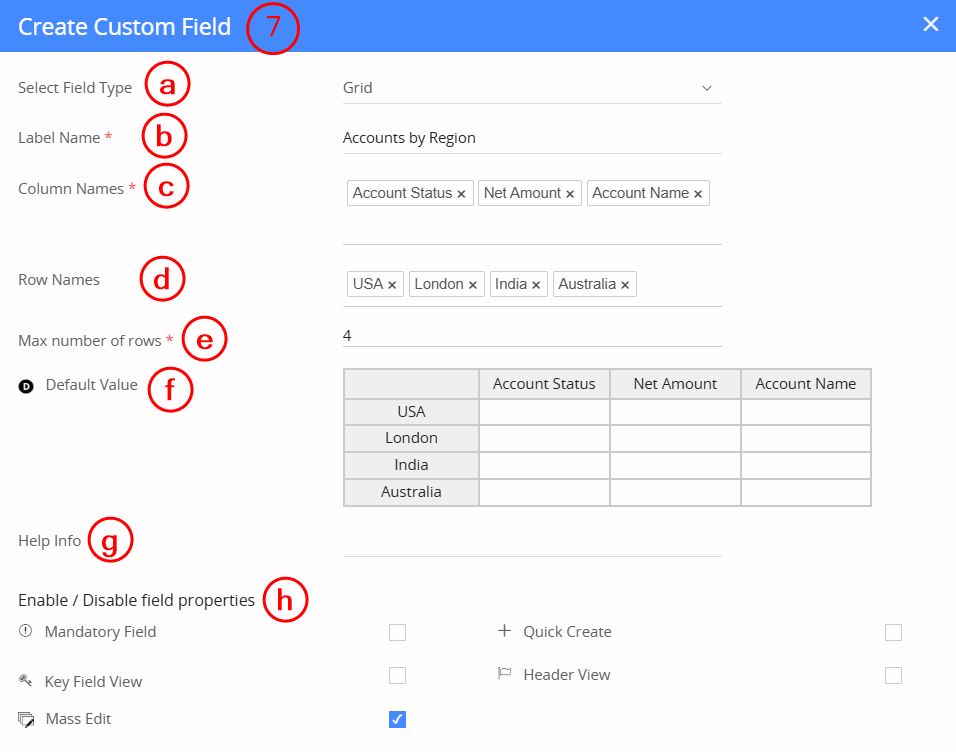
- Enter or select information for the following:
- Select Field Type: Grid.
- Label Name: Enter the name of the field.
- Column Names: Enter Column names.
- Row Names: Enter Row names.
- Max number of rows: Define the number of rows.
- Default Value: Enter the default value if available.
- Help Info: Enter the information for the field.
- Enable / Disable the following field properties:
- Mandatory Field
- Quick Create
- Key Field View
- Header View
- Mass Edit
- Personally Identifying
- Click Save.
Limitations
- You can have only one grid field per module.
- Grid fields are not available in Workflows and Import records.
- You can edit the grid field only in the edit view of the record.
- The table columns are defined when creating the grid field. You cannot add more columns once the grid field is created.